
1. Product Overview
The DOOGEE U13 Android 16 Tablet is a versatile device designed for productivity and entertainment. It features a 13-inch display, an octa-core processor, and a large capacity battery. This manual provides instructions for setting up, operating, and maintaining your tablet.
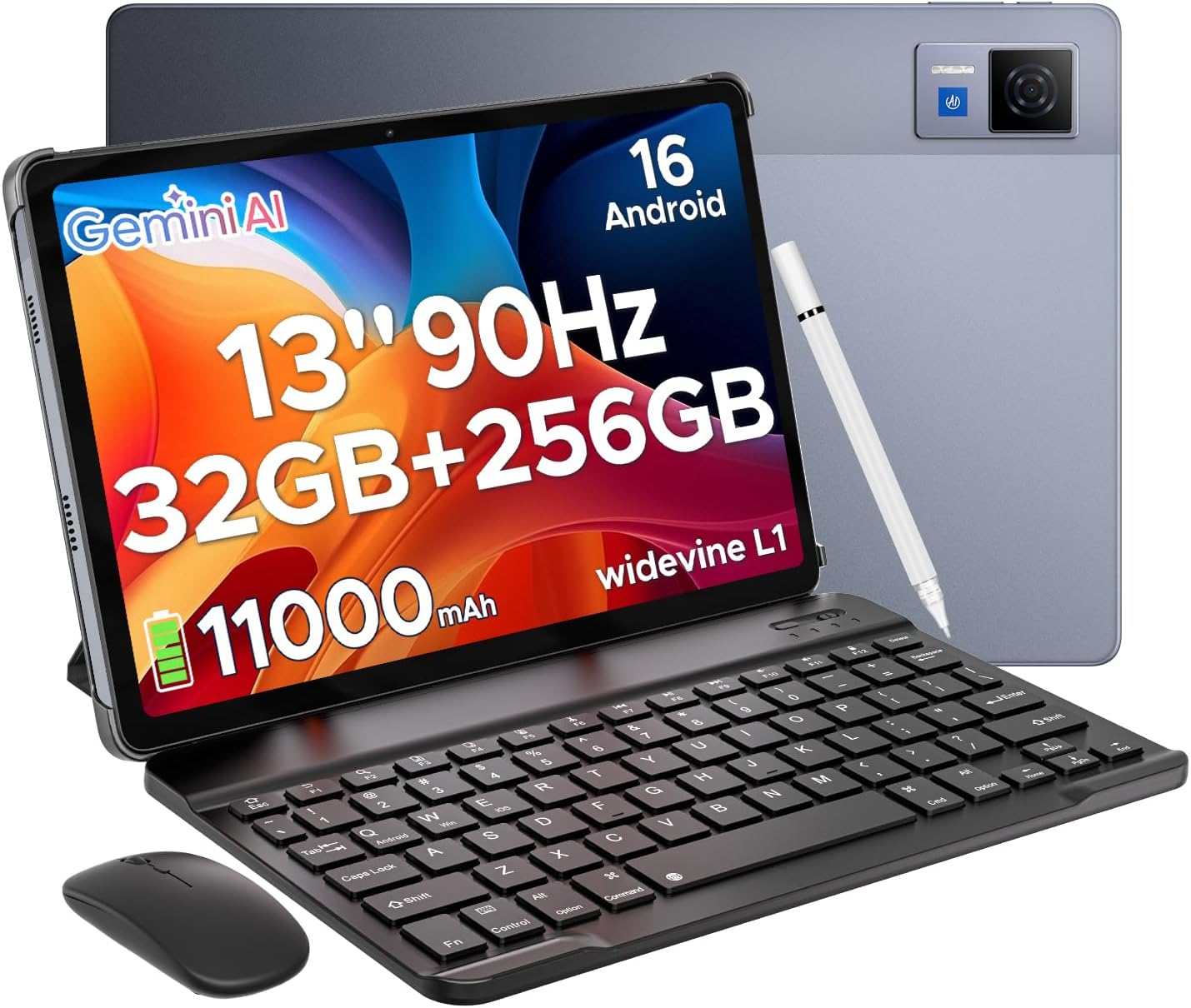
The DOOGEE U13 tablet comes with essential accessories for enhanced productivity and usability, including a Bluetooth keyboard, mouse, and stylus.
2. Setup Guide
2.1 Package Contents
Before starting, ensure all items are present in the package:
- DOOGEE U13 Android 16 Tablet
- Bluetooth Keyboard
- Bluetooth Mouse
- Stylus Pen
- Charger
- Type-C USB Cable
- Manual
- Warranty Card
2.2 Initial Charging
Connect the tablet to the charger using the provided Type-C USB cable. Charge the device fully before first use. The charging indicator will show the battery status.
2.3 Power On/Off
- To Power On: Press and hold the Power button until the DOOGEE logo appears.
- To Power Off: Press and hold the Power button, then select 'Power off' from the options on the screen.
- To Restart: Press and hold the Power button, then select 'Restart' from the options on the screen.
2.4 Connecting Accessories
The keyboard, mouse, and stylus connect via Bluetooth.
- Ensure the accessory is in pairing mode (refer to the accessory's individual manual if needed).
- On the tablet, navigate to Settings > Connected devices > Bluetooth.
- Turn on Bluetooth.
- Select the accessory from the list of available devices to pair.
2.5 Initial Android Setup
Follow the on-screen prompts to complete the initial setup, including connecting to a Wi-Fi network, setting up your Google account, and configuring basic device settings.
3. Operating Instructions
3.1 Basic Navigation
The tablet uses touch gestures for navigation:
- Tap: Select an item or open an app.
- Swipe: Scroll through screens or content.
- Pinch: Zoom in or out on images and web pages.
- Long Press: Access contextual menus or move icons.
3.2 Android 16 Operating System
The U13 tablet runs on the latest Android 16 system, offering enhanced performance and a streamlined user interface. Key features include:
- Improved privacy controls.
- New system photo selector.
- Optimized system performance.
3.3 Multitasking and Productivity
The tablet supports efficient multitasking:
- Split-Screen: Open two applications side-by-side for enhanced productivity. To activate, open a recent app, long-press its icon in the recent apps view, and select 'Split screen'.
- WPS Office: The tablet comes with built-in WPS Office for document creation, editing, and viewing.
3.4 Gemini AI Integration
The tablet integrates Gemini AI for various intelligent functions:
- Content creation assistance.
- Information retrieval and summarization.
- Image analysis.
- Language learning support.

Integrated Gemini AI assists with content creation, information retrieval, image analysis, and more.
3.5 Camera Functions
The tablet is equipped with a 13MP main camera and a 5MP front camera.
- Main Camera: Use for capturing high-resolution photos and videos.
- Front Camera: Ideal for video calls and selfies.

Capture moments with the 13MP main camera and conduct clear video calls with the 5MP front camera.
3.6 Audio and Visual Experience
- Quad Speakers: Provides an immersive audio experience.
- 3.5mm Audio Jack: For private listening with headphones.
- Widevine L1: Supports high-definition streaming from various platforms.
This video demonstrates the immersive audio experience provided by the DOOGEE U13 tablet's quad speakers and its vibrant 13-inch display.
3.7 Connectivity
- WiFi 5: For high-speed internet access.
- GPS: Integrated for navigation services.
- FM Radio: For listening to local radio broadcasts.
4. Maintenance
4.1 Battery Care
- Avoid extreme temperatures to prolong battery life.
- Use the provided 18W fast charger for optimal charging.
- The tablet supports 5W reverse charging, allowing it to charge other devices.

The tablet features an 11000mAh battery with 18W fast charging and 5W reverse charging capabilities.
4.2 Cleaning
- Use a soft, lint-free cloth to clean the screen and body.
- Avoid using harsh chemicals or abrasive materials.
4.3 Storage Management
The tablet has 256GB of internal storage. You can expand storage up to 2TB using a TF (microSD) card (sold separately).
5. Troubleshooting
If you encounter issues with your DOOGEE U13 tablet, refer to the following common solutions:
- Device not powering on: Ensure the battery is charged. Connect the charger and wait a few minutes before attempting to power on again.
- Slow performance: Close unnecessary background applications. Clear cache for frequently used apps. Consider performing a factory reset if performance issues persist after other troubleshooting steps.
- Wi-Fi connectivity issues: Restart your Wi-Fi router and the tablet. Forget the network in tablet settings and reconnect.
- Accessories not connecting: Ensure Bluetooth is enabled on the tablet and the accessory is in pairing mode. Recharge the accessory if it is battery-powered.
5.1 Factory Reset
A factory reset will erase all data from your tablet and restore it to its original factory settings. Back up important data before proceeding.
- Go to Settings > System > Reset options.
- Select Erase all data (factory reset).
- Confirm your choice and follow the on-screen instructions.
6. Specifications
| Feature | Specification |
|---|---|
| Model | U13 VIP Edition |
| Operating System | Android 16 |
| Display Size | 13 Inches |
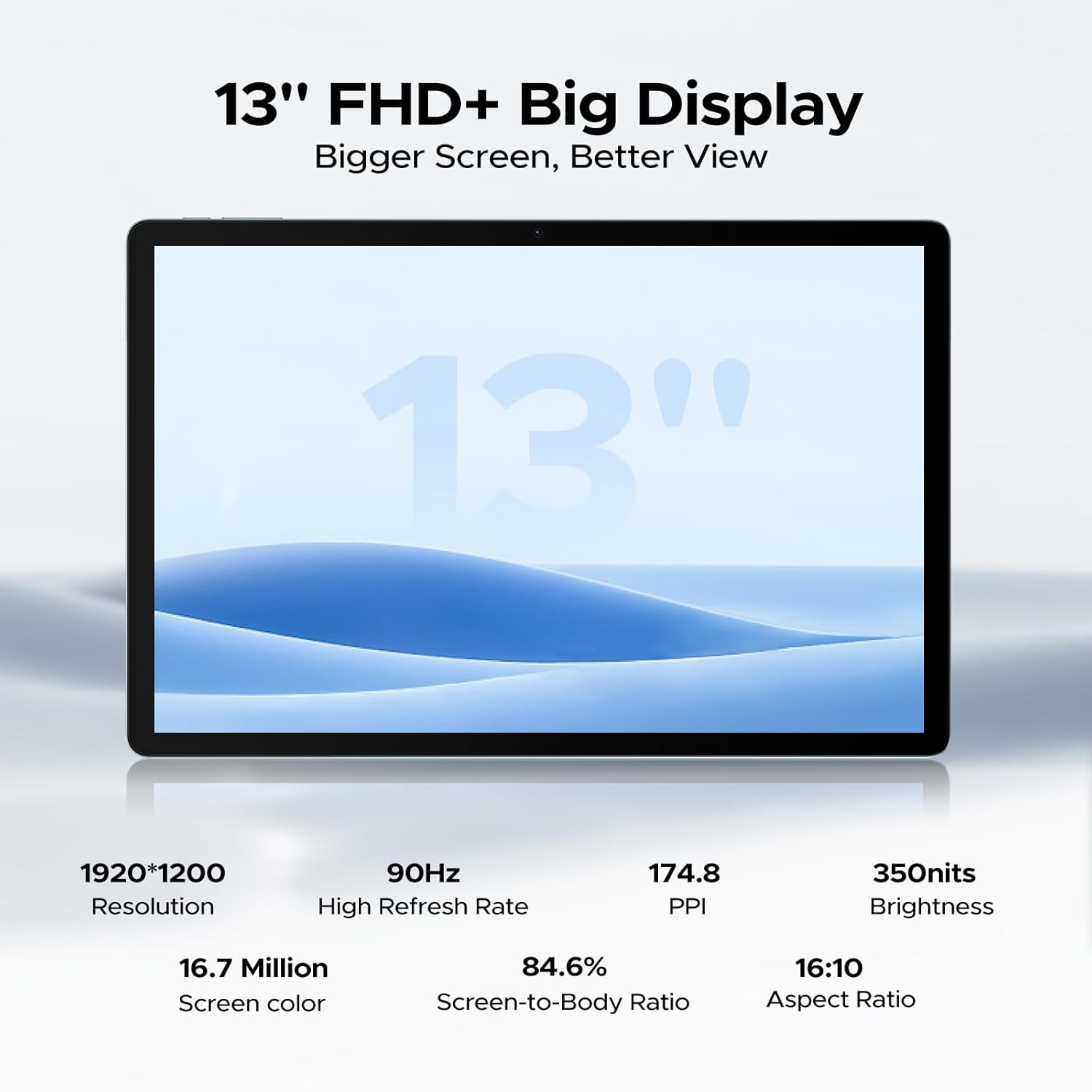
| Screen Resolution | 1920 x 1200 pixels |
| Refresh Rate | 90Hz |
| Processor | UNISOC T7280 Octa-Core (2.2 GHz) |
| RAM | 6GB (expandable to 32GB virtual) |
| Internal Storage | 256GB |
| Expandable Storage | Up to 2TB (TF card, sold separately) |
| Main Camera | 13MP |
| Front Camera | 5MP |
| Battery Capacity | 11000mAh |
| Fast Charging | 18W |
| Reverse Charging | 5W |
| Wireless Connectivity | WiFi 5 (802.11ac), Bluetooth |
| Navigation | GPS |
| Audio | Quad Speakers, 3.5mm Audio Jack |
| Dimensions (LxWxH) | 11.88 x 7.76 x 0.29 inches |
| Weight | 1.48 pounds (670 grams) |

The tablet is powered by the UNISOC T7280 Octa-Core processor, ensuring efficient performance.
Equipped with 6GB physical RAM (expandable to 32GB virtual RAM) and 256GB internal storage, with support for up to 2TB TF card.

The 13-inch FHD+ display offers a resolution of 1920x1200 pixels and a 90Hz refresh rate for clear visuals.
7. Warranty and Support
Your DOOGEE U13 tablet includes a warranty card. Please refer to the warranty card for detailed information regarding warranty coverage and terms.
For further assistance or technical support, please visit the official DOOGEE website or contact customer service through the contact information provided in your warranty documentation.
An overview of the DOOGEE U13 Android 16 Tablet, highlighting its key features and design.


