
Introduction
The Minthouz 8-in-1 USB-C Docking Station is a versatile hub designed to expand the connectivity and storage capabilities of your USB-C enabled devices. It integrates an M.2 SSD enclosure with a comprehensive set of ports, including HDMI, USB-C, USB-A, and SD/TF card readers, while also providing power delivery to your host device.
Product Overview
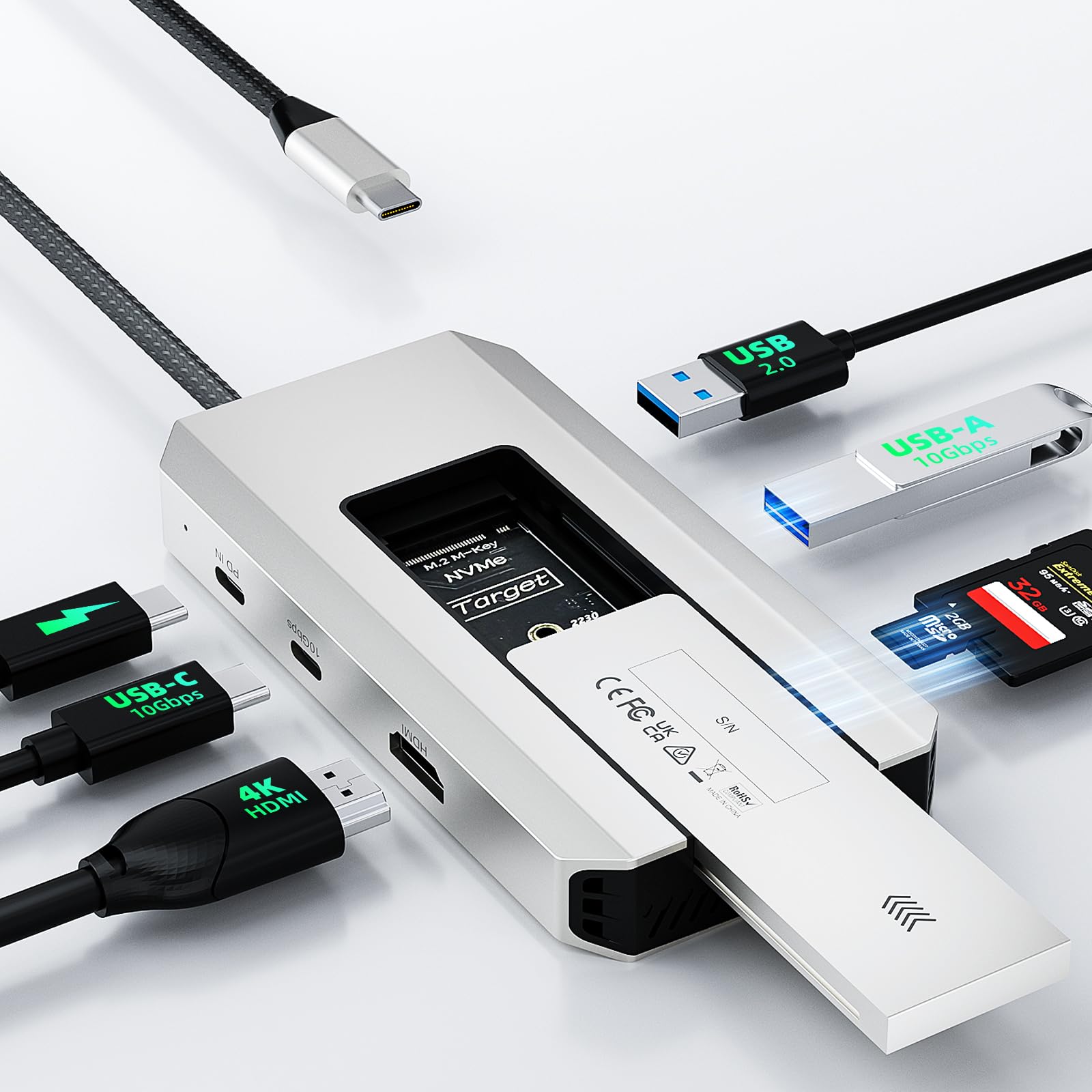
This docking station features a robust aluminum alloy shell and offers the following ports and functionalities:
- HDMI Port: Supports 4K resolution at 60Hz for external displays.
- USB-C (10Gbps) Port: For high-speed data transfer.
- PD IN Port: USB-C Power Delivery input, supporting up to 100W to provide 87W passthrough charging to the host device.
- USB-A 3.2 (10Gbps) Port: For high-speed data transfer with USB-A devices.
- USB-A 2.0 (480Mbps) Port: For connecting peripherals like keyboards or mice.
- Micro SD Card Slot: For reading and writing Micro SD cards.
- SD Card Slot: For reading and writing standard SD cards.
- M.2 SSD Enclosure: Supports PCIe NVMe SSDs (10Gbps) and SATA SSDs (6Gbps) in sizes 2230, 2242, 2260, and 2280.

Setup
M.2 SSD Installation
The M.2 SSD enclosure features a tool-free design for easy installation:
- Slide the top cover of the SSD enclosure in the direction indicated by the arrow to remove it.
- Align your M.2 SSD with the slot and gently push it into place at a 45-degree angle until it clicks securely.
- Place the provided thermally conductive silicone pad onto the installed SSD.
- Slide the cover back into place until it locks.

Connecting to Host Device
Connect the integrated USB-C cable from the docking station to a full-featured USB-C port on your laptop or compatible device. Ensure your device's USB-C port supports Power Delivery (PD) charging, DisplayPort Alt Mode (DP), and data transfer functions for full functionality.


Video 1: Official Minthouz overview of the USB-C Docking Station, demonstrating its features and connectivity.
Operating Instructions
Data Transfer
Utilize the 10Gbps USB-C and USB-A 3.2 ports for high-speed data transfer with compatible external drives and SSDs. The M.2 SSD enclosure supports PCIe NVMe SSDs at 10Gbps and SATA SSDs at 6Gbps. The SD and TF card slots offer data transfer speeds up to 104MB/s. The USB-A 2.0 port provides 480Mbps, suitable for less demanding peripherals.

Video Output
Connect an external monitor to the HDMI port for stunning 4K@60Hz video output. This supports both Mirror and Extend display modes, ideal for presentations, creative work, or immersive entertainment. Ensure your host device's USB-C port supports DisplayPort 1.4 for optimal 4K@60Hz performance; otherwise, the output may be 4K@30Hz.

Power Delivery
The PD IN USB-C port allows you to connect a 100W power adapter to provide up to 87W of continuous power to your host laptop, ensuring it remains charged while using the docking station's other features. This eliminates the need for a separate charger for your laptop.
Specifications
| Product Dimensions | 4.92 x 2.36 x 0.71 inches |
| Item Weight | 5 ounces |
| Model Number | MT-UHP3420 |
| Hardware Interface | HDMI, USB-C, USB-A, SD/TF Card Reader |
| Special Features | Fast Charging, Plug and Play, Portable, Powered, M.2 SSD Enclosure |
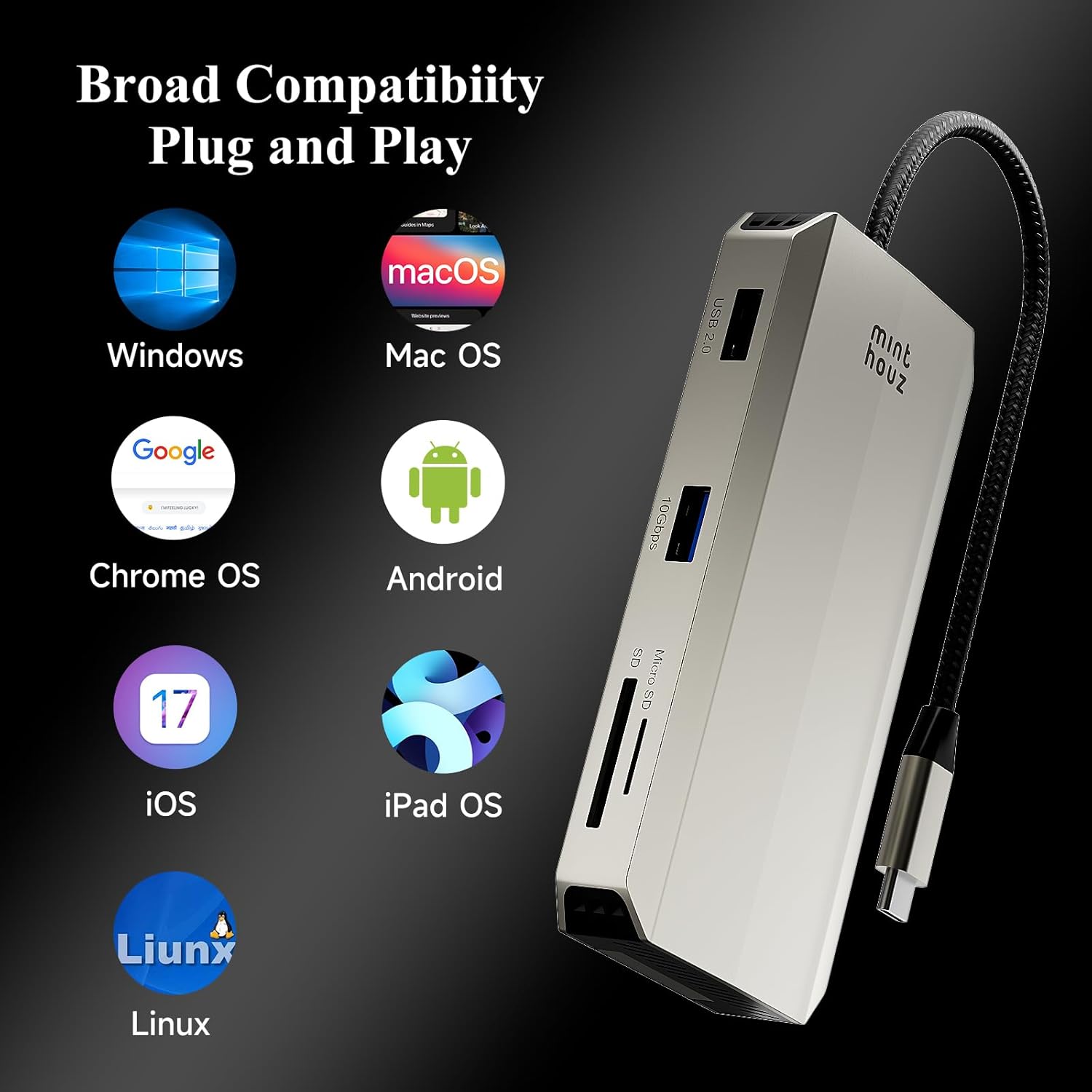
| Compatible Devices | MacBook Pro/Air, Dell, HP Laptops, Windows, macOS, Linux, Android, iOS, iPad OS systems with full-featured USB-C port |
Troubleshooting
- No Display Output: Ensure your host device's USB-C port supports DisplayPort Alt Mode. Check HDMI cable connection and monitor input source.
- Slow Data Transfer: Verify that you are using the 10Gbps USB 3.2 ports for high-speed devices. Ensure your M.2 SSD is properly installed and compatible with NVMe (10Gbps) or SATA (6Gbps) protocols.
- No Power Delivery: Confirm your host device's USB-C port supports Power Delivery. Use a 100W power adapter connected to the PD IN port.
- SSD Not Recognized: Ensure the M.2 SSD is correctly seated in the enclosure and the cover is securely closed. Check the SSD's compatibility (NVMe or SATA, and size).
Maintenance
To ensure optimal performance and longevity of your Minthouz docking station:
- Keep the device clean and free from dust. Use a soft, dry cloth for cleaning.
- Avoid exposing the device to extreme temperatures or humidity.
- The aluminum alloy shell is designed for efficient heat dissipation. Ensure proper airflow around the device, especially during heavy use.
- Handle the device and its connectors with care to prevent damage.

Warranty and Support
For detailed warranty information or technical support, please refer to the included user guide or contact Minthouz customer support at support@minthouz.com.