1. Introduction
This manual provides essential information for setting up, operating, and maintaining your Samsung Galaxy Tab S11 WiFi Android Tablet (Model: SM-X730NZSYXAR). Please read this guide thoroughly to ensure optimal performance and longevity of your device.

Image 1.1: Samsung Galaxy Tab S11 with S Pen.
2. What's in the Box
Verify that all items are present in the product packaging:
- Samsung Galaxy Tab S11 Tablet
- S Pen
- Data Cable (USB-C)
- Ejection Pin
- Quick Start Guide

Image 2.1: Included items in the Galaxy Tab S11 packaging.
3. Product Features
3.1. Design and Durability
The Galaxy Tab S11 features a slim profile, measuring just 5.5mm thin, making it highly portable. It is designed for durability with an IP68 rating, indicating resistance to dust and water. This means the device can withstand immersion in up to 5 feet of fresh water for up to 30 minutes. It is recommended to rinse and dry the device after exposure to water.
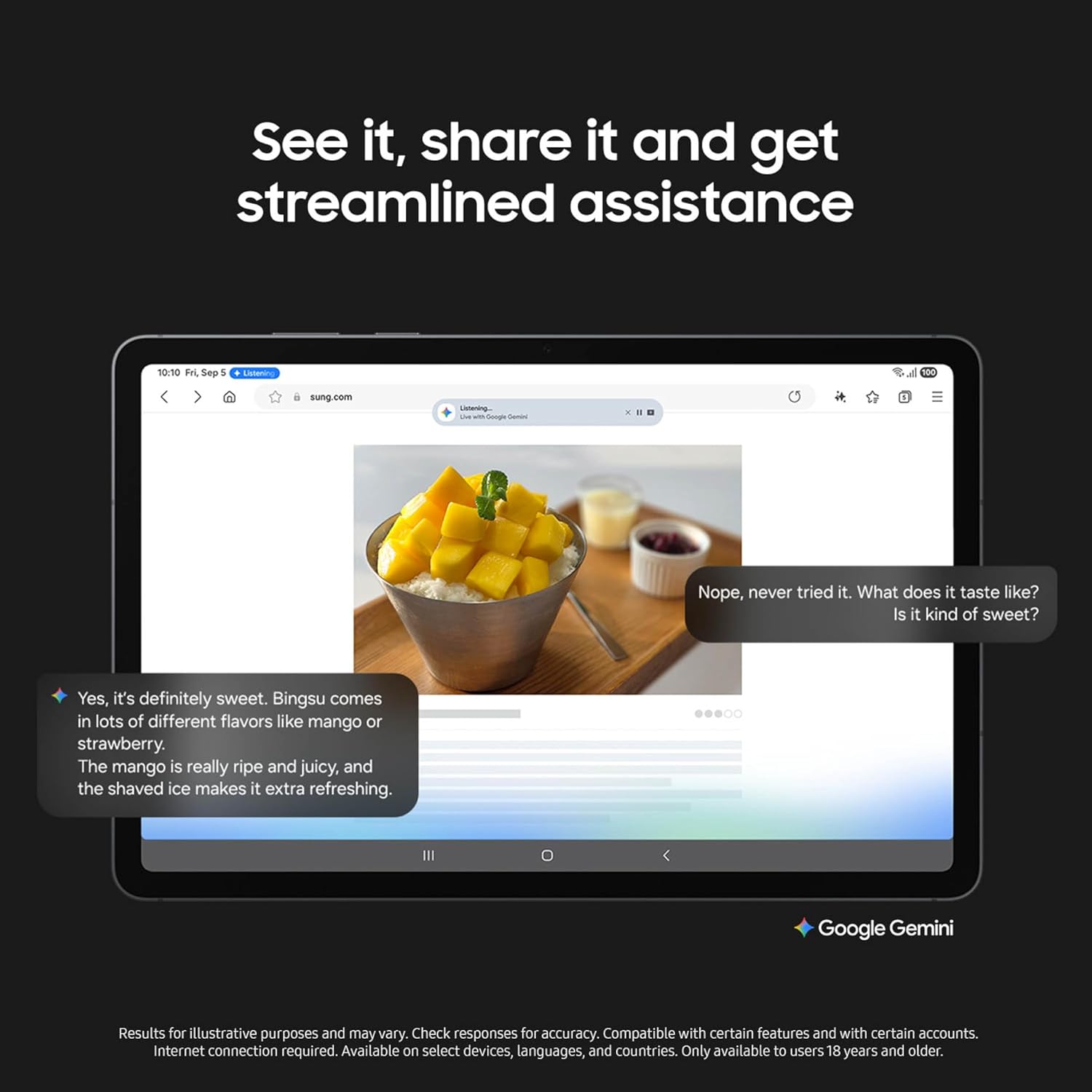
Image 3.1.1: The slim design of the Galaxy Tab S11.

Image 3.1.2: Galaxy Tab S11 demonstrating IP68 water resistance.
3.2. Display
The tablet is equipped with an 11-inch Dynamic AMOLED 2X display, offering a crisp and vibrant visual experience. The screen provides ample space for various tasks and features a peak brightness of 1,600 nits for enhanced visibility in different lighting conditions.

Image 3.2.1: The vibrant display of the Galaxy Tab S11.
3.3. Performance and Multitasking
Powered by a 3nm MediaTek processor, the Galaxy Tab S11 is designed to handle demanding tasks and facilitate smooth multitasking. This allows for efficient workflow management and seamless entertainment experiences, such as 4K video streaming.
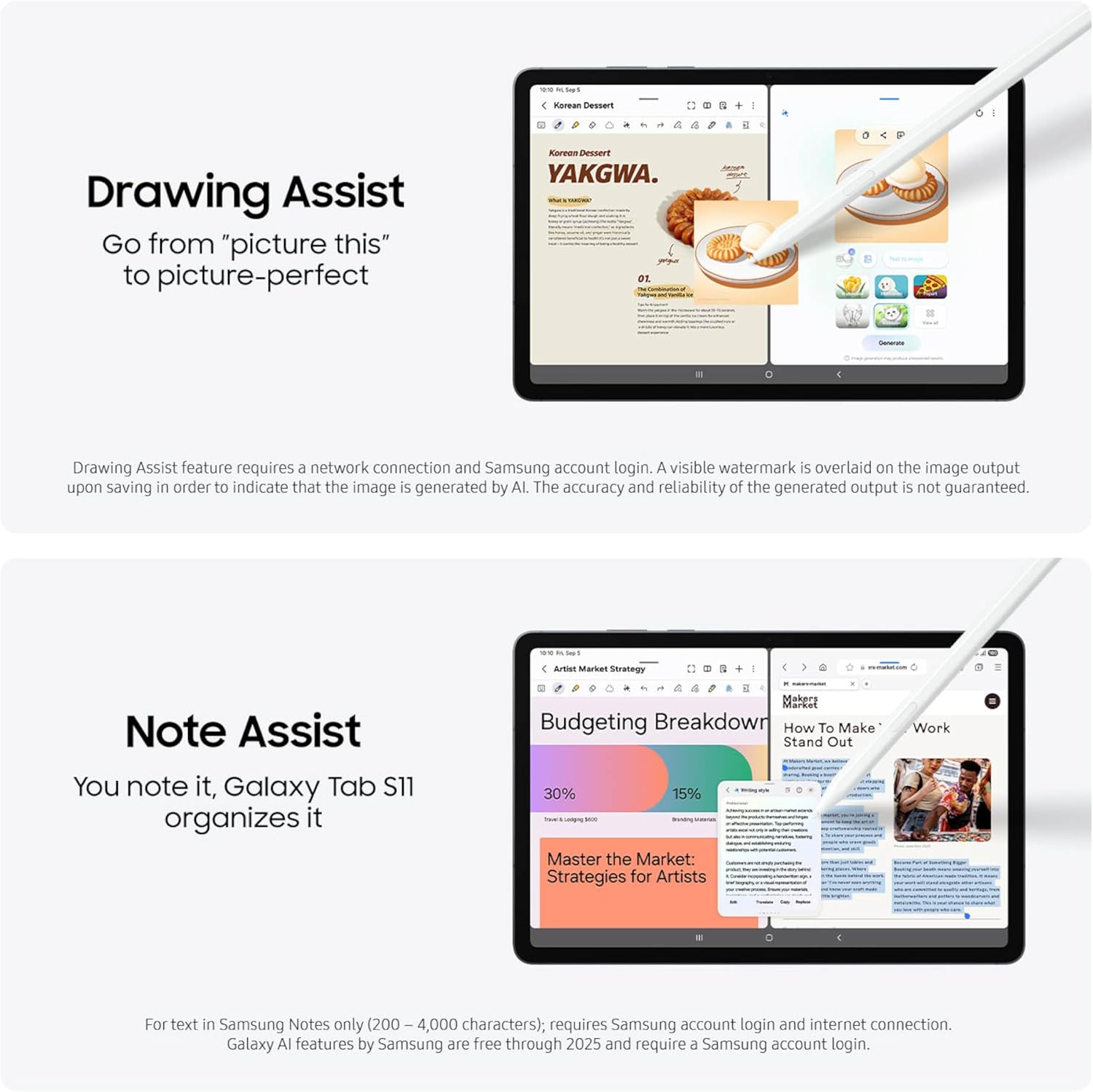
Image 3.3.1: Galaxy Tab S11 in a multitasking scenario.
3.4. S Pen and AI Integration
The included S Pen features an improved hexagonal, cone-shaped design for enhanced precision in writing and drawing. The tablet integrates several AI-powered features to boost productivity and creativity:
- Note Assist: Summarizes and formats notes within Samsung Notes, organizing information efficiently.
- Drawing Assist: Transforms hand-drawn sketches into polished, professional mock-ups.
- Gemini Live: Provides on-the-spot assistance and information by analyzing screen content or camera input.
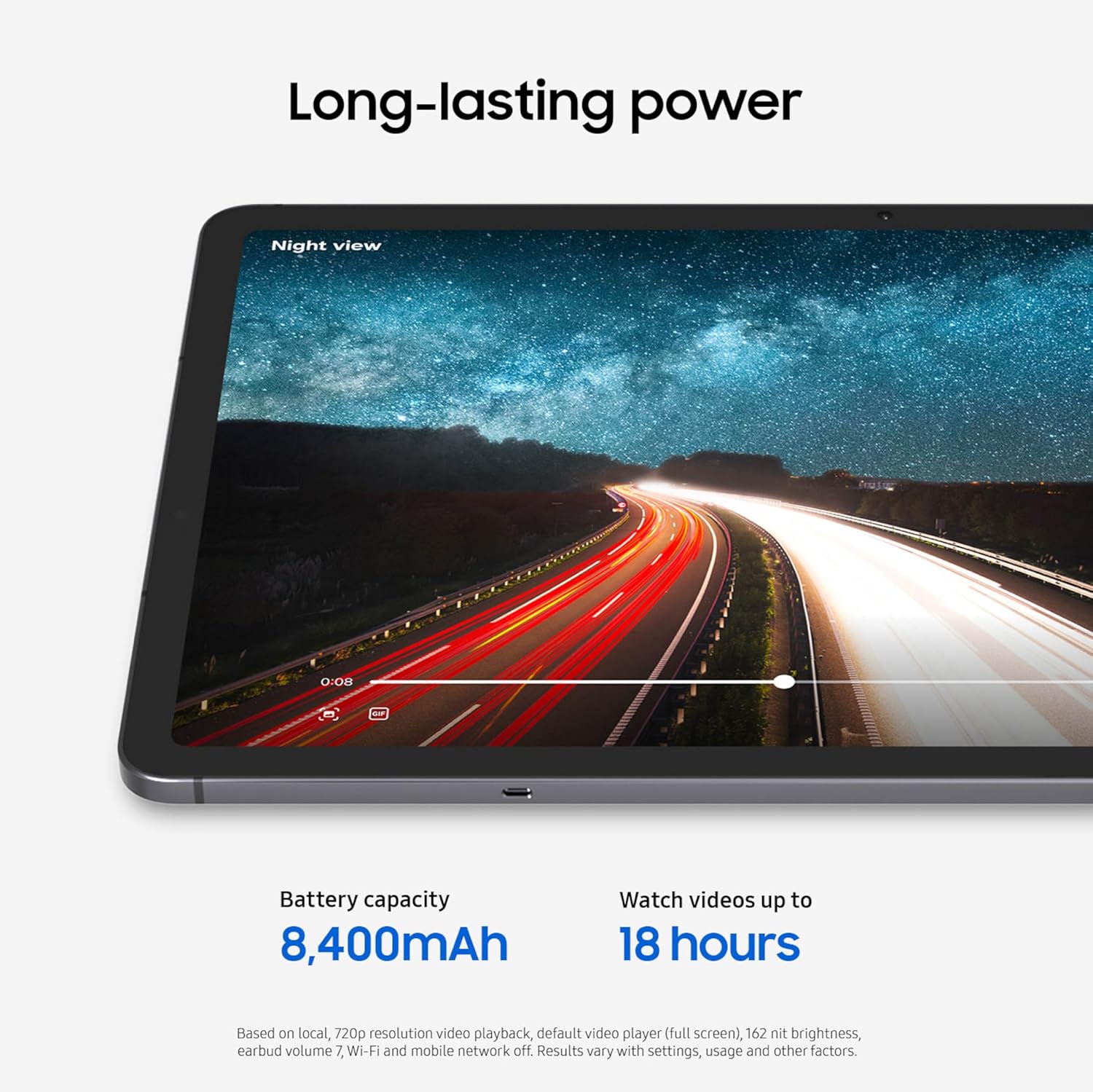
Image 3.4.1: Note Assist and Drawing Assist in action on the Galaxy Tab S11.

Image 3.4.2: Gemini Live providing assistance on the Galaxy Tab S11.

Image 3.4.3: S Pen in use for creative tasks.
3.5. Battery Life
The Galaxy Tab S11 offers extended battery life, providing up to 18 hours of video playback on a single charge. This allows for prolonged usage during work or entertainment activities.

Image 3.5.1: Galaxy Tab S11 demonstrating long-lasting power.
4. Setup
- Power On: Press and hold the power button located on the side of the tablet until the Samsung logo appears.
- Initial Configuration: Follow the on-screen prompts to select your preferred language, connect to a Wi-Fi network, and set up your Samsung account. This process guides you through essential settings.
- S Pen Pairing: The S Pen typically pairs automatically when magnetically attached to the designated area on the tablet. If pairing issues occur, navigate to the tablet's Bluetooth settings to manually connect or troubleshoot.
5. Operating Instructions
5.1. Navigation
- Touch Gestures: Use standard touch gestures such as tapping to select, swiping to scroll, and pinching to zoom to navigate the Android interface.
- Home Screen: Swipe left or right to access different home screens. Swipe down from the top to open the notification panel and quick settings.
5.2. S Pen Usage
- Writing and Drawing: Use the S Pen for precise input in compatible applications like Samsung Notes, drawing apps, or for general navigation.
- Air Actions: Utilize S Pen gestures for remote control functions, such as taking photos or controlling media playback, in supported applications.
- Quick Notes: Double-tap the screen with the S Pen button pressed to quickly open a new note.
5.3. Multitasking
- Split-Screen View: Open two applications side-by-side by accessing the recent apps menu, tapping the app icon, and selecting 'Open in split screen view'.
- Pop-Up Windows: Open applications in resizable pop-up windows for flexible multitasking.
5.4. AI Features
- Note Assist: Within the Samsung Notes application, use Note Assist to automatically summarize or format your written text.
- Drawing Assist: In compatible drawing applications, utilize Drawing Assist to refine and enhance your sketches.
- Gemini Live: Open Gemini Live to receive real-time information or assistance based on what is displayed on your screen or captured by your camera.
6. Maintenance
- Cleaning: Use a soft, lint-free cloth to clean the screen and body of the tablet. Avoid using abrasive materials or harsh chemical cleaners.
- Software Updates: Regularly check for and install system updates. These updates often include security patches, performance improvements, and new features. Access updates via Settings > Software update.
- Battery Care: To prolong battery life, avoid exposing the tablet to extreme temperatures. It is also advisable to avoid frequently letting the battery fully discharge to 0%.
- Storage Management: Periodically review and delete unnecessary files, applications, and media to free up storage space and maintain optimal device performance.
7. Troubleshooting
- Device Not Powering On:
Ensure the battery is sufficiently charged. Connect the tablet to its charger for at least 10 minutes before attempting to power it on again. If the issue persists, perform a forced restart by holding the power button and volume down button simultaneously for about 7-10 seconds. - Wi-Fi Connectivity Issues:
Verify that Wi-Fi is enabled in the tablet's settings. Restart your Wi-Fi router and then restart the tablet. Try forgetting the network in Wi-Fi settings and reconnecting. - S Pen Not Responding:
Ensure the S Pen is correctly attached to the tablet's magnetic charging area to ensure it is charged and paired. Restart the tablet. Check S Pen settings in the device menu to ensure it is enabled and configured correctly. - Slow Performance:
Close any unused applications running in the background. Clear the cache of frequently used apps. Check for and install any available software updates. If performance issues continue, consider performing a factory reset (back up your data first).
8. Specifications
| Feature | Specification |
|---|---|
| Model Number | SM-X730NZSYXAR |
| Operating System | Android 16 |
| Screen Size | 11 Inches |
| Display Resolution | 2560 x 1600 Pixels |
| Processor | 3nm MediaTek (as per product description) |
| RAM Memory | 12 GB |
| Storage Capacity | 512 GB |
| Wireless Technologies | Wi-Fi |
| Special Features | Stylus Support (S Pen), AI Assist |
| Item Weight | 1.06 pounds |
| Product Dimensions | 6.51 x 9.99 x 0.22 inches |
| Color | Silver |
| Manufacturer | SAMSUNG |
9. Warranty and Support
Your Samsung Galaxy Tab S11 is covered by a limited manufacturer's warranty. For detailed warranty information, technical support, or service, please visit the official Samsung support website or contact Samsung customer service directly. Keep your proof of purchase for any warranty claims.


