
1. Product Overview
The Ubiquiti UniFi Device Bridge Pro Sector (UDB-PRO-Sector) is a professional-grade mounting solution engineered for Ubiquiti UniFi display systems and monitoring stations. This mount facilitates flexible positioning and customizable viewing angles, making it suitable for security monitoring and professional environments. Constructed from durable metal components, it ensures stability and support for display adjustments, optimizing viewing positions and workspace efficiency.
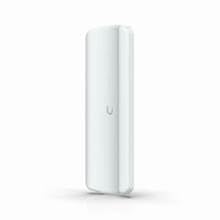
Image 1.1: The Ubiquiti UniFi Device Bridge Pro Sector (UDB-PRO-Sector) mounting solution. This image displays the primary components of the mount, highlighting its robust construction and design for secure display integration.
2. Package Contents
Verify that all components are present in the package before proceeding with installation.
- Ubiquiti UniFi Device Bridge Pro Sector Mount
- All necessary mounting hardware
- Brackets for secure installation
3. Setup and Installation
3.1. Safety Information
- Ensure the mounting surface can support the weight of the mount and the attached display system.
- Use appropriate tools and follow all local safety guidelines during installation.
- Avoid overtightening screws to prevent damage to the mount or display.
- Keep small parts away from children.
3.2. Mounting Instructions
Follow these steps for a secure and stable installation:
- Identify Mounting Location: Choose a suitable wall or surface that provides adequate support and optimal viewing angles for your UniFi display system.
- Mark Drill Holes: Position the mounting bracket against the chosen surface and use a pencil to mark the locations for drilling. Ensure the marks are level.
- Drill Pilot Holes: Using an appropriate drill bit for your wall type, drill pilot holes at the marked locations.
- Attach Mounting Bracket: Secure the mounting bracket to the wall using the provided screws and anchors. Ensure it is firmly attached and stable.
- Assemble Device Bridge: Attach the UniFi Device Bridge Pro Sector to the mounting bracket according to the included diagrams.
- Mount UniFi Display: Secure your UniFi display system to the Device Bridge Pro Sector. Ensure all connections are tight and the display is stable.
- Adjust Viewing Angle: Loosen the adjustment points on the mount to set your desired viewing angle, then tighten them securely to lock the position.
4. Operating the Mount
4.1. Basic Operation
The UDB-PRO-Sector mount is designed for flexible positioning. Once your UniFi display is securely attached, you can adjust its position to optimize viewing. The mount allows for changes in tilt, swivel, and sometimes rotation, depending on the specific configuration. To adjust, gently loosen the designated adjustment screws or levers, reposition the display, and then firmly tighten them to lock the display in place. Always support the display while making adjustments to prevent accidental drops.
5. Maintenance
Regular maintenance ensures the longevity and optimal performance of your UDB-PRO-Sector mount.
- Cleaning: Use a soft, dry cloth to wipe down the mount. Avoid abrasive cleaners or solvents that could damage the finish.
- Inspection: Periodically check all screws and connections to ensure they remain tight. Retighten if necessary.
- Lubrication: Moving parts are designed for smooth operation and generally do not require lubrication. If movement becomes stiff, consult support.
6. Troubleshooting
This section addresses common issues you might encounter.
| Problem | Possible Cause | Solution |
|---|---|---|
| Mount feels unstable | Loose mounting screws or inadequate wall support. | Ensure all mounting screws are tightened. Verify the wall material is suitable for the weight. |
| Difficulty adjusting display angle | Adjustment screws are too tight. | Slightly loosen the adjustment screws, reposition the display, then retighten. |
| Display sags or drifts | Adjustment mechanism not fully secured. | Ensure all adjustment points are firmly tightened after positioning the display. |
7. Specifications
Technical details for the Ubiquiti UniFi Device Bridge Pro Sector (UDB-PRO-Sector).
| Feature | Detail |
|---|---|
| Model | UDB-PRO-Sector |
| Compatibility | Ubiquiti UniFi display systems and monitoring stations |
| Material | Durable Metal Components |
| Package Dimensions | 12 x 8 x 3 inches |
| Item Weight | 2 pounds |
| Manufacturer | Ubiquiti |
8. Warranty Information
The Ubiquiti UniFi Device Bridge Pro Sector (UDB-PRO-Sector) is backed by a 1-year manufacturer warranty. This warranty covers defects in materials and workmanship under normal use. Please retain your proof of purchase for warranty claims. For specific terms and conditions, refer to the official Ubiquiti warranty policy.
9. Support
For technical assistance, troubleshooting beyond this manual, or warranty inquiries, please contact Ubiquiti support through their official website. You may find additional resources, FAQs, and contact information at www.ui.com/support.


