
1. Introduction
This manual provides essential instructions for the safe and efficient use of your Hama Smartwatch 4000. Please read this manual thoroughly before using the device and keep it for future reference. The Hama Smartwatch 4000 combines fitness tracking, daily assistance, and communication features, designed to enhance your daily life and fitness journey.

Figure 1: Hama Smartwatch 4000, front view. The watch features a black square-shaped display with a black silicone strap. The screen shows a digital clock face with the date 'FRI 20' and battery level.
2. Safety Information
- Water Resistance: The device is IP68 rated, meaning it is protected against dust and continuous immersion in water. However, it is not suitable for swimming or other water activities where water pressure may exceed the rating. Avoid prolonged exposure to hot water or steam.
- Cleaning: After prolonged use, clean the device with a slightly damp cloth. Do not use harsh chemicals or abrasive materials.
- Battery: Do not attempt to replace the battery yourself. Contact qualified service personnel. Do not expose the device to extreme temperatures or direct sunlight.
- Medical Device Disclaimer: This device is not a medical device and should not be used for diagnosing or treating any medical condition. Consult a medical professional for health-related concerns.
- Driving Safety: Do not operate the device or check notifications while driving or performing activities that require full attention.

Figure 2: IP68 waterproof rating icon, indicating protection against dust and water immersion.
3. Setup
3.1. Unboxing and Initial Charge
- Carefully remove the smartwatch and all accessories from the packaging.
- Connect the magnetic charging cable to the charging contacts on the back of the smartwatch.
- Plug the USB end of the charging cable into a compatible USB power source (e.g., computer USB port, USB wall adapter).
- Allow the smartwatch to charge completely before first use. A full charge typically takes approximately 2.5 hours.

Figure 3: Rear view of the Hama Smartwatch 4000, highlighting the metallic charging contacts and optical sensors for health monitoring.
3.2. Installing the Hama Fit Move App
- Scan the QR code in the Quick Start Guide or search for "Hama Fit Move" in your smartphone's app store (Google Play Store for Android, Apple App Store for iOS).
- Download and install the app.
- Ensure your smartphone meets the system requirements: Android 6.0 or higher / iOS 12.0 or higher.
3.3. Pairing the Smartwatch with Your Smartphone
- Enable Bluetooth on your smartphone.
- Open the Hama Fit Move app and follow the on-screen instructions to create an account or log in.
- In the app, navigate to the device pairing section and select your Hama Smartwatch 4000 from the list of available devices.
- Confirm the pairing request on both your smartphone and the smartwatch if prompted.
- Once paired, the smartwatch will synchronize data with the app.

Figure 4: The Hama Smartwatch 4000 displayed alongside a smartphone screen showing the Hama Fit Move application, which presents various health and activity metrics.
4. Operating the Smartwatch
4.1. Basic Navigation
- Touch Screen: The 1.65" full-touch color display allows for intuitive navigation. Swipe left, right, up, or down to access different menus and functions. Tap to select.
- Side Button: Press the side button to return to the home screen or wake the device. A long press may activate specific functions (customizable in settings).

Figure 5: A close-up view of the Hama Smartwatch 4000, showing the physical button on the right side of the watch face and the textured silicone strap.
4.2. Communication Features
- Phone Calls: Make and receive calls directly from the smartwatch when connected to your smartphone via Bluetooth.
- Message Notifications: Receive notifications for incoming calls, SMS, WhatsApp, Instagram, email, and other apps. The watch will vibrate and display the message content.
- Voice Assistant: Access your smartphone's voice assistant (Siri or Google Assistant) directly from the watch for hands-free control.
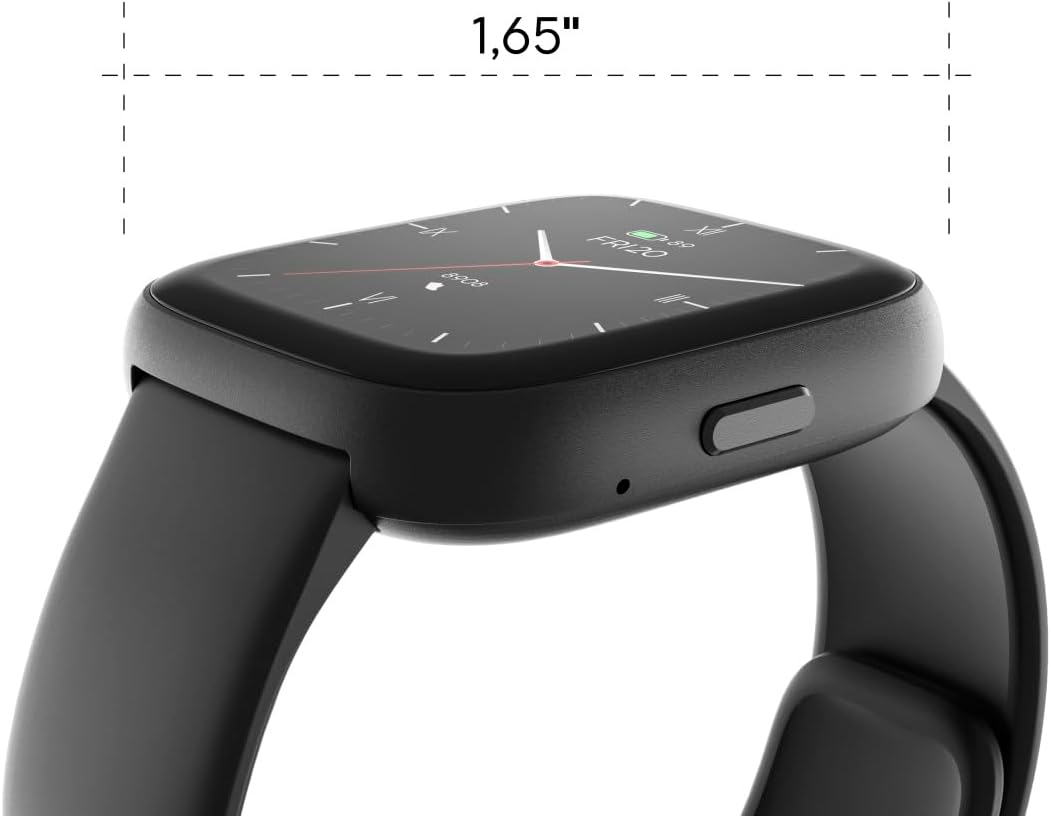
Figure 6: The Hama Smartwatch 4000 screen showing a WhatsApp notification from 'Dennis' with the message 'Available tonight?'.

Figure 7: The Hama Smartwatch 4000 screen showing the 'Voice Assistant' interface with a 'Listening' prompt and an audio waveform.
4.3. Fitness Tracking
- Sports Modes: Choose from over 100 sports modes. 20 sports can be stored directly on the watch for quick access.
- Activity Monitoring: Tracks steps, distance, calories burned, and active minutes.
- Heart Rate: Continuous heart rate monitoring, including resting and average heart rate.
- Blood Oxygen (SpO2): Measures blood oxygen levels.
- Advanced Metrics: Provides VO2max, aerobic training effect, and recommended recovery time for detailed workout analysis.

Figure 8: The Hama Smartwatch 4000 screen showing heart rate data, indicating a current heart rate of 86 bpm and a graph of heart rate over time.
4.4. Health Monitoring
- Sleep Tracker: Analyzes light, deep, and REM sleep phases to provide a comprehensive sleep score.
- Stress Level: Monitors stress levels throughout the day.
- Breathing Exercises: Guided breathing exercises to help manage stress.
- Reminders: Hydration reminders, movement reminders, and menstrual cycle tracking.
4.5. Additional Functions
- Music Control: Control music playback on your smartphone (play, pause, skip tracks, adjust volume).
- Camera Remote: Use the smartwatch as a remote shutter for your smartphone camera.
- Weather Display: Get current weather forecasts.
- Alarms & Timer: Set alarms and use the stopwatch/timer functions.
- Find Phone: Locate your paired smartphone.
- Customizable Watch Faces: Personalize your watch face through the Hama Fit Move app.

Figure 9: The Hama Smartwatch 4000 screen showing the music control interface with play/pause, skip track buttons, and a volume slider.
5. Maintenance
5.1. Cleaning
Regular cleaning helps maintain the device's performance and appearance.
- Wipe the screen and strap with a soft, slightly damp cloth.
- Do not use abrasive cleaners, solvents, or harsh chemicals, as these can damage the device's finish and seals.
- Ensure the charging contacts are clean and dry before charging to prevent corrosion.
5.2. Storage
When not in use for extended periods, store the smartwatch in a cool, dry place away from direct sunlight and extreme temperatures.
6. Troubleshooting
If you encounter issues with your Hama Smartwatch 4000, refer to the following common solutions:
- Device Not Turning On: Ensure the device is fully charged. Connect it to the charger and wait a few minutes before attempting to power it on.
- Cannot Pair with Smartphone:
- Ensure Bluetooth is enabled on your smartphone.
- Make sure the smartwatch is within Bluetooth range of your smartphone.
- Restart both your smartphone and the smartwatch.
- Clear the Bluetooth cache on your smartphone (if applicable) and try pairing again.
- Notifications Not Appearing:
- Check notification settings in the Hama Fit Move app to ensure app notifications are enabled.
- Verify that your smartphone's notification access is granted to the Hama Fit Move app.
- Ensure the smartwatch is not in 'Do Not Disturb' mode.
- Inaccurate Health Data:
- Ensure the smartwatch is worn snugly on your wrist, but not too tight.
- Clean the sensors on the back of the watch.
- Environmental factors and individual physiology can affect sensor accuracy.
- Short Battery Life:
- Reduce screen brightness.
- Disable continuous heart rate monitoring if not needed.
- Limit the number of apps sending notifications to the watch.
- Ensure the watch is fully charged.
If the issue persists, consult the Hama Fit Move app's help section or contact Hama customer support.
7. Specifications
| Feature | Detail |
|---|---|
| Brand | Hama |
| Model Number | 00178640 |
| Display Size | 1.65 inches |
| Display Type | LCD |
| Screen Brightness | 450 nits |
| Connectivity | Bluetooth 5.3 |
| Water Protection | IP68 (Dust and continuous immersion protection) |
| Strap Material | Silicone |
| Case Material | Plastic |
| Battery Capacity | 300 mAh |
| Battery Type | Lithium-polymer |
| Average Battery Life | 5-7 days |
| Charging Time | Approx. 2.5 hours |
| System Requirements | Android 6.0 / iOS 12.0 or higher |
| Dimensions (W x H x L) | 3.9 x 1.1 x 4.6 cm |
| Weight | 39 g |
| Voice Assistant | Apple Siri / Google Assistant |
| Measurement Functions | Aerobic training effect, Blood oxygen, Avg. Heart rate, Step frequency, Recommended recovery time, Distance, Speed, Heart rate, Heart rate zones, Calories burned, Max. Heart rate, Max. oxygen consumption (VO2max), Pulse, Sleep, Sleep score and phases, Pedometer, Stress, Pace, Training time |
| Additional Functions | Activity detection, Breathing exercise, BT call, Notifications, Movement reminder, Adjustable screen brightness, Date, Power saving mode, Heart rate alarms, Camera control, Menstrual cycle, Music control, Do not disturb mode, Sports modes, Stopwatch, Stress tracker, Flashlight, Phone finder, Timer, Training log, Drink reminder, Clock, Alarm, Weather display, Watch faces |
8. Warranty & Support
8.1. Warranty Information
Hama products are covered by a manufacturer's warranty. Please refer to the warranty card included with your product or visit the official Hama website for detailed warranty terms and conditions specific to your region. Keep your proof of purchase for warranty claims.
8.2. Customer Support
For technical support, troubleshooting assistance, or service inquiries, please contact Hama customer support. You can find contact information on the official Hama website (www.hama.com) or through the Hama Fit Move application.