
1. Product Overview
The MOKiN Thunderbolt 4 Dock (Model MODK1903) is a versatile docking station designed to expand the connectivity of your laptop. It features multiple high-speed ports, advanced display capabilities, and power delivery for efficient workflow management.
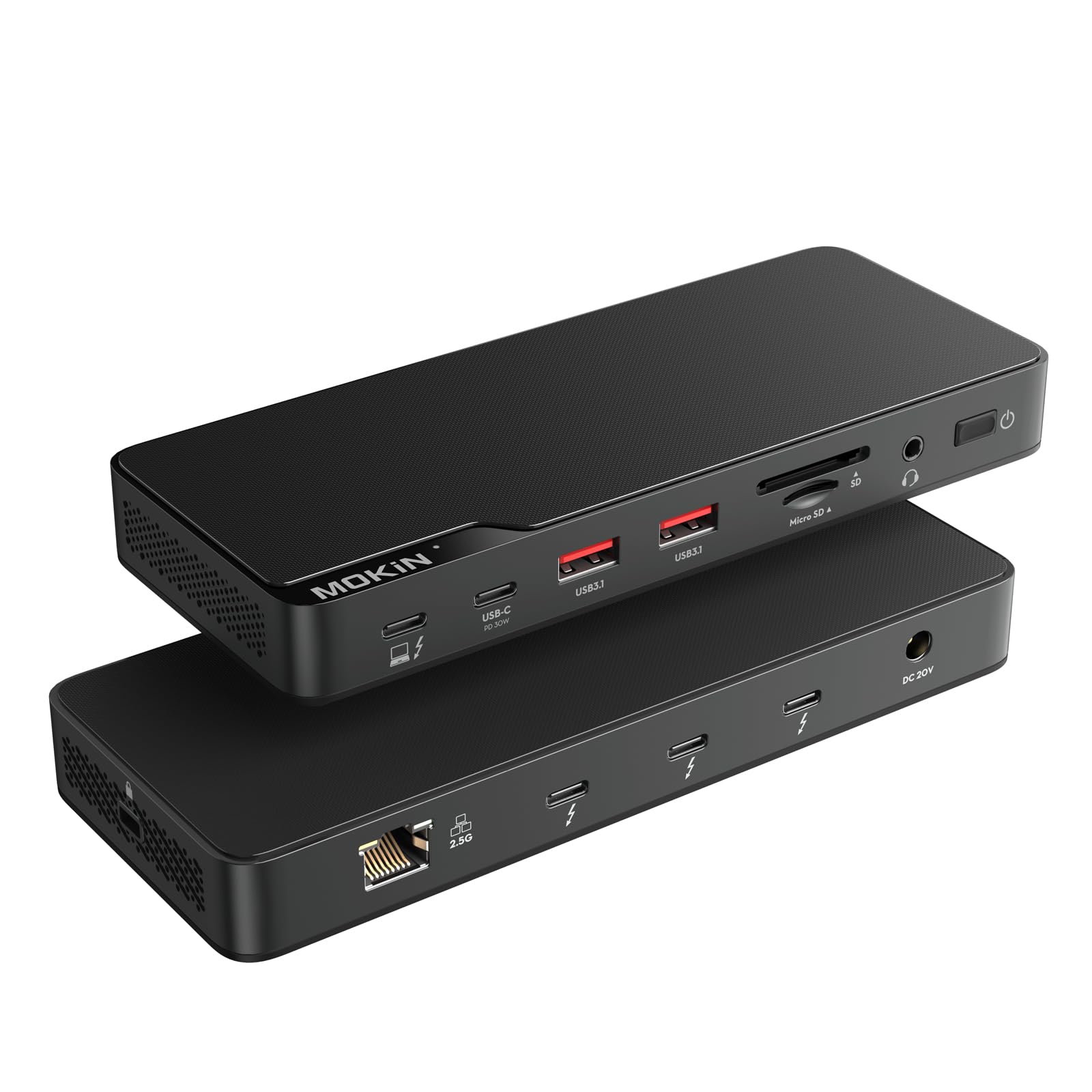
Image 1: Front and rear view of the MOKiN Thunderbolt 4 Dock, highlighting all available ports and their labels.
2. Key Features and Ports
The MOKiN Thunderbolt 4 Dock offers a comprehensive set of ports to enhance your computing experience:
- Thunderbolt 4 Host Port: Up to 40 Gbp/s data transfer, provides up to 85W power delivery to the host computer.
- Thunderbolt 4 Device Ports (x3): Up to 40 Gbp/s data transfer, provides 15W power delivery for external drives and other devices.
- USB-A 3.1 Ports (x2): 10Gbps data transfer speed.
- USB-C 2.0 Port (x1): Supports 30W Power Delivery and 480Mbps data transfer.
- 2.5GbE Ethernet Port (x1): Provides high-speed wired network connectivity, 2.5 times faster than 1Gbps, compatible with 1Gbps routers and switches.
- 3.5mm Audio Ports (x1): For audio input (microphone) and output (headphones).
- SD/Micro SD UHS-II Card Reader (x1): Supports SD4.0 with up to 250MB/s transfer speed, allows simultaneous use of both card slots.
- DC Power Input: 150W DC power adapter for dock operation and laptop charging.
- Security Lock Slot: For physical security of the dock.
- Power Switch: To turn the dock on/off.

Image 2: Detailed view of the MOKiN Thunderbolt 4 Dock's front and rear ports with their respective labels and functions.
3. Setup and Installation
- Connect Power: Connect the 150W DC Power adapter to the DC Power Input port on the dock and then to a power outlet.
- Connect to Host Laptop: Use the provided 2.62ft Thunderbolt 4 cable to connect the Thunderbolt 4 Host port (85W charging) on the dock to a Thunderbolt 4 port on your laptop.
- Connect Displays:
- For a single 8K@30Hz display, connect it to one of the Thunderbolt 4 device ports using a compatible cable.
- For dual 4K@60Hz displays, connect them to two separate Thunderbolt 4 device ports using compatible cables.
- For triple 4K displays (Thunderbolt Port Triple Display), connect each display to a separate Thunderbolt 4 device port.
Note: Dual-screen mode is only available on computers with Intel processors and MacBook models with M1 Pro/Max, M2 Pro/Max, or M3 Pro/Max chips. M1/M2/M3 MacBook Air series only connect one external display.
- Connect Peripherals: Connect your USB-A, USB-C, Ethernet, audio devices, and SD/Micro SD cards to their respective ports on the dock.
- Power On: Press the power switch on the dock to turn it on.
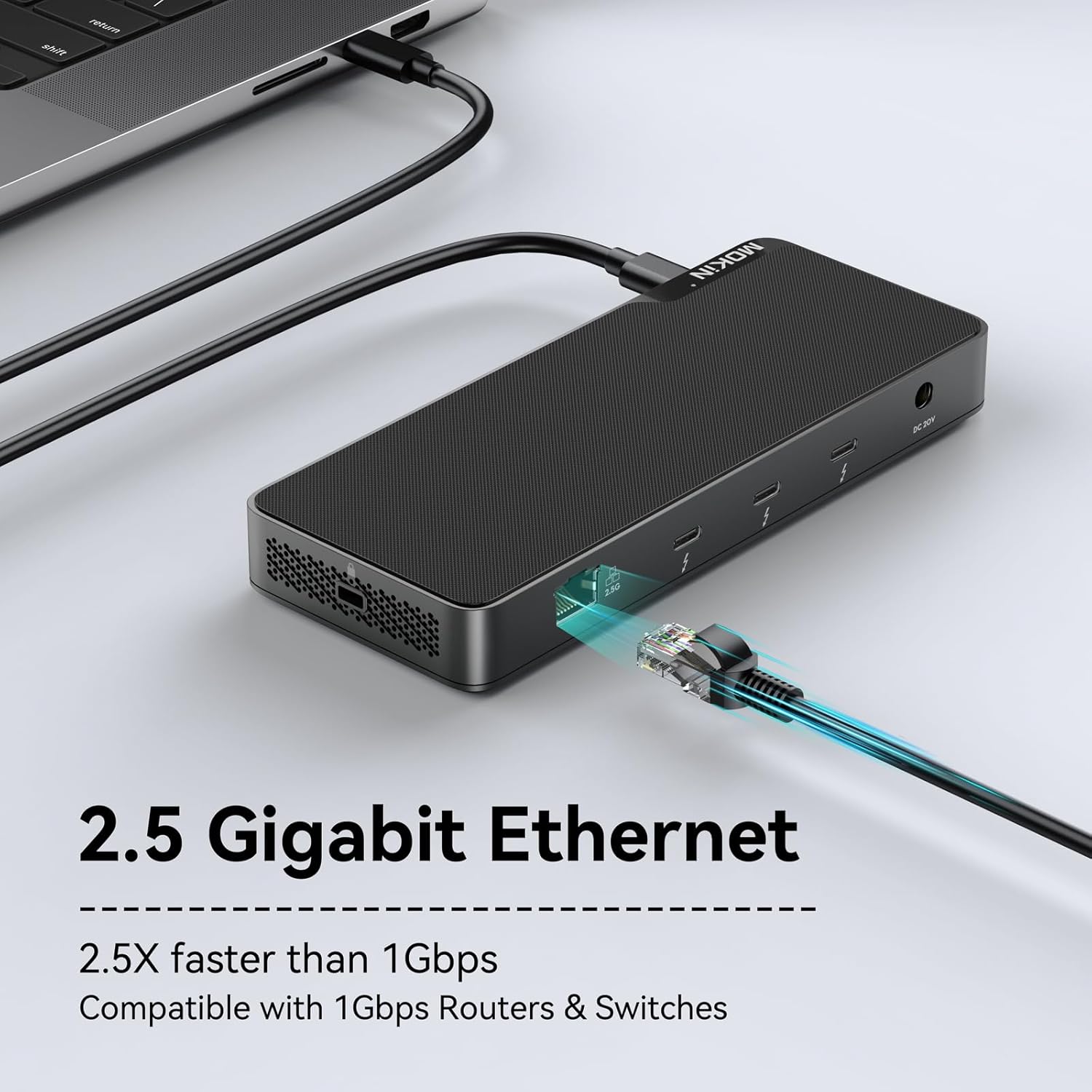
Image 3: The MOKiN Thunderbolt 4 Dock connected to a laptop, external hard drive, and other peripherals, demonstrating its multi-port functionality.
Video 1: An overview of the MOKiN Thunderbolt 4 Dock, demonstrating its features and connectivity options. This video is provided by the seller.
4. Operating Instructions
4.1 Display Configuration
The dock supports various display configurations depending on your host system:
- Single Display: Up to 8K@30Hz resolution.
- Dual Displays: Up to dual 4K@60Hz resolution.
- Triple Displays: Supports triple different 4K displays simultaneously.
The dock supports extended mode (ABC), allowing you to use different screens to expand your workspace.

Image 4: A MacBook connected to the MOKiN Thunderbolt 4 Dock, displaying content across two external monitors in extended mode on macOS.
4.2 Power Delivery
The dock provides efficient power management:
- Host Charging: The Thunderbolt 4 host port delivers up to 85W of power to your connected laptop.
- Device Charging: The Thunderbolt 4 device ports provide 15W of power, suitable for charging peripherals like external SSDs.
- USB-C PD Charging: The USB-C 2.0 port supports 30W Power Delivery for charging compatible devices.
A single cable connection to your laptop will charge your device and provide all necessary connectivity.

Image 5: The MOKiN Thunderbolt 4 Dock simultaneously charging a laptop (85W), a smartphone (30W PD), and earbuds/smartwatch (15W), illustrating its universal charging capabilities.
5. Specifications
| Feature | Specification |
|---|---|
| Model Number | MODK1903 |
| Host Connection | Thunderbolt 4 (up to 40 Gbp/s, 85W PD) |
| Downstream Thunderbolt 4 Ports | 3x (40 Gbp/s, 15W PD each) |
| USB-A Ports | 2x USB-A 3.1 (10Gbps) |
| USB-C Ports | 1x USB-C 2.0 (30W PD, 480Mbps) |
| Ethernet | 2.5GbE (2.5 Gigabit Ethernet) |
| Audio | 1x 3.5mm Audio/Mic port |
| Card Reader | SD/Micro SD UHS-II (250MB/s) |
| Max Display Resolution (Single) | 8K@30Hz |
| Max Display Resolution (Dual/Triple) | 4K@60Hz |
| Power Adapter | 150W DC Power Adapter |
| Dimensions | 9.92 x 6.18 x 2.05 inches |
| Item Weight | 1.81 pounds |
6. Troubleshooting
6.1 Display Issues
- No Display/Incorrect Resolution:
- Ensure all display cables are securely connected to both the dock and the monitors.
- Verify that your laptop and monitors support the desired resolutions and refresh rates.
- Check your laptop's display settings to ensure external monitors are detected and configured correctly (e.g., extended mode).
- For MacBooks, note that M1/M2/M3 MacBook Air series only support one external display. Dual-screen mode is available for Intel processors and M1 Pro/Max, M2 Pro/Max, or M3 Pro/Max chips.
6.2 Power Delivery Issues
- Laptop Not Charging:
- Ensure the 150W DC Power adapter is correctly connected to the dock and a working power outlet.
- Verify the Thunderbolt 4 cable is connected to the Thunderbolt 4 Host port on the dock and a compatible Thunderbolt 4 port on your laptop.
- Check if your laptop supports charging via Thunderbolt 4 and the required wattage (up to 85W).
6.3 Connectivity Issues
- Peripherals Not Detected:
- Ensure the dock is powered on.
- Try connecting the peripheral to a different port on the dock.
- Ensure the peripheral's drivers are up to date on your host laptop.
- Slow Data Transfer:
- Verify that your devices and cables support the advertised speeds (e.g., 10Gbps for USB-A 3.1, 40Gbps for Thunderbolt 4).
- Ensure you are using high-quality, certified cables.
7. Warranty and Support
The MOKiN Thunderbolt 4 USB C Docking Station (Model MODK1903) is covered by a 2-year labor warranty.
For technical support or warranty claims, please refer to the contact information provided in your User Guide or visit the official MOKiN website.


