
1. Introduction
Thank you for choosing the Rumoon BT9944 Over-Ear Bluetooth Headphones. This manual provides essential information for the proper setup, operation, and maintenance of your headphones. Please read it thoroughly before use to ensure optimal performance and longevity of your device.
Package Contents
- Rumoon BT9944 Over-Ear Bluetooth Headphones
- 3.5mm Audio Cable
- 6.35mm Adapter (snap-on for 3.5mm cable)
- USB Charging Cable
- User Manual
2. Safety Information
To prevent damage to your headphones or personal injury, please observe the following safety precautions:
- Avoid prolonged exposure to high volume levels to prevent hearing damage.
- Do not use the headphones in situations where inability to hear ambient sounds could be dangerous (e.g., driving, cycling, walking in traffic).
- Keep the headphones dry. Do not expose them to rain, moisture, or extreme temperatures.
- Do not disassemble, repair, or modify the headphones. This may void the warranty and pose a safety risk.
- Keep out of reach of children.
- Use only the provided or certified charging cables.
3. Product Overview
The Rumoon BT9944 headphones are designed for both wireless and wired audio applications, featuring 50mm drivers for clear sound and a comfortable, durable design.
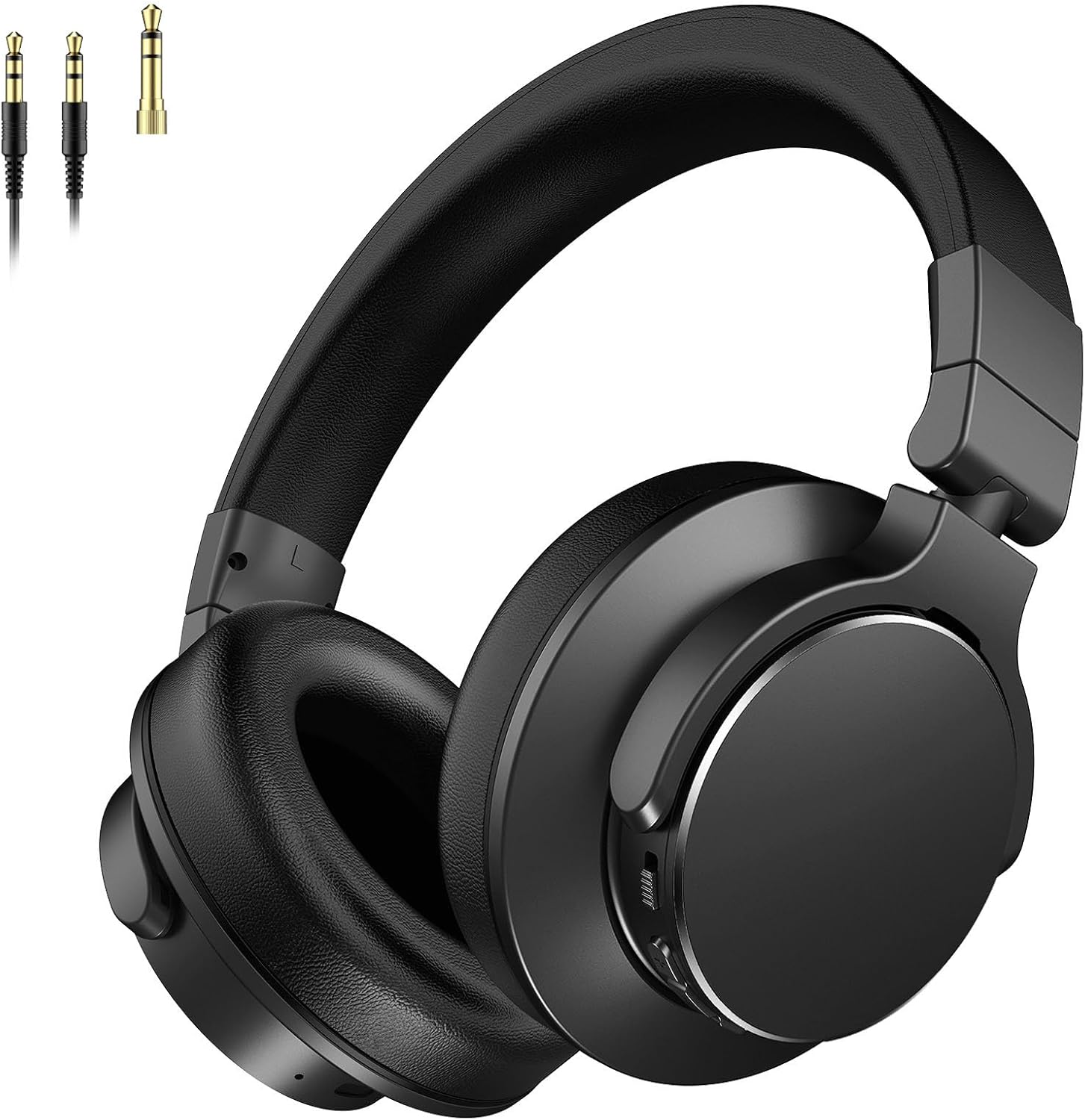
Image: Front view of the Rumoon BT9944 Over-Ear Bluetooth Headphones, showcasing their sleek black design and included audio cables.
Key Features
- High-Fidelity Sound: Equipped with 50mm neodymium drivers for deep bass and clear audio across a 20Hz-20kHz frequency range.
- Dual Connectivity: Supports Bluetooth 5.4 for wireless use and includes 3.5mm and 6.35mm (1/4 inch) jacks for wired connections.
- Extended Playtime: Up to 100 hours of continuous playback on a single charge.
- Comfortable Design: Soft memory foam ear cushions, skin-friendly protein leather, and an adjustable headband for extended wear.
- Flexible Monitoring: 90° swiveling ear cups for single-ear monitoring.
- Integrated Microphone: For hands-free calls in Bluetooth mode.
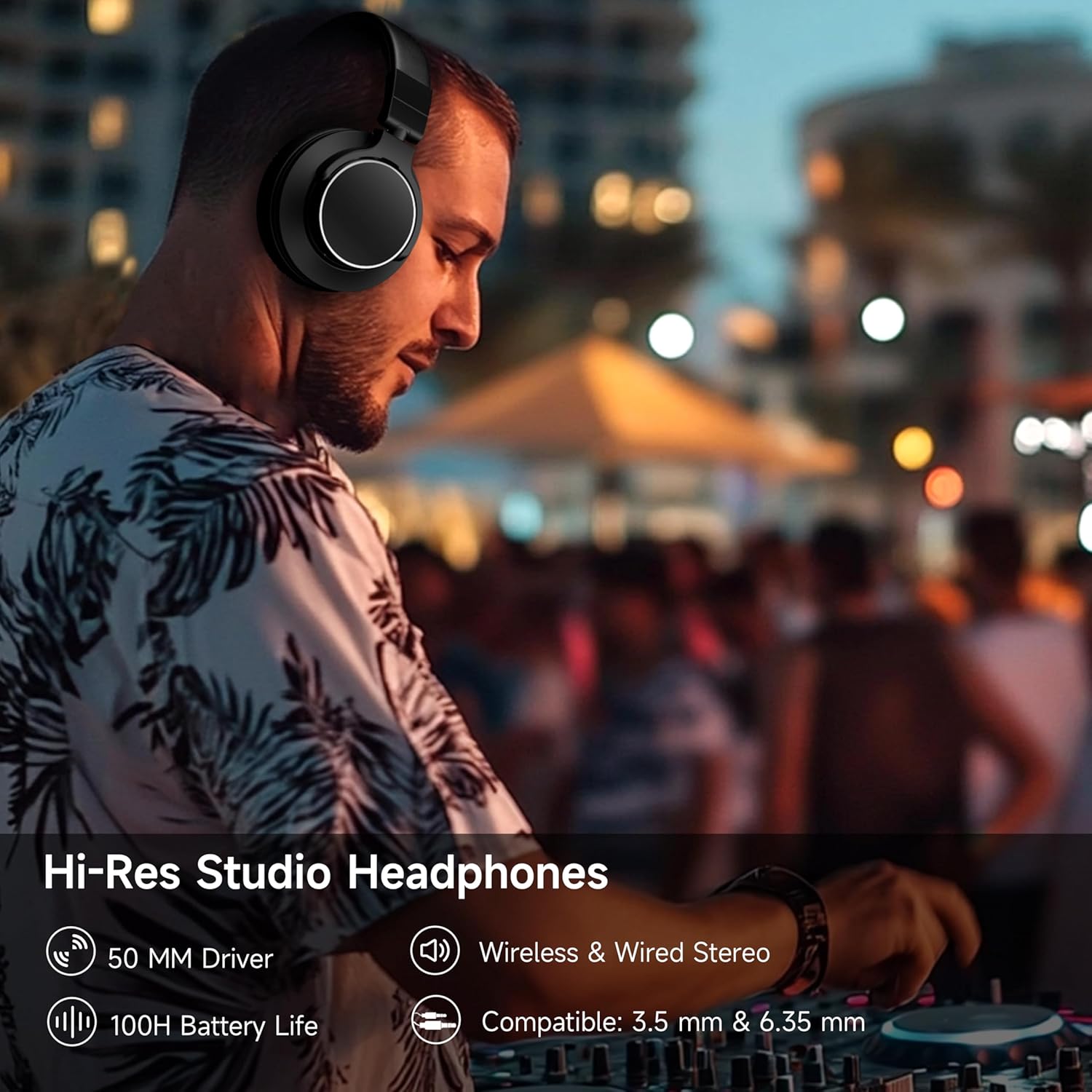
Image: A DJ wearing the Rumoon headphones, with icons highlighting 50mm drivers, wireless & wired stereo, 100H battery life, and 3.5mm & 6.35mm compatibility.
Controls and Indicators
Familiarize yourself with the location and function of the controls on your headphones:
- Power Button: Press and hold to power on/off. Short press for play/pause (Bluetooth mode).
- Volume Up/Next Track: Short press for volume up. Long press for next track.
- Volume Down/Previous Track: Short press for volume down. Long press for previous track.
- Multi-function Button (MFB): Answer/end calls, activate voice assistant (functionality may vary by device).
- LED Indicator: Displays power status, pairing status, and charging status.
- 3.5mm Audio Jack: For wired connection.
- USB-C Charging Port: For charging the internal battery.
4. Setup
4.1 Charging the Headphones
- Connect the USB charging cable to the USB-C port on the headphones.
- Connect the other end of the USB cable to a USB power adapter (not included) or a computer's USB port.
- The LED indicator will illuminate during charging and change color or turn off when fully charged.
- A full charge provides up to 100 hours of playtime.

Image: A woman enjoying music with the headphones, highlighting the impressive 100-hour battery life.
4.2 Bluetooth Pairing
- Ensure the headphones are fully charged.
- Power on the headphones by pressing and holding the Power button until the LED indicator flashes, typically blue and red, indicating pairing mode.
- On your device (smartphone, tablet, computer), enable Bluetooth and search for available devices.
- Select "Rumoon BT9944" from the list of found devices.
- Once paired, the LED indicator will typically show a solid blue light or flash blue slowly.
- The headphones will automatically reconnect to the last paired device when powered on, if the device's Bluetooth is active and within range.
4.3 Wired Connection
The headphones can be used with a wired connection, which is ideal for devices without Bluetooth or for professional audio applications.
- Ensure the headphones are powered off for wired use to conserve battery.
- For devices with a 3.5mm audio jack: Connect one end of the 3.5mm audio cable to the headphone's 3.5mm jack and the other end to your audio source.
- For devices with a 6.35mm (1/4 inch) audio jack (e.g., guitar amps, mixers, pianos): Attach the 6.35mm adapter to the 3.5mm end of the audio cable, then connect to your audio source.

Image: A visual guide illustrating how to connect the 3.5mm and 6.35mm audio cables to various devices like microphones, computers, mixers, and instruments.
5. Operating Instructions
5.1 Power On/Off
- Power On: Press and hold the Power button for approximately 3 seconds until the LED indicator lights up.
- Power Off: Press and hold the Power button for approximately 3 seconds until the LED indicator turns off.
5.2 Music Playback (Bluetooth Mode)
- Play/Pause: Short press the Power button.
- Volume Up: Short press the Volume Up button.
- Volume Down: Short press the Volume Down button.
- Next Track: Long press the Volume Up button.
- Previous Track: Long press the Volume Down button.
5.3 Call Management (Bluetooth Mode)
The built-in microphone allows for hands-free communication.

Image: A man wearing the headphones while working on a laptop, emphasizing the convenience of the integrated microphone for remote conversations.
- Answer/End Call: Short press the Multi-function Button (MFB).
- Reject Call: Long press the MFB.
- Activate Voice Assistant: Double-press the MFB (functionality depends on your connected device).
5.4 Single-Ear Monitoring
The ear cups are designed to swivel 90 degrees, allowing for convenient single-ear monitoring, which is useful for DJs or during live mixing sessions.

Image: A detailed view of the headphones demonstrating the adjustable headband and the 90-degree rotatable ear cups for flexible use.
6. Maintenance
Proper care ensures the longevity and performance of your headphones.
6.1 Cleaning
- Wipe the ear cushions and headband with a soft, dry, lint-free cloth.
- Do not use harsh chemicals, cleaning solvents, or strong detergents.
- Avoid getting moisture into any openings.
6.2 Storage
When not in use, store the headphones in a cool, dry place, away from direct sunlight and extreme temperatures. The foldable design allows for compact storage.

Image: A composite image illustrating the lightweight design, soft padded earmuffs, and the foldable mechanism of the headphones for easy storage and portability.
7. Troubleshooting
If you encounter issues with your headphones, refer to the following common problems and solutions:
| Problem | Possible Cause | Solution |
|---|---|---|
| Headphones do not power on | Low battery | Charge the headphones fully. |
| No sound in Bluetooth mode | Not paired; Volume too low; Device out of range | Ensure headphones are paired; Increase volume on headphones and device; Move device closer to headphones. |
| Cannot pair via Bluetooth | Headphones not in pairing mode; Device Bluetooth off | Ensure headphones are in pairing mode (flashing LED); Turn on Bluetooth on your device; Forget device and re-pair. |
| No sound in wired mode | Cable not fully inserted; Incorrect cable/adapter | Ensure audio cable is securely connected at both ends; Verify correct cable (3.5mm) and adapter (6.35mm) are used. |
| Poor audio quality | Interference; Low quality audio source; Damaged cable | Move away from sources of interference; Try a different audio source; Replace audio cable if damaged. |
8. Specifications
| Feature | Detail |
|---|---|
| Model | BT9944 |
| Connectivity | Bluetooth 5.4, Wired (3.5mm, 6.35mm) |
| Driver Size | 50mm Neodymium |
| Frequency Range | 20 Hz - 20 kHz |
| Battery Life | Up to 100 hours |
| Charging Port | USB-C |
| Weight | 260g (0.57 lbs) |
| Ear Cushion Material | Memory Foam, Protein Leather |
| Special Features | 90° Swivel Ear Cups, Adjustable Headband, Built-in Microphone |
9. Warranty and Support
Rumoon products are manufactured to high-quality standards. For information regarding warranty coverage, please refer to the warranty card included with your purchase or visit the official Rumoon website.
If you require technical assistance or have questions about your product, please contact Rumoon customer support through the retailer where you purchased the item or via the contact information provided on the Rumoon website.