
Introduction
Welcome to the Omnica SuBook 15.6" Laptop. This manual provides essential information to help you set up, operate, maintain, and troubleshoot your new device. Please read these instructions carefully to ensure optimal performance and longevity of your laptop.
What's in the Box
Upon unboxing, please verify that all items listed below are included:
- 15.6 inch Laptop
- Power Adapter
- Instruction Manual (this document)
Product Overview
Key Features
- Powerful Performance: Equipped with a Twin Lake N150 Processor (4 cores, up to 3.6GHz) and 16GB DDR4 RAM for efficient multitasking.
- Ample Storage: Features a 1TB SATA SSD for fast boot-ups and data access, with a 64GB TF Card slot for expansion.
- Immersive Display: 15.6-inch FHD (1920x1080) IPS screen with wide viewing angles and 180° lay-flat hinge for collaborative viewing.
- Enhanced Productivity: Pre-installed with Windows 11 Pro, a backlit keyboard, and fingerprint unlock for secure and convenient access.
- Connectivity: Supports Wi-Fi 5, Bluetooth 4.2, and includes versatile ports like Mini HDMI and USB 3.0.
- Portability: Slim and lightweight design with a 5000mAh battery for on-the-go use.
Visual Guide to Features

Figure 1: Processor details of the Omnica SuBook, highlighting its efficient performance.

Figure 2: Large RAM and SSD capacity for efficient multitasking and storage.
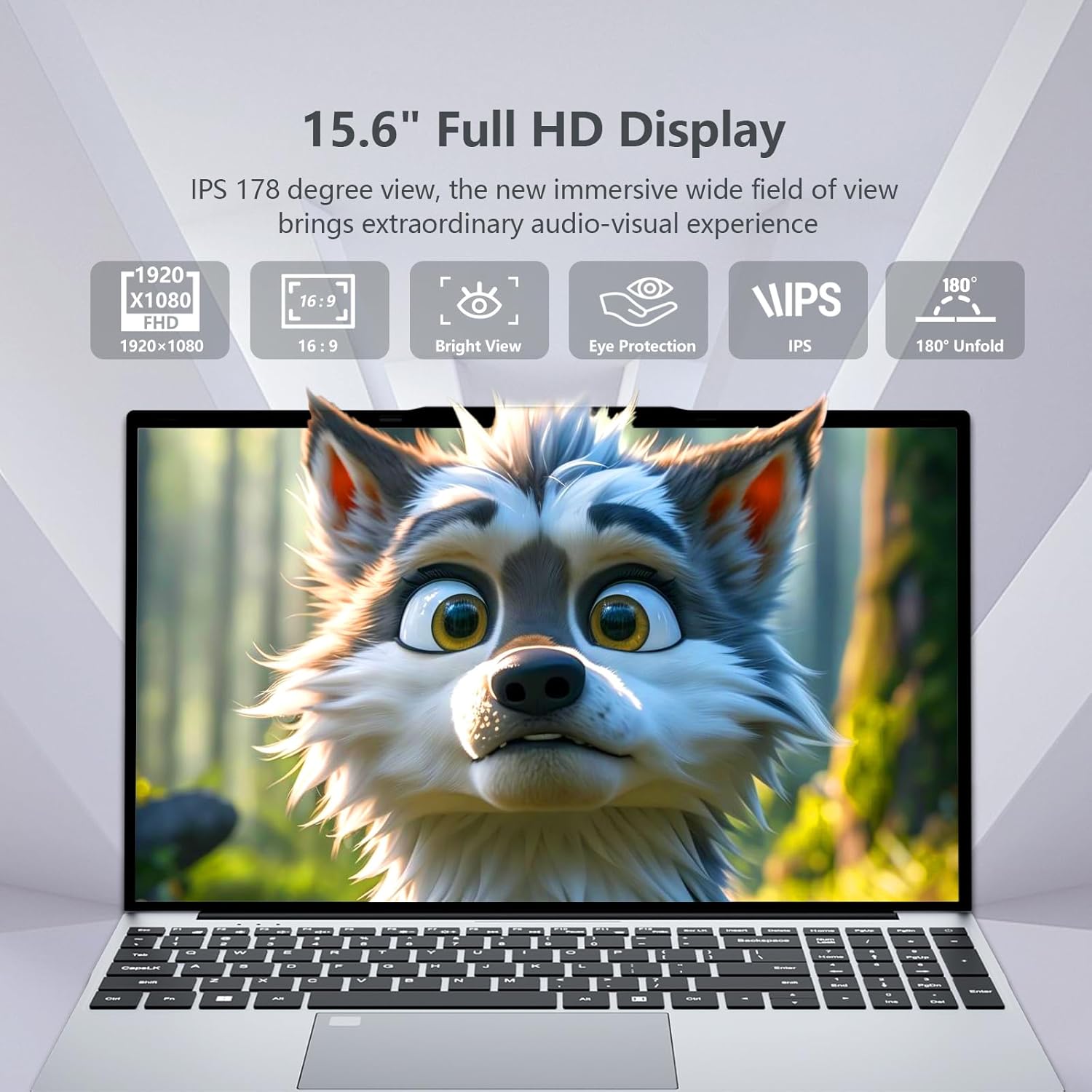
Figure 3: The 15.6" Full HD IPS display offers sharp visuals and wide viewing angles.

Figure 4: Backlit keyboard and fingerprint unlock for secure and convenient use.

Figure 5: Long-lasting battery and integrated connectivity features.

Figure 6: Overview of the laptop's various ports for connectivity.
Setup
- Charge the Laptop: Before first use, connect the provided power adapter to the DC-in port on the laptop and plug it into a power outlet. Allow the laptop to charge fully. The charging indicator light will show its status.
- Power On: Open the laptop lid and press the power button, usually located on the top right of the keyboard or side.
- Initial Windows Setup: Follow the on-screen prompts to complete the Windows 11 Pro setup. This includes selecting your region, language, connecting to Wi-Fi, and creating a user account.
- Fingerprint Setup (Optional): During or after Windows setup, you can configure the fingerprint reader for quick and secure login. Follow the instructions in Windows Settings > Accounts > Sign-in options.
Operating Instructions
Basic Operation
- Power On/Off: Press the power button to turn on. To turn off, click the Start button, then Power > Shut down.
- Sleep Mode: Close the lid or click the Start button, then Power > Sleep.
- Keyboard Backlight: Press the Fn + F11 keys simultaneously to toggle the keyboard backlight on or off.
- Fingerprint Login: Once set up, gently place your registered finger on the fingerprint sensor for quick access to your system.
- Touchpad: The touchpad supports multi-touch gestures for navigation. Refer to Windows settings for customization.
Connecting Peripherals
Utilize the available ports to connect external devices:
- USB 3.0 Ports: For connecting external storage, mouse, keyboard, or other USB devices.
- Mini HDMI: Connect to an external monitor or TV for extended display.
- Headphone Jack: For connecting headphones or external speakers.
- TF Card Slot: Insert a TF card for additional storage.
Video Demonstrations
Video 1: Overview of the Omnica 15.6" Laptop, demonstrating its general features and usage.
Video 2: A quick demonstration highlighting the laptop's speed and reliability.
Maintenance
- Cleaning: Use a soft, lint-free cloth to clean the screen and keyboard. For stubborn smudges, slightly dampen the cloth with water or a screen-safe cleaner. Avoid harsh chemicals.
- Ventilation: Ensure the laptop's ventilation openings are not blocked to prevent overheating. Use the laptop on a hard, flat surface.
- Battery Care: To prolong battery life, avoid fully discharging the battery frequently. Store the laptop in a cool, dry place when not in use for extended periods.
- Software Updates: Regularly update Windows and drivers to ensure optimal performance and security.
Troubleshooting
| Problem | Possible Cause | Solution |
|---|---|---|
| Laptop does not power on | Low battery, power adapter issue | Ensure the laptop is connected to a working power outlet and the adapter is securely plugged in. Allow it to charge for at least 30 minutes before attempting to power on again. |
| Screen is dim or has poor contrast | Display settings, environmental lighting | Adjust screen brightness using the keyboard function keys (Fn + F5/F6) or through Windows Display Settings. Check if display drivers are updated. |
| Fingerprint reader not recognized | Incorrect finger placement, sensor issue | Ensure your finger is clean and dry. Try using a different finger or re-register your fingerprint in Windows Settings > Accounts > Sign-in options. |
| Laptop is slow or unresponsive | Too many applications open, low storage, malware | Close unnecessary applications. Check available storage space. Run a system scan for viruses or malware. Consider restarting the laptop. |
Specifications
| Feature | Detail |
|---|---|
| Brand | Omnica |
| Model Name | SuBook |
| Screen Size | 15.6 Inches |
| Resolution | 1920x1080 Pixels (FHD) |
| Display Type | IPS LCD |
| CPU Model | Celeron N150 (up to 3.6 GHz) |
| RAM Memory Installed Size | 16 GB DDR4 |
| Hard Disk Size | 1 TB SSD (Serial ATA) |
| Operating System | Windows 11 Pro |
| Special Features | Backlit Keyboard, Fingerprint Reader, Lightweight, Numeric Keypad |
| Connectivity Technology | Bluetooth 4.2, Wi-Fi 5 (802.11ax), HDMI, USB |
| Total USB Ports | 2 (USB 3.0) |
| Video Output | Mini HDMI |
| Battery Cell Type | Lithium Polymer (38 Watt Hours, 5000mAh) |
| Item Weight | 2.13 Kilograms |
| Item Dimensions (L x W x Thickness) | 13.7"L x 8.7"W x 0.72"Th |
| Webcam Capability | Yes (Front Camera) |
Warranty and Support
Warranty Information
Your Omnica SuBook Laptop comes with a 2-Year Manufacturer Warranty. This warranty covers defects in materials and workmanship under normal use. Please retain your proof of purchase for warranty claims.
Customer Support
For any questions, technical assistance, or warranty claims, please contact Omnica's professional after-sales team:
- Email: servicen07@outlook.com (Expect a reply within 24 hours)
- Phone (US): +1 800-819-9826 (Monday-Friday, 5:00 AM - 9:00 PM UTC)
Omnica offers a 90-day return policy for peace of mind. We ensure every unit is fully tested to meet quality standards.