
Introduction
This manual provides detailed instructions for the setup, operation, and maintenance of your MoKo Keyboard Case for iPad. Please read this guide thoroughly to ensure proper use and to maximize the functionality of your device.
Compatibility
This keyboard case is designed for specific iPad models:
- iPad 11th Generation 11-inch 2025 (Models: A3354, A3355, A3356)
- iPad 10th Generation 10.9-inch 2022 (Models: A2696, A2757, A2777)
It is not compatible with other iPad models.

Figure 1: Compatible iPad models for the MoKo Keyboard Case.
Package Contents
The package includes the following items:
- 1 x MoKo Keyboard Case for iPad 11th/10th Generation
- 1 x Wireless Keyboard
- 1 x USB Charging Cable
- 1 x User Guide
Setup
1. Installing Your iPad
Carefully place your iPad into the protective case. Ensure all edges are securely fitted within the case for optimal protection.
2. Charging the Keyboard
Before initial use, fully charge the wireless keyboard. Connect the provided USB charging cable to the keyboard's Type-C port and to a suitable USB power source. The charging indicator light will show the charging status.

Figure 2: Keyboard charging via Type-C port.

Figure 3: Visual guide for connecting the charging cable to the keyboard.
3. Connecting the Wireless Keyboard via Bluetooth
- Turn on the keyboard using the ON/OFF switch.
- Press the "Connect" button for 3 seconds; the blue indicator light will flash.
- On your iPad, go to Settings > Bluetooth and turn Bluetooth ON.
- Search for "Bluetooth Keyboard" (or similar name) in the list of available devices and tap to connect.
- Once connected, the indicator light will stop flashing.

Figure 4: Steps for Bluetooth pairing with the iPad.

Figure 5: Magnetic attachment of the keyboard to the case and Bluetooth connectivity range.
Operating Instructions
Detachable Wireless Keyboard
The keyboard features a strong magnetic attachment, allowing it to be easily repositioned or removed from the case. This provides flexibility for various usage scenarios. The keyboard has a standard QWERTY layout and includes convenient shortcuts to enhance productivity.

Figure 6: Detachable magnetic keyboard and adjustable viewing angles.
Adjustable Viewing Angles
The case offers multiple adjustable viewing angles (e.g., 110°, 115°, 120°) to provide comfortable viewing and typing experiences. Adjust the angle to suit your needs for reading, gaming, working, or watching videos.
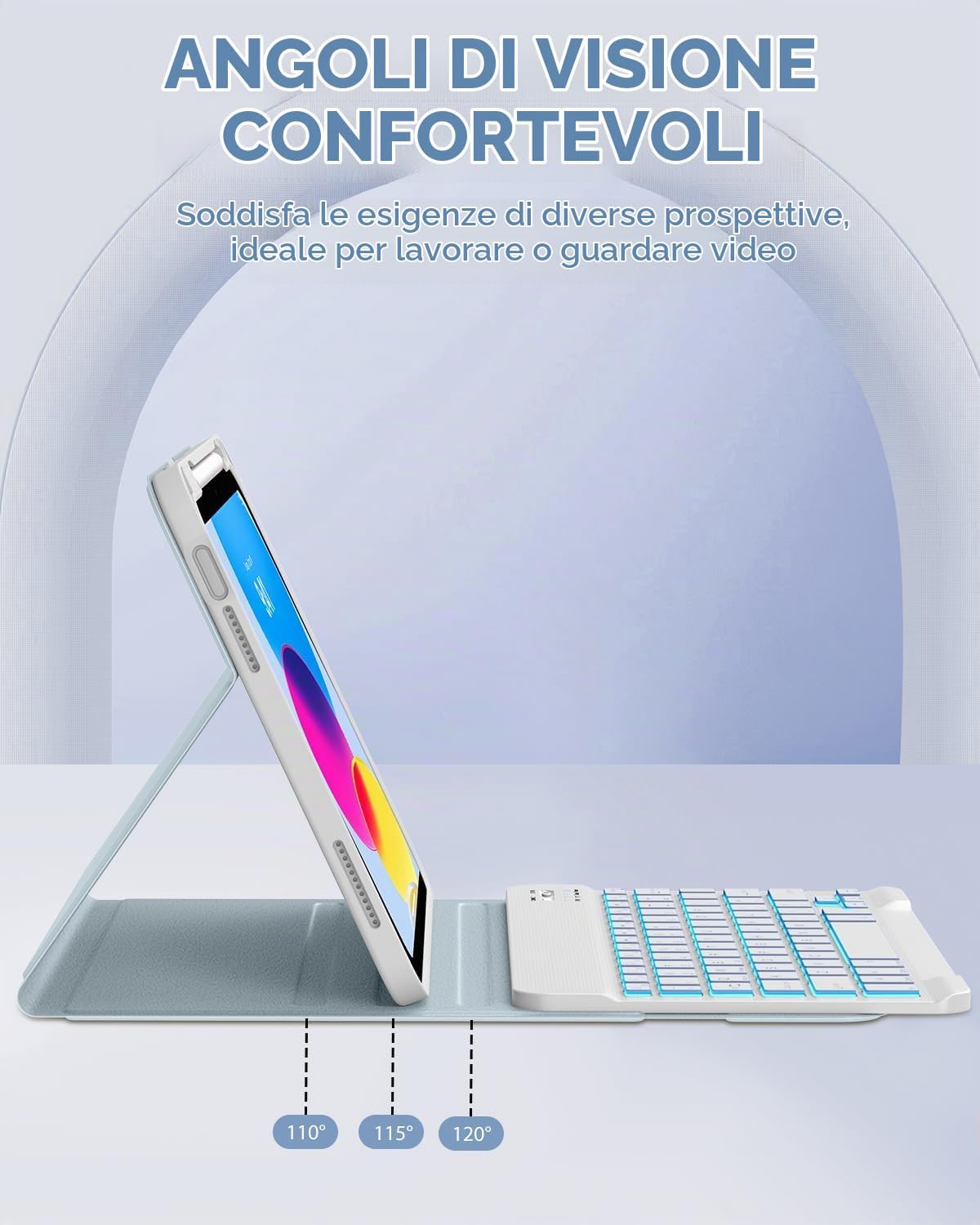
Figure 7: Multiple adjustable viewing angles for optimal comfort.
Integrated Pencil Holder
The built-in pencil holder allows for convenient storage and transport of your stylus. The side opening supports automatic pairing and charging of the Apple Pencil.

Figure 8: Convenient integrated pencil holder design.
System Compatibility and Shortcut Keys
The keyboard is compatible with iOS, Windows, and Android operating systems. Use the following key combinations to switch between systems:
- Press Fn + E to switch to iOS system.
- Press Fn + W to switch to Windows system.
- Press Fn + Q to switch to Android system.
A full row of shortcut keys is available for quick execution of common operations.

Figure 9: Keyboard shortcut keys and system switching instructions.
7-Color Backlit Keyboard
The keyboard features 7-color backlighting with 3 levels of brightness adjustment. Press Fn +  to activate or deactivate the backlight and cycle through brightness levels.
Figure 10: Backlit keyboard with color and brightness options.
Maintenance
Cleaning Instructions
The case material is splash-resistant and easy to clean. For spills or dirt, gently wipe the surface with a damp cloth. Avoid using harsh chemicals or abrasive materials.

Figure 11: Case features splash resistance and easy cleaning.
Battery Care
The keyboard features a long-lasting rechargeable battery. To conserve battery life, the automatic sleep/wake function will activate when the keyboard is detached from the iPad. Ensure regular charging to maintain optimal performance.
Troubleshooting
- Keyboard not connecting: Ensure the keyboard is charged and turned on. Verify Bluetooth is enabled on your iPad and the keyboard is in pairing mode. Try forgetting the device on your iPad and re-pairing.
- Keyboard lag or unresponsiveness: Ensure the keyboard is fully charged. Check for any interference from other Bluetooth devices. Restart both the iPad and the keyboard.
- Keys not functioning correctly: Confirm the correct operating system mode (iOS, Windows, Android) is selected using the Fn key combinations.
If you encounter persistent issues, please refer to the support section or contact MoKo customer service.
Specifications
| Brand | MoKo |
| Compatible Devices | iPad 11th Generation 11-inch 2025 (A16, Models: A3354, A3355, A3356), iPad 10th Generation 10.9-inch 2022 (Models: A2696, A2757, A2777) |
| Connectivity Technology | Bluetooth |
| Keyboard Description | Flexible, Detachable |
| Special Features | Detachable Bluetooth Keyboard, Integrated Pencil Holder, Adjustable Viewing Angles |
| Color | Cielo Blu (Sky Blue) |
| Material | Plastic |
| Product Dimensions | 27.8L x 19.3W x 2H cm |
| Power Source | Battery Powered |
| Keyboard Layout | QWERTY |
| Number of Keys | 78 |
| Water Resistance Level | Not Water Resistant (Splash-resistant case) |
| Compatible Operating Systems | Android, Windows, iOS |
| Model Number (iPad) | A2696/A2757/A2777 |
| UPC | 840401459423 |
Warranty and Support
Specific warranty information is not provided in this manual. For warranty details, product support, or any inquiries, please contact MoKo customer service through their official website or the retailer where the product was purchased.
You can visit the MoKo store at: MoKo Store on Amazon
Official Product Videos
No official product videos from the seller were found in the provided data.
