
1. Introduction
Thank you for purchasing the wanbbaoaa MP3 Player with Bluetooth 5.2, Model D405. This portable music player is designed to provide high-quality audio playback, along with additional features such as FM radio, voice recording, video and photo viewing, and e-book reading. This manual will guide you through the features and functions of your new device.

Image 1.1: The wanbbaoaa MP3 Player D405 in black, showcasing its compact design.
2. What's in the Box
Please check the package contents to ensure all items are present:
- 1 x wanbbaoaa MP3 Player (Model D405)
- 1 x 32GB Micro SD Card
- 1 x USB Cable
- 1 x Stereo Earphone
- 1 x User Manual (this document)
3. Setup
3.1. Charging the Device
Before first use, fully charge the MP3 player. Connect the included USB cable to the player's charging port and the other end to a USB power adapter (not included) or a computer's USB port. The battery indicator on the screen will show charging status.
3.2. Inserting the Micro SD Card
The device comes with a pre-installed 32GB Micro SD card. If you need to replace or upgrade it (up to 128GB), gently insert the Micro SD card into the designated slot until it clicks into place. Ensure the card is inserted correctly to avoid damage.
3.3. Transferring Music and Other Files
To transfer files from your computer to the MP3 player:
- Connect the MP3 player to your computer using the provided USB cable.
- The player will appear as a removable disk drive on your computer.
- Drag and drop your music, video, photo, or e-book files into the appropriate folders on the player's storage or the Micro SD card.
- Once files are transferred, safely eject the removable disk from your computer before disconnecting the USB cable.

Image 3.1: Illustrates connecting the MP3 player to a laptop for transferring music, photos, and video files.
4. Operating Instructions
4.1. Basic Navigation
The MP3 player features a simple button interface for navigation:
- MENU Button: Press to access the main menu or go back to the previous screen.
- Play/Pause Button: Press to play or pause media.
- Next/Fast Forward Button: Press to skip to the next track or fast forward during playback.
- Previous/Rewind Button: Press to go to the previous track or rewind during playback.
- VOL (Volume) Buttons: Use to adjust the volume level.

Image 4.1: The MP3 player displaying its multi-functional capabilities, including e-book reading, video playback, and voice recording.
4.2. Music Playback (HiFi Lossless Sound)
Navigate to the "Music" option from the main menu. Select a song or album to begin playback. The player supports various audio formats including MP3, WMA, FLAC, APE, OGG, WAV, MP4, and AAC-LC, providing high-fidelity lossless sound.
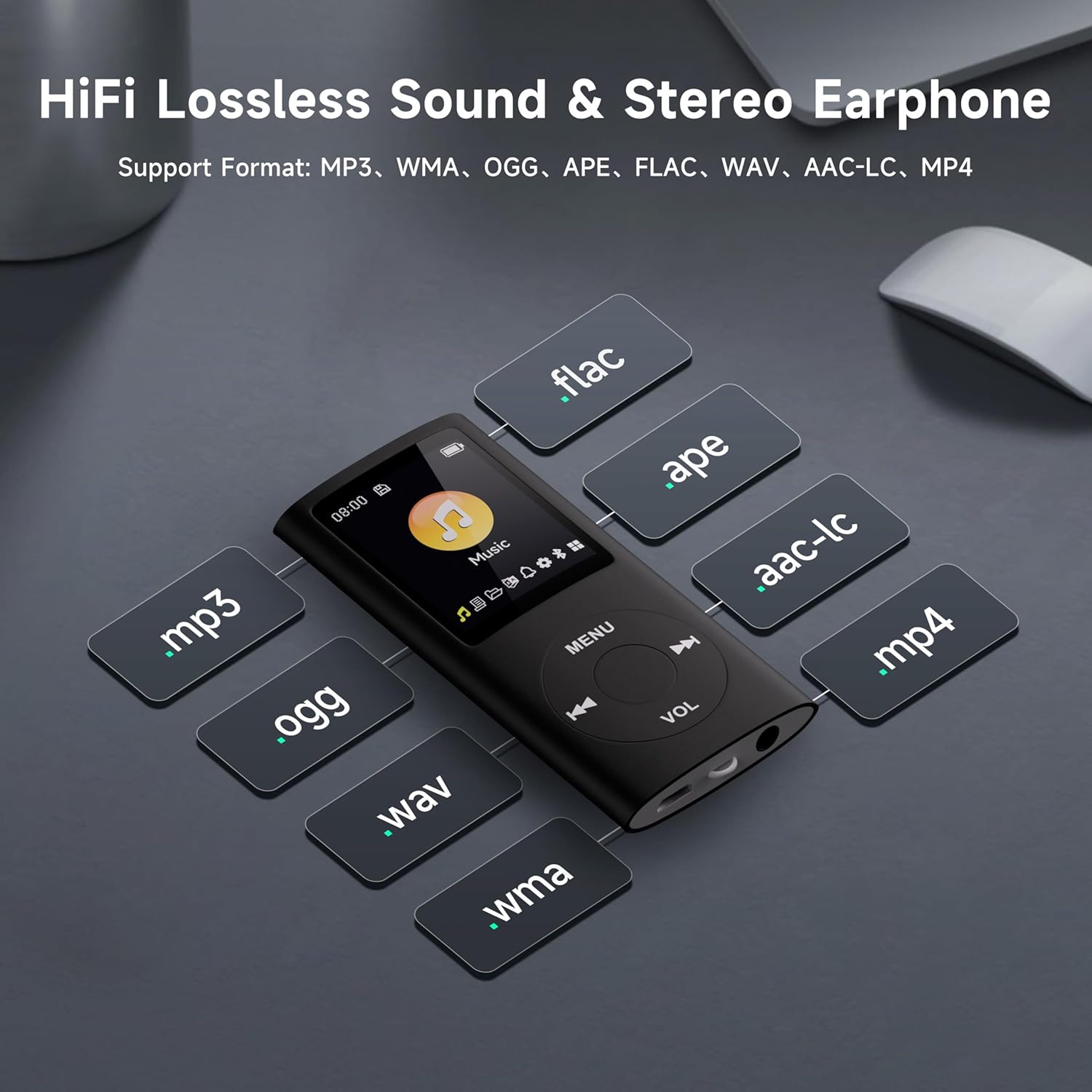
Image 4.2: The MP3 player screen showing various supported audio formats like MP3, FLAC, WAV, WMA, OGG, APE, AAC-LC, and MP4 for high-fidelity sound.
4.3. Bluetooth 5.2 Pairing
To connect to Bluetooth headphones or speakers:
- From the main menu, select "Bluetooth".
- Ensure your Bluetooth device is in pairing mode.
- The MP3 player will scan for available devices. Select your device from the list to pair.
- Once paired, audio will stream wirelessly to your connected device.
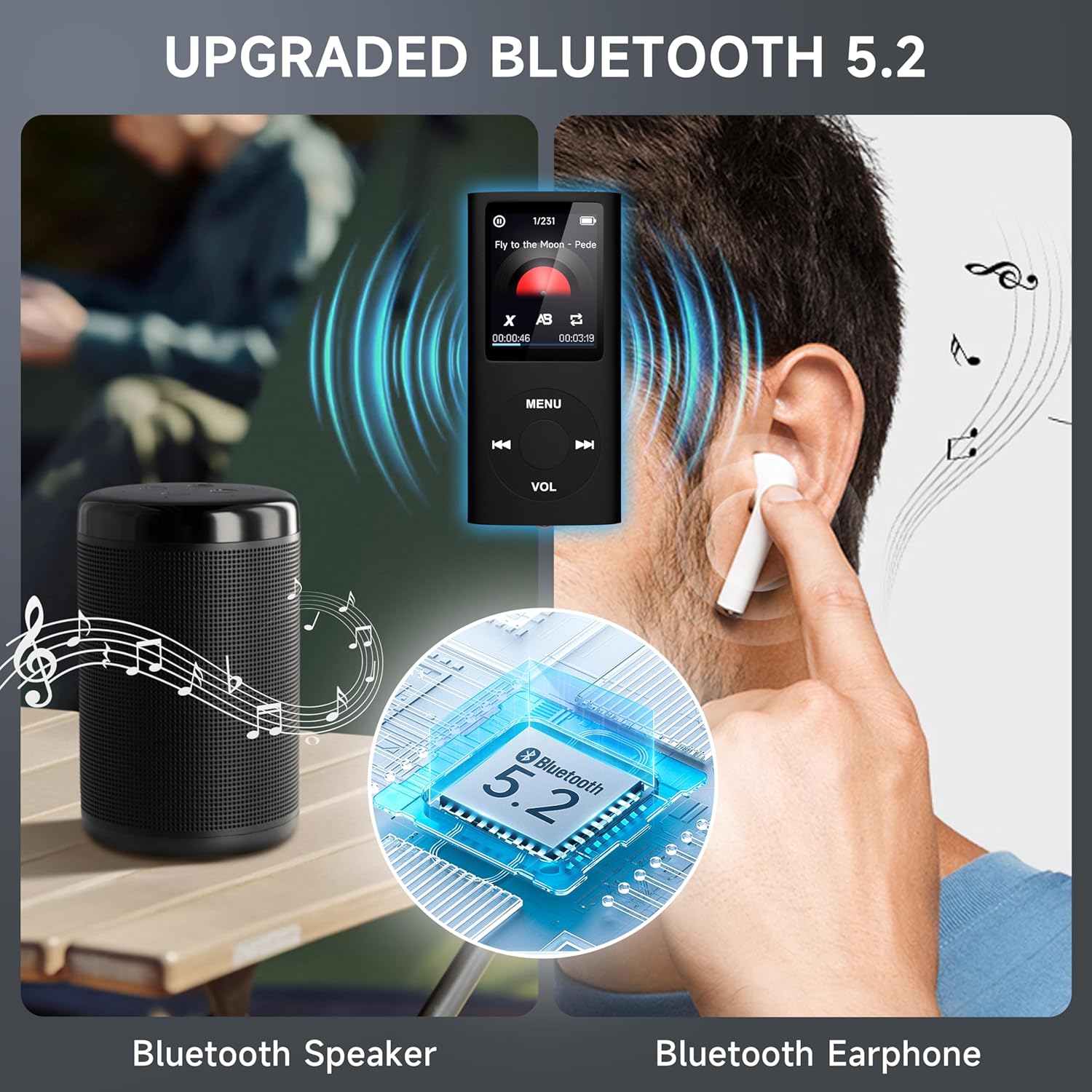
Image 4.3: Diagram illustrating the MP3 player's Bluetooth 5.2 connectivity with both a Bluetooth speaker and Bluetooth earphones.
4.4. FM Radio
To use the FM radio function:
- Connect the wired earphones (included) to the player. The earphones act as an antenna for the FM radio.
- From the main menu, select "FM Radio".
- Use the navigation buttons to scan for stations or manually tune to a frequency (87.5-108MHz).

Image 4.4: The MP3 player screen showing various FM radio frequencies, indicating its FM radio support.
4.5. Voice Recorder
To record audio:
- From the main menu, select "Recorder" or "Voice Recorder".
- Press the Play/Pause button to start recording.
- Press it again to pause, and the MENU button to stop and save the recording.
4.6. Video and Photo Viewer
The player supports viewing photos and playing videos (AVI format). Navigate to the "Video" or "Photo" option from the main menu to browse your media files.
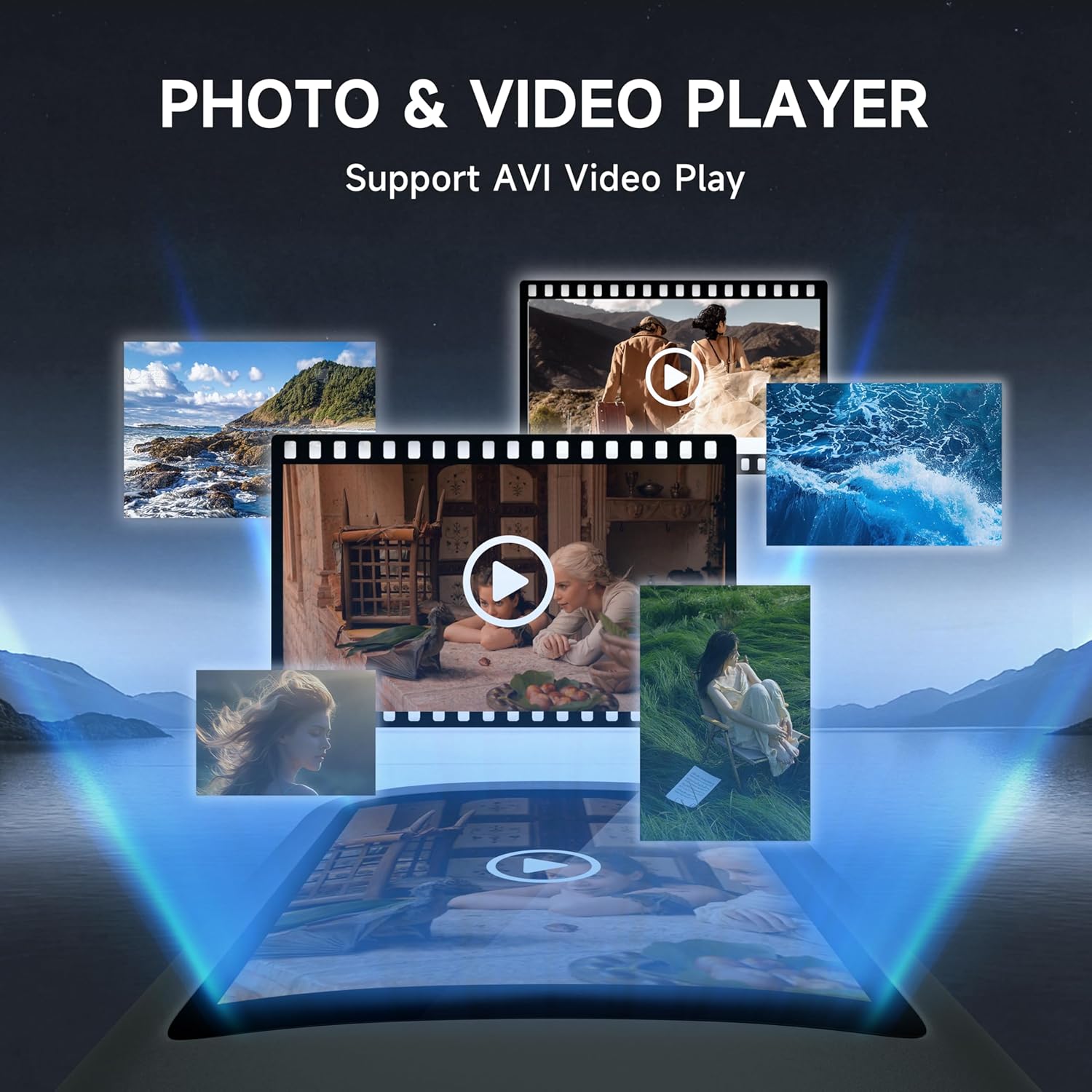
Image 4.5: The MP3 player screen showing a collage of images and video frames, indicating its photo and video playback capabilities.
4.7. E-Book Reader
To read e-books, transfer compatible text files to the player. Select "E-Book" from the main menu and choose your desired file. The 1.8-inch eye-care screen is designed for comfortable reading.
4.8. Alarm Clock
Access the "Alarm" function from the main menu to set alarms. You can configure the time and alarm sound.
5. Maintenance
- Cleaning: Use a soft, dry cloth to clean the device. Avoid liquid cleaners or abrasive materials.
- Storage: Store the MP3 player in a cool, dry place away from direct sunlight and extreme temperatures.
- Battery Care: To prolong battery life, avoid fully discharging the battery frequently. Charge the device regularly, even if not in use for extended periods. The player offers approximately 15 hours of battery life on a full charge.
- Water Exposure: This device is not waterproof. Avoid exposure to water or high humidity.
6. Troubleshooting
6.1. Device Does Not Turn On
- Ensure the device is fully charged. Connect it to a power source and wait a few minutes before attempting to turn it on.
- If the device is unresponsive, try performing a reset (refer to the device's specific reset procedure, if available, or hold the power button for an extended period).
6.2. Computer Does Not Recognize the Device
- Ensure the USB cable is securely connected to both the MP3 player and the computer.
- Try a different USB port on your computer.
- Try a different USB cable.
- Restart your computer and reconnect the device.
- Ensure the MP3 player is powered on when connected to the computer.
6.3. Music Files Do Not Play
- Verify that the music files are in a supported format (MP3, WMA, FLAC, APE, OGG, WAV, MP4, AAC-LC).
- Ensure the files have been transferred correctly to the device's storage or Micro SD card.
- Check the volume level.
- If using Bluetooth, ensure the Bluetooth device is properly paired and connected.
6.4. Bluetooth Connection Issues
- Ensure both the MP3 player and the Bluetooth receiving device are charged and within range.
- Make sure the Bluetooth device is in pairing mode.
- Try unpairing and re-pairing the devices.
- Restart both the MP3 player and the Bluetooth device.
7. Specifications
| Brand | wanbbaoaa |
| Model Name | D405 |
| Special Features | Bluetooth, FM Radio, Voice Recorder |
| Connectivity Technology | Bluetooth |
| Memory Storage Capacity | 32 GB (expandable to 128GB with Micro SD) |
| Color | Black |
| Screen Size | 1.8 Inches |
| Compatible Devices | Headphones, Bluetooth Speakers |
| Media Type | Micro SD |
| Supported Standards | MP3, WMA, OGG, APE, FLAC, WAV, AAC-LC, MP4 (Video) |
| Battery Average Life | 15 Hours |
| Item Weight | 3.6 Ounces |
8. Warranty & Support
8.1. Product Warranty
This wanbbaoaa MP3 Player (Model D405) is covered by a 12-month warranty from the date of purchase. This warranty covers manufacturing defects and malfunctions under normal use. It does not cover damage caused by misuse, accidents, unauthorized modifications, or normal wear and tear.
Additionally, a 30-day return policy is available for eligible purchases.
8.2. Customer Support
For any questions, technical assistance, or warranty claims, please contact wanbbaoaa customer support through the retailer's platform or the official brand website. Please have your purchase details and product model number (D405) ready when contacting support.