
1. Introduction
This manual provides essential information for setting up, operating, maintaining, and troubleshooting your CUBOT X100 Smartphone. Please read it carefully to ensure optimal performance and longevity of your device.
2. Getting Started
2.1 What's in the Box
Upon unboxing your CUBOT X100, verify that all items are present:
- CUBOT X100 Smartphone
- Phone Case
- USB Cable
- SIM Ejector Tool
- Screen Protector

Image: The retail box contents of the CUBOT X100, showing the smartphone, a protective case, a USB cable, a SIM ejector tool, and a screen protector.
2.2 Inserting SIM Card and SD Card
To insert your SIM card(s) and/or microSD card:
- Locate the SIM tray on the side of the phone.
- Insert the SIM ejector tool into the small hole next to the tray and press gently until the tray pops out.
- Place your Nano-SIM card(s) and/or microSD card into the designated slots on the tray. Ensure the gold contacts face downwards. The CUBOT X100 supports Dual SIM functionality.
- Carefully push the tray back into the phone until it is flush with the side.
2.3 Initial Power On and Setup
Press and hold the Power button until the CUBOT logo appears. Follow the on-screen prompts to complete the initial setup, including language selection, Wi-Fi connection, Google account login, and security settings.
3. Device Overview
3.1 Physical Components
Familiarize yourself with the key physical features of your CUBOT X100.
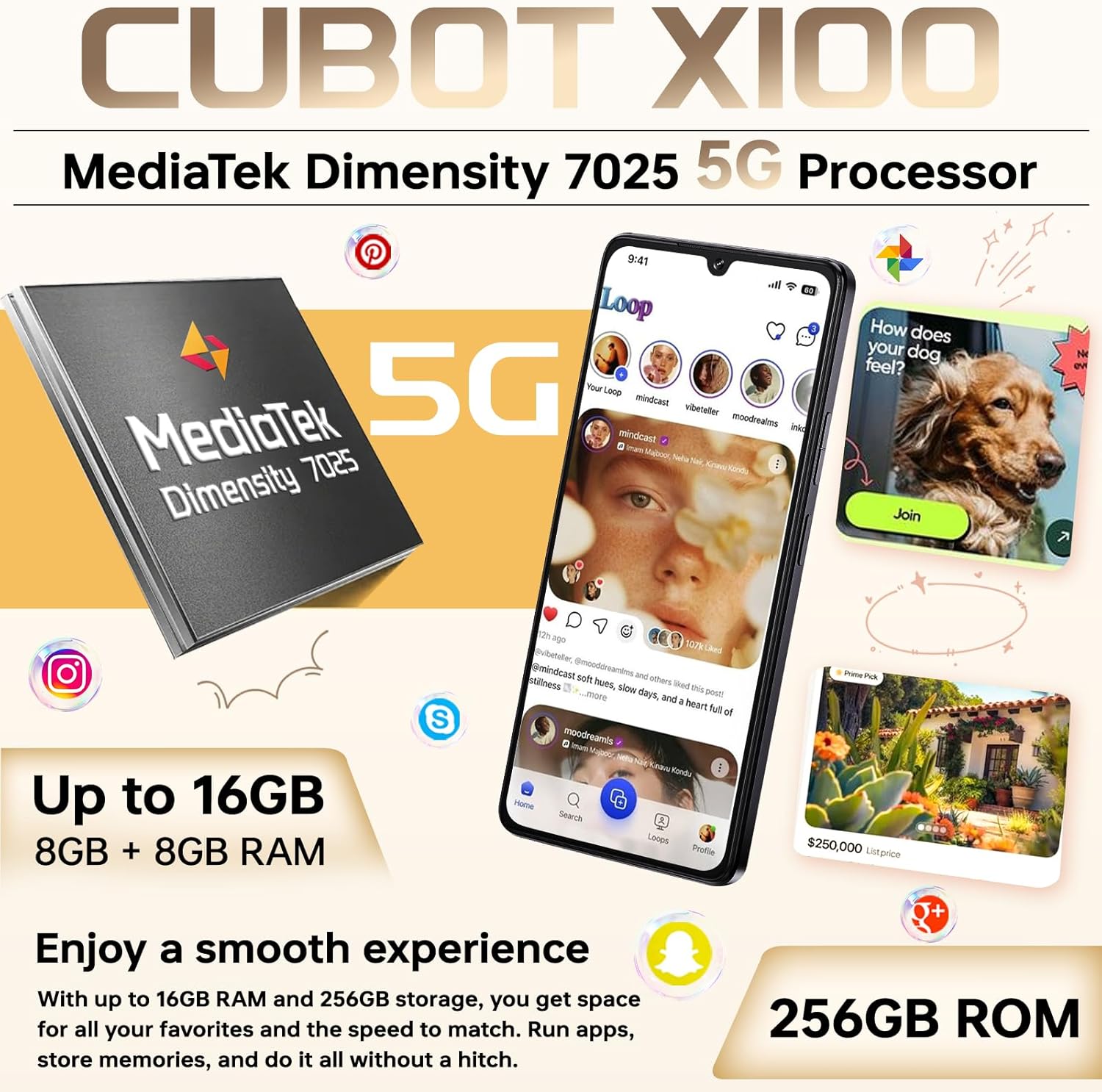
Image: An overview of the CUBOT X100 smartphone, showcasing its sleek design, the MediaTek Dimensity 7025 5G processor, and its memory configuration of up to 16GB RAM and 256GB ROM.
3.2 Main Display
The CUBOT X100 features a large 6.88-inch HD+ display with a 120Hz refresh rate for smooth visuals.

Image: The CUBOT X100's 6.88-inch FHD+ display, demonstrating its 120Hz refresh rate with a vibrant image of flamingos, emphasizing a smooth visual experience.
3.3 Rear Sub-Screen
The 1.72-inch rear sub-screen provides quick access to information and controls without needing to flip the phone over.
- Wake Screen: Displays notifications upon arrival.
- Follow Main Screen: Mirrors certain main screen activities.
- Incoming Call Screen: Shows caller ID.
- Flip Phone Bright Screen: Activates the main screen by flipping the device.
- Double Tap to Wake: Wakes the rear screen with a double tap.

Image: The CUBOT X100's 1.72-inch rear sub-screen, illustrating its various functionalities such as displaying time, battery status, caller ID, music playback controls, camera access, and notifications.
4. Basic Operation
4.1 Power On/Off
To power on, press and hold the Power button. To power off, press and hold the Power button, then select 'Power off' from the options.
4.2 Screen Lock/Unlock
Your CUBOT X100 supports Face ID and fingerprint unlock for secure access. Set these up in the Security settings menu.
4.3 Android 15 Operating System
The device runs on Android 15, offering an intuitive and customizable user experience with enhanced security features and Gemini AI integration.

Image: The CUBOT X100 displaying the Android 15 interface, showcasing its secure, customizable, and innovative features, including Google Gemini integration.
4.4 Connectivity
The CUBOT X100 supports 5G cellular connectivity, Wi-Fi, Bluetooth, and NFC.
- Wi-Fi: Connect to wireless networks via Settings > Network & internet > Wi-Fi.
- Bluetooth: Pair with Bluetooth devices via Settings > Connected devices > Bluetooth.
- NFC: Enable NFC for contactless payments and data transfer via Settings > Connected devices > Connection preferences > NFC.
- Dual SIM: Manage two SIM cards simultaneously for work and personal use.

Image: A series of icons illustrating the CUBOT X100's connectivity features, including GPS, NFC, Dual SIM support, and other smart functionalities.
5. Camera Functions
Capture moments with the versatile camera system of your CUBOT X100.

Image: The CUBOT X100's camera capabilities, featuring a 64MP main camera for detailed shots and a 16MP front camera for clear selfies and video calls.
5.1 Main Camera (64MP)
The 64MP main camera captures high-resolution photos with rich detail. Open the Camera app and select 'Photo' mode for standard shots.
5.2 Front Camera (16MP)
Use the 16MP front camera for clear selfies and video calls. Switch to the front camera within the Camera app.
5.3 Macro Camera (2MP)
Explore close-up details with the 2MP macro lens. Select 'Macro' mode in the Camera app to capture intricate subjects.
5.4 Video Recording
Record videos by selecting 'Video' mode in the Camera app. The device supports 4K video capture at 30 frames per second.
6. Battery and Charging
The CUBOT X100 is equipped with a 5100mAh battery and supports 33W fast charging.
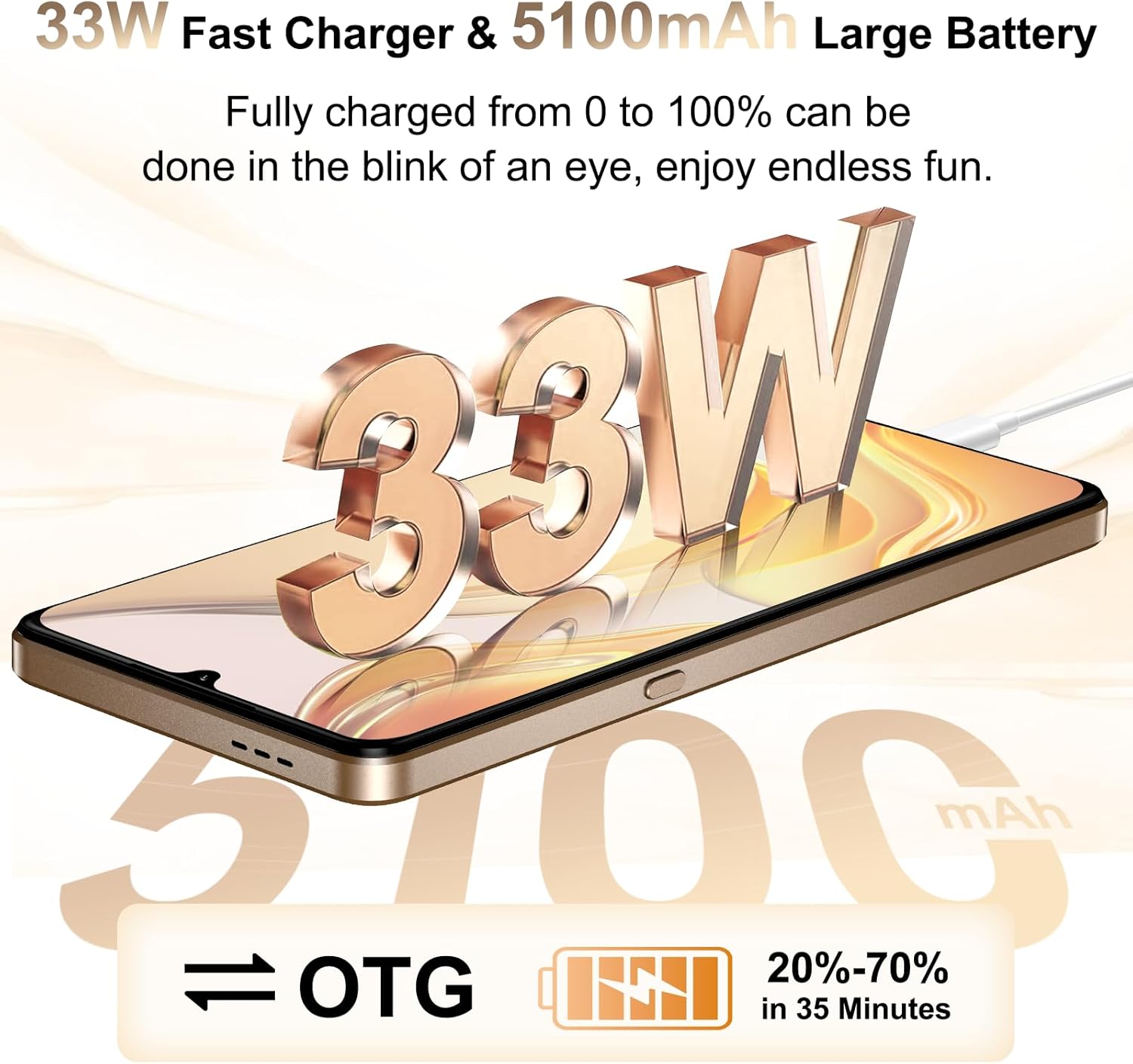
Image: The CUBOT X100 illustrating its 33W fast charging capability and 5100mAh large battery, indicating quick recharge times and extended usage.
6.1 Charging Your Device
Connect the provided USB cable to the phone's USB Type-C port and the 33W charger. Plug the charger into a power outlet. The device supports rapid charging, allowing for quick power replenishment.
6.2 Battery Optimization
To extend battery life, consider these tips:
- Reduce screen brightness.
- Disable Wi-Fi, Bluetooth, and GPS when not in use.
- Close background applications.
- Enable battery saver mode in Settings.
6.3 OTG Reverse Charging
The CUBOT X100 supports OTG reverse charging, allowing you to use your phone as a power bank to charge other devices. An OTG cable (sold separately) is required for this function.
7. Maintenance
7.1 Cleaning the Device
Use a soft, lint-free cloth to clean the screen and body of your phone. Avoid using harsh chemicals or abrasive materials.
7.2 Software Updates
Regularly check for software updates to ensure your device has the latest features and security patches. Go to Settings > System > System update.
7.3 Data Backup
It is recommended to regularly back up your important data to a cloud service or a computer to prevent data loss.
8. Troubleshooting
8.1 Common Issues
- Device not turning on: Ensure the battery is charged. If not, connect to the charger for at least 10 minutes before attempting to power on.
- Network issues: Check if your SIM card is properly inserted. Verify mobile data settings or try restarting the device.
- Apps crashing: Clear the app's cache and data in Settings > Apps. If the issue persists, reinstall the app.
- Touchscreen unresponsive: Restart the device. If the problem continues, contact customer support.
8.2 Factory Reset
If your device experiences persistent software issues, a factory reset may resolve them. Warning: This will erase all data on your phone. Back up your data before proceeding. Go to Settings > System > Reset options > Erase all data (factory reset).
9. Specifications
Key technical specifications of the CUBOT X100 Smartphone:
| Feature | Specification |
|---|---|
| Brand | CUBOT |
| Model Name | X100 |
| Operating System | Android 15 |
| Processor | MediaTek Dimensity 7025 5G |
| Memory (RAM) | Up to 16GB (8GB physical + 8GB virtual) |
| Storage (ROM) | 256 GB |
| Main Screen Size | 6.88 Inches |
| Main Screen Resolution | 720 x 1640 pixels |
| Main Screen Refresh Rate | 120 Hz |
| Rear Sub-Screen Size | 1.72 Inches |
| Rear Camera | 64 MP (Main), 5 MP (Ultra-wide), 2 MP (Macro) |
| Front Camera | 16 MP |
| Battery Capacity | 5100 mAh |
| Charging | 33W Fast Charge |
| Cellular Technology | 5G |
| Connectivity | Bluetooth, NFC, USB Type-C, Wi-Fi |
| SIM Card Slots | Dual SIM (Nano-SIM) |
| Biometric Security | Face Recognition, Fingerprint |
| Water Resistance | Not waterproof |
| Dimensions | 8.9mm thickness |
| Weight | 208g |
For detailed energy efficiency information, please refer to the EPREL database: https://eprel.ec.europa.eu/qr/2418330
10. Warranty and Support
10.1 Warranty Information
CUBOT offers a TWO-YEAR warranty for the X100 Smartphone, covering manufacturing defects. Additionally, a 30-day return policy is available for returns without reason.
10.2 Customer Support
For technical assistance, warranty claims, or any product-related inquiries, CUBOT provides long-term technical support and 24-hour online customer service.
Please visit the official CUBOT website or contact their customer service channels for support.
11. Important Safety Information
Please read all safety information before using your device to ensure safe and proper use.
- Do not expose the device to extreme temperatures or direct sunlight.
- Avoid dropping or subjecting the device to severe impact.
- Use only CUBOT-approved chargers and accessories.
- Do not attempt to disassemble or repair the device yourself.
- Keep the device away from water and moisture.


