
1. Introduction
Thank you for choosing the LWOHSI A108F Home Security Alarm System. This manual provides detailed instructions for the installation, operation, and maintenance of your new security system. Please read this manual thoroughly before use to ensure proper functionality and safety. Keep this manual for future reference.
Safety Precautions
- Ensure the system is installed in a dry environment, away from direct sunlight and extreme temperatures.
- Use only the power adapter provided with the system.
- Do not attempt to repair or modify the system yourself. Contact customer support for assistance.
- Keep the system and its components out of reach of children.
2. Product Overview
The LWOHSI A108F is a comprehensive wireless home security system designed to provide reliable protection for your home, apartment, or office. It features dual Wi-Fi and 4G GSM network connectivity, allowing for versatile alarm notifications via a smartphone app, SMS, and voice calls. The system supports a wide range of wireless accessories, including door/window sensors, motion detectors, and remote controls.
Included Components
- 1 x A108F Alarm System Control Panel
- Door/Window Sensors
- Remote Controls
- HD Camera (for A108F-US-E+HD Camera variant)
- Power Adapter
- Mounting Hardware
Key Features
- Dual Network Connectivity: Supports both Wi-Fi and 4G GSM for reliable alarm communication.
- Smartphone App Control: Manage your system remotely via the Tuya Smart app, including arming, disarming, and receiving alerts.
- Voice Control Integration: Compatible with Amazon Alexa and Google Assistant for convenient voice commands.
- Expandable System: Supports up to 100 wireless detectors, RFID cards, and other accessories.
- Real-time Alerts: Receive instant notifications via app push, SMS, and phone calls when an alarm is triggered.
- SOS Function: Dedicated SOS button for emergency situations.
- Monitoring Schedule: Program automatic arming and disarming times.
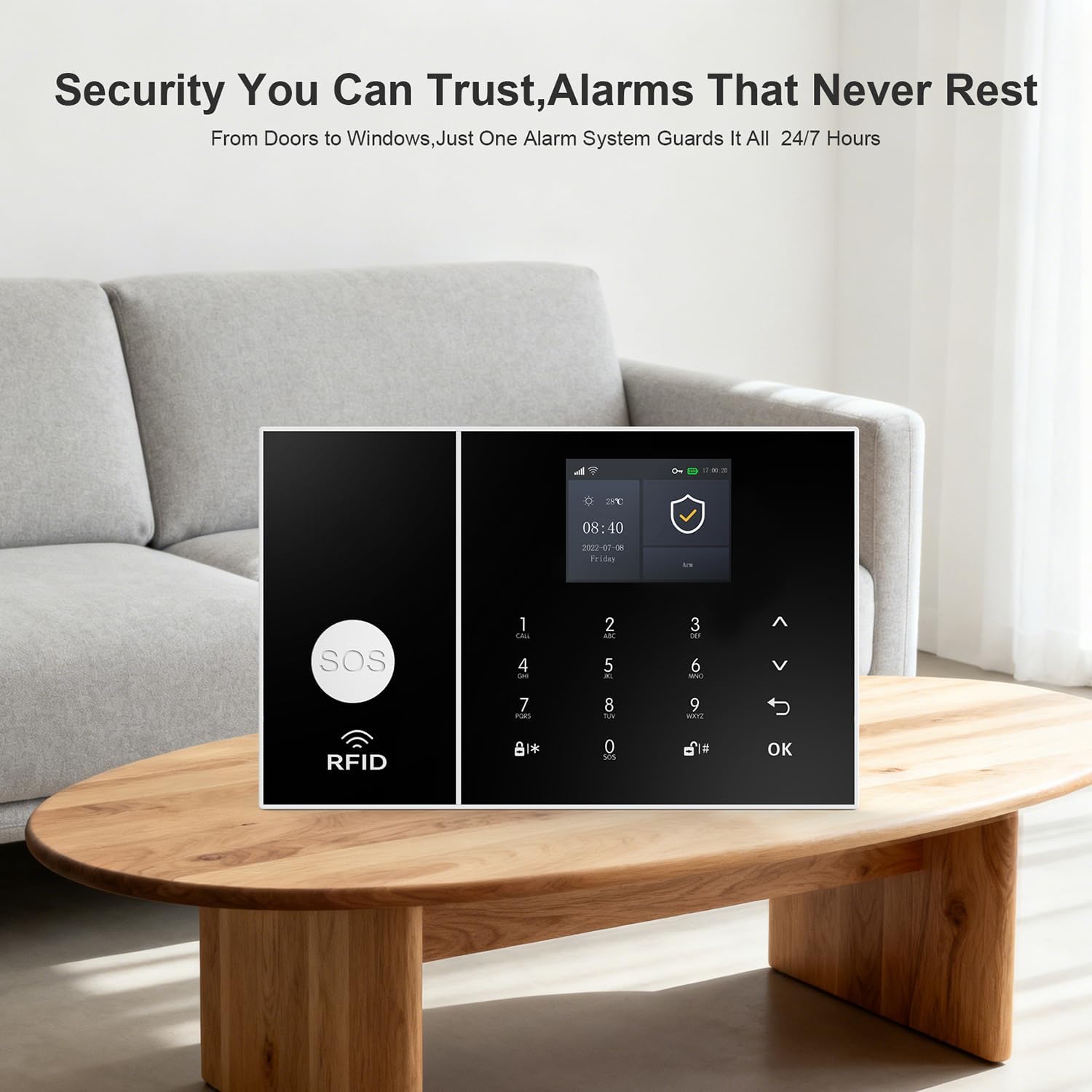
Figure 2.1: The LWOHSI A108F Alarm System Control Panel, featuring a keypad and display.

Figure 2.2: The included 2MP UHD Wi-Fi Home Security Camera, offering HD resolution, motion detection, 24/7 recording, two-way audio, app control, and advanced night vision.

Figure 2.3: Diagram illustrating the various components of the home security system, including cameras, door sensors, the control panel, and smartphone app integration for remote monitoring and control.
3. Setup
3.1 Control Panel Installation
The A108F control panel can be placed on a flat surface or mounted on a wall. For wall mounting, use the provided screws and wall hanging plates.

Figure 3.1: Diagram showing the main parameters and interfaces of the A108F control panel, including the speaker, TFT display, SOS button, RFID sensing area, SIM card interface, wired arming area, battery switch, Type C power interface, and wall hanging plates with screw holes.
3.2 SIM Card Insertion
If you plan to use the 4G GSM functionality, insert a compatible SIM card into the control panel. Ensure the system is powered off before inserting the SIM card.
- Power off the control panel.
- Locate the SIM card slot on the back of the panel (refer to Figure 3.1).
- Insert the SIM card carefully until it clicks into place.
- Power on the control panel.

Figure 3.2: Step-by-step guide for inserting the SIM card and configuring emergency phone numbers on the control panel. This includes powering off, inserting the SIM, navigating the menu to 'Phone', selecting a phone slot, entering the number, and enabling SMS notification status.
3.3 App Download and Pairing
Download the Tuya Smart or Smart Life app from your smartphone's app store. Follow the in-app instructions to add your A108F alarm system.
- Download and install the Tuya Smart or Smart Life app.
- Register or log in to your account.
- Tap 'Add Device' or the '+' icon.
- Select 'Security & Video Surveillance' > 'Alarm (Wi-Fi)'.
- Follow the on-screen prompts to connect the alarm system to your Wi-Fi network.
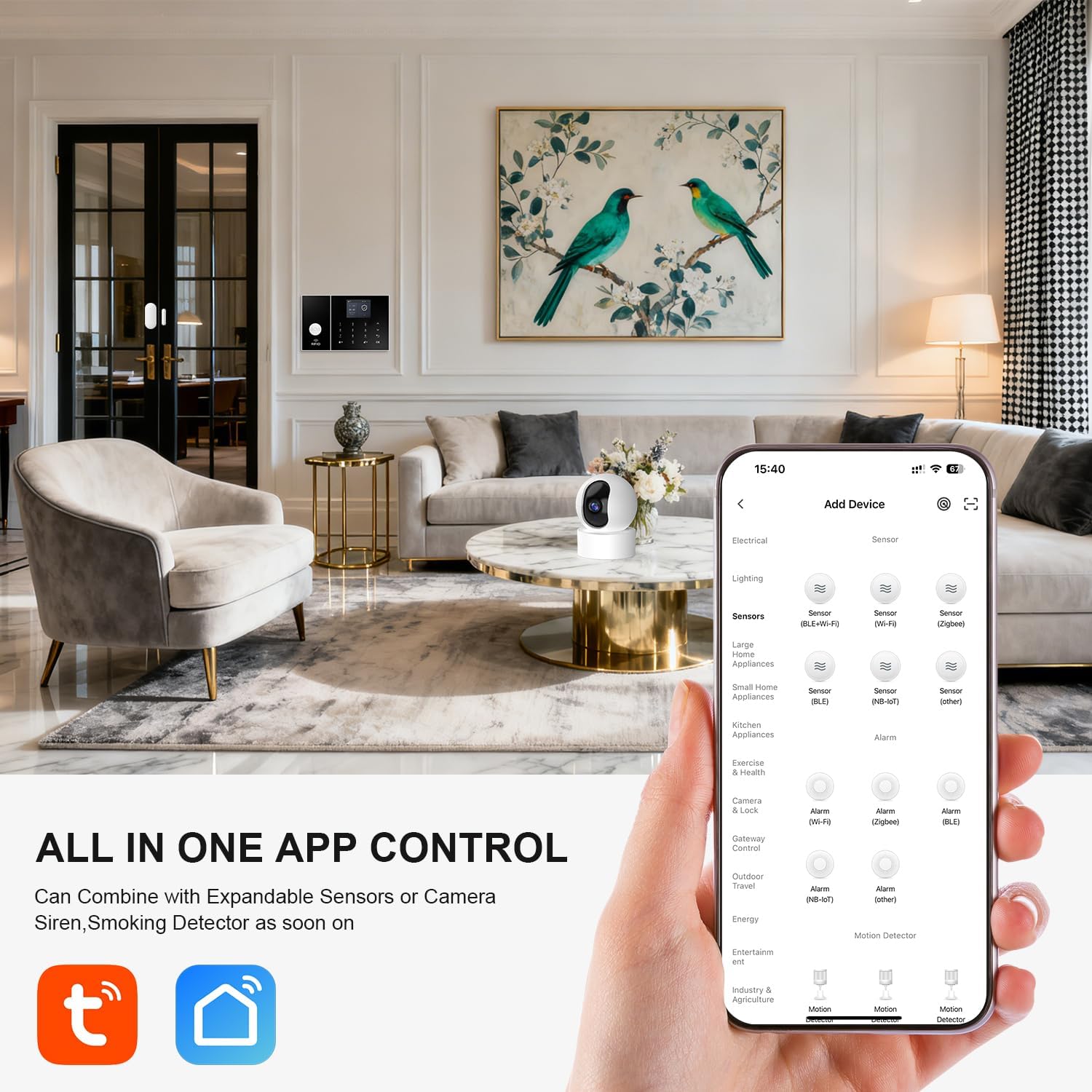
Figure 3.3: The smartphone app interface demonstrating how to add various sensors and devices to the security system, including electrical, lighting, sensors, and cameras, all controlled from a single application.
3.4 Sensor Installation and Naming
The included door/window sensors and motion detectors are pre-paired. Install them in desired locations. It is recommended to rename sensors in the app for easier identification.
- Door/Window Sensors: Mount the two parts of the sensor on the door/window frame and the moving part, ensuring they are aligned and within 1 cm of each other when closed.
- Motion Sensors: Install in a corner or on a wall, ensuring a clear line of sight to the area you wish to monitor. Avoid placing near heat sources or direct sunlight.

Figure 3.4: Smartphone screen showing the interface for editing the name of a door or motion sensor, allowing users to customize device names for better management.
4. Operating Instructions
4.1 Arming and Disarming
The system offers various methods for arming and disarming:
- Control Panel: Use the keypad to enter your PIN and select 'Arm' (Away mode) or 'Home Arm' (Stay mode) or 'Disarm'.
- Remote Control: Press the respective buttons on the remote for 'Arm', 'Disarm', or 'Home Arm'.
- Smartphone App: Use the Tuya Smart/Smart Life app to remotely arm or disarm the system.
- RFID Card: Tap an authorized RFID card on the control panel's sensing area to disarm the system.

Figure 4.1: Four smartphone screens illustrating the mobile app's remote control capabilities, including options for disarming, arming, viewing alarm notifications, and querying historical records.
4.2 Receiving Alerts
When an alarm is triggered, the system will notify you through multiple channels:
- App Push Notifications: Instant alerts sent to your smartphone.
- SMS Messages: Text messages sent to pre-configured phone numbers.
- Voice Calls: The system will dial pre-configured phone numbers and play an alarm message.

Figure 4.2: A smartphone displaying an app alert message, indicating an 'Alarm Event' from the security system, triggered by a door sensor in the living room.
4.3 Voice Control (Alexa & Google Assistant)
Integrate your LWOHSI A108F system with Amazon Alexa or Google Assistant for convenient voice control. Link the Tuya Smart/Smart Life skill/action in your smart home app.
- Example Commands:
"Alexa, arm the security system."
"Hey Google, disarm the alarm."

Figure 4.3: A woman relaxing in her living room, using a smart speaker to interact with her LWOHSI alarm system via Alexa or Google Assistant, demonstrating convenient voice control for arming or disarming the system.
4.4 Monitoring Schedule
Set up a monitoring schedule to automatically arm or disarm your system at specific times, such as when you leave for work or go to bed.

Figure 4.4: An illustration of a typical monitoring schedule, showing automatic arming and disarming times for daily routines like going to work, getting off work, going to bed, and waking up.
4.5 SOS Function
In case of an emergency, press the SOS button on the control panel or remote control. The system will immediately trigger an alarm and send emergency notifications to pre-configured contacts.

Figure 4.5: An elderly person in a wheelchair using a remote control to activate the SOS function, demonstrating the system's emergency call capability.
5. Maintenance
5.1 Cleaning
Wipe the control panel and sensors with a soft, dry cloth. Do not use liquid cleaners or abrasive materials, as these can damage the devices.
5.2 Battery Replacement
The wireless sensors are battery-powered. The system will notify you via the app and control panel when a sensor's battery is low.
- When a low battery alert is received, replace the batteries in the affected sensor promptly.
- Refer to the individual sensor's instructions for specific battery types and replacement procedures.
Figure 5.1: A smartphone displaying a 'Sensor Low Battery' notification for a PIR detector, indicating the need for battery replacement.
6. Troubleshooting
If you encounter issues with your LWOHSI A108F alarm system, refer to the following common problems and solutions:
| Problem | Possible Cause | Solution |
|---|---|---|
| System not connecting to Wi-Fi | Incorrect Wi-Fi password; Router too far; 5GHz Wi-Fi network. | Ensure correct password. Move panel closer to router. Confirm your Wi-Fi is 2.4GHz, as the system may not support 5GHz networks. |
| Sensors not triggering alarm | Sensor battery low; Sensor out of range; Incorrect zone setting. | Check sensor battery and replace if needed. Ensure sensor is within wireless range of the control panel. Verify sensor zone settings in the app. |
| No app notifications | App permissions disabled; Phone's notification settings; Internet connectivity issues. | Check app notification permissions on your phone. Ensure stable internet connection for both phone and alarm system. |
| 4G GSM not working | SIM card not inserted correctly; No signal; SIM card not activated or no credit. | Reinsert SIM card. Check 4G signal strength. Ensure SIM card is active and has sufficient credit/data. |
| Voice control not responding | Incorrect voice commands; Skill/action not linked; Internet connectivity. | Use precise commands. Ensure Tuya Smart/Smart Life skill is linked in Alexa/Google Home app. Check internet connection. |
7. Specifications
| Feature | Detail |
|---|---|
| Brand | LWOHSI |
| Model Number | A108F |
| Connectivity Technology | Wireless (Wi-Fi, 4G GSM) |
| Power Source | Battery Powered (for sensors), AC Adapter (for main panel) |
| Compatible Devices | Smartphone (Tuya Smart/Smart Life App), Amazon Alexa, Google Assistant |
| Control Method | App, Keypad, Remote Control, RFID Card |
| Alert Type | Audio, Motion, App Push, SMS, Voice Call |
| Recommended Uses | Indoor/Outdoor (sensors) |
| Item Dimensions (L x W x H) | 8 x 6 x 4 inches (Control Panel) |
| Item Weight | 3.1 pounds (Control Panel) |
8. Warranty and Support
8.1 Warranty Information
Your LWOHSI A108F Home Security Alarm System is covered by a manufacturer's warranty. Please refer to the warranty card included in your product packaging or contact LWOHSI customer service for specific warranty terms and conditions.
8.2 Customer Support
For technical assistance, troubleshooting, or any questions regarding your product, please contact LWOHSI customer support. Contact details can typically be found on the manufacturer's website or in your product packaging.
- Online Support: Visit the official LWOHSI website for FAQs, support articles, and contact forms.
- Email Support: Refer to your product documentation for the customer support email address.