
1. Introduction
The TOOXYZ J13 Dash Cam is a comprehensive 3-channel recording system designed to capture high-definition video from the front, interior, and rear of your vehicle. Equipped with advanced features such as 4K front recording, 5G WiFi connectivity, and a 24-hour parking monitor, it provides reliable evidence and peace of mind for your journeys. This manual will guide you through the setup, operation, and maintenance of your new dash cam.

Image: The TOOXYZ J13 Dash Cam main unit with its suction cup mount, a separate rear camera, and a 64GB SD card, alongside a smartphone displaying the companion app interface.
2. Package Contents
Please check the box for the following items:
- 1 x J13 Front + Inside Dash Camera
- 1 x Rear Camera
- 1 x Crowbar
- 4 x Cable Clamps
- 1 x Reset Pin
- 1 x Suction Cup Mount
- 1 x Car Charger (11.5ft/3.5m)
- 1 x 64GB Memory Card (pre-installed in the dashcam)
- 1 x User Manual
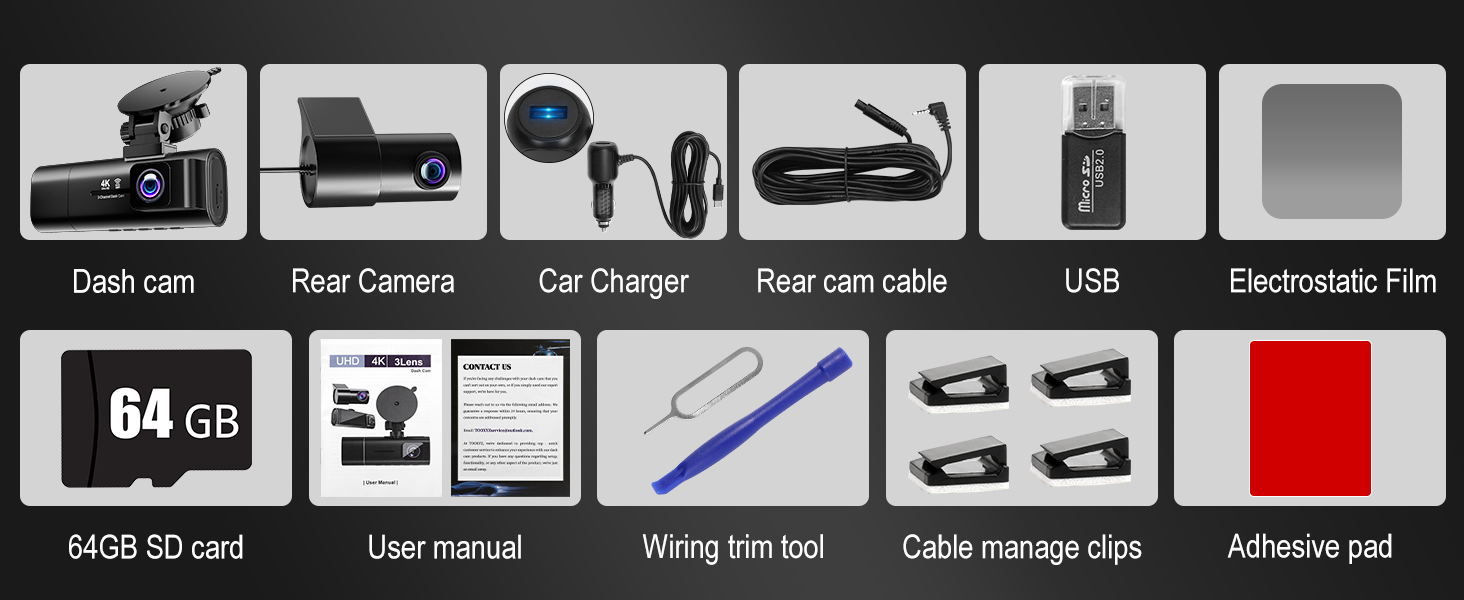
Image: Visual representation of all items included in the TOOXYZ J13 Dash Cam package.
3. Product Overview
The TOOXYZ J13 features a main unit with a front-facing camera and an integrated interior camera, along with a separate rear camera for comprehensive coverage. The main unit includes a 3.16-inch IPS screen for live view and settings adjustment.
Key Features:
- 4K Front Camera: Captures ultra-high-definition video of the road ahead.
- 1080P Interior Camera: Records the cabin interior.
- 1080P Rear Camera: Provides a view of the vehicle's rear.
- 3.16" IPS Screen: Clear display for real-time viewing and menu navigation.
- 5G WiFi: Fast and stable connection for app control and video downloads.
- Loop Recording: Automatically overwrites oldest files to ensure continuous recording.
- G-Sensor: Detects collisions and locks footage to prevent overwriting.
- WDR (Wide Dynamic Range): Enhances video quality in varying light conditions.
- IR Night Vision: Improves visibility in low-light environments.
- Time-Lapse: Records at a low frame rate for extended periods.
- 24H Parking Monitor: Provides surveillance when the vehicle is parked (requires separate hardwire kit).

Image: A visual summary of the TOOXYZ J13 Dash Cam's main features.
4. Setup
4.1 Mounting the Dash Cam (Front Unit)
- Clean the area on your windshield where you intend to mount the dash cam.
- Attach the suction cup mount to the main dash cam unit.
- Press the suction cup firmly against the windshield and lock it into place using the lever or rotating mechanism on the mount.
- Adjust the angle of the front and interior cameras to ensure optimal viewing angles.
4.2 Installing the Rear Camera
- Find a suitable installation position on the rear windshield.
- Wipe and clean the pre-installation position with a paper towel. Stick the static sticker firmly, remove air bubbles, and let it stand for half an hour before installing the rear camera. This will make the static adsorption more secure.
- Install the rear camera on the rear windshield. Connect the power cable of the front camera.
- Use the interior trim removal tool (crowbar) to tuck the cable along the edge of the windshield and the A-pillar.
- Insert the power cable into the gaps between the front windshield and the ceiling, between the body on the passenger seat side, and between the rear seat and the ceiling.
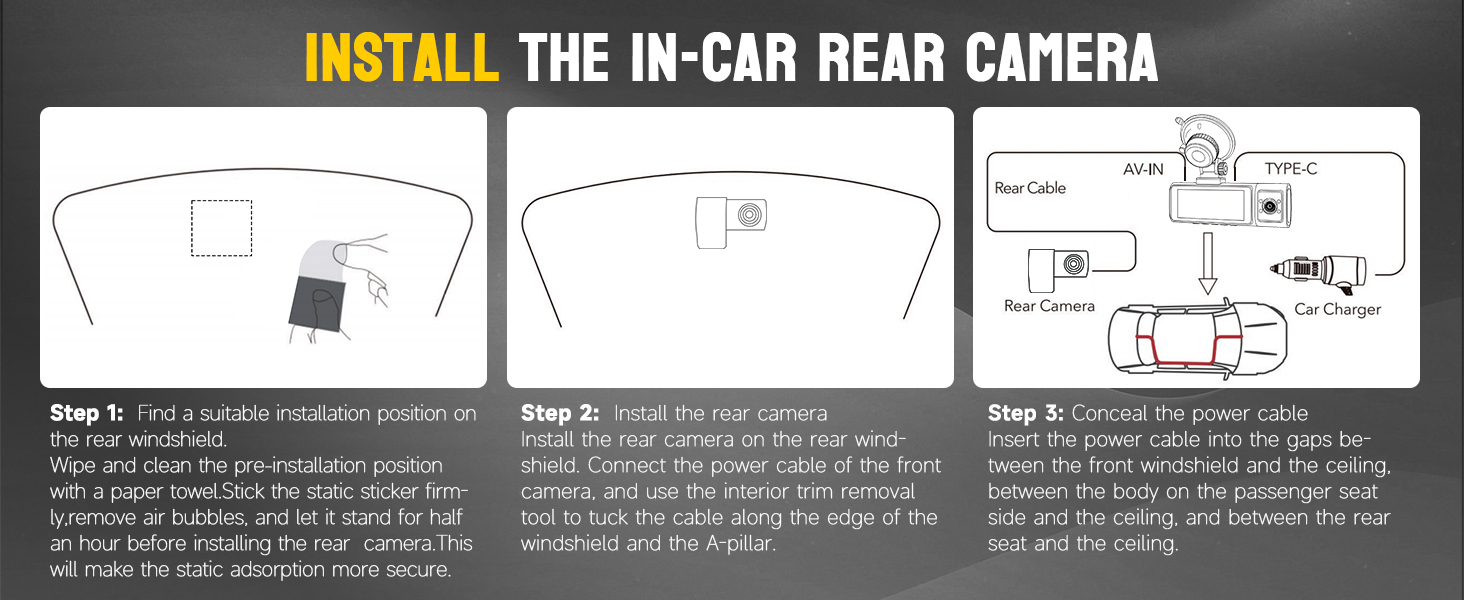
Image: Step-by-step guide for installing the rear camera and concealing its cable.
4.3 Power Connection
- Connect the provided car charger to the dash cam's power input port.
- Plug the car charger into your vehicle's 12V power outlet (cigarette lighter socket).
- The dash cam will automatically power on and begin recording when your vehicle starts.
4.4 SD Card Installation
- The 64GB SD card is pre-installed in your dash cam.
- If replacing the SD card, ensure the dash cam is powered off.
- Insert a Class 10-U3 speed microSD card (up to 256GB supported) into the designated slot until it clicks.
- Format the SD card via the dash cam's settings menu before first use or after replacing.
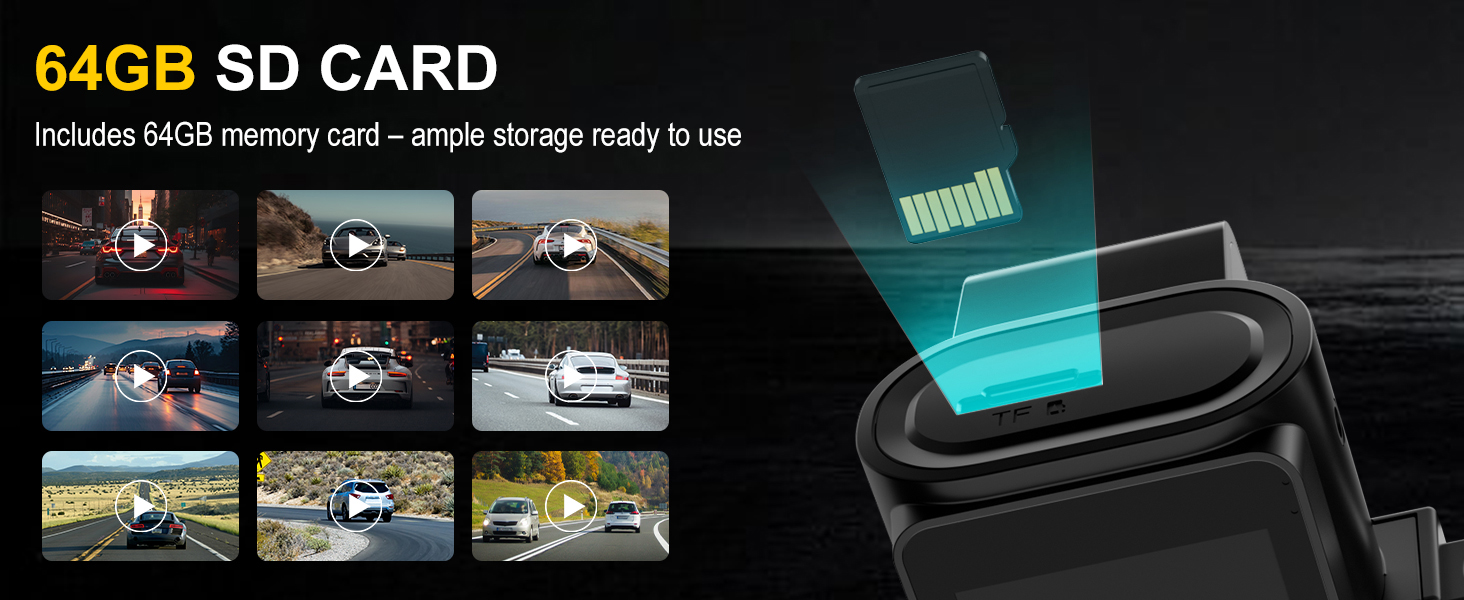
Image: The dash cam with a 64GB SD card, highlighting its storage capacity.
5. Operating Instructions
5.1 Basic Operation
- Power On/Off: The dash cam automatically powers on/off with your vehicle's ignition. You can also manually power it on/off using the power button.
- Recording: Once powered on, the dash cam automatically begins loop recording. A red indicator light or icon on the screen confirms recording is active.
- Screen Interface: The 3.16" IPS screen displays live views from the cameras. You can switch between views or display all three simultaneously.
- Menu Navigation: Use the physical buttons below the screen to navigate through settings and options.
5.2 Recording Features
- Resolution Settings: The dash cam supports 4K+1080P+1080P recording. You can adjust the resolution settings via the menu.
- Loop Recording: Videos are recorded in segments (e.g., 1, 2, or 3 minutes). When the SD card is full, the oldest unlocked files are automatically overwritten.
- G-Sensor: In the event of a sudden impact or collision, the G-Sensor automatically detects the event and locks the current video file, preventing it from being overwritten. Sensitivity can be adjusted (Low, Middle, High).
- WDR & Night Vision: Wide Dynamic Range (WDR) technology ensures clear video capture in varying light conditions, while IR Night Vision enhances clarity in low-light or nighttime scenarios.
- Time-Lapse: This mode records at a lower frame rate over extended periods, condensing footage to save storage.
- Audio Recording: The dash cam can record audio inside the cabin. This feature can be toggled on/off in the settings.
5.3 Parking Monitoring
The 24-hour Parking Monitor feature provides surveillance when your vehicle is parked. It offers two modes:
- Time-Lapse Recording: When enabled, the dash cam continuously records at a low frame rate for 12/24 hours after the car is turned off.
- Collision Detection: If time-lapse recording is off, the dash cam will automatically turn on and record a 30-second full-frame rate video, locking it, upon detecting vehicle shaking or collision.
Note: To enable the 24-hour parking monitoring feature, a separate hardwire kit (ASIN: B0F1K8QNDB) is required and sold separately.
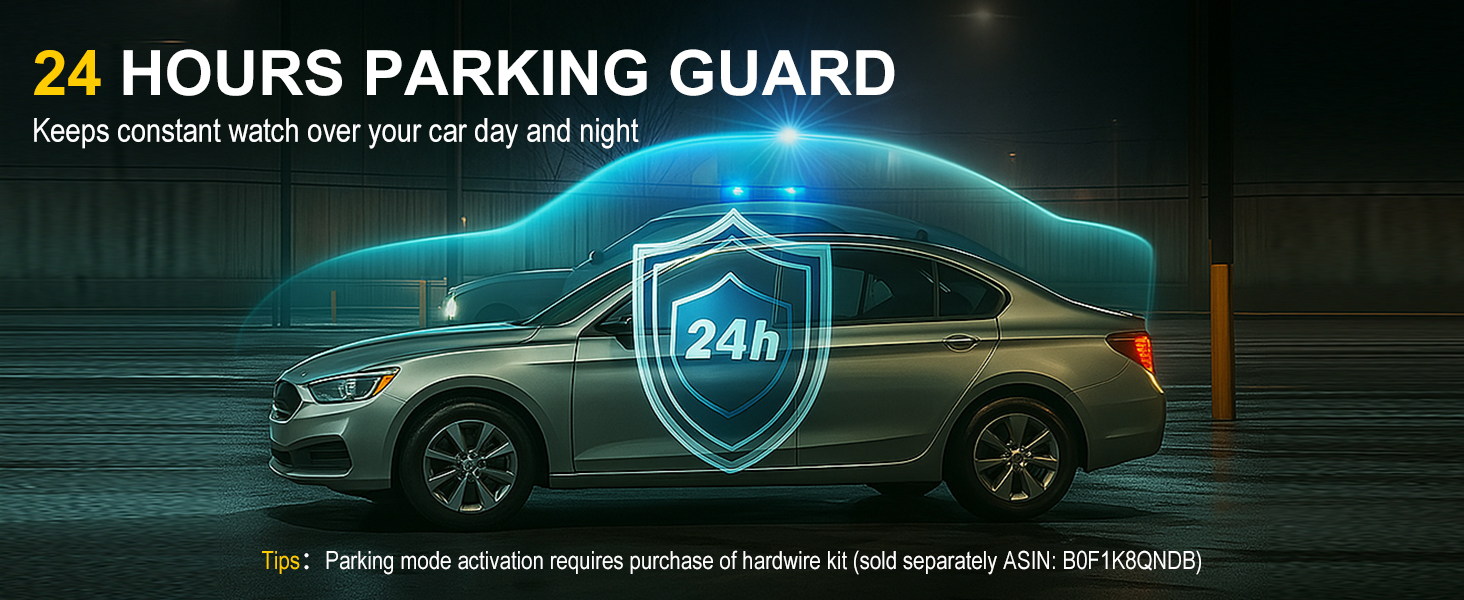
Image: Visual representation of the 24-hour parking guard feature.
6. 5G WiFi and App Control ("Viidure")
The TOOXYZ J13 Dash Cam is equipped with advanced 5G WiFi technology, allowing for fast and stable connections to your smartphone via the "Viidure" app. This enables real-time viewing, video downloads, and easy management of your dash cam footage.
6.1 Connecting to Wi-Fi
- Turn on the Wi-Fi function from the dash cam's settings or by long-pressing the UP button. The Wi-Fi SSID and password will appear on the screen.
- On your smartphone, go to Wi-Fi settings and connect to the dash cam's Wi-Fi network (SSID: J13-XXXXXX). Enter the default password (usually 12345678).
- Open the "Viidure" app and select "Add Camera" to connect.
6.2 Using the "Viidure" App
Once connected, the "Viidure" app allows you to:
- Watch Live Video: View real-time footage from the front, interior, and rear cameras.
- Download Videos: Easily transfer recorded videos to your phone.
- Manage Files: Browse, delete, and organize your footage.
- Adjust Settings: Change dash cam settings directly from your phone.
- Share: Quickly share your journey footage with friends and family on social media.
The "Viidure" app does not require VIP membership for essential features like online video viewing, front/rear view switching, playback, video downloading, and camera setup. Some advanced features like video speed adjustment, timeline viewing, and cloud disk uploads may require membership.
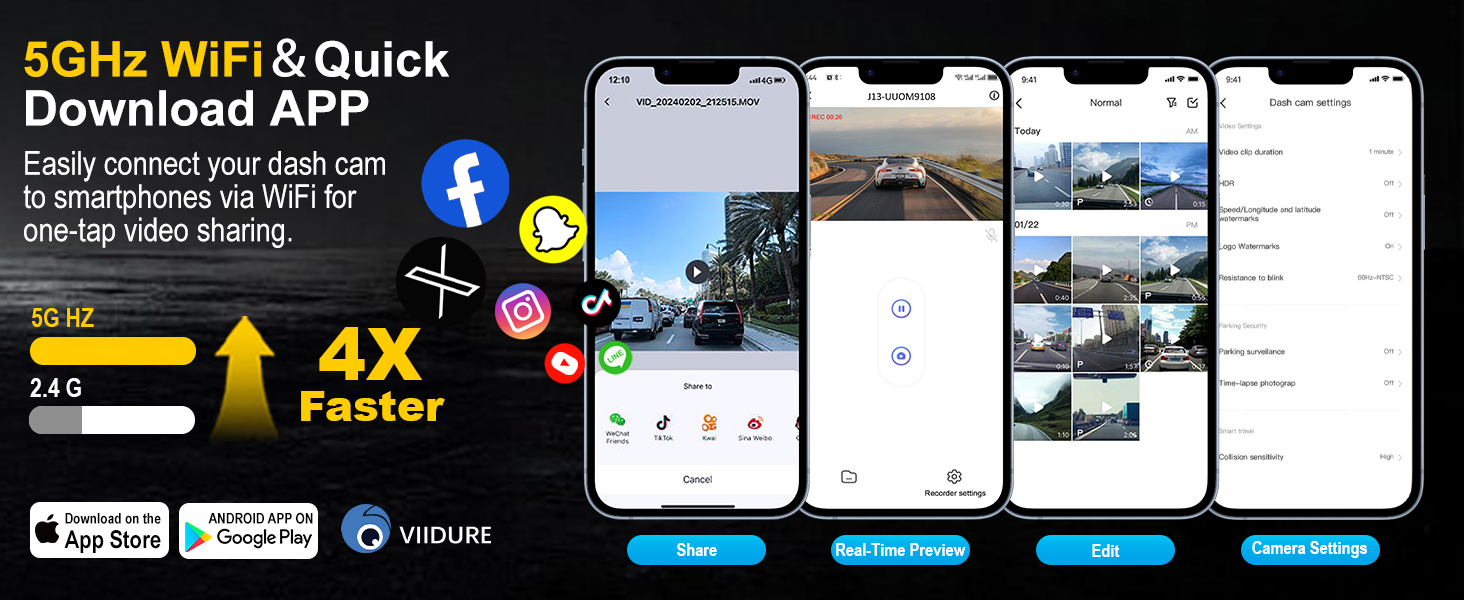
Image: The Viidure app interface on a smartphone, demonstrating its various functions for dash cam control and media management.
Video: This video demonstrates the features of the TOOXYZ 3-Channel Dash Cam, including its 64GB card, highlighting its recording capabilities and ease of use.
Video: This video provides a step-by-step guide on how to connect the dash cam's WiFi and use its companion mobile application.
7. Maintenance
- SD Card Formatting: Regularly format the SD card (at least once a month) via the dash cam settings to ensure optimal performance and prevent data corruption.
- Lens Cleaning: Keep the camera lenses clean using a soft, dry cloth to ensure clear video quality. Avoid abrasive materials.
- Firmware Updates: Check the manufacturer's website or the "Viidure" app for any available firmware updates to ensure your dash cam has the latest features and improvements.
8. Troubleshooting
- Dash Cam Not Powering On: Ensure the car charger is properly connected to both the dash cam and the vehicle's power outlet. Check the vehicle's 12V outlet for power.
- Recording Issues: If the dash cam is not recording, check if the SD card is properly inserted and formatted. Ensure there is sufficient storage space or that loop recording is enabled.
- Poor Video Quality: Clean the camera lenses. Check the resolution settings in the menu or app.
- Wi-Fi Connection Problems: Ensure the dash cam's Wi-Fi is enabled. Verify the correct SSID and password. Try restarting both the dash cam and your smartphone.
- Parking Monitor Not Working: Confirm that the optional hardwire kit (ASIN: B0F1K8QNDB) is correctly installed and connected. Check parking monitor settings in the menu.
9. Specifications
| Feature | Detail |
|---|---|
| Model Name | J13 |
| Video Capture Resolution | 4K (Front), 1080P (Interior), 1080P (Rear) |
| Field Of View | 170 Degrees (Front), 120 Degrees (Interior), 120 Degrees (Rear) |
| Screen Size | 3.16" IPS |
| Connectivity Technology | 5G Wi-Fi |
| Storage | Includes 64GB SD Card, Supports up to 256GB Class 10-U3 microSD |
| Mounting Type | Windshield Mount (Suction Cup) |
| Product Dimensions | 5.91 x 2.56 x 5.12 inches |
| Item Weight | 1.76 ounces |
| Special Features | G-Sensor, Loop Recording, WDR, IR Night Vision, Time-Lapse, 24H Parking Monitor (Hardwire Kit Sold Separately) |
10. Warranty and Support
The TOOXYZ J13 Dash Cam comes with a hassle-free 1-Year Warranty. Our dedicated customer support team is committed to providing responsive assistance and promptly resolving any issues you may encounter. For support, please contact us at TOOXYZservice@outlook.com.
Image: Customer service representatives ready to assist, symbolizing reliable after-sales support.