
1. Introduction
This manual provides comprehensive instructions for the setup, operation, and maintenance of your Sovboi S61Pro 4K Outdoor Smart Projector. Designed for versatile use, this projector features built-in Google TV, intelligent voice control, and advanced image correction capabilities to deliver a superior viewing experience.

Figure 1.1: Sovboi S61Pro 4K Outdoor Smart Projector. This image shows the front view of the white projector with its integrated stand.
2. What's in the Box
Please verify that all items listed below are included in your package:
- 1 × Sovboi S61Pro Projector with 180° Stand;
- 1 × Remote Control (Batteries NOT Included);
- 1 × Power Cable (1.5M/4.92ft);
- 1 × HDMI Cable (1.2M/3.94ft);
- User Manual
Note: For optimal 4K content playback, connect 4K devices (e.g., TV stick) via HDMI. Videos labeled as 4K will be displayed at a native 1080P resolution, indicating "4K supported" capability.
3. Setup Guide
3.1 Initial Placement
Position the projector on a stable, flat surface. The integrated 180° flexible stand allows for versatile projection angles, including ceiling projection. The short throw ratio (1:1) enables a large image from a short distance, saving space.

Figure 3.1: Projector demonstrating its 180° flexible rotating stand, allowing for projection onto a wall or ceiling.
3.2 Power Connection
Connect the provided power cable to the projector's power jack and then to a power outlet. Ensure the power cord is firmly plugged into the deep-set power jack for secure fit and safety.
3.3 Image Adjustment (Electric Focus & Auto Keystone)
The S61Pro features automatic image correction for effortless setup:
- Electric Focus: Press the dedicated button on the remote control, and the projector will automatically adjust the image clarity.
- Auto Vertical Keystone Correction: The projector automatically corrects vertical image distortion, ensuring a rectangular picture even if the projector is not perfectly aligned.
- Zoom Function: Adjust the image size from 70% to 100% via settings.

Figure 3.2: Visual representation of the projector's electric focus and real-time keystone correction features, ensuring a clear and perfectly shaped image.
3.4 Network Connection
Connect your projector to the internet and other devices:
- Wi-Fi 6: Navigate to the network settings and select your Wi-Fi network. Enter the password to connect for high-speed streaming.
- Bluetooth 5.4: Pair with external Bluetooth speakers or headphones for enhanced audio.
4. Operating Instructions
4.1 Google TV Interface
The S61Pro comes with built-in Google TV, providing access to a vast library of content:
- App Access: Enjoy over 10,000 apps and 800+ free live TV channels. Popular streaming services like Netflix, YouTube, Disney+, Prime Video, and Hulu are directly accessible.
- Google Store: Apps are regularly maintained and updated through the built-in Google Store to ensure the latest features and stability.
- Personalized Profiles: Create individual user accounts and customizable viewing lists for tailored experiences.
- Kids Mode: Filter content and manage screen time for family-friendly viewing.

Figure 4.1: The projector displaying the Google TV interface, showcasing a wide array of available applications and channels.
4.2 Voice Control with Google Assistant
Utilize the integrated Google Assistant for hands-free control:
- Press the Google Assistant button on the remote control.
- Speak naturally to search for content, adjust volume, or control playback.
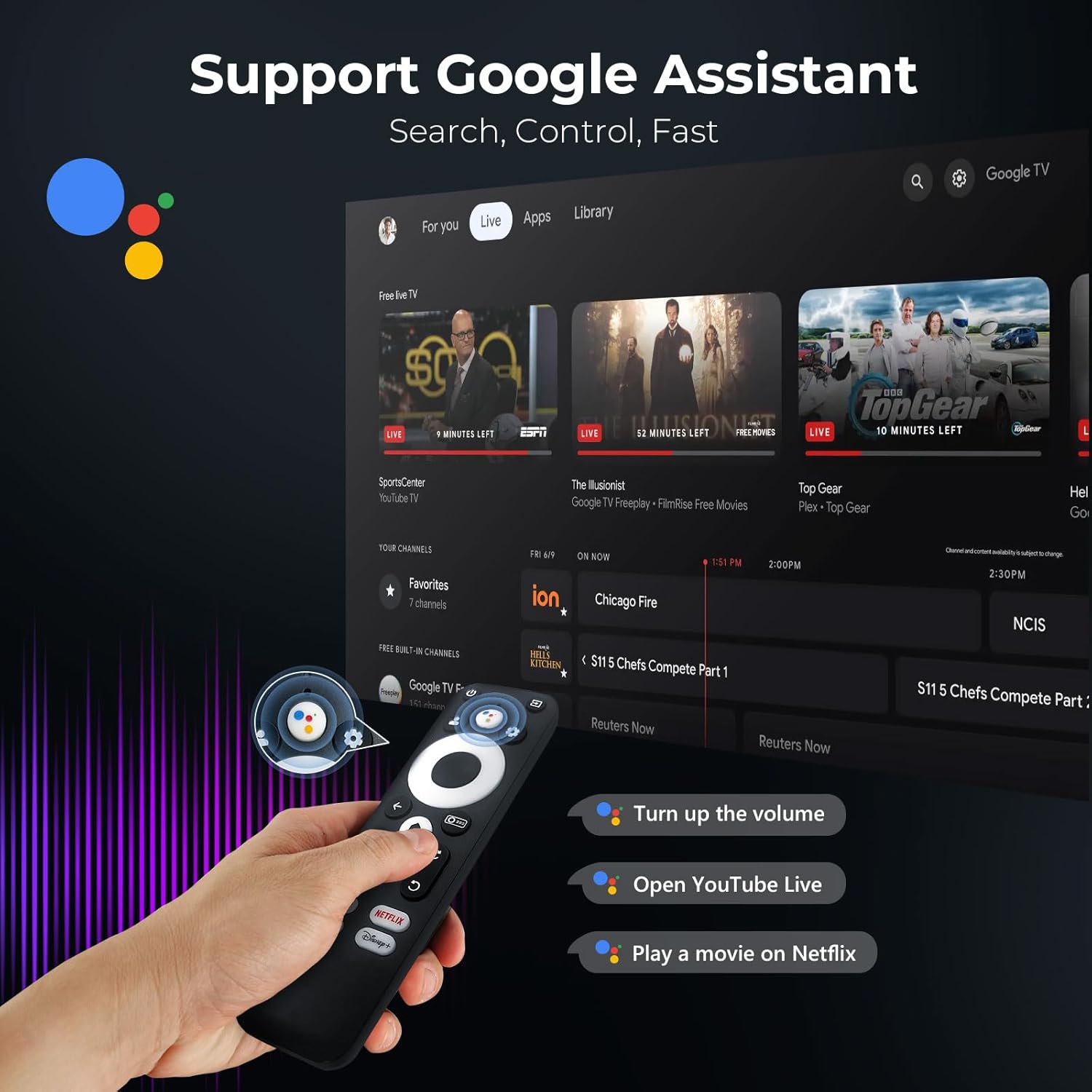
Figure 4.2: A hand holding the projector's remote control, highlighting the Google Assistant button for voice commands.
4.3 Content Casting
Wirelessly cast content from your devices:
- Google Cast: Instantly cast content from compatible Android and iOS devices.
- Multi-device Casting: Supports casting from various devices for flexible viewing.
4.4 External Device Connectivity
The projector is equipped with multiple ports for connecting external devices:
- HDMI: Connect laptops, gaming consoles (PS5, Switch), TV sticks, and other HDMI-enabled devices.
- USB: Play media directly from USB drives.
- 3.5mm Audio Port: Connect external headphones or speakers via a wired connection.
Figure 4.3: The projector's connectivity options, including HDMI, USB, and a 3.5mm audio port, allowing connection to various devices like phones, laptops, and gaming consoles.
5. Display and Audio Features
5.1 Visual Performance
- Brightness: 1500 ANSI lumens for clear visuals even in well-lit environments.
- Resolution: Native 1080P with 4K support, ensuring crisp and detailed images.
- Color & Contrast: LCD cinema-level optical engine with HDR10+ dynamic optimization and 99% color gamut coverage for lifelike colors and enhanced dark-field details.
- Display Size: Projects images up to 300 inches.
- Eye-Care: Soft diffusion design reduces eye strain for comfortable viewing.

Figure 5.1: An example of the high-quality image projection, highlighting vibrant colors and support for 4K content.
5.2 Audio Performance
- Speakers: Unique 2x15W audio-visual separation speaker stand delivers cinema-level sound effects.
- Dual-Stereo: Provides immersive audio for an enhanced viewing experience.
6. Maintenance
Proper maintenance ensures the longevity and optimal performance of your projector:
- Sealed Optical Engine: The S61Pro features a sealed optical engine designed to reduce black spots and extend the projector's lifespan.
- Dual-Vortex Fan System: The upgraded dual-vortex fan automatically increases pressure by 30% for efficient cooling, protecting internal components and maintaining long-term high brightness.
- Cleaning: Regularly clean the exterior of the projector with a soft, dry cloth. Do not use liquid cleaners or abrasive materials.
- Lens Care: Gently clean the projector lens with a lens cleaning cloth or air blower to remove dust. Avoid touching the lens directly with your fingers.

Figure 6.1: An exploded view illustrating the sealed optical engine and dual-fan cooling system, designed for durability and performance.
7. Troubleshooting
This section addresses common issues you might encounter:
| Problem | Possible Cause | Solution |
|---|---|---|
| Projector does not power on. | Power cable not securely connected. | Ensure the power cord is firmly plugged into the projector's deep-set power jack and the wall outlet. |
| Image is blurry or out of focus. | Focus not adjusted. | Use the Electric Focus button on the remote control to automatically adjust clarity. |
| Image is distorted (not rectangular). | Keystone correction needed. | The projector features Auto Vertical Keystone Correction. Ensure the projector is on a level surface. Manual adjustments may be available in settings if needed. |
| Cannot connect to Wi-Fi or Bluetooth. | Incorrect password or device not in pairing mode. | Verify Wi-Fi password. For Bluetooth, ensure the external device is in pairing mode and within range. Restart both devices if necessary. |
| No sound from projector. | Volume too low or external audio device connected. | Increase volume. Check if Bluetooth speakers are connected and ensure audio output is set correctly in settings. |
8. Product Specifications
| Feature | Detail |
|---|---|
| Brand | Sovboi |
| Model Number | S61Pro |
| Display Resolution | 1920 x 1080 (Native 1080P, 4K Support) |
| Brightness | 1500 ANSI Lumens |
| Connectivity Technology | WiFi 6, Bluetooth 5.4, HDMI, USB |
| Special Features | Built-in Google TV, Google Assistant, AI Image Enhance & Eye Protect, Electric Focus & Auto Keystone, 180° Flexible Stand, Dual fans, Sealed Optical Engine |
| Audio | 2x15W HIFI Speakers |
| Recommended Uses | Indoor/Outdoor |
| Item Weight | 4.18 pounds |
| Product Dimensions | 8.66 x 8.27 x 9.45 inches |
| Color | White |
9. Warranty and Support
Sovboi is committed to providing excellent customer service and support for your S61Pro projector:
- Protection Plan: Enjoy a 3-year protection plan.
- Customer Support: Lifetime customer support is available.
- 24/7 Assistance: Contact our support team anytime for assistance.
- Contact Email: For support inquiries, please email support_us@sovboi.com.

