
1. Introduction
This manual provides essential information for setting up, operating, and maintaining your Samsung Galaxy Tab S11 Ultra. Please read this guide thoroughly to ensure proper use and to maximize the device's capabilities. The Samsung Galaxy Tab S11 Ultra is a high-performance Wi-Fi only tablet featuring a 14.6-inch AMOLED display, an advanced processor, and an S-Pen for enhanced productivity and creativity.
2. What's in the Box
Verify that all items are present in the product packaging:
- Samsung Galaxy Tab S11 Ultra Tablet
- S-Pen (Bluetooth enabled)
- USB Cable (Type-C)
- 25W Super Fast Charger Cube

Image: Contents of the Samsung Galaxy Tab S11 Ultra package, including the tablet, S-Pen, USB cable, and 25W fast charger.
3. Setup
3.1 Initial Charging
Before first use, fully charge your tablet using the included 25W Super Fast Charger and USB cable. Connect the USB cable to the tablet's USB Type-C port and the charger cube, then plug the charger into a power outlet.
3.2 Power On/Off
- To Power On: Press and hold the Power button until the Samsung logo appears.
- To Power Off: Press and hold the Power button, then tap 'Power off' on the screen.
3.3 Initial Setup Wizard
Upon first power-on, follow the on-screen instructions to:
- Select your language.
- Connect to a Wi-Fi network.
- Sign in with your Google account or create a new one.
- Set up security features, including the fingerprint sensor.
- Review and accept terms and conditions.
3.4 S-Pen Pairing
The S-Pen typically pairs automatically when first used with the tablet. Ensure the S-Pen is charged by attaching it magnetically to the designated area on the tablet's back.

Image: The Samsung Galaxy Tab S11 Ultra tablet in Platinum Silver, shown with its S-Pen.
4. Operating Your Device
4.1 Display and S-Pen Features
The tablet features a 14.6-inch Dynamic AMOLED 2X display with a 120Hz refresh rate and HDR10+ support, providing a vibrant and smooth visual experience. The included S-Pen allows for precise input, drawing, and note-taking.
- Drawing Assistance: Utilize the S-Pen for detailed sketches and creative projects.
- Writing Assistance: Convert handwritten notes to text and organize your thoughts efficiently.

Image: The tablet display showing S-Pen drawing assistance features.

Image: The tablet display showing S-Pen writing assistance for note-taking.
4.2 Performance and Storage
The tablet is powered by a Mediatek Dimensity 9400+ (3nm) chipset with an Octa-core CPU and Immortalis-G925 MC12 GPU, ensuring smooth performance for demanding applications. It comes with 256GB of internal storage and 12GB of RAM, expandable via a dedicated microSD slot.
4.3 Camera and Connectivity
The device features a dual rear camera system (13MP wide + 8MP ultrawide) and a dual front camera system (12MP wide & ultrawide) capable of 4K UHD 2160p video capture. Connectivity options include Wi-Fi 6E, Bluetooth 5.4, and USB Type-C 3.2. This is a Wi-Fi only model and does not support cellular networks.

Image: Rear view of the Samsung Galaxy Tab S11 Ultra, highlighting the dual camera setup.
4.4 Software and Features
The tablet runs on Android 16 with Samsung's One UI 8 interface. Key features include:
- Samsung DeX: Transform your tablet experience into a desktop-like environment for enhanced multitasking.
- Biometric Security: Integrated fingerprint sensor for secure unlocking.
- GPS: GPS-enabled for location services.
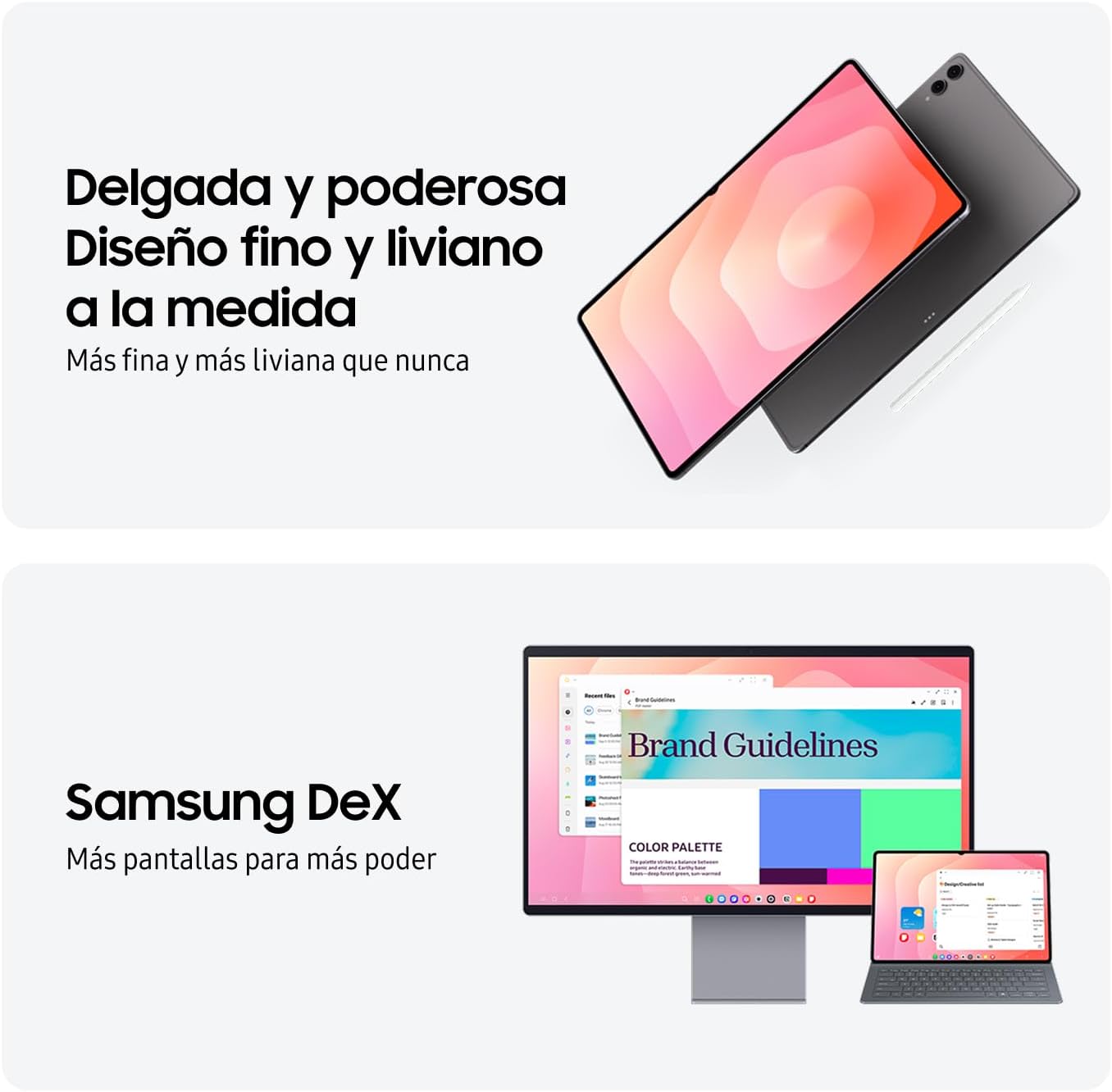
Image: The Samsung Galaxy Tab S11 Ultra demonstrating the Samsung DeX interface, extending the display to an external monitor.
5. Maintenance
5.1 Cleaning Your Device
Use a soft, lint-free cloth to clean the screen and body of the tablet. Avoid abrasive materials or harsh chemicals. For stubborn smudges, lightly dampen the cloth with water or a screen-cleaning solution designed for electronics.
5.2 Battery Care
To prolong battery life:
- Avoid extreme temperatures.
- Do not let the battery drain completely before recharging frequently.
- Use only the provided charger or a Samsung-approved charger.
5.3 Software Updates
Regularly check for and install software updates to ensure optimal performance, security, and access to new features. Navigate to Settings > Software update > Download and install.
6. Troubleshooting
- Device not turning on: Ensure the battery is charged. Connect to the charger for at least 10 minutes before attempting to power on.
- Screen unresponsive: Perform a forced restart by pressing and holding the Power button and Volume Down button simultaneously for about 7 seconds.
- Wi-Fi connection issues: Restart your tablet and your Wi-Fi router. Ensure you are within range of the Wi-Fi signal.
- S-Pen not working: Ensure the S-Pen is properly attached to the tablet to charge and pair. Check S-Pen settings in the tablet's menu.
7. Specifications
| Feature | Specification |
|---|---|
| Model Name | Samsung Galaxy Tab S11 Ultra |
| Display | 14.6-inch Dynamic AMOLED 2X, 2960 x 1848 pixels, 120Hz |
| Processor | Mediatek Dimensity 9400+ (3nm) |
| RAM | 12 GB |
| Storage | 256 GB (expandable via microSD) |
| Rear Camera | 13MP (wide) + 8MP (ultrawide) |
| Front Camera | Dual 12MP (wide & ultrawide) |
| Battery Capacity | 11,600 mAh |
| Operating System | Android 16, One UI 8 |
| Connectivity | Wi-Fi 6E, Bluetooth 5.4, USB Type-C 3.2 (Wi-Fi Only) |
| Dimensions (L x W x Th) | 14.6" x 7.3" x 0.2" |
| Weight | 2.2 Pounds |
| Included Accessories | S-Pen, 25W Super Fast Charger Cube, USB Cable |
8. Warranty and Support
This Samsung Galaxy Tab S11 Ultra is an international model and does not come with a domestic warranty. However, it is covered under the seller's return policy. For specific details regarding returns or any product-related issues, please refer to the seller's terms and conditions or contact their customer support directly.
For additional support, visit the official Samsung support website for general product information and troubleshooting guides.


