
Introduction
This manual provides instructions for the Toshiba 58C350NS 58-inch 4K DLED Smart TV. This television features a 58-inch DLED 4K UHD display, offering vibrant colors and detailed images. It integrates Dolby Audio for an immersive sound experience through its two 8W RMS speakers. The TV operates on the VIDAA smart TV platform, providing an intuitive interface for accessing streaming applications such as Netflix, YouTube, Prime Video, and Disney+. Connectivity options include 3 HDMI 2.0 inputs, 2 USB 2.0 ports, AV input, P2 audio input, optical audio output, digital converter, LAN Ethernet port, Wi-Fi, and Bluetooth 5.0. The included remote control supports voice commands and quick access buttons for popular streaming services.
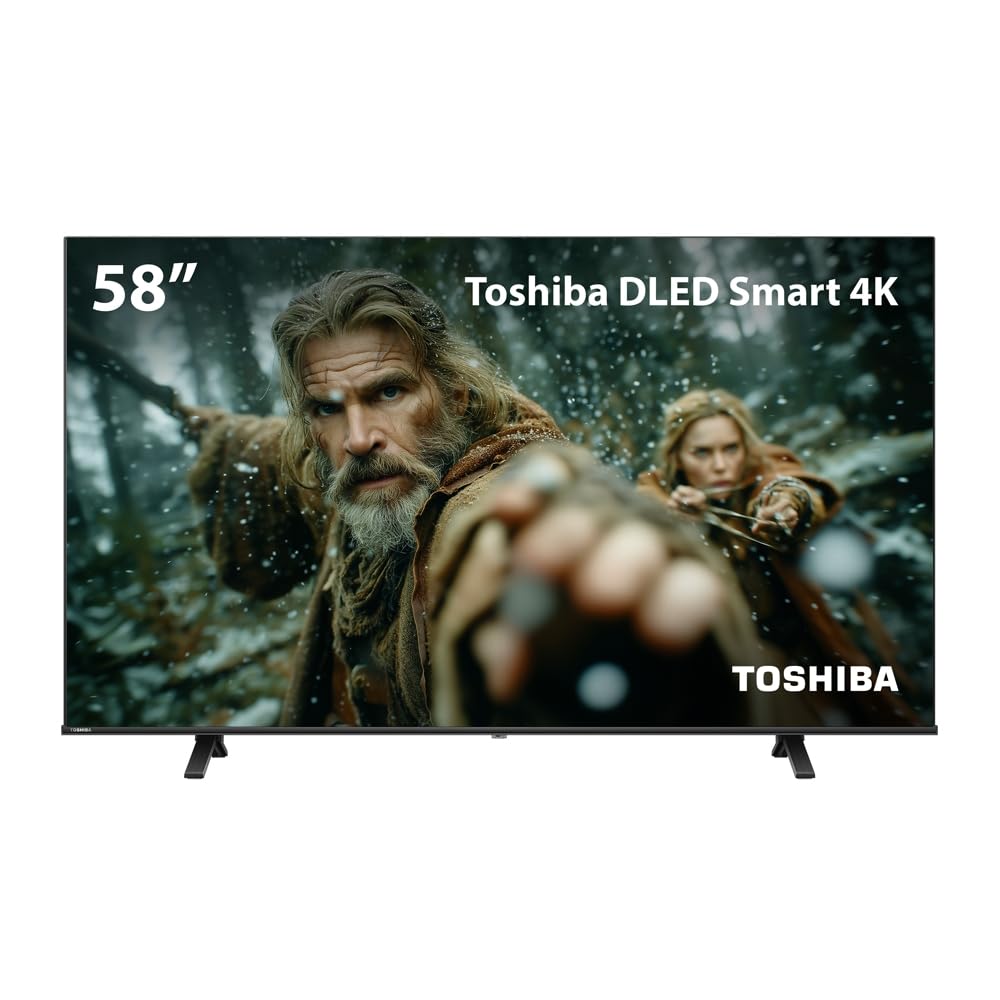
Image: Front view of the Toshiba 58C350NS 58-inch 4K DLED Smart TV, showcasing its display and slim bezels.
Setup
1. Unboxing
- Carefully remove the TV from its packaging.
- Ensure all accessories are present: remote control, batteries, power cord, and stand components.
2. Stand Installation
If placing the TV on a flat surface, attach the included stands. Place the TV face down on a soft, clean surface to prevent screen damage. Align each stand with the corresponding slots on the bottom of the TV and secure them with the provided screws.
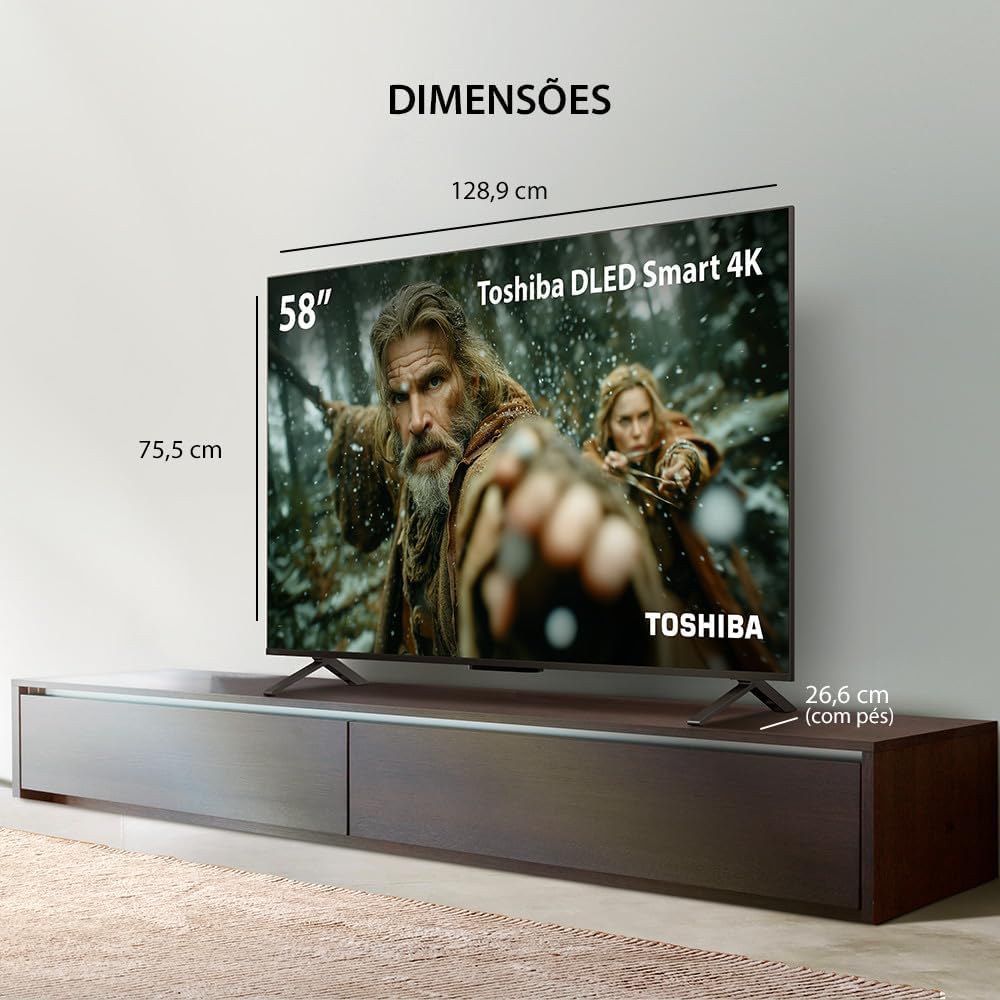
Image: Diagram illustrating the dimensions of the Toshiba 58C350NS TV, including width (128.9 cm), height (75.5 cm), and depth with feet (26.6 cm).
3. Wall Mounting
For wall mounting, use a VESA-compatible bracket (200 x 400 mm). Refer to the wall mount bracket's instructions for proper installation. Ensure the wall can support the TV's weight.
4. Connecting Devices
Connect external devices such as Blu-ray players, game consoles, or sound systems to the TV's ports. The TV features 3 HDMI ports, 2 USB ports, LAN, AV, P2, and optical audio out.

Image: Close-up of the rear panel of the Toshiba 58C350NS TV, showing various input/output ports including HDMI, USB, LAN, and antenna connections.
5. Power Connection
After all connections are made, plug the power cord into the TV and then into a suitable electrical outlet (127V or 220V, depending on your region).
Operating
1. Power On/Off
- Press the Power button on the remote control or on the TV to turn it on or off.
2. Initial Setup Wizard
The first time you power on the TV, an on-screen setup wizard will guide you through essential settings:
- Language Selection: Choose your preferred language.
- Network Connection: Connect to your Wi-Fi network or use an Ethernet cable for a wired connection.
- Channel Scan: Scan for available digital TV channels.
3. VIDAA OS Navigation
The VIDAA operating system provides an intuitive interface:
- Press the Home button on the remote to access the main menu.
- Use the arrow keys to navigate through apps, inputs, and settings.
- Quick access buttons for popular streaming services (Netflix, YouTube, Prime Video, Disney+) are available on the remote.
4. Input Selection
To switch between connected devices:
- Press the Input or Source button on the remote.
- Select the desired input (e.g., HDMI 1, USB, AV) from the on-screen menu.
5. Picture Settings
Adjust picture quality to your preference:
- Navigate to Settings > Picture.
- Choose from preset modes (Standard, Cinema, Vivid) or customize settings like Brightness, Contrast, Color, and Sharpness.
6. Sound Settings
Optimize audio output:
- Navigate to Settings > Sound.
- Select sound modes (Standard, Music, Movie) or adjust equalizer settings.
- Enable or disable Dolby Audio for enhanced sound.
7. Voice Control
The remote control supports voice commands:
- Press the Voice button on the remote.
- Speak clearly into the microphone to search for content, open apps, or control TV functions.
Maintenance
1. Cleaning the TV
- Screen: Gently wipe the screen with a soft, lint-free cloth. For stubborn marks, slightly dampen the cloth with water or a screen-specific cleaning solution. Do not spray liquid directly onto the screen.
- Cabinet: Use a soft, dry cloth to wipe the TV cabinet and stand. Avoid using abrasive cleaners or solvents.
2. Software Updates
Keep your TV's software up to date for optimal performance and new features:
- Navigate to Settings > System > About TV > Software Update.
- Select Check for Updates. If an update is available, follow the on-screen prompts to install it.
- Ensure the TV remains connected to the internet and power during the update process.
Troubleshooting
If you encounter issues with your TV, refer to the following common solutions:
No Power
- Check if the power cord is securely plugged into both the TV and the electrical outlet.
- Verify that the outlet is functioning by plugging in another device.
- Press the power button on the TV itself, not just the remote.
No Picture / Poor Picture Quality
- Ensure the correct input source is selected (e.g., HDMI 1, AV).
- Check all cable connections between the TV and external devices.
- Adjust picture settings (Brightness, Contrast, Sharpness) in the TV menu.
- If using an antenna, check its connection and reposition it for better signal.
No Sound / Poor Sound Quality
- Check the volume level and ensure the TV is not muted.
- If using external audio devices (soundbar, home theater), ensure they are properly connected and powered on.
- Check sound settings in the TV menu, including output selection (TV speakers, Optical, etc.).
Network Connection Issues
- Verify that your Wi-Fi router is powered on and functioning correctly.
- Go to Settings > Network and ensure Wi-Fi is enabled and connected to your network.
- Try restarting your router and the TV.
- For wired connections, ensure the Ethernet cable is securely connected.
Remote Control Not Responding
- Replace the batteries in the remote control.
- Ensure there are no obstructions between the remote and the TV's IR sensor.
Specifications
| Feature | Specification |
|---|---|
| Model Name | 58C350NS |
| Screen Size | 58 Inches |
| Display Technology | DLED 4K UHD |
| Resolution | 3840 x 2160 (4K) |
| Refresh Rate | 60 Hz |
| Operating System | VIDAA |
| Audio Output | 2 x 8W RMS, Dolby Audio |
| HDMI Ports | 3 (HDMI 2.0) |
| USB Ports | 2 (USB 2.0) |
| Wireless Connectivity | Wi-Fi, Bluetooth 5.0 |
| Other Connectivity | LAN Ethernet, AV, P2 Audio In, Optical Audio Out |
| Aspect Ratio | 16:9 |
| Contrast Ratio | 5000:1 |
| Maximum Brightness | 300 cd/m² |
| Response Time | 8 Milliseconds |
| Viewing Angle | 89 Degrees |
| VESA Mounting Standard | 200 x 400 mm |
| Dimensions (W x D x H) | 128.9 x 8.1 x 75.5 cm (without stand) |
| Power Consumption | 50 Watts (annual) |
| Voltage | 127 Volts, 220 Volts |
Warranty Information
The Toshiba 58C350NS Smart TV comes with a 1-year manufacturer's warranty. This warranty covers defects in materials and workmanship under normal use. Please retain your proof of purchase for warranty claims. For detailed terms and conditions, refer to the warranty card included with your product or visit the official Toshiba support website.
Support
For further assistance, technical support, or service inquiries, please contact Toshiba customer support. You can typically find contact information on the official Toshiba website or in the documentation provided with your TV. When contacting support, have your TV model number (58C350NS) and serial number ready.


