
SABLUTE Wireless Keyboard and Mouse Combo
Contents
SABLUTE Wireless Ergonomic Keyboard and Mouse Combo User Manual
Model: Wireless Keyboard and Mouse Combo
1. Introduction
Thank you for choosing the SABLUTE Wireless Ergonomic Keyboard and Mouse Combo. This manual provides detailed instructions for setting up, operating, and maintaining your new device. Please read this manual thoroughly before use to ensure optimal performance and longevity.
2. Safety Information
- Keep the device away from water and other liquids.
- Avoid extreme temperatures and direct sunlight.
- Do not attempt to disassemble or repair the device yourself. Contact customer support for assistance.
- Use only the provided charging cable to prevent damage.
3. Package Contents
- SABLUTE Wireless Ergonomic Keyboard
- SABLUTE Wireless RGB Backlit Mouse
- USB Receiver (2.4G)
- USB-C Adapter
- USB-C Charging Cable
- User Manual (this document)
4. Setup
4.1 Connecting the Keyboard and Mouse
- Locate the USB receiver. It is typically stored in the mouse's battery compartment or a dedicated slot.
- Plug the USB receiver into an available USB-A port on your computer. If your computer only has USB-C ports, use the provided USB-C adapter.
- Turn on the keyboard using the ON/OFF switch located on the front edge.
- Turn on the mouse using the ON/OFF switch located on its underside.
- The keyboard and mouse should automatically connect to your computer. No additional drivers are typically required.

Image: The SABLUTE Wireless Keyboard and Mouse Combo, showing the USB receiver and Type-C adapter for connection.
4.2 Initial Charging
It is recommended to fully charge both the keyboard and mouse before first use. Use the provided USB-C charging cable to connect them to a power source (e.g., computer USB port, USB wall adapter).

Image: The keyboard and mouse connected via USB-C cables for charging.
5. Operating the Keyboard
5.1 Ergonomic Design Features
The keyboard features a wave-shaped design and a soft leather wrist rest with memory foam to reduce strain and provide comfort during extended use.

Image: Close-up of the ergonomic wave design, soft leather palm rest, and adjustable 7-degree tilt for comfortable typing.
5.2 Adjustable Typing Angle
Customize your typing experience by adjusting the keyboard's tilt angle. The integrated feet allow for a 7-degree adjustable angle.

Image: Underside of the keyboard showing the adjustable feet for tilt customization.
5.3 Backlight Control
The keyboard features 7 backlight colors and adjustable brightness levels.
- Turn On/Off Backlight: Press Fn + Del.
- Switch Light Color: Press Fn + Home to cycle through 7 available colors.
- Adjust Brightness: Press Fn + Up Arrow or Fn + Down Arrow to adjust between 5 light levels.
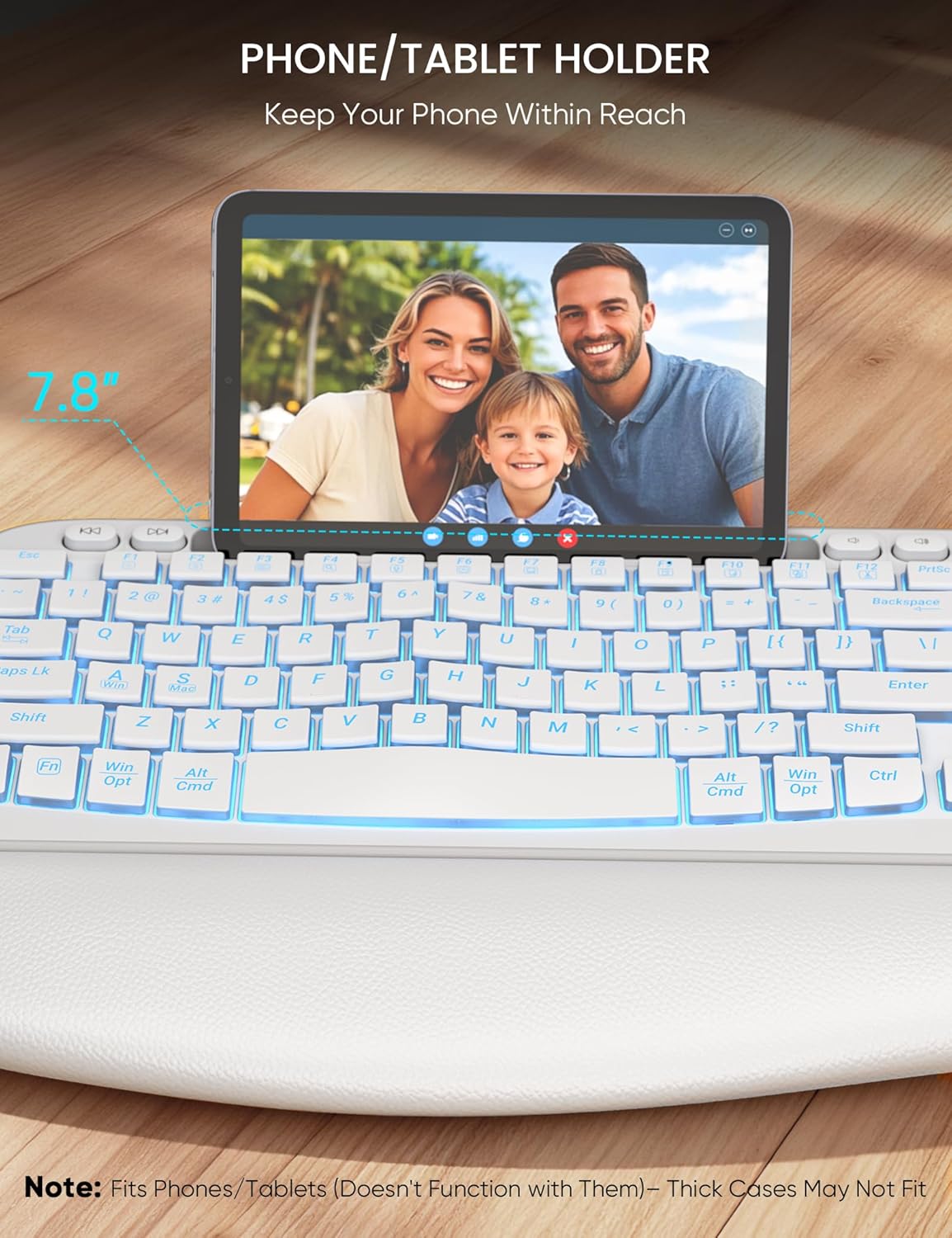
Image: Visual guide for controlling keyboard backlighting, including color and brightness adjustments.
5.4 Integrated Phone & Tablet Holder
A 7.8-inch slot at the top of the keyboard provides a convenient holder for your phone or tablet, allowing for easy multitasking.

Image: The keyboard's integrated slot holding a tablet, demonstrating the phone/tablet holder feature.
5.5 System Layout Switching (Windows/Mac)
The keyboard supports dual system layouts. Switch between Windows and Mac modes by pressing Fn + A for Windows or Fn + S for Mac.

Image: Keyboard keys highlighting the Fn+A and Fn+S combinations for switching between Windows and Mac layouts.
5.6 Shortcut Keys
The keyboard includes 16 shortcut keys for enhanced productivity:
- 4 Independent Shortcut Keys: Previous Song, Next Song, Volume Down, Volume Up.
- 12 Combined Keys (Fn + F1-F12): Decrease Brightness, Increase Brightness, Multi Screen Display, Search, Dictation, Close Program, My Computer, Lock Screen, Select All, Copy, Paste, Cut.
6. Operating the Mouse
6.1 Ergonomic Design
The mouse is designed for comfort with a palm grip and dedicated thumb and finger rests to reduce wrist strain.

Image: The ergonomic mouse highlighting its thumb rest and finger support areas.
6.2 DPI Adjustment
Adjust the mouse sensitivity (DPI) to your preference using the dedicated DPI buttons. Available settings are 800, 1200, and 1600 DPI.
6.3 Quiet Clicks and RGB Backlight
The mouse features quiet click buttons for a silent user experience. It also includes an RGB backlight that auto-cycles through various hues.

Image: The RGB backlit mouse displaying its various DPI settings and lighting effects.
7. Charging and Battery Life
Both the keyboard and mouse are rechargeable via USB-C. They feature an auto-sleep mode and ON/OFF switches to maximize energy efficiency.
- Keyboard Battery Life: Up to 5 days with backlight on, up to 2 months with backlight off.
- Mouse Battery Life: Up to 6 days with backlight on.
- Charging Time: Approximately 4 hours for a full charge.
Image: The keyboard and mouse connected via USB-C cables for charging, illustrating their rechargeable nature.
8. Maintenance
- Cleaning: Use a soft, dry cloth to clean the surfaces of the keyboard and mouse. For stubborn dirt, slightly dampen the cloth with water or a mild cleaning solution. Avoid harsh chemicals.
- Storage: When not in use for extended periods, turn off both devices to conserve battery life. Store in a cool, dry place.
9. Troubleshooting
9.1 Device Not Connecting
- Ensure both the keyboard and mouse are turned ON.
- Verify the USB receiver is securely plugged into a working USB port.
- Try plugging the USB receiver into a different USB port or a different computer to rule out port issues.
- Recharge both devices to ensure they have sufficient battery.
9.2 Backlight Not Working
- Ensure the keyboard is turned ON and charged.
- Press Fn + Del to toggle the backlight on/off.
- Adjust brightness using Fn + Up Arrow.
9.3 Lag or Intermittent Connection
- Ensure the USB receiver is not too far from the keyboard and mouse.
- Avoid placing the receiver near strong sources of interference (e.g., Wi-Fi routers, other wireless devices).
- Recharge both devices.
10. Specifications
| Feature | Description |
|---|---|
| Brand | SABLUTE |
| Model | Wireless Keyboard and Mouse Combo |
| Connectivity Technology | 2.4G Wireless (USB Receiver) |
| Keyboard Type | Ergonomic Wave, Full-Size, Backlit (7 colors) |
| Mouse Type | Ergonomic, RGB Backlit, Quiet Click |
| DPI Settings (Mouse) | 800, 1200, 1600 |
| Special Features | Soft Leather Wrist Rest, Phone Holder, Rechargeable, Adjustable Tilt, Dual System Layout (Windows/Mac) |
| Battery | 1 Lithium Ion battery (included) |
| Product Dimensions | 16.5 x 8.92 x 1.18 inches (Keyboard) |
| Item Weight | 2.72 pounds |
| Compatible Devices | Chromebook, Notebook, MacBook Pro, MacBook Air, iMac, Tablet, Television, Smartphone, Windows XP/Vista/7/8/10/X |
11. Warranty and Support
SABLUTE products are designed for reliability and performance. For warranty information or technical support, please refer to the product packaging or visit the official SABLUTE website. Keep your purchase receipt as proof of purchase.
Documents and downloads
Ask a question about this manual
Ask about setup, troubleshooting, compatibility, parts, safety, or missing instructions. Manuals+ will review the question and use this page’s manual context to help answer it.