
1. Introduction
Thank you for choosing the wanbbaoaa MP3 Player with Bluetooth 5.2. This device is designed to provide a versatile portable audio and media experience, featuring HiFi lossless sound, Bluetooth 5.2 connectivity, FM radio, voice recording, video and photo viewing, and e-book reading capabilities. This manual will guide you through the setup, operation, and maintenance of your new MP3 player.
2. Package Contents
Please verify that all items listed below are included in your package:
- 1 x wanbbaoaa MP3 Player (Model D405)
- 1 x 32GB Micro SD Card
- 1 x USB Cable
- 1 x Stereo Earphone
- 1 x User Manual (this document)

Image 2.1: Contents of the wanbbaoaa MP3 Player package, including the player, a 32GB Micro SD card, a USB cable, and stereo earphones.
3. Product Overview
The wanbbaoaa MP3 Player features a compact design with intuitive controls. Familiarize yourself with the device's physical components:
- Display Screen: 1.8-inch color display for navigation and content viewing.
- Menu Button: Accesses the main menu and returns to previous screens.
- Navigation Buttons (Left/Right/Up/Down): Used for menu selection and track skipping.
- Play/Pause/Confirm Button: Initiates playback, pauses content, and confirms selections.
- VOL (Volume) Buttons: Adjusts the audio output level.
- Power Button: Turns the device on/off and locks/unlocks the screen.
- USB Port: For charging and data transfer.
- Headphone Jack: For connecting wired earphones.
- Micro SD Card Slot: For expandable memory.
4. Setup
4.1 Charging the Device
- Connect the small end of the included USB cable to the USB port on the MP3 player.
- Connect the larger end of the USB cable to a USB power adapter (not included) or a computer's USB port.
- The battery icon on the screen will indicate charging status. A full charge typically takes approximately 2-3 hours.
4.2 Inserting the Micro SD Card
The device comes with a 32GB Micro SD card. It supports expansion up to 128GB.
- Locate the Micro SD card slot on the side of the MP3 player.
- Gently insert the Micro SD card into the slot with the gold contacts facing down until it clicks into place.
- To remove, push the card inward until it clicks, then release, and it will spring out.
4.3 Transferring Files
You can transfer music, photos, and video files from your computer to the MP3 player's Micro SD card.
- Connect the MP3 player to your computer using the provided USB cable.
- The player will appear as a removable disk drive on your computer.
- Open the drive and drag-and-drop your desired files into the appropriate folders (e.g., 'Music', 'Pictures', 'Videos') on the Micro SD card.
- Once transfer is complete, safely eject the removable disk from your computer before disconnecting the USB cable.

Image 4.1: The MP3 player connected to a laptop via a USB cable, illustrating the process of transferring music, photo, and video files to its 32GB or expandable 128GB memory.
5. Operating Instructions
5.1 Power On/Off and Screen Lock
- Power On: Press and hold the Power button until the screen lights up.
- Power Off: Press and hold the Power button until the power-off option appears, then select 'Power Off'.
- Screen Lock/Unlock: Briefly press the Power button to lock or unlock the screen during operation.
5.2 Basic Navigation
Use the Menu button to return to the main menu or previous screen. Use the navigation buttons (up, down, left, right) to move between options, and the Play/Pause/Confirm button to select an item.
5.3 Music Playback
The MP3 player supports HiFi lossless sound and various audio formats.
- From the main menu, select 'Music'.
- Browse your music library by artist, album, genre, or all songs.
- Select a song and press the Play/Pause/Confirm button to begin playback.
- Use the navigation buttons to skip tracks (left/right) or adjust volume (VOL buttons).
Supported Audio Formats: MP3, WMA, FLAC, APE, OGG, WAV, MP4, AAC-LC.
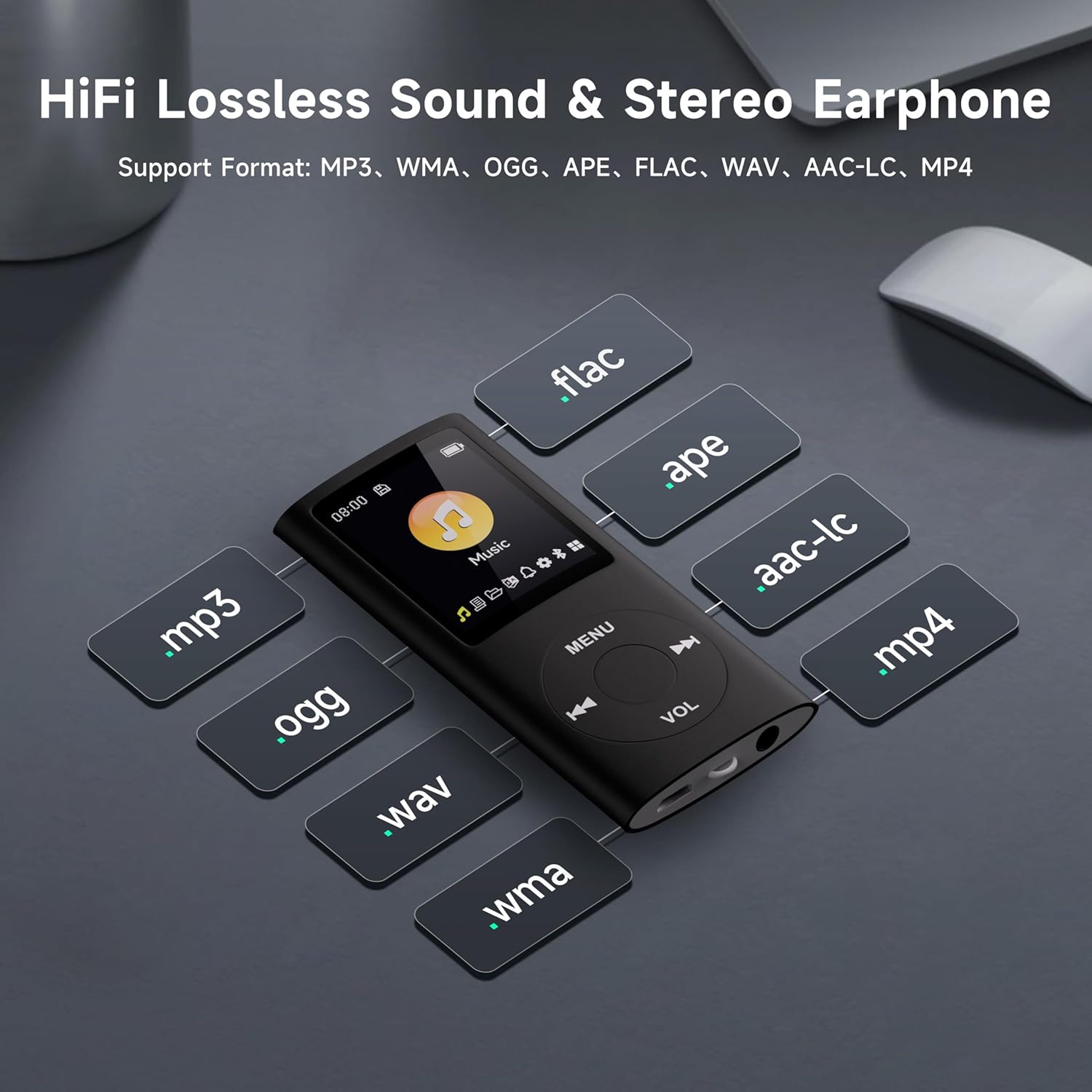
Image 5.1: The MP3 player screen showing music playback, surrounded by labels for supported audio formats including MP3, WMA, OGG, APE, FLAC, WAV, AAC-LC, and MP4.
5.4 Bluetooth Connection
Connect your MP3 player to Bluetooth headphones or speakers using Bluetooth 5.2 for wireless audio.
- Ensure your Bluetooth headphones or speaker are in pairing mode.
- From the main menu, select 'Bluetooth'.
- Turn Bluetooth 'On' and select 'Search Device'.
- Select your device from the list of available devices to pair.
- Once paired, audio will stream wirelessly to the connected device.

Image 5.2: The MP3 player demonstrating a Bluetooth 5.2 connection, wirelessly streaming audio to both a pair of Bluetooth earbuds and a portable Bluetooth speaker.
5.5 FM Radio
The built-in FM radio supports frequencies from 87.5-108MHz.
- From the main menu, select 'FM Radio'.
- Connect wired earphones; they act as the antenna for better reception.
- Use the navigation buttons to scan for stations or manually tune to a frequency.

Image 5.3: The MP3 player screen showing the FM radio interface, with the current frequency displayed and various other FM frequencies (76.5, 87.5, 92.8, 102.6, 107.5 MHz) indicated around it.
5.6 Voice Recorder
Record audio using the built-in microphone.
- From the main menu, select 'Recorder'.
- Choose 'Start Voice Recording' to begin.
- Press the Play/Pause/Confirm button to pause/resume, and the Menu button to stop and save the recording.
5.7 Video and Photo Viewer
View compatible video and image files on the 1.8-inch screen.
- From the main menu, select 'Video' or 'Photo'.
- Browse your files and select one to open.
- The player supports AVI video format.

Image 5.4: The MP3 player screen showcasing its ability to support picture and video playback, with multiple movie poster thumbnails visible on the display.
5.8 E-Book Reader
Read text files on your device.
- From the main menu, select 'E-Book'.
- Browse and select a compatible text file (.TXT) to open.
- Use navigation buttons to scroll through pages.
5.9 Alarm Clock
Set alarms for reminders or wake-up calls.
- From the main menu, select 'Alarm'.
- Configure alarm time, repeat settings, and alarm sound.
- Ensure the alarm is enabled.

Image 5.5: A visual representation of the MP3 player's multi-functionality, highlighting features such as FM Radio, Voice Recorder, E-book reader, Alarm Clock, its 1.8-inch screen, and various available color options.
6. Maintenance
6.1 Battery Care
- Avoid fully discharging the battery frequently.
- Charge the device regularly, even if not in use, to maintain battery health.
- Do not expose the device to extreme temperatures, as this can degrade battery performance.
6.2 Cleaning
- Use a soft, dry, lint-free cloth to clean the device's screen and body.
- Avoid using harsh chemicals, cleaning solvents, or strong detergents.
- Do not allow moisture to enter any openings.
7. Troubleshooting
If you encounter issues with your MP3 player, refer to the following common problems and solutions:
| Problem | Solution |
|---|---|
| Device will not turn on. | Ensure the battery is charged. Connect to a power source and try again. If unresponsive, perform a reset by pressing and holding the Power button for 10-15 seconds. |
| Cannot connect to Bluetooth device. | Ensure both the MP3 player and the Bluetooth device are in pairing mode and within range. Turn Bluetooth off and on again on the MP3 player. Delete previous pairings and try again. |
| No sound during playback. | Check the volume level. Ensure earphones are properly connected or Bluetooth device is paired and connected. Verify the audio file format is supported. |
| Files not appearing on the device. | Ensure files were transferred to the correct folders on the Micro SD card. Check if the Micro SD card is properly inserted and recognized. |
| Screen is unresponsive or frozen. | Perform a soft reset by pressing and holding the Power button for 10-15 seconds until the device restarts. |
8. Specifications
Detailed technical specifications for the wanbbaoaa MP3 Player (Model D405):
| Feature | Detail |
|---|---|
| Model Name | D405 |
| Brand | wanbbaoaa |
| Product Dimensions | 0.35"D x 1.65"W x 3.54"H (0.89 cm x 4.19 cm x 8.99 cm) |
| Item Weight | 3.2 ounces (90.7 grams) |
| Screen Size | 1.8 Inches |
| Memory Storage Capacity | 32 GB (Micro SD card included, expandable up to 128 GB) |
| Connectivity Technology | Bluetooth 5.2, USB |
| Special Features | Equalizer, FM Radio, Video Playback, Voice Recorder, E-Book Reader, Photo Viewer, Alarm Clock |
| Batteries | 1 Nonstandard Battery (included) |
| Manufacturer | Jbaobao |
9. Warranty and Support
9.1 Product Warranty
The wanbbaoaa MP3 Player is backed by a 12-month warranty from the date of purchase. This warranty covers manufacturing defects and ensures the product functions as intended under normal use. Please retain your proof of purchase for warranty claims.
Additionally, a 30-day return policy is offered, allowing for returns or exchanges within 30 days of purchase if you are not satisfied with the product.
9.2 Customer Support
For any questions, technical assistance, or warranty claims, please contact wanbbaoaa customer support through the retailer's platform where the product was purchased. Please provide your model number (D405) and a detailed description of the issue to expedite support.