
1. Introduction
This manual provides detailed instructions for the installation, operation, and maintenance of your VECHTEL 4G+128G Android 15 Car Radio. Please read this manual thoroughly before using the product to ensure proper function and safety. Keep this manual for future reference.
2. Vehicle Compatibility
This Android car radio is specifically designed for the following vehicle models:
- Nissan Juke J15: 2010-2019 models
- Infiniti ESQ YF15: 2011-2017 models
Before installation, it is recommended to verify compatibility by comparing your vehicle's central dashboard with the product images. If you are unsure, consult with a professional or the manufacturer.

Image: VECHTEL Android 15 Car Radio installed in a Nissan Juke dashboard, displaying its user interface with applications like Phone, Spotify, Maps, and Calendar. This image illustrates the product's fit and appearance within the vehicle's interior.

Image: A visual comparison showing the Nissan Juke dashboard before and after the VECHTEL car radio installation. The 'After installation' view displays the new 9-inch touchscreen unit seamlessly integrated, while the 'Before installation' view shows the original factory radio.
3. Package Contents
Please check the box for the following items:
- VECHTEL Android Car Radio Unit
- GPS Antenna
- Rear Camera
- External Microphone
- CANBUS Decoder
- Power Cable
- RCA Cable
- USB Cables (2 ports)
- Installation Tools
- User Manual (this document)

Image: A comprehensive diagram illustrating the dimensions of the VECHTEL car radio unit and a visual list of all included accessories, such as power cables, RCA cables, USB cables, GPS antenna, rear camera, external microphone, CANBUS, and installation tools.
4. Setup and Installation
Professional installation is highly recommended. Incorrect wiring can damage the unit or your vehicle. Refer to the wiring diagram and consult a qualified technician if you are unsure.
4.1 Wiring Connections
Ensure all cables are connected securely according to the provided wiring diagram. Pay close attention to power, speaker, and accessory connections.
- Power Cable: Connect to the vehicle's power supply.
- RCA Cable: For audio/video input/output connections.
- USB Cables: For connecting USB devices and charging.
- GPS Antenna: Mount in a location with a clear view of the sky for optimal signal reception.
- Rear Camera Input: Connect the included rear camera for parking assistance.
- External Microphone: Connect for improved call quality during hands-free operation.
- CANBUS Decoder: Connect for integration with vehicle's steering wheel controls and other factory features.
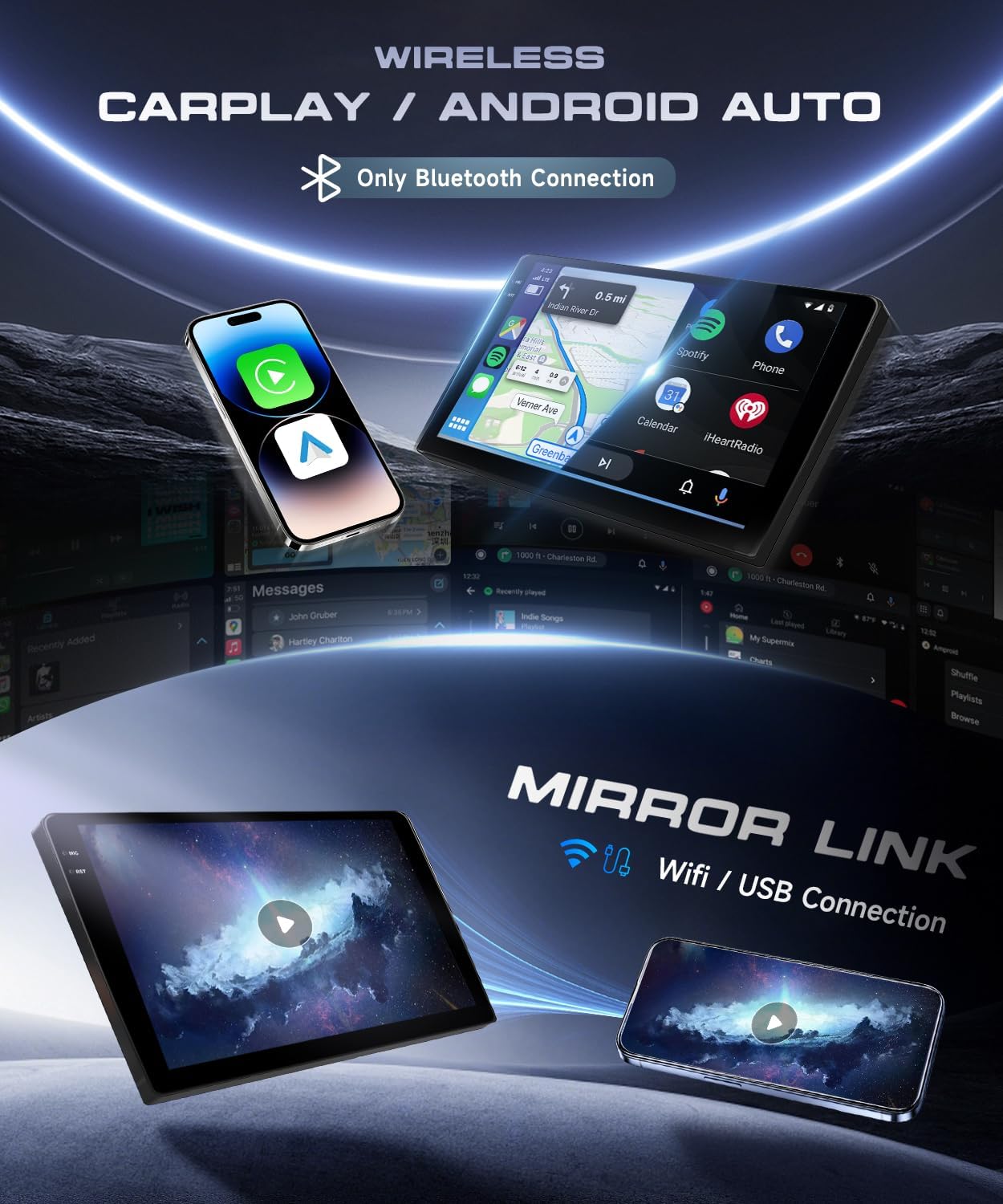
Image: A detailed wiring diagram illustrating the various connection points on the back of the car radio unit, including ports for the 8-pin CANBUS plug, rear camera input, GPS antenna, RCA cables, and USB cables. This diagram is crucial for correct installation.
4.2 Rear Camera Wiring
To connect the AHD reversing camera:
- Connect cables 1 and 4 to the positive pole of the car's reversing light.
- Connect cable 2 to the negative pole of the car's reversing light.
- Connect cables 3 and 5 together.

Image: A diagram detailing the wiring connections for the AHD reversing camera to the car radio. It shows the camera unit, its cable, and how it connects to the car radio's input and the vehicle's reversing light power supply.
5. Operating Instructions
5.1 Power On/Off
Press and hold the power button (usually located on the front panel or integrated into the steering wheel controls) to turn the unit on or off. A short press typically mutes or unmutes the audio.
5.2 9-inch In-Cell HD Touchscreen
The unit features a 9-inch in-Cell HD touchscreen with a bonded touch layer for brighter images and a thinner frame. Navigate the interface by tapping, swiping, and pinching gestures.

Image: A visual explanation of the In-Cell HD Touch Screen technology, highlighting its advantages such as 30% brighter display, 30% faster response, and 40% thinner design compared to traditional screens. It also shows the internal layers of the screen.
5.3 Wireless CarPlay and Android Auto
Connect your smartphone wirelessly to access CarPlay or Android Auto. This allows for instant access to navigation, calls, messages, and music directly from the car radio's screen. Voice control via Siri or Google Assistant is supported.
- Ensure Bluetooth and Wi-Fi are enabled on your smartphone.
- On the car radio, select the CarPlay or Android Auto icon.
- Follow the on-screen prompts to pair your device.

Image: An illustration showcasing the wireless CarPlay and Android Auto functionalities. It depicts a smartphone connected to the car radio, displaying navigation, music playback (Spotify), and phone call interfaces, along with voice control and online navigation icons.
5.4 GPS Navigation and Wi-Fi
The unit includes a built-in GPS module, supporting both online and offline maps. Connect to Wi-Fi or a mobile hotspot to access online navigation, download apps from the Play Store, and stream online content.
- GPS: Open the navigation app of your choice. Ensure the GPS antenna is properly installed.
- Wi-Fi: Go to Settings > Network & Internet > Wi-Fi to connect to an available network or hotspot.

Image: A graphic demonstrating the GPS and Wi-Fi capabilities of the car radio. It shows a navigation map on the screen, a car icon with a GPS pin, and a Wi-Fi symbol surrounded by various app icons and streaming video thumbnails, indicating internet connectivity.
5.5 Bluetooth and FM/RDS Radio
Enjoy hands-free calling and audio streaming via Bluetooth 5.0. The FM/RDS radio provides clear reception for music, news, and traffic updates.
- Bluetooth: Go to Settings > Connected devices > Pair new device. Search for the car radio on your phone and pair.
- FM/RDS Radio: Select the Radio app. Use the scan function to find stations or manually tune to frequencies. RDS provides station information and traffic announcements.

Image: A multi-panel graphic highlighting key features: Bluetooth 5.0 for hands-free calls and music, the Android 15 operating system with 4GB RAM and 128GB ROM, various user interface themes, and steering wheel control functionality.
5.6 Steering Wheel Controls
The unit supports original steering wheel controls for convenient operation without taking your hands off the wheel. Functions typically include volume adjustment, track skipping, and answering/ending calls.
- Ensure the CANBUS decoder is correctly installed and configured.
- Access the steering wheel control settings in the unit's menu to map functions if necessary.
5.7 Mirror Link
Mirror Link allows you to display your smartphone's screen directly on the car radio via Wi-Fi or USB connection. This feature supports both Android and iOS devices.
- Connect your phone via USB or ensure both devices are on the same Wi-Fi network.
- Select the Mirror Link app on the car radio and follow the pairing instructions.

Image: A graphic demonstrating the Mirror Link function, showing a smartphone screen mirrored onto the car radio display. It highlights connectivity options via Wi-Fi and USB, supporting both Android and iOS devices for media playback and app display.
5.8 Split Screen Function
The split-screen feature allows you to run two applications simultaneously on the 9-inch display, such as navigation and music playback.
- Open the first application.
- Long-press the recent apps button or swipe from the bottom (depending on UI) to activate split-screen mode.
- Select the second application to display alongside the first.

Image: A dynamic illustration of the split-screen function, showing the car radio display divided into multiple sections running different applications simultaneously, such as a calculator, music player, and a home screen with various app icons. It indicates the ability to long-press to switch applications.
5.9 EQ Settings
Adjust the audio equalizer settings to customize the sound output to your preference. The unit offers various presets and manual adjustments for bass, treble, and other audio parameters.
- Access the EQ settings through the audio or sound menu.
- Choose from predefined sound modes or manually adjust frequency bands.

Image: A graphic showcasing the FM RDS Radio and EQ (Equalizer) functions. It displays the radio interface with frequency tuning and RDS information, alongside an equalizer interface with adjustable sound settings and visual representations of audio waveforms.
6. Specifications
| Feature | Description |
|---|---|
| Brand | VECHTEL |
| Model Number | 831e885c-1577-4a43-bf8e-c9ee91b00274 |
| Operating System | Android 15 |
| RAM | 4 GB |
| ROM | 128 GB |
| Screen Size | 9 inches |
| Display Type | In-Cell HD Touchscreen |
| Connectivity Technology | Bluetooth 5.0, USB, Wi-Fi |
| Special Features | Wireless CarPlay, Android Auto, GPS Navigation, FM/RDS Radio, Mirror Link, Split Screen, Steering Wheel Control, Reversing Camera Support |
| Compatible Devices | Smartphone (iOS, Android) |
| Controller Type | Steering Wheel Control, Touchscreen, Voice Control (Siri/Google Assistant) |
| Audio Output Mode | Stereo |
| Surround Sound Channels | 5.1 |
| Output Power | 45 Watts per channel |
| Total Output Wattage | 180 Watts |
| Number of Channels | 4 |
| Video Encoding | MKV (and others supported by Android) |
| Connector Type | RCA |
| Total HDMI Ports | 1 |
| Internet Applications | CarPlay, Android Auto, Play Store |
| Item Dimensions (D x W x H) | 7P x 34l x 19H centimeters |
| Country of Origin | China |
7. Troubleshooting
If you encounter issues with your car radio, refer to the following common problems and solutions:
- No Power:
- Check all power connections and fuses.
- Ensure the vehicle's ignition is on.
- No Sound:
- Verify speaker connections.
- Check volume levels and mute settings.
- Ensure the correct audio source is selected.
- GPS Signal Loss:
- Ensure the GPS antenna is properly connected and has a clear view of the sky.
- Move the vehicle to an open area away from tall buildings or dense foliage.
- Bluetooth Pairing Issues:
- Ensure Bluetooth is enabled on both the car radio and your smartphone.
- Delete previous pairings on both devices and try pairing again.
- Ensure devices are within range.
- Touchscreen Unresponsive:
- Restart the unit.
- Ensure the screen is clean and free from debris.
- Rear Camera Not Displaying:
- Check the camera's power and video input connections.
- Ensure the vehicle is in reverse gear.
For persistent issues, contact customer support.
8. Maintenance
To ensure the longevity and optimal performance of your VECHTEL car radio, follow these maintenance guidelines:
- Cleaning: Use a soft, dry cloth to clean the screen and exterior. For stubborn marks, slightly dampen the cloth with water or a screen-safe cleaner. Avoid abrasive materials or harsh chemicals.
- Temperature: Avoid exposing the unit to extreme temperatures, both hot and cold, as this can affect performance and lifespan.
- Software Updates: Periodically check for software updates from the manufacturer to ensure you have the latest features and bug fixes.
- Connections: Ensure all cables remain securely connected. Loose connections can lead to intermittent issues.
9. Warranty and Support
Your VECHTEL car radio comes with a three-year warranty from the date of purchase, covering manufacturing defects. Please retain your proof of purchase for warranty claims.
For technical support, warranty inquiries, or any questions regarding your product, please contact VECHTEL customer service through the platform where you purchased the item. You can typically find seller contact information on your order details page.
Manufacturer: VECHTEL
Country of Origin: China
