
1. Introduction
This manual provides detailed instructions for the installation, operation, and maintenance of your VECHTEL car stereo, model B0FKB6VTR7. Please read this manual thoroughly before using the product to ensure proper function and to maximize your user experience. This unit is specifically designed for VW Tiguan models manufactured between 2010 and 2016.
2. Product Overview and Features
The VECHTEL car stereo is an advanced infotainment system running on Android 15, offering a wide range of features to enhance your driving experience.
- Operating System: Android 15 with 4GB RAM and 128GB ROM for smooth performance.
- Display: High-resolution 1280x720 pixel IPS touchscreen with 26 customizable user interfaces.
- Smartphone Integration: Supports wireless Apple CarPlay and Android Auto for seamless access to phone functions, navigation, and music. Includes Mirror Link for projecting online videos.
- Connectivity: Built-in Wi-Fi and hotspot support for online applications. Bluetooth 5.0 for faster, stable connections and hands-free calling with an included microphone.
- Navigation: Integrated GPS module supporting both online navigation software and offline maps.
- Radio: FM/RDS radio with clear station search, stable signal, and storage for up to 18 stations.
- Safety Features: Equipped with a waterproof AHD night vision rearview camera that automatically displays the rear view when reversing.
- Control: Supports steering wheel controls for convenient adjustment of music and volume.

Image: Overview of the VECHTEL car stereo unit and its compatibility with VW Tiguan models from 2010-2016.
3. Installation
Proper installation is crucial for the optimal performance of your car stereo. It is recommended that installation be performed by a qualified professional.
3.1 Compatibility Check
Ensure your vehicle is a VW Tiguan model from 2010 to 2016. Refer to the image below to confirm your dashboard configuration is compatible with the VECHTEL unit.
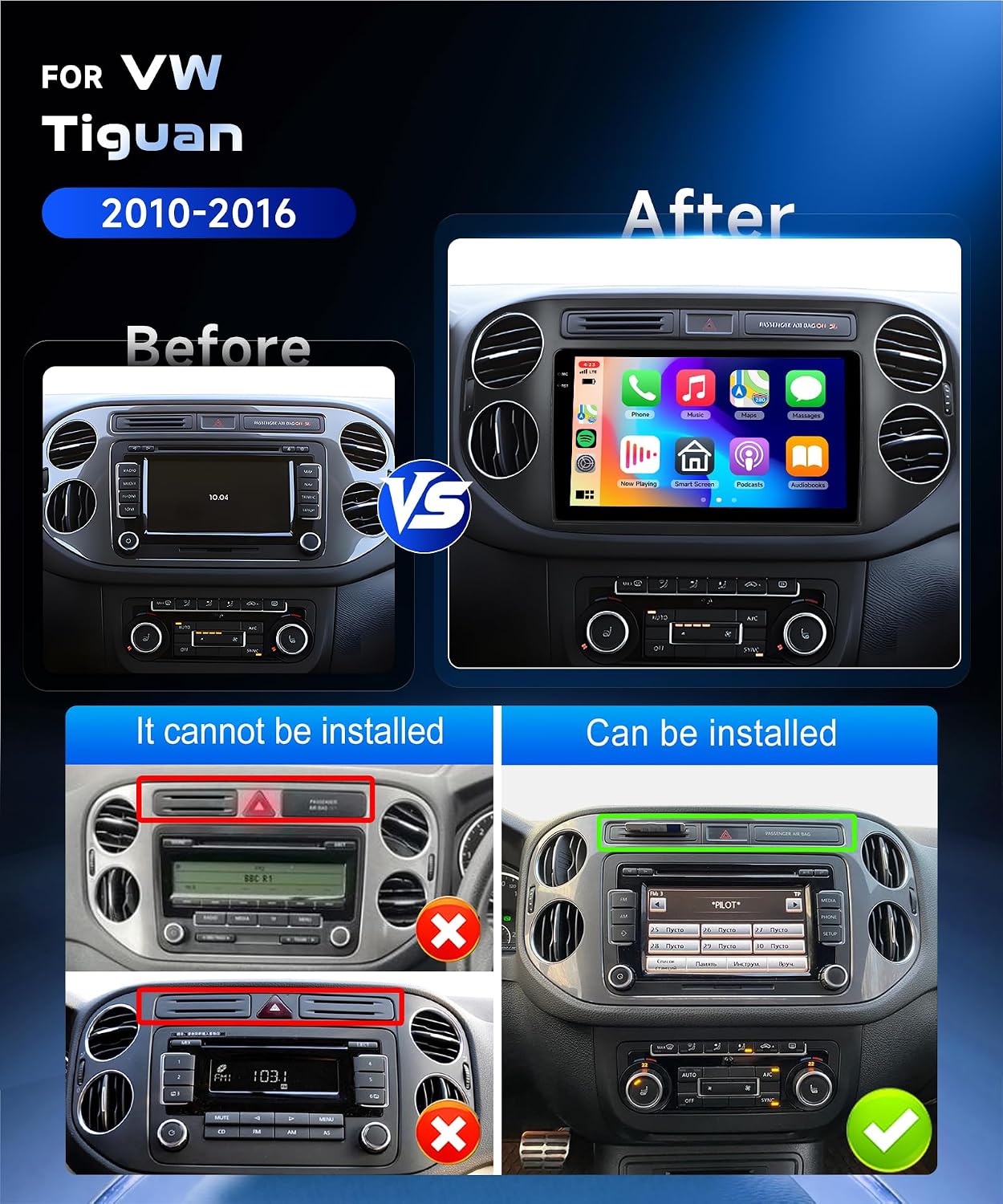
Image: Visual guide showing compatible and incompatible VW Tiguan dashboard configurations for installation.
3.2 Package Contents
Before beginning installation, verify that all components are present in the package:

Image: Diagram illustrating the dimensions of the car stereo and a list of included accessories such as GPS antenna, rear camera, cables, and user manual.
The box contents include:
- VECHTEL Car Stereo Unit
- GPS Antenna
- Rear Camera Input Cable
- RCA Cable
- 4Pin USB Cable
- Microphone
- Rear Camera
- User Manual
- Installation Tool
- Power Cable
- Accessories (various connectors)
- Radio Antenna
- Canbus Decoder
3.3 Wiring and Connections
Connect the power cable, GPS antenna, radio antenna, and other necessary cables according to your vehicle's wiring diagram and the provided installation instructions. Ensure all connections are secure to prevent intermittent issues.
Note: The included Canbus decoder is essential for integrating the stereo with your vehicle's existing systems, such as steering wheel controls.
4. Setup
4.1 Initial Power On
After installation, turn on your vehicle's ignition. The car stereo should power on automatically. Follow any on-screen prompts for initial setup, such as language selection and time zone.
4.2 Wi-Fi and Hotspot Connection
To access online features and download apps, connect the unit to a Wi-Fi network or your mobile hotspot:
- Go to Settings on the car stereo.
- Select Network & Internet.
- Turn on Wi-Fi and select your desired network. Enter the password if prompted.
- Alternatively, enable Hotspot on your mobile phone and connect the car stereo to it.

Image: Interface showing Wi-Fi and Hotspot connection options, enabling access to online video and music streaming services.
4.3 App Installation
Once connected to the internet, you can download additional applications from the integrated App Store.
5. Operating Instructions
5.1 Wireless CarPlay and Android Auto
Connect your smartphone wirelessly to access CarPlay or Android Auto features:
- Ensure Bluetooth and Wi-Fi are enabled on both your smartphone and the car stereo.
- On the car stereo, open the CarPlay or Android Auto application.
- Follow the on-screen instructions to pair your phone.
- Once connected, you can use voice commands (e.g., "Hey Siri" or "OK Google") for navigation, calls, messages, and music.

Image: Display of wireless CarPlay and Android Auto interfaces, demonstrating voice command functionality and various app integrations.

Image: Digital interface displays for CarPlay and Android Auto, showing navigation and multimedia controls.
5.2 Mirror Link
Mirror Link allows you to project your smartphone screen onto the car stereo display:
- Open the Mirror Link application on the car stereo.
- Follow the instructions to connect your phone via USB or Wi-Fi.
- Once connected, your phone's screen will be mirrored on the car stereo.

Image: Technical interface diagram illustrating smartphone screen mirroring capabilities with multi-device connection.
5.3 GPS Navigation
The unit supports both online and offline navigation:
- Online Navigation: Use pre-installed map applications or download your preferred navigation app from the App Store. Requires an active internet connection.
- Offline Navigation: The included GPS module allows for downloading offline maps. Access these maps through the designated navigation application for use without an internet connection.

Image: Display showing GPS navigation features, Wi-Fi connectivity, and the Android 15 operating system with 4GB RAM and 128GB ROM.

Image: Navigation interface screenshots displaying both online and offline map functionalities with various app icons.
5.4 Bluetooth Functions
Utilize Bluetooth 5.0 for hands-free communication and audio streaming:
- Pairing: Go to Settings > Bluetooth on the car stereo. Enable Bluetooth and search for your device. Select your device from the list and confirm pairing.
- Hands-Free Calling: Once paired, you can make and receive calls directly from the car stereo using the included microphone.
- Bluetooth Music: Stream audio from your paired smartphone to the car stereo.

Image: Bluetooth 5.1 interface showing hands-free calling and music playback options.
5.5 FM/RDS Radio
To operate the radio:
- Open the Radio application.
- Use the scan function to find available stations.
- You can save up to 18 favorite stations for quick access.
- The floating ball on the homepage allows for quick volume adjustments.

Image: Display showing Bluetooth connectivity, FM/RDS radio interface, and equalizer adjustment options.

Image: Radio interface screens displaying various radio controls, frequencies, and audio visualizations.
5.6 Audio Equalizer (EQ) Adjustment
Customize your audio experience using the built-in equalizer:
- Access the EQ Adjustment settings from the main menu or audio settings.
- Adjust frequency bands to suit your preferences or select from preset sound modes (e.g., Pop, Rock, Jazz).

Image: Screenshot of the audio software interface with equalizer controls and waveform display.
5.7 Rearview Camera
The rearview camera activates automatically when the vehicle is put into reverse gear. This provides a clear view of the area behind your vehicle, assisting with parking and maneuvering.

Image: Display showing the rearview camera feed with parking guidelines and an illustration of steering wheel control functionality.

Image: Multiple display screens showing vehicle rearview camera views with parking guidelines and rear visibility features, highlighting IP68 waterproof, 130-degree wide-angle, night vision, and 720P resolution.
5.8 Steering Wheel Control
The car stereo supports your vehicle's existing steering wheel controls. This allows you to adjust volume, change tracks, and manage calls without taking your hands off the wheel. Ensure the Canbus decoder is correctly installed for this feature to function.

Image: Interface showing how to configure steering wheel controls, with examples of playing music and switching tracks.
6. Maintenance
To ensure the longevity and optimal performance of your VECHTEL car stereo, follow these general maintenance guidelines:
- Cleaning: Use a soft, dry cloth to clean the touchscreen and exterior. Avoid abrasive cleaners or solvents that could damage the surface.
- Software Updates: Periodically check for and install software updates to ensure the system runs efficiently and securely.
- Environmental Conditions: Avoid exposing the unit to extreme temperatures, direct sunlight for prolonged periods, or excessive moisture.
- Cable Connections: Ensure all cables remain securely connected. Loose connections can lead to intermittent functionality.
7. Troubleshooting
If you encounter issues with your car stereo, refer to the following common problems and solutions:
- Unit does not power on: Check all power connections, including the main power cable and ignition wire. Ensure the vehicle's fuse for the stereo is intact.
- No sound: Verify speaker connections. Check volume levels and ensure the mute function is not activated. Confirm audio output settings.
- Bluetooth connection issues: Ensure Bluetooth is enabled on both devices. Try unpairing and re-pairing the devices. Clear Bluetooth cache if available in settings.
- GPS signal loss: Ensure the GPS antenna is properly installed and has a clear line of sight to the sky. Move the vehicle to an open area if signal is weak.
- Rearview camera not working: Check the camera's power and video signal connections. Ensure the camera is correctly wired to trigger when reverse gear is engaged.
- Battery drain when vehicle is off: This can indicate incorrect wiring of the constant and ignition power lines. Ensure the ignition power wire (ACC) is connected to a source that only receives power when the ignition is on, and the constant power wire (B+) is connected to a constant 12V source. Incorrect wiring can cause the unit to draw power continuously. Consult a professional for wiring inspection.
If problems persist after attempting these solutions, please contact customer support.
8. Specifications
| Feature | Specification |
|---|---|
| Brand | VECHTEL |
| Model Number | B0FKB6VTR7 |
| Manufacturer | VECHTEL |
| Country of Origin | China |
| Connectivity Technology | Bluetooth, USB, Wi-Fi |
| Controller Type | Android |
| Special Features | Android Auto, Apple CarPlay, GPS Navigation, Touchscreen |
| Compatible Devices | Smartphone |
| Total HDMI Ports | 1 |
| Connector Type | FM Antenna |
| Audio Output Mode | Surround |
| Surround Sound Channel Configuration | 5.1 |
| Video Encoding | MKV, RMVB, AVI, MP4, MDV |
| Output Power | 45 Watts |
| Number of Channels | 4 |
| Output Wattage | 180 Watts |
| Internet Application | CarPlay, Android Auto |
| Audio Output Type | Bluetooth, FM/RDS |
| Digital Media Format | 4K, AVI, WAV, WMA |
| Wireless Technology | Bluetooth, Wi-Fi |
| Box Contents | Rearview Camera |
| Item Dimensions D x W x H | 6.8D x 15.6W x 11.6H centimeters |
9. Warranty and Support
9.1 Warranty Information
This VECHTEL car stereo comes with a three-year warranty from the date of purchase. This warranty covers manufacturing defects and malfunctions under normal use. Please retain your proof of purchase for warranty claims.
9.2 Customer Support
For technical assistance, warranty claims, or any questions not covered in this manual, please contact your retailer or the VECHTEL customer support team. Refer to your purchase documentation for specific contact details.
Spare Parts Availability: Information regarding spare parts availability is currently not provided.
Software Updates: Information regarding guaranteed software updates is currently not provided.
