
1. Introduction
This manual provides essential information for the safe and efficient use of your PEICHENG P13 Max 11-inch Android Tablet. Please read this manual thoroughly before operating the device and retain it for future reference. This tablet is designed for a variety of uses including business, entertainment, and student activities, offering a powerful Android 16 operating system and an Octa-core processor for smooth performance.
2. Package Contents
Verify that all items listed below are present in your package. If any items are missing or damaged, please contact customer support.
- PEICHENG P13 Max 11-inch Android Tablet
- Wireless Keyboard
- Wireless Mouse
- Stylus
- Protective Case
- Charging Cable (USB Type-C)
- Power Adapter
- User Manual (this document)

Image: The PEICHENG P13 Max tablet shown with its complete set of accessories, including a wireless keyboard, mouse, stylus, protective case, and charging cable.
Video: An overview of the PEICHENG P13 Max tablet and its accessories, demonstrating its use for work, learning, and amusement.
3. Product Overview
3.1 Physical Features
The PEICHENG P13 Max tablet features a sleek design with essential ports and buttons for user interaction.
- Power Button: Located on the side, used to power on/off or wake/sleep the device.
- Volume Buttons: Adjust audio levels.
- USB 3.0 Type-C Port: For charging and data transfer.
- 3.5mm Headphone Jack: For audio output.
- Microphone: For voice input.
- Speakers: For audio output.
- Front Camera: For video calls and selfies.
- Rear Camera: For high-resolution photography.
- MicroSD Card Slot: For expandable storage up to 1TB.
Video: A detailed look at the physical features and design of the P13 Android Tablet.
4. Setup
4.1 Initial Power On
- Charge the Tablet: Before first use, fully charge the tablet using the provided USB Type-C cable and power adapter. The charging port is located on the side of the device.
- Power On: Press and hold the Power button until the PEICHENG logo appears on the screen.
- Initial Configuration: Follow the on-screen prompts to select your language, connect to a Wi-Fi network, and set up your Google account.
4.2 Connecting Accessories
- Wireless Keyboard/Mouse:
- Turn on the keyboard/mouse.
- On your tablet, go to Settings > Connected devices > Bluetooth.
- Enable Bluetooth and search for available devices.
- Select the keyboard/mouse from the list to pair.
- Stylus: The stylus is a passive capacitive pen and does not require pairing. Simply use it directly on the touchscreen for navigation, writing, or drawing.
- Protective Case: Install the tablet into the protective case for enhanced protection and to utilize its stand functionality.
5. Operation
5.1 Display and Visuals
The tablet features an 11-inch HD IPS touchscreen with a resolution of 1280x800 pixels, offering clear and vibrant visuals. It supports Widevine L1 for high-quality streaming content.
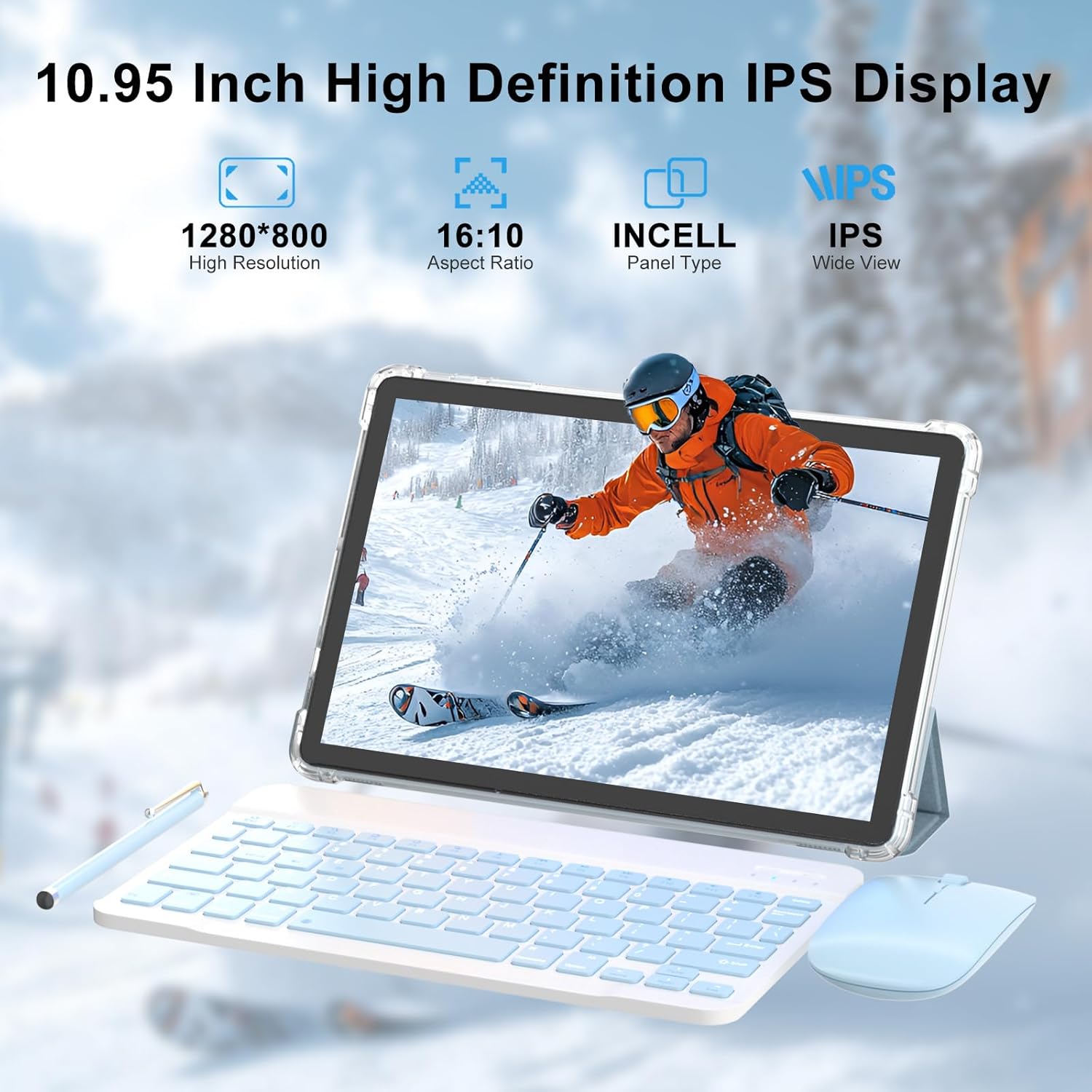
Image: The tablet's 10.95-inch HD IPS display, showcasing its 1280x800 resolution and wide view capabilities.
5.2 Performance and Storage
Powered by an Octa-core processor and Android 16, the tablet provides smooth multitasking and efficient operation. It comes with 4GB of RAM (expandable virtually to 18GB) and 128GB of internal storage, further expandable up to 1TB via a microSD card.

Image: The tablet running Android 16, demonstrating its user interface and app capabilities.
5.3 Cameras
Capture moments with the tablet's dual cameras: a 5MP front camera for video calls and a 13MP rear camera for photos and videos.

Image: The tablet's dual camera system, featuring a 5MP front camera and a 13MP rear camera.
5.4 Connectivity
The tablet supports 5G WiFi (2.4G+5G) for fast internet access and Bluetooth for connecting wireless peripherals.
5.5 Battery Life
Equipped with an 8000mAh battery, the tablet provides extended usage times for various activities:
- Up to 8 hours of video playback
- Up to 10 hours of music playback
- Up to 5 hours of gameplay
- Up to 12 hours of reading

Image: Visual representation of the tablet's long-lasting 8000mAh battery life for different usage scenarios.
5.6 Using Accessories
The included wireless keyboard, mouse, and stylus enhance productivity and creativity. The keyboard transforms the tablet into a mini-laptop, while the stylus is ideal for precise input and artistic tasks.
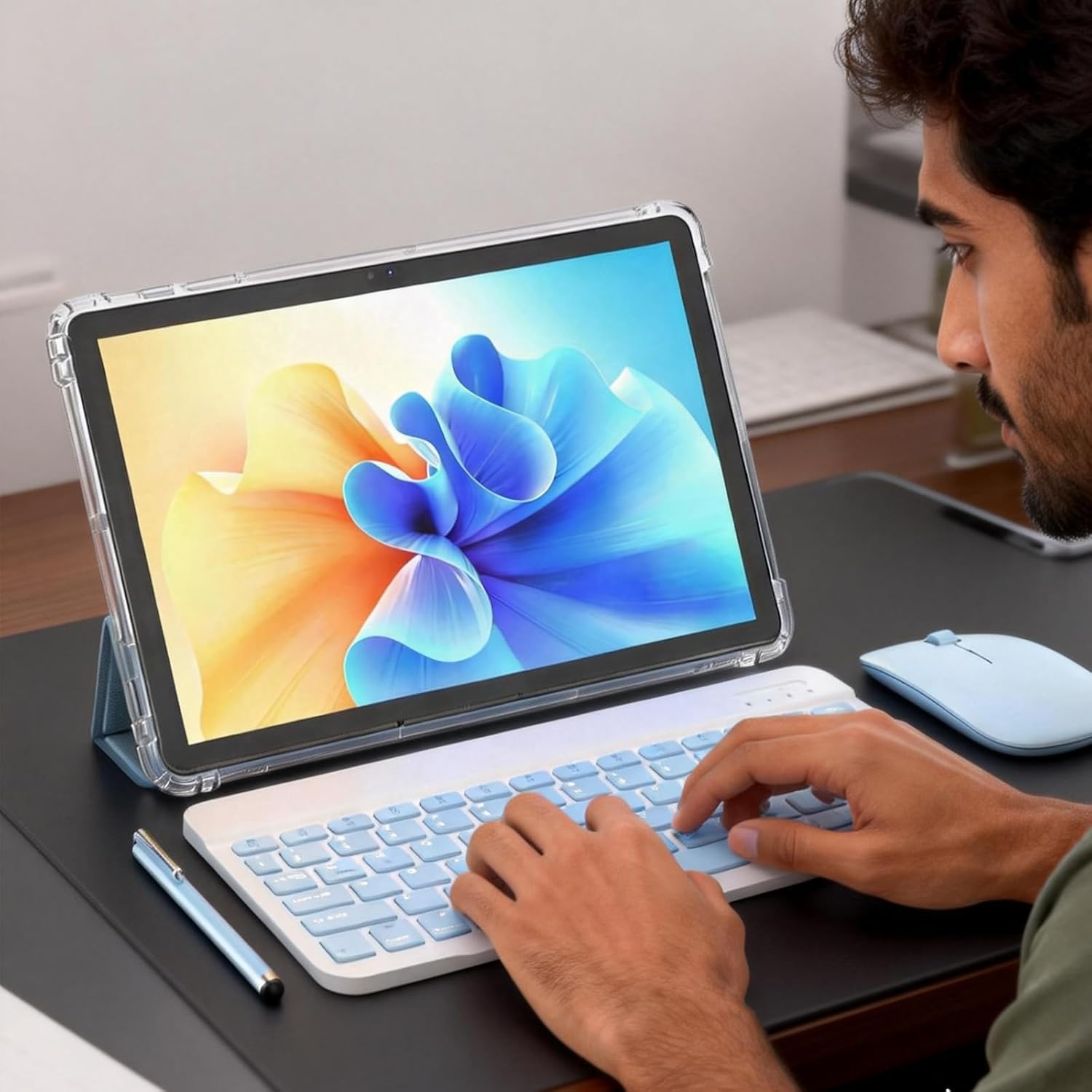
Image: A user operating the tablet with the wireless keyboard and mouse, illustrating its versatility.
6. Maintenance
6.1 Cleaning
- Use a soft, lint-free cloth to clean the screen and body of the tablet.
- Avoid using harsh chemicals, abrasive cleaners, or aerosol sprays.
- For stubborn smudges, slightly dampen the cloth with water or a screen cleaner designed for electronics.
6.2 Software Updates
Regularly check for and install software updates to ensure optimal performance, security, and access to new features. Go to Settings > System > System update to check for updates.
6.3 Battery Care
- Avoid exposing the tablet to extreme temperatures.
- Do not allow the battery to fully discharge frequently.
- Use only the provided or certified charging accessories.
7. Troubleshooting
If you encounter issues with your tablet, refer to the following common solutions:
- Tablet not turning on: Ensure the tablet is charged. Connect it to the charger and wait a few minutes before attempting to power it on again.
- Screen unresponsive: Restart the tablet by holding down the Power button for about 10-15 seconds.
- Wi-Fi connection issues:
- Ensure Wi-Fi is enabled in Settings.
- Restart your Wi-Fi router.
- Forget the network and reconnect.
- Accessories not connecting:
- Ensure Bluetooth is enabled on the tablet and the accessory is in pairing mode.
- Check battery levels of the accessories.
- Restart both the tablet and the accessory.
- Slow performance:
- Close unused applications.
- Clear cache from apps in Settings > Apps.
- Ensure sufficient storage space is available.
If problems persist, contact PEICHENG customer support for further assistance.
8. Specifications
| Feature | Detail |
|---|---|
| Brand | PEICHENG |
| Model Name | P13 MAX |
| Model Number | P13 Ultral |
| Operating System | Android 16.0 |
| Processor | Unisoc T615 Octa-core (up to 1.6 GHz) |
| RAM | 4 GB (14 GB virtual expansion, total 18 GB) |
| Internal Storage | 128 GB |
| Expandable Storage | microSD up to 1 TB |
| Screen Size | 10.95 Inches |
| Display Type | IPS HD Touchscreen |
| Display Resolution | 1280 x 800 pixels |
| Front Camera | 5 MP |
| Rear Camera | 13 MP |
| Battery Capacity | 8000 mAh |
| Connectivity | 5G Wi-Fi (2.4G+5G), Bluetooth |
| Ports | USB 3.0 Type-C, 3.5mm Headphone Jack |
| Dimensions (L x W x Thickness) | 8.76"L x 6.57"W x 0.4"Th |
| UPC | 607606229707 |
9. Warranty and Support
The PEICHENG P13 Max tablet comes with a 1-year limited warranty. For warranty claims, technical support, or any inquiries, please contact PEICHENG customer service through the retailer where the product was purchased or refer to the official PEICHENG website for contact information.
Please retain your proof of purchase for warranty validation.


