
1. Introduction
This manual provides detailed instructions for the installation, configuration, and operation of your NEWFAST AX1800 WiFi Extender Signal Booster, Model RE553. This device is designed to expand your existing WiFi network coverage, eliminate dead zones, and provide stable, high-speed internet access throughout your home or office. Please read this manual carefully before using the product to ensure proper setup and optimal performance.
2. Product Overview
The NEWFAST AX1800 WiFi Extender is a dual-band WiFi 6 (802.11ax) device featuring a Gigabit Ethernet port and four high-gain antennas. It supports speeds up to 1800 Mbps (574 Mbps on 2.4GHz and 1201 Mbps on 5.8GHz) and includes an LCD display for easy status monitoring. The device is equipped with WPA3 security for enhanced network protection.
Package Contents:
- 1 x NEWFAST AX1800 Dual Band WiFi Extender (RE553)
- 1 x RJ-45 Ethernet Cable
- 1 x User Manual (this document)
Device Components:
The extender features a user-friendly design with clearly labeled indicators and ports.

Image 2.1: Overview of the NEWFAST AX1800 WiFi Extender, highlighting the WPS Button, WAN/LAN Port, Network Port Indication, WPA Indication, Network Indication, WiFi Indication, and 4 High-Gain Antennas, along with a Powerful Central Processor.
3. Setup Guide
The NEWFAST AX1800 WiFi Extender offers a straightforward setup process, including a convenient WPS one-click option.
3.1. Optimal Placement
For the best performance, place the extender in a location that is roughly halfway between your main router and the area where you need improved WiFi coverage. The smart signal indicator on the device will help you find an optimal spot by displaying signal strength.

Image 3.1: Illustration of the WiFi extender's coverage, showing how it extends the signal from the main router to cover up to 9600 sq.ft and support over 65 devices.
3.2. WPS One-Click Setup
- Plug the NEWFAST AX1800 WiFi Extender into a power outlet near your main router.
- Wait for the device to power on and the WiFi indicator light to stabilize.
- Press the WPS button on your main router.
- Within two minutes, press the WPS button on the NEWFAST AX1800 WiFi Extender.
- The devices will automatically connect. The signal indicator on the extender will show a stable connection when successful.
- Once connected, you can unplug the extender and move it to your desired optimal location (refer to section 3.1).
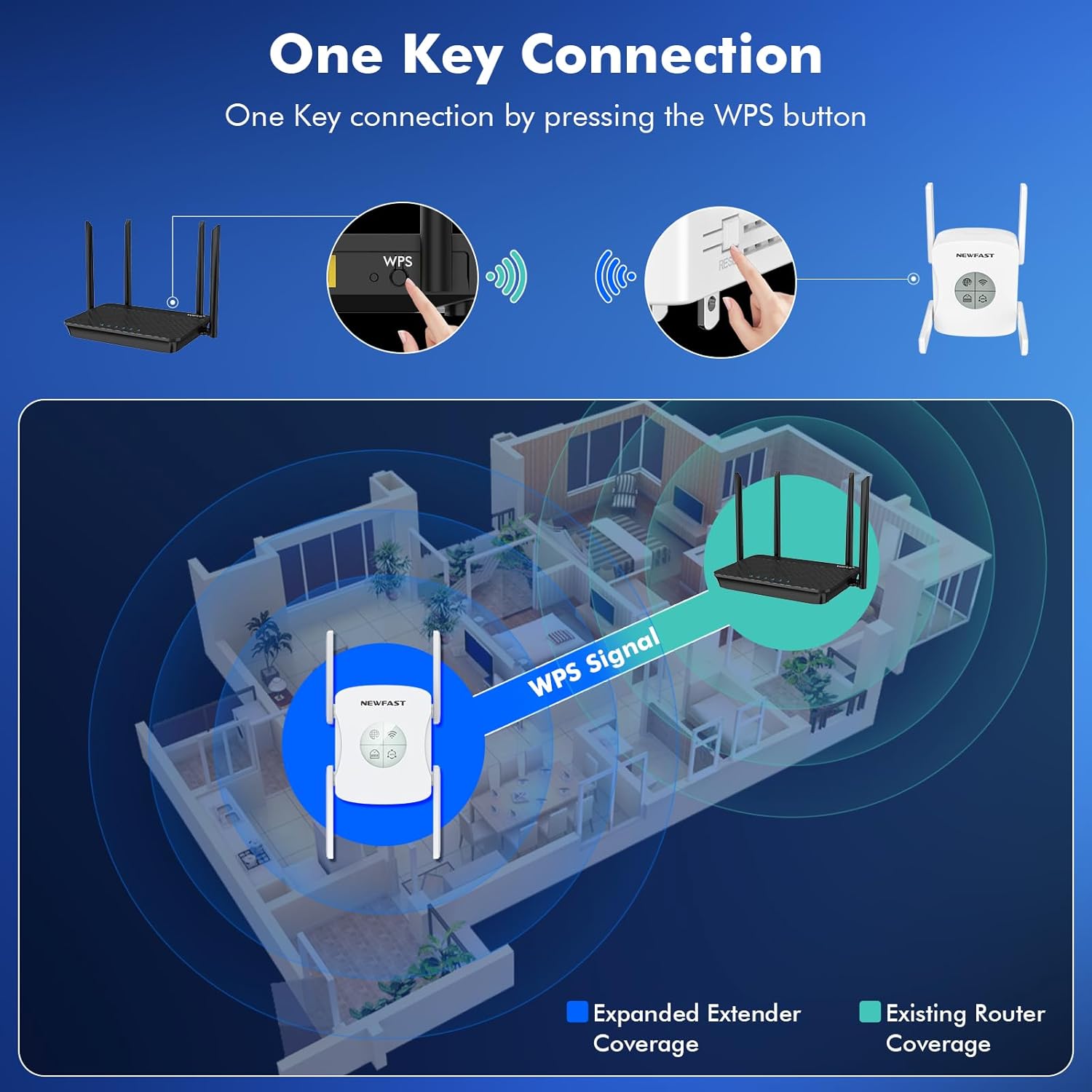
Image 3.2: Visual guide for WPS one-key connection, showing the process of pressing the WPS button on both the router and the extender to establish an expanded WiFi signal coverage.
3.3. Manual Setup (Web Browser)
If WPS setup is not preferred or available, you can configure the extender via a web browser. Refer to the full user manual for detailed steps on accessing the web interface and configuring the extender manually.
4. Operating Modes
The NEWFAST AX1800 WiFi Extender supports multiple operating modes to suit various networking requirements.

Image 4.1: Illustration of the three primary operating modes: Repeater Mode, Router Mode, and AP Mode, demonstrating how the extender functions in each configuration.
4.1. Repeater Mode
In Repeater Mode, the device extends the coverage of an existing wireless network. It connects wirelessly to your main router and rebroadcasts the signal, effectively expanding your WiFi range.
4.2. AP (Access Point) Mode
In AP Mode, the device connects to your wired network via an Ethernet cable and transforms the wired connection into a wireless access point. This is useful for adding WiFi capability to a wired-only network or creating a new wireless network.
4.3. Router Mode
In Router Mode, the device acts as a primary router, connecting directly to your modem via an Ethernet cable to create a new private wireless network. This mode is suitable for small networks or as a replacement for an existing router.
5. Advanced Features
5.1. AX1800 Dual Band WiFi 6
The extender supports the latest WiFi 6 (802.11ax) standard, providing faster speeds and improved efficiency for multiple devices. It operates on both 2.4GHz (up to 574 Mbps) and 5.8GHz (up to 1201 Mbps) bands, allowing for flexible connectivity and reduced interference.

Image 5.1: Display illustrating the dual-band capabilities of the extender, showing 5GHz at 1200Mbps and 2.4GHz at 574Mbps, contributing to a total of 1800Mbps.
5.2. Gigabit Ethernet Port
Equipped with a Gigabit Ethernet port, the extender allows for high-speed wired connections to devices such as smart TVs, gaming consoles, or desktop computers, ensuring stable and fast data transfer.
5.3. LCD Display Screen
The integrated LCD display provides clear, real-time information about the device's working status, simplifying usage and configuration.

Image 5.2: Close-up view emphasizing the LCD Intelligent Screen Display and the Wired Gigabit port, along with the four high-gain antennas for stable signal and stronger penetration.
5.4. WPA3 Security Protocol
The NEWFAST AX1800 WiFi Extender utilizes WPA3, the latest WiFi security protocol, to provide enhanced encryption and protection against network attacks, safeguarding your privacy and data.
5.5. MU-MIMO Technology
MU-MIMO (Multi-User, Multiple-Input, Multiple-Output) technology allows the extender to communicate with multiple devices simultaneously, improving network efficiency and reducing latency, especially in environments with many connected devices.
6. Maintenance
To ensure the longevity and optimal performance of your NEWFAST AX1800 WiFi Extender, follow these maintenance guidelines:
- Cleaning: Gently wipe the device with a soft, dry cloth. Do not use liquid cleaners or abrasive materials.
- Ventilation: Ensure the device is placed in a well-ventilated area, away from direct sunlight and heat sources, to prevent overheating.
- Firmware Updates: Periodically check the NEWFAST official website for firmware updates. Keeping your device's firmware up-to-date can improve performance, add new features, and enhance security.
- Environmental Conditions: Avoid exposing the device to extreme temperatures, high humidity, or dusty environments.
7. Troubleshooting
If you encounter issues with your NEWFAST AX1800 WiFi Extender, refer to the following common troubleshooting steps:
7.1. No Internet Access or Weak Signal
- Check Power: Ensure the extender is properly plugged into a working power outlet.
- Reposition Extender: Move the extender closer to your main router. Use the signal indicator on the device to find a location with a strong signal from the router.
- Verify Router Connection: Ensure your main router is functioning correctly and providing internet access.
- Restart Devices: Power cycle both your main router and the extender. Unplug them, wait 10 seconds, then plug them back in.
7.2. Cannot Connect to Extender's WiFi
- Check WiFi Name (SSID): Ensure you are selecting the correct extended WiFi network name (SSID), which is typically your main router's SSID with '_EXT' or similar appended.
- Password: Confirm you are entering the correct WiFi password. It is usually the same as your main router's password unless you changed it during setup.
- Reset Extender: If issues persist, perform a factory reset on the extender. Locate the reset button (usually a small pinhole) and press it for 5-10 seconds until the lights flash. After resetting, you will need to reconfigure the extender.
7.3. Slow Speeds
- Extender Placement: Ensure the extender is not too far from the main router. A weak signal from the router will result in slower extended speeds.
- Interference: Minimize interference from other electronic devices (e.g., microwaves, cordless phones) by placing the extender away from them.
- Band Selection: For high-bandwidth activities (streaming, gaming), try connecting devices to the 5.8GHz band if available, as it generally offers faster speeds with less congestion.
8. Specifications
| Feature | Specification |
|---|---|
| Brand | NEWFAST |
| Model | RE553 |
| Wireless Standard | 802.11a/b/g/n/ac, 802.11ax (WiFi 6) |
| Data Transfer Rate | Up to 1800 Mbps (2.4GHz: 574 Mbps, 5.8GHz: 1201 Mbps) |
| Frequency Band Class | Dual-Band (2.4GHz & 5.8GHz) |
| Ethernet Port | 1 x Gigabit WAN/LAN Port |
| Antennas | 4 x High-Gain External Antennas |
| Special Features | 1-Tap Setup (WPS), LCD Display Screen, MU-MIMO, Access Point Mode, Router Mode |
| Security Protocol | WPA3 |
| Compatible Devices | Internet Box, Router, Wireless Access Point |
| Product Dimensions | 8.79 x 3.96 x 9.19 cm; 422 g (88D x 40W x 92H millimeters) |
| Color | White |
9. Warranty and Support
For warranty information and technical support, please refer to the documentation included with your product or visit the official NEWFAST website. Keep your purchase receipt for warranty claims.
If you require further assistance, please contact NEWFAST customer support through the channels provided on their official website.


