1. Introduction
Thank you for choosing the WIWU Magnetic Detachable Keyboard Case. This product is designed to enhance your iPad experience by providing a versatile keyboard, a precise trackpad, and robust protection. This manual provides essential information for setup, operation, and maintenance of your new keyboard case.

Image 1.1: The WIWU Keyboard Case with an iPad, illustrating its magnetic detachment and adjustable stand capabilities.
2. Compatibility
This keyboard case is specifically designed for the following iPad models:
- iPad Air 13-inch (M2 2024, M3 2025)
- iPad Pro 12.9-inch (3rd Gen 2018, 4th Gen 2020, 5th Gen 2021, 6th Gen 2022)
Important: Please verify your iPad model before use to ensure proper fit and functionality. This case is not compatible with iPad Pro 13-inch (M4) 2024.

Image 2.1: Visual guide to compatible iPad models, highlighting specific generations and sizes.
3. Package Contents
- WIWU Magnetic Detachable Keyboard Case
- USB-C Charging Cable
- User Manual
4. Setup
4.1 Attaching the iPad to the Case
- Align your iPad with the protective back panel of the case.
- The strong magnets will securely attach the iPad to the case, ensuring full-edge coverage and protection.
4.2 Connecting the Keyboard via Bluetooth
- Ensure the keyboard is charged (refer to section 4.3).
- Turn on the keyboard using the power switch located on the side.
- On your iPad, go to Settings > Bluetooth.
- Enable Bluetooth. The iPad will search for available devices.
- Select "WIWU Keyboard" (or similar name) from the list of devices to pair.
- Once paired, the keyboard is ready for use. Bluetooth 5.3 ensures stable and lag-free connectivity.
4.3 Charging the Keyboard
The keyboard features a built-in rechargeable battery. Use the provided USB-C cable to charge the keyboard.
- Connect the USB-C end of the cable to the keyboard's charging port.
- Connect the other end to a USB power adapter (not included) or a computer's USB port.
- A full charge takes approximately 2 hours and provides up to 100 hours of continuous use.
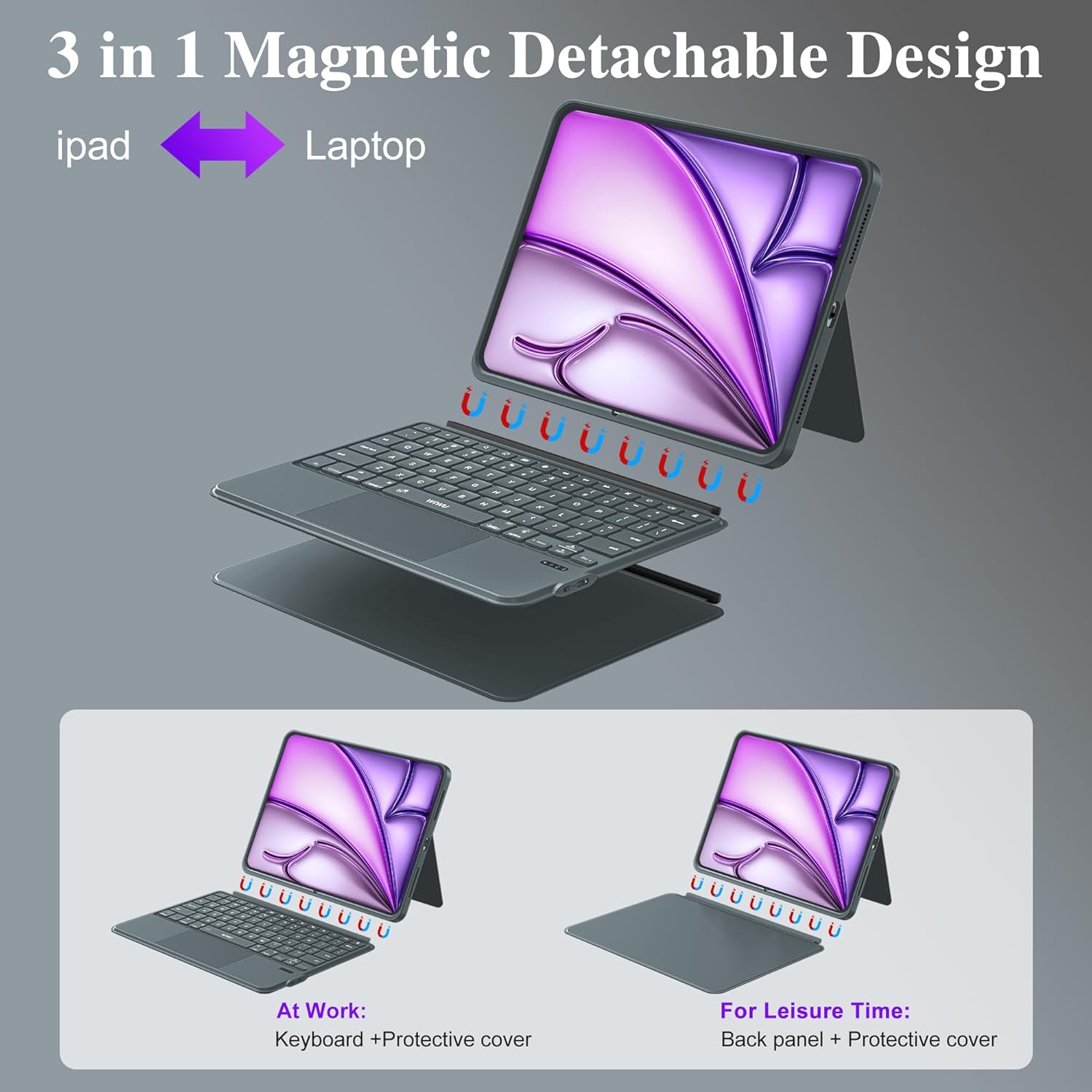
Image 4.1: The keyboard's charging port and indicators for Bluetooth connectivity and battery life.

Image 4.2: The magnetic detachment feature, allowing the keyboard to be separated from the iPad case.
5. Operating Instructions
5.1 Adjustable Stand
The case features a foldable stand that allows for angle adjustments from 0° to 170°. This provides multiple viewing angles for typing, watching videos, or video calls.
5.2 Backlit Keys
The keyboard includes 7 RGB color backlit keys for comfortable typing in various lighting conditions.
- Press the Light Bulb key to cycle through backlight colors.
- Press Fn + Light Bulb to adjust backlight brightness levels.
5.3 Keyboard Shortcuts
The keyboard is equipped with dedicated iPadOS shortcut keys to enhance productivity. These include quick access to screenshot, return to desktop, and other multimedia functions.
5.4 Trackpad Gestures
The integrated multi-touch trackpad supports 18 intuitive gestures for navigation, clicking, and app switching, similar to a laptop experience. It also features palm rejection technology.

Image 5.1: Common single-finger trackpad gestures for iPadOS systems above iOS 14.5.

Image 5.2: Details of the keyboard features, including backlit keys and iPadOS shortcuts.
5.5 Switching Between Modes
The magnetic design allows for easy transformation between three modes:
- Laptop Mode: iPad attached to the keyboard for typing and trackpad use.
- Tablet Mode: Keyboard detached, using only the protective case for tablet functionality.
- Viewing Mode: Keyboard detached, using the protective case's adjustable stand for media consumption.
6. Maintenance
- Cleaning: Wipe the case and keyboard with a soft, damp cloth. Avoid harsh chemicals or abrasive materials.
- Storage: Store the keyboard case in a cool, dry place when not in use.
- Protection: The PU leather exterior and honeycomb structure back panel provide protection against drops and scratches. Avoid exposing the device to extreme temperatures or direct sunlight.

Image 6.1: Features highlighting the case's durability and design, including the adjustable stand and protective materials.
7. Troubleshooting
- Keyboard not connecting: Ensure Bluetooth is enabled on your iPad and the keyboard is powered on and charged. Try re-pairing the device in iPad's Bluetooth settings.
- Keys not responding: Check if the keyboard is charged. If the issue persists, try restarting both the keyboard and your iPad.
- Trackpad not working: Ensure the keyboard is connected via Bluetooth. Verify that trackpad support is enabled in your iPad's accessibility settings.
- Backlight not working: Press the backlight key or Fn + backlight key to ensure it's not turned off or at the lowest brightness setting.
8. Specifications
| Feature | Detail |
|---|---|
| Model Number | MK-005 |
| Connectivity | Bluetooth 5.3 |
| Battery Life | Up to 100 hours (continuous use) |
| Charging Time | Approximately 2 hours (USB-C) |
| Key Type | Scissor-switch keys, 1mm travel |
| Backlight | 7 RGB colors |
| Trackpad | Multi-Touch with 18 gesture controls, palm rejection |
| Adjustable Stand | 0° to 170° |
| Material | Skin-friendly PU Leather, Honeycomb Structure Back Panel |
| Product Dimensions | 12.56 x 10.24 x 1.02 inches |
| Item Weight | 2.31 pounds |
9. Warranty and Support
For warranty information and technical support, please refer to the official WIWU website or contact your retailer. Keep your purchase receipt for warranty claims.


