
1. Introduction
This manual provides detailed instructions for the setup, operation, and maintenance of your PYY Cash Register with Scanner. Please read this manual thoroughly before using the device to ensure proper functionality and longevity.
2. What's in the Box
Upon unboxing, please verify that all components are present:
- Electronic Cash Register
- Wired Scanner
- 2-1/4 Inches Thermal Papers * 10 rolls
- Cash Box Keys * 6
- Power Cable
- User Manual (this document)
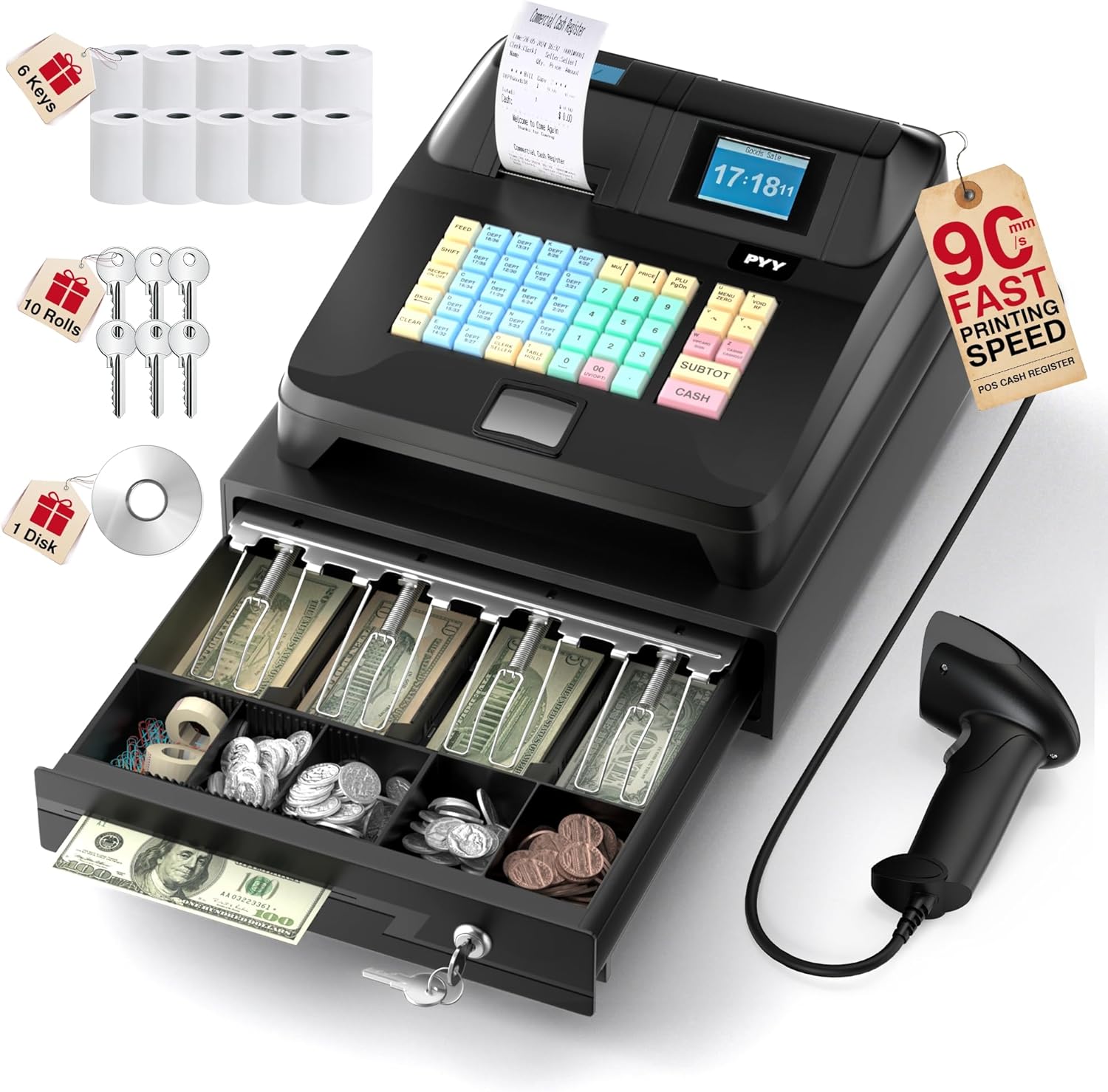
Image: The PYY Cash Register shown with its included accessories: a wired scanner, 10 rolls of thermal paper, and 6 cash box keys.
3. Setup
3.1 Connecting Peripherals
The PYY Cash Register offers multiple connectivity options for various devices:
- Scanner: Connect the wired barcode scanner to the designated port. The scanner supports 3 scan modes and operates at 30 FPS for efficient checkout.
- RS232 Ports: Two RS232 ports are available for connecting external devices such as scales or additional printers.
- USB Port: One USB port is provided for PC connection, facilitating data transfer and programming.
- PS2 Port: One PS2 port allows for keyboard input.

Image: Rear view of the cash register highlighting the universal interface with ports for power, switch, RS232 (for scale/scanner), USB (for computer), and PS2 (for keyboard).
3.2 Power Connection
Connect the power cable to the cash register and a suitable power outlet (AC 100–240V, DC 12V/3A). Ensure the power switch is in the 'Off' position before connecting, then switch to 'On' to power up the device.
4. Operating Instructions
4.1 Keypad Overview
The cash register features a 48-key keypad with waterproof caps, color-coded for easy operation:
- Blue: Department (DEPT) functions.
- Red: Cash functions.
- Green: Number input.
- Yellow: Function keys.

Image: A close-up view of the cash register's 48-key keypad, showing the color division for different functions: blue for DEPT, red for Cash, green for Number, and yellow for Function keys.
4.2 Display Information
The cash register is equipped with dual displays for clarity:
- Cashier Display: A 2.8-inch TFT LCD screen for the cashier, showing system main menu, sales, reports, and settings.
- Customer Display: An 8-digit LED display for customers, showing times, sales, and changes.

Image: The cash register displaying information on both the cashier's TFT LCD screen and the customer's 8-digit LED screen, ensuring clear reading for both.
4.3 Basic Sales Operations
4.3.1 Non-Member Checkout
This video demonstrates the process of completing a sale for a non-member customer.
Video: Instructions on how to perform a non-member checkout on the PYY Cash Register, including entering item prices, calculating subtotal, receiving payment, and printing a receipt.
4.3.2 Member Checkout
This video guides you through the process of checking out a member customer, applying any relevant discounts.
Video: A demonstration of how to process a member checkout on the PYY Cash Register, including entering member codes and applying discounts.
4.3.3 Cash Out/Cash In Operations
Learn how to perform cash out (depositing) and cash in (withdrawal) operations directly from the cash drawer without a sales transaction.
Video: Instructions for performing cash out (deposit) and cash in (withdrawal) operations on the PYY Cash Register, detailing the steps for managing cash flow.
4.4 Programming and Settings
4.4.1 Tax Settings
This function allows you to set up to 9 different types of taxes, defining custom names and rates for each. This facilitates easy selection when setting product prices.
Video: A step-by-step guide on how to configure tax settings on the PYY Electronic Cash Register, including setting tax rates and attributes (tax-included or tax-excluded).
4.4.2 PLU (Product Look-Up) Settings
This function allows for the setting of up to 10,000 PLUs. It is recommended for businesses with many products, such as supermarkets or convenience stores. When using PLUs for sales, there is no need to set department prices; instead, set the product prices on the PLUs.
Video: Detailed instructions on how to set up PLU (Product Look-Up) codes on the PYY Electronic Cash Register, including entering product codes, names, department numbers, prices, VIP prices, stock, and warning levels.
4.4.3 Department (DEPT) Settings
This function refers to the category that products belong to, such as food, daily necessities, etc. You can customize the name and unit price for each department. If products are not sold by category, there is no need to set a price.
Video: A guide on how to configure Department (DEPT) settings on the PYY Electronic Cash Register, including setting department names, prices, and linking tax codes.
4.4.4 VIP Account Settings
This function allows for the setting of up to 1000 VIP members. The VPrice feature sets a unified VIP price for products. If you need to set different discount prices for different VIP levels, please use the VIP account settings function below.
Video: Instructions for setting up VIP accounts on the PYY Electronic Cash Register, including entering member codes, names, phone numbers, and discount rates.
4.4.5 Inventory Alert Settings
This function enables the product inventory alert feature. Otherwise, the normal process of product sales and inventory depletion will not be possible.
Video: A tutorial on how to enable and configure the inventory alert settings for products on the PYY Electronic Cash Register.
4.4.6 Barcode Scanner Single Item Setup (DEPT)
This video demonstrates how to edit department settings using the barcode scanner.
Video: Instructions on how to edit Department (DEPT) settings for a single item using the barcode scanner on the PYY Cash Register.
4.5 Reporting and Reconciliation
The cash register offers various reports to track business performance and reconcile transactions.
4.5.1 X-Report (Reconciliation)
This video explains how to use the X-report for reconciliation purposes.
Video: A guide on how to generate and utilize the X-report for reconciliation on the PYY Cash Register.
4.5.2 Report Types
- Financial Daily/Monthly Report: Provides the actual received amount for all dates, excluding rounding-off fees, surcharges, etc.
- DEPT Daily/Monthly Report: Shows department amounts for all dates, without excluding rounding-off fees, temporary price adjustments, surcharges, etc.
- PLU Daily/Monthly Report: Displays product amounts for all dates, including rounding-off fees, temporary price adjustments, surcharges, etc.
- Clerk Daily/Monthly Report: Details the actual received amounts by different clerks for all dates, excluding rounding-off fees, surcharges, etc.
- Electronic Journal: A cumulative record of all transactions.
- PLU Stock Report: Data cannot be cleared to allow easy access to historical records.
- PLU Stock Alarm Report: Can only be printed when stock falls below the alarm threshold.
5. Maintenance
5.1 Cleaning
To maintain the cash register's performance and appearance, regularly clean its surfaces. Use a soft, damp cloth to wipe down the exterior. Avoid abrasive cleaners or solvents that could damage the ABS housing. For the display screens, use a screen-specific cleaner and a microfiber cloth.
5.2 Cash Drawer Care
The cash drawer is designed with 4 slots for bills and 5 for coins, including a removable coin tray. Ensure the drawer operates smoothly and is kept free of debris. Use the provided keys for secure locking.

Image: An open cash drawer of the PYY Cash Register, illustrating its organized layout with five coin slots and four bill slots, along with a removable coin tray.
6. Troubleshooting
If you encounter any issues with your PYY Cash Register, please refer to the following general troubleshooting tips:
- Power Issues: Ensure the power cable is securely connected and the power outlet is functional.
- Printing Problems: Check if the thermal paper is correctly loaded and if there is enough paper. Verify printer settings.
- Scanner Malfunction: Ensure the scanner is properly connected. Check for any obstructions or damage to the scanner head.
- Keypad Unresponsive: Clean the keypad to remove any debris. If issues persist, contact support.
For more specific issues or persistent problems, please contact PYY customer support.
7. Specifications
| Feature | Detail |
|---|---|
| Product Dimensions | 15 x 13.2 x 8.2 inches |
| Item Weight | 14.1 pounds |
| Model Number | Cash Register for Small Business |
| Power | 36W, AC 100–240V, DC 12V/3A |
| Scanner Speed | 30 FPS |
| Printer Speed | Up to 90mm/s |
| Cashier Display | 2.8-inch TFT LCD |
| Customer Display | 8-digit LED |
| Departments Supported | 200 |
| Products Supported | 10,000 |
| Members Supported | 1,000 |
| Cashiers Supported | 50 |
| Tax Rates | 9 customizable rates |

Image: The PYY Cash Register with its key dimensions (length, width, height) and the scanner's dimensions labeled for reference.
8. Warranty and Support
The PYY Cash Register is RoHS and FCC certified, ensuring safe and reliable use. It comes with a one-year coverage. For any technical assistance or issues, professional one-on-one technical support is available. Please reach out to the manufacturer if you encounter any problems.