
1. Introduction
The siaviala P6-14.1inch Laptop Screen Extender is designed to enhance your productivity by providing an additional 14-inch Full HD 1080P IPS display. This portable monitor supports various operating modes and is compatible with a wide range of laptops and devices, offering a versatile solution for expanding your workspace.

Figure 1.1: The siaviala P6-14.1inch Laptop Screen Extender in use.
2. Product Features
- Display: 14-inch FHD 1080P IPS panel with 1920x1080 resolution, 300cd/㎡ brightness, 72% NTSC color gamut, and 1000:1 contrast ratio.
- Viewing Angle: IPS wide viewing angle for consistent image quality.
- Eye Care: Features low blue light technology to reduce eye strain.
- Compatibility: Supports 13-inch to 17.3-inch laptops, compatible with Windows, Mac OS (including M1, M2, M3), Linux, Surface, Chrome, Switch, PS5, Xbox, and Android devices.
- Connectivity: Equipped with USB-C (full-function), Mini HDMI, and USB-A ports.
- Adjustability: 180° rotation and adjustable kickstand for customized viewing angles.
- Portability: Ultra-lightweight at 2.5 lbs, designed for easy transport and setup.

Figure 2.1: Key display features of the siaviala P6-14.1inch.
3. Package Contents
- 1 x Laptop Screen Extender (P6-14.1inch)
- 1 x USB-C to USB-C Cable
- 1 x HDMI to Mini HDMI Cable
- 1 x USB-A to USB-C Cable
- 1 x User Guide

Figure 3.1: Items included in the package.
4. Setup Instructions
- Expand the Screen Extender: Gently unfold the screen extender from its compact form.
- Adjust the Kickstand: Extend and adjust the integrated kickstand to provide stable support for the screen extender at your desired viewing angle.
- Connect to your Laptop: Refer to the 'Connection Methods' section below to connect the screen extender to your laptop using the appropriate cables.

Figure 4.1: Basic setup steps for the screen extender.
5. Connection Methods
The siaviala P6-14.1inch offers flexible connection options depending on your laptop's available ports. It is a plug-and-play device, requiring no additional driver installation.
Option 1: Laptop with Full-Function USB-C Port
If your laptop has a full-function USB-C port (which supports both video and power delivery), you only need one USB-C to USB-C cable for both signal transmission and power supply.
Option 2: Laptop with HDMI and USB-A Ports
If your laptop does not have a full-function USB-C port, you will need two cables:
- An HDMI to Mini HDMI cable for video signal transmission.
- A USB-A to USB-C cable for power supply to the screen extender.
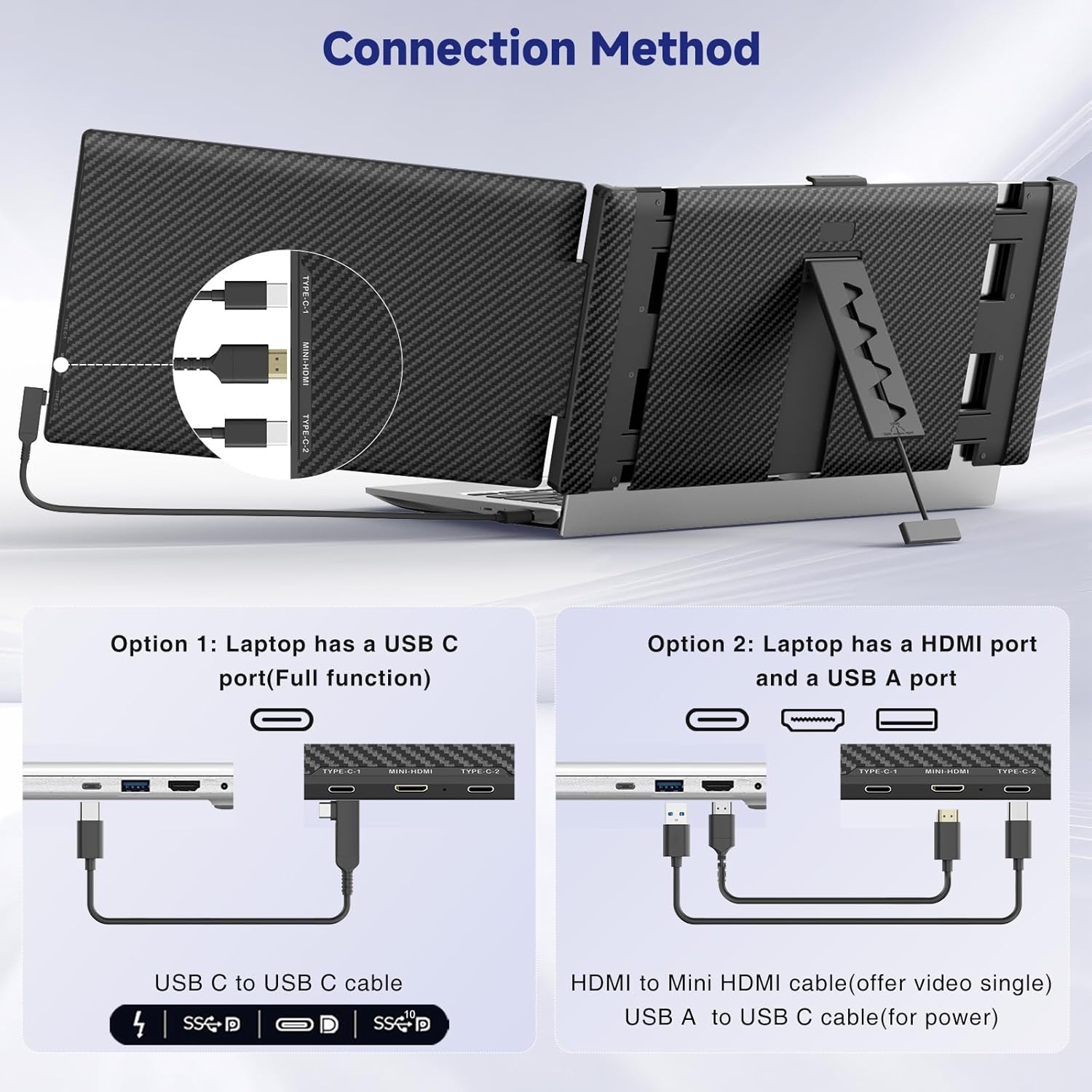
Figure 5.1: Connection methods for the screen extender.
Video 5.1: Official demonstration of the Siaviala 14" 1080P FHD IPS Laptop Monitor Extender setup and functionality.
6. Operating Modes
The screen extender supports multiple display modes to suit various tasks and preferences:
- Mirror Mode: Duplicates your laptop's display on the external screen, ideal for presentations or sharing content.
- Extended Mode: Expands your desktop workspace across both screens, allowing for multitasking and increased productivity.
- Portrait Mode: The external screen can be rotated 90 degrees for vertical viewing, beneficial for reading documents or coding.

Figure 6.1: Various operating modes for enhanced productivity.
7. Adjusting Settings
The screen extender features multi-function keys that allow independent adjustment of display parameters for each screen.
- Brightness: Adjust the screen's luminance to your preference.
- Contrast: Modify the difference between the darkest and lightest areas of the display.
- Sound: Control the audio output volume.
- Other Parameters: Access additional settings via the On-Screen Display (OSD) menu for fine-tuning.

Figure 7.1: Adjustable features including 180° rotation and kickstand.
8. Compatibility
The siaviala P6-14.1inch is designed for broad compatibility:
- Laptop Sizes: Suitable for laptops ranging from 13 inches to 17.3 inches.
- Operating Systems: Fully compatible with Mac OS (including M1, M2, M3 chips), Windows, Android, and Linux.
- Devices: Supports various devices including PCs, Surface, Chrome devices, Nintendo Switch, PlayStation 5, and Xbox.
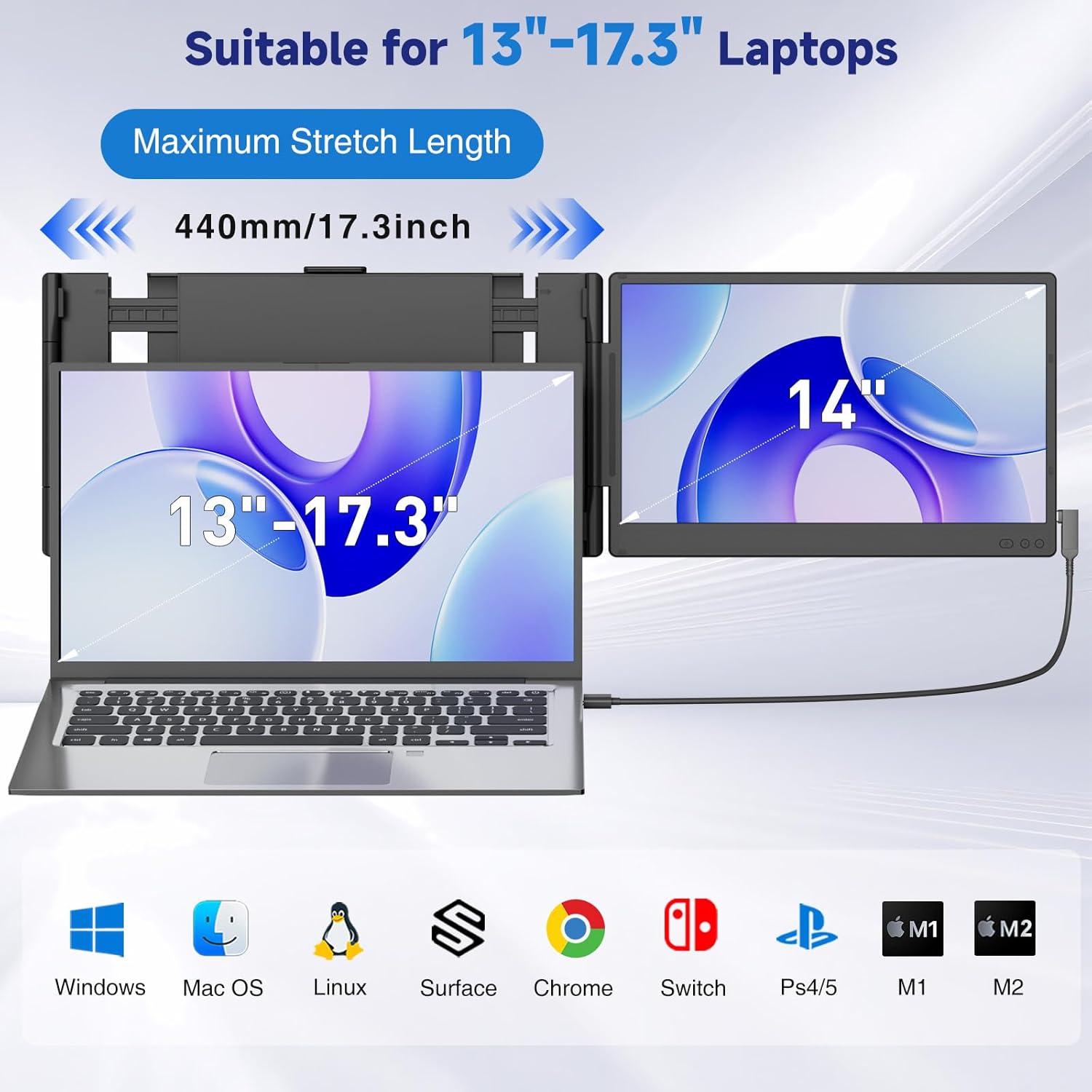
Figure 8.1: Broad compatibility with various devices and operating systems.
9. Usage Scenarios
The portable design and versatile functionality make the siaviala P6-14.1inch suitable for numerous applications:
- Home Office: Enhance your home workstation with extended display space.
- Business Travel: Maintain productivity on the go with a lightweight, portable setup.
- Meetings & Presentations: Easily share content in mirror mode or use extended mode for notes.
- Gaming & Entertainment: Connect to consoles for an immersive gaming experience.

Figure 9.1: Versatile usage scenarios for the screen extender.
10. Troubleshooting
If you encounter any issues, please refer to the following common problems and solutions:
- "No Signal" / Black Screen: Ensure all cables are securely connected. Verify that your laptop's USB-C port is full-function or that both HDMI and USB-A (for power) cables are connected correctly.
- "Power Saving Mode": This may occur if the screen extender is not receiving sufficient power. Ensure your laptop is adequately charged or connected to a power source, or use a dedicated power adapter if needed.
- Display Settings: Check your operating system's display settings to ensure the external monitor is detected and configured for the desired mode (extended or mirrored).
For further assistance, please contact customer support.
11. Specifications
| Screen Size | 14 Inches |
| Resolution | 1920 x 1080 (FHD 1080p) |
| Aspect Ratio | 16:9 |
| Image Brightness | 300 candela_per_square_meter |
| Screen Surface | Matte |
| Item Weight | 3.89 pounds |
| Package Dimensions | 16.22 x 11.02 x 2.64 inches |
12. Warranty and Support
The siaviala P6-14.1inch Laptop Screen Extender comes with a one-year warranty. For any questions, technical support, or warranty claims, please contact our dedicated 24/7/365 after-sales support team. We are committed to providing sincere and fast customer service to help you resolve any issues.
Manufacturer: Shenzhen Baijiayoupu Technology Co., Ltd


