1. Introduction
Thank you for choosing the RUIZU 64GB HiFi Lossless MP3 Player. This device is engineered to deliver a pure, high-resolution audio experience, supporting a wide range of lossless formats. Its compact design and intuitive touchscreen interface make it ideal for enjoying your music without distractions. This manual provides essential information for setting up, operating, and maintaining your player.
2. Product Overview
The RUIZU HiFi Lossless MP3 Player features a durable CNC-milled aluminum alloy body, ensuring both elegance and resilience. Designed for a dedicated audio experience, it operates exclusively with wired headphones, eliminating latency and interference associated with wireless connections. The 2-inch HD IPS touchscreen provides clear visuals and easy navigation.
2.1. Physical Features and Dimensions
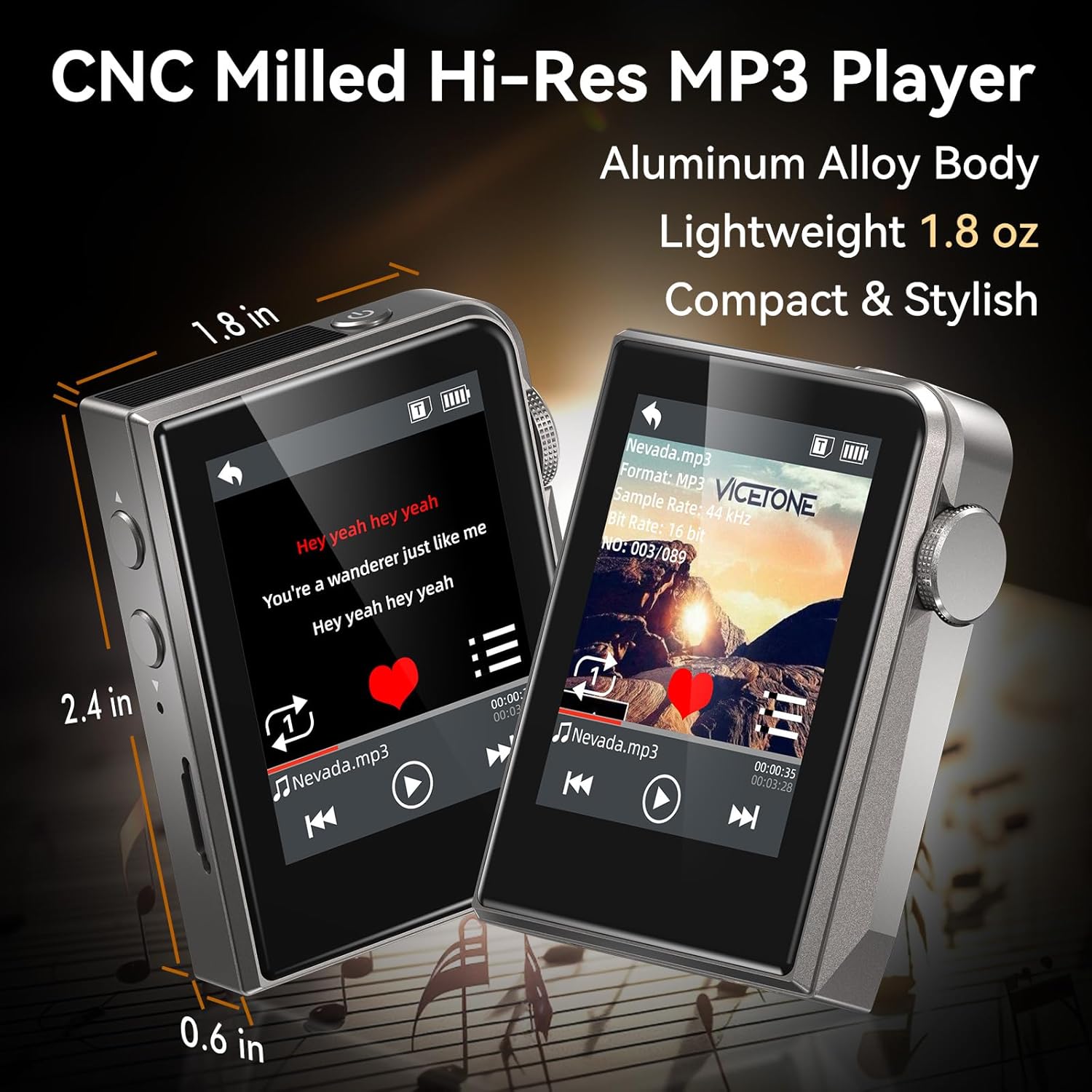
The RUIZU MP3 Player is compact and lightweight, measuring approximately 2.36 x 1.81 x 0.55 inches and weighing 1.76 ounces.
2.2. Wired Audio Design

The player supports advanced DAC decoding for high-resolution audio formats such as MP3, WMA, WAV, APE, FLAC, AAC, M4A, OGG, ALAC, DSF, and DFF, ensuring pure sound quality.
2.3. Package Contents

The package includes the RUIZU 64GB Hi-res MP3 Player, 3.5mm wired headphones, a USB-C cable for charging and file transfer, a protective pouch, and this user manual.
3. Setup
3.1. Charging the Device
Before first use, fully charge the MP3 player. Connect the provided USB-C cable to the player's USB-C port and the other end to a USB power adapter (not included) or a computer's USB port. The battery indicator on the screen will show charging status.
3.2. Transferring Music Files
- Connect the MP3 player to your computer using the supplied USB-C cable.
- The player will appear as a removable disk drive on your computer.
- Drag and drop your desired audio files (MP3, WAV, FLAC, APE, OGG, DSD256, etc.) into the player's internal storage or a connected microSD card folder.
- Safely eject the device from your computer before disconnecting the USB-C cable.
3.3. Inserting a MicroSD Card

The player supports microSD cards up to 128GB for expanded storage. Gently insert the card into the designated slot until it clicks into place.
4. Operating Instructions
4.1. Power On/Off
Press and hold the power button (usually on the side) to turn the player on or off.
4.2. Basic Navigation
The player features a 2-inch HD IPS touchscreen for navigation. Swipe to browse menus and tap to select options. The dedicated Home button allows for quick return to the main menu.
4.3. Music Playback

Access your music library through the 'Music' or 'Folder' options on the main screen. Select a song to begin playback. Use the on-screen controls for play/pause, skip forward/backward.
4.3.1. Playback Modes
The player offers various playback modes:
- Shuffle: Plays tracks in a random order.
- Repeat One: Repeats the current track.
- Folder Loop: Repeats all tracks within the current folder.
- Sequential: Plays tracks in order.
- All Loop: Repeats all tracks in the current playlist/library.
4.3.2. Equalizer (EQ)
Customize your sound experience using the built-in equalizer. Navigate to the 'Equalizer' setting to adjust frequency bands or select from preset options.
4.3.3. Playlists and Favorites
Create up to 4 favorite lists or organize your music into folders for easy access.
4.3.4. Skip Tracks with Screen Off
For convenience during activities like jogging, the player allows you to skip tracks using physical buttons even when the screen is off.
4.4. Additional Functions
The player includes several utility functions:
- Stopwatch: For timing activities.
- Calendar: Keep track of dates.
- Volume Limit: Set a maximum volume level for hearing protection.
- Date & Time Display: View current date and time.
- Sleep Timer: Automatically turn off the player after a set period.
- Power-Saving Shutdown: Configure automatic shutdown to conserve battery.
- Languages: Supports 21 languages for the user interface.
5. Maintenance
- Keep the device dry. Avoid exposure to moisture or liquids.
- Clean the screen and body with a soft, dry cloth. Do not use abrasive cleaners.
- Avoid extreme temperatures.
- Do not attempt to disassemble or repair the device yourself. This will void the warranty.
6. Troubleshooting
6.1. Device Does Not Turn On
- Ensure the battery is charged. Connect the player to a power source and allow it to charge for at least 30 minutes before attempting to power on again.
- If the device is unresponsive, try performing a soft reset by pressing and holding the power button for 10-15 seconds.
6.2. No Sound Output
- Check if headphones are properly connected to the 3.5mm audio jack.
- Verify the volume level is not set to zero or muted.
- Test with a different pair of wired headphones to rule out headphone malfunction.
- Ensure the audio files are not corrupted and are in a supported format.
6.3. Cannot Transfer Files
- Ensure the USB-C cable is securely connected to both the player and the computer.
- Try a different USB port on your computer or a different USB-C cable.
- Restart your computer and the MP3 player.
- Check if your computer's operating system recognizes the device as a removable disk.
6.4. MicroSD Card Not Detected
- Ensure the microSD card is inserted correctly and fully seated in its slot.
- Try removing and reinserting the card.
- Test with a different microSD card to determine if the card itself is faulty.
- Ensure the card is formatted to a compatible file system (e.g., FAT32).
7. Specifications
| Feature | Specification |
|---|---|
| Brand | RUIZU |
| Model | 64GB HiFi Lossless MP3 Player |
| Memory Storage Capacity | 64 GB (Internal), expandable up to 128GB via Micro SD card |
| Screen Size | 2 Inches |
| Display Technology | LCD |
| Connectivity Technology | Aux, USB (Wired only, No Bluetooth) |
| Special Features | Equalizer, Hi-Res Audio, Touch Screen |
| Compatible Devices | Headphones, Personal Computer |
| Media Type | Micro SD |
| Item Weight | 4.9 ounces |
| Batteries | 1 Nonstandard Battery (included) |
8. Warranty and Support
For warranty information and technical support, please refer to the official RUIZU website or contact your retailer. Keep your purchase receipt as proof of purchase for any warranty claims.


