
Introduction
The Vakedy HW20 Wireless Gaming Headset offers a versatile audio solution for gamers across multiple platforms. This headset features dual-mode connectivity (2.4GHz wireless and Bluetooth 5.4), a noise-canceling microphone, and a long-lasting battery, designed for an immersive gaming experience.
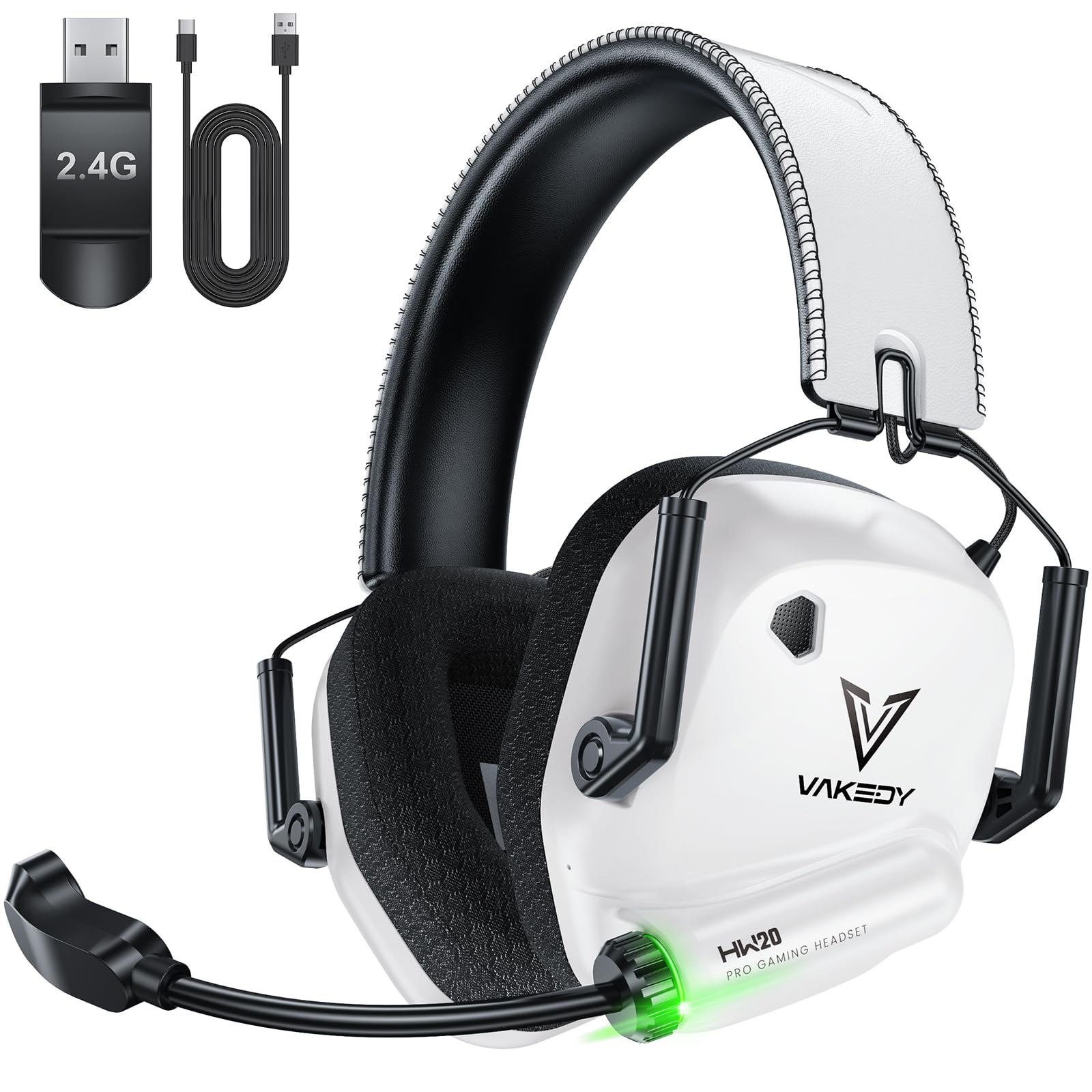
Image: The Vakedy HW20 Wireless Gaming Headset in Arctic White, showcasing its design.
What's in the Box
- Vakedy HW20 Wireless Gaming Headset
- 2.4GHz USB Dongle
- USB-C Charging Cable
- User Manual
Product Overview
Familiarize yourself with the headset's components and controls.

Image: Detailed diagram illustrating the button controls and Type-C charging port on the Vakedy HW20 headset.
- Mode/Re-pairing Button: Long press for 3 seconds to re-pair Bluetooth. Single click to switch between 2.4GHz dongle mode and Bluetooth mode.
- Volume Up/Next Track Button: Single click for volume up. Long press for 2 seconds for next track. Hold volume up and power button for 6 seconds to clear all paired devices.
- Volume Down/Previous Track Button: Single click for volume down. Long press for 2 seconds for previous track.
- Power/Multi-function Button: Long press for 3 seconds to turn on/off. Single click to play/pause music or answer/hang up calls. Long press for 2 seconds to reject calls. Double click to redial the last call.
- Microphone On/Off Button: Single click to toggle microphone on or off.
- Type-C Charging Port: For charging the headset.
Setup
1. Charging the Headset
Before initial use, fully charge the headset. Connect the provided USB-C charging cable to the headset's charging port and a compatible USB power source. A full charge takes approximately 2.5-3 hours and provides up to 50 hours of playtime.

Image: Visual representation of the headset's 50-hour battery life from a 3-hour USB-C charge.
2. Connecting via 2.4GHz USB Dongle (for PS5, PS4, PC, Switch)
- Insert the 2.4GHz USB dongle into an available USB port on your PS5, PS4, PC, or Nintendo Switch.
- Power on the headset by long-pressing the Power button.
- The headset will automatically connect to the dongle. No manual pairing is required.
- Note: The microphone is not supported for Nintendo Switch in 2.4GHz mode.
3. Connecting via Bluetooth 5.4 (for Mac, Phone, Tablet)
- Power on the headset.
- Long press the Mode/Re-pairing button for 3 seconds until the indicator light flashes blue, indicating Bluetooth pairing mode.
- On your device (Mac, phone, tablet), go to Bluetooth settings and select "Vakedy HW20" from the list of available devices.
- Once connected, the indicator light will stop flashing.
- Note: Bluetooth connectivity is not compatible with PS4 or PS5.

Image: Illustration of the dual 2.4GHz and Bluetooth wireless connection capabilities, highlighting low latency.
4. Compatibility Overview
The Vakedy HW20 headset offers broad compatibility, but please note the following specifics:

Image: A table detailing device compatibility for Dongle (2.4GHz) and Bluetooth connections across PC/Mac/Laptop, PS4/PS5, Switch, and Mobile/Tablet.
- PS5, PS4, PC: Fully compatible via 2.4GHz USB dongle, including microphone functionality.
- Nintendo Switch: Compatible via 2.4GHz USB dongle for audio, but the microphone is not supported.
- Mac, Phone, Tablet: Fully compatible via Bluetooth 5.4, including microphone functionality.
- Xbox Series Consoles: The headset is not compatible with any Xbox series consoles.
Operating Instructions
1. Power On/Off
Long press the Power/Multi-function Button for 3 seconds to turn the headset on or off.
2. Volume Control
Press the Volume Up Button to increase volume. Press the Volume Down Button to decrease volume.
3. Music Playback & Call Management
- Play/Pause: Single click the Power/Multi-function Button.
- Next Track: Long press the Volume Up Button for 2 seconds.
- Previous Track: Long press the Volume Down Button for 2 seconds.
- Answer/Hang Up Call: Single click the Power/Multi-function Button.
- Reject Call: Long press the Power/Multi-function Button for 2 seconds.
- Redial Last Call: Double click the Power/Multi-function Button.
4. Microphone Usage
The headset features an omnidirectional, noise-canceling boom microphone. It can be rotated 360 degrees for optimal positioning.
- Mute/Unmute: Single click the Microphone On/Off Button to toggle the microphone on or off.
- The noise-canceling feature filters out background noise for clear communication.

Image: Illustration of the noise-canceling microphone, demonstrating its effectiveness in reducing environmental noise.
5. Switching Connection Modes
Single click the Mode/Re-pairing Button to switch between 2.4GHz dongle mode and Bluetooth mode.
6. Clearing Paired Devices
To clear all previously paired devices, hold the Volume Up Button and the Power/Multi-function Button simultaneously for 6 seconds.
7. Audio Quality
The headset is equipped with 50mm dynamic drivers that deliver deep bass and crisp treble, providing clear directional sound for an immersive audio experience.

Image: Exploded view diagram of the 50mm dynamic coil driver, illustrating its internal components for sound production.
8. Comfort and Design
The headset features breathable mesh ear pads and an adjustable headband for comfortable wear during extended gaming sessions. It also includes breathing RGB lights for visual appeal.

Image: Features highlighting the breathable ear cushions, adjustable headband, and rotatable earcups for enhanced comfort.
Maintenance
- Cleaning: Use a soft, dry cloth to clean the headset. Avoid using harsh chemicals or abrasive materials.
- Storage: Store the headset in a cool, dry place away from direct sunlight and extreme temperatures.
- Battery Care: To prolong battery life, avoid fully discharging the headset frequently. Charge it regularly, even if not in use for extended periods.
- Water Resistance: This headset is not water resistant. Avoid exposure to liquids.
Troubleshooting
| Problem | Possible Solution |
|---|---|
| No sound from headset |
|
| Microphone not working |
|
| Headset not connecting |
|
| Short battery life |
|
Specifications
| Feature | Detail |
|---|---|
| Model Name | HW20 |
| Connectivity Technology | Wireless (2.4GHz, Bluetooth 5.4) |
| Audio Latency | 20 milliseconds (2.4GHz) |
| Audio Driver Size | 50 millimeters |
| Impedance | 32 ohm |
| Frequency Response | 20 KHz |
| Microphone | Noise-Canceling, Omnidirectional |
| Battery Life | Up to 50 hours |
| Charging Time | 2.5-3 hours (USB-C) |
| Weight | 8.8 oz |
| Ear Placement | Over Ear |
| Compatible Devices | PS5, PC, PS4, Mac, Switch, Smartphones, Tablets, iPads |
| Material | Acrylonitrile Butadiene Styrene (ABS), Leather, Polycarbonate (PC) |
Warranty and Support
Vakedy provides a 1-year warranty for this product. Additionally, a 30-day return policy is available through the retailer.
Our professional team is available 24 hours for any after-sales support. For inquiries or assistance, please feel free to contact us. Your satisfaction is our commitment.
Official Product Video
Video: An official overview of the Vakedy HW20 Wireless Gaming Headset, demonstrating its features and design.
