
Introduction to Windows 11
This manual provides comprehensive guidance for users of Windows 11, covering essential aspects from initial installation to advanced features and troubleshooting. It is designed for both new users and those upgrading from previous Windows versions, offering clear, step-by-step instructions to navigate and utilize the operating system effectively.
The content focuses on practical application, ensuring users can confidently manage their PC, enhance productivity, and maintain system security.
Setup and Installation
This section details the process of installing Windows 11. It covers system requirements, upgrade procedures via Windows Update, and performing a clean installation. Understanding these steps is crucial for a successful setup and initial configuration.
System Requirements
Before installation, ensure your device meets the minimum system requirements for Windows 11. These typically include specific processor, RAM, storage, graphics card, and TPM 2.0 module specifications. Refer to official Microsoft documentation for the most current requirements.
Installation Process
- Upgrading via Windows Update: For eligible devices running Windows 10, the upgrade to Windows 11 can be initiated directly through the Windows Update settings. Ensure your system is fully updated before attempting the upgrade.
- Clean Installation: A clean installation involves formatting your drive and installing Windows 11 from scratch. This method is recommended for new systems or for resolving persistent software issues. It typically requires creating bootable installation media (USB drive or DVD).
- Initial Configuration: After installation, you will be guided through initial setup steps, including region selection, keyboard layout, network connection, Microsoft account sign-in, and privacy settings.
Operating Windows 11
This section guides you through the daily operation of Windows 11, highlighting its key features, customization options, file management, and productivity tools.
New Features Overview
- Snap Layouts: Organize your open windows efficiently by hovering over the maximize button to choose from various predefined layouts.
- Widgets: Access personalized information such as news, weather, and calendar events from a dedicated panel.
- Virtual Desktops: Create multiple desktops to separate work, personal, or project-specific applications, improving organization.
Customization
Personalize your Windows 11 experience to match your preferences:
- Backgrounds and Themes: Change your desktop background, lock screen image, and apply system-wide themes.
- Icons and Sound Alerts: Customize desktop icons and system sound notifications.
- Widgets Configuration: Add, remove, and rearrange widgets to display relevant information.
File Management and Applications
Efficiently manage your files and applications:
- File Explorer: Navigate, organize, and search for files and folders. Understand cloud storage integration.
- Microsoft Store: Discover, install, and manage applications.
- App Management: Learn to install, uninstall, and organize applications on your system.
Productivity Tools
Enhance your workflow with built-in productivity features:
- Keyboard Shortcuts: Utilize shortcuts for faster navigation and task execution.
- Clipboard History: Access multiple copied items from your clipboard.
- Snap Assist: Automatically arrange windows when snapping them to screen edges.
- Focus Sessions: Minimize distractions and set dedicated work periods.
Maintenance and Security
Maintaining your system's security and privacy is essential. This section covers key features and settings to protect your data and ensure smooth operation.
- Windows Security: An integrated dashboard for managing security features.
- Microsoft Defender: Real-time antivirus and anti-malware protection.
- Firewalls: Configure network protection to control incoming and outgoing connections.
- Biometric Sign-in: Utilize Windows Hello for secure login using facial recognition or fingerprint.
- Privacy Settings and Permissions: Manage how applications access your location, camera, microphone, and other personal data.
Troubleshooting Common Issues
This section provides guidance on resolving common problems and maintaining system stability.
- Fixing Problems: General steps for diagnosing and resolving software conflicts or errors.
- Managing Updates: Ensure your system is up-to-date with the latest security patches and feature enhancements. Understand how to pause or roll back updates if necessary.
- Resetting Applications: If an application is not functioning correctly, learn how to reset its data or reinstall it.
- System Recovery: Options for restoring your system to a previous state or performing a full system reset.
Specifications
This section outlines the general specifications related to the Windows 11 operating system and this user guide.
| Operating System | Windows 11 |
| Publisher (of this guide) | Independently published |
| Publication Date (of this guide) | July 25, 2025 |
| Language | English |
| Print Length (of this guide) | 186 pages |
| ISBN-13 (of this guide) | 979-8294125967 |
| Item Weight (of this guide) | 12.5 ounces |
| Dimensions (of this guide) | 6.38 x 0.61 x 9.45 inches |
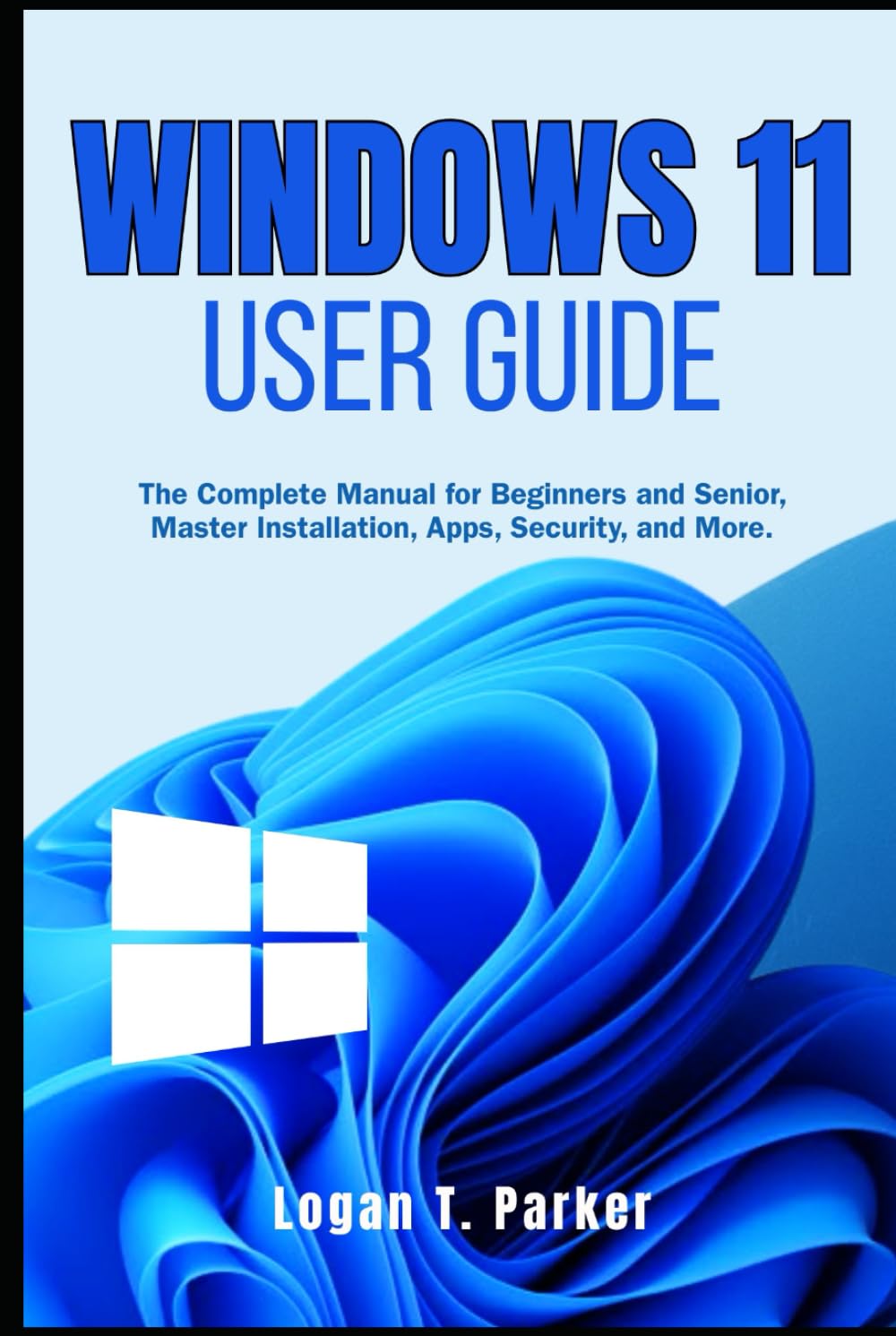
Image: Front cover of the Windows 11 User Guide.

Image: Back cover of the Windows 11 User Guide, displaying ISBN and barcode.
Warranty and Support
This user guide provides informational content regarding the Windows 11 operating system. As this is a published manual, it does not come with a product warranty for the software itself.
For support related to the Windows 11 operating system, please refer to official Microsoft support channels and documentation. For inquiries regarding this specific user guide, please contact the publisher or author as indicated within the book.


