
Introduction
This manual provides essential instructions for the safe and efficient use of your LG MyView Smart Monitor (Model 27SR5BF-P). Please read this manual thoroughly before operating the product and retain it for future reference. This monitor integrates a Full HD IPS display with smart features powered by WebOS, including wireless connectivity and built-in speakers, designed for both productivity and entertainment.
Safety Information
Always follow these basic safety precautions to reduce the risk of fire, electric shock, and personal injury:
- Do not expose the monitor to rain or moisture.
- Do not open the monitor casing; refer all servicing to qualified personnel.
- Ensure proper ventilation around the monitor.
- Use only the power cord and adapter supplied with the monitor.
- Avoid placing the monitor on unstable surfaces.
- Unplug the monitor during lightning storms or when unused for long periods.
What's in the Box
Verify that all components are present before proceeding with setup:
- LG MyView Smart Monitor (27SR5BF-P)
- Monitor Stand (Base and Neck)
- Wireless Keyboard
- Wireless Mouse
- Power Cable
- HDMI Cable (5ft)
- Remote Control & Batteries
- Owner's Manual & Warranty Card

Image showing the LG MyView Smart Monitor, its stand, wireless keyboard, wireless mouse, and a list of included items and dimensions.

Image displaying the included LG wireless keyboard and mouse, both in a matching pink finish.
Setup
1. Assembling the Stand
- Carefully remove the monitor from its packaging, placing it face down on a soft, clean surface to prevent scratches.
- Attach the stand neck to the monitor's rear panel. Secure with screws if provided.
- Attach the stand base to the stand neck. Tighten the thumb screw or screws at the bottom of the base.
2. Connecting Power
- Connect the power cable to the monitor's power input port.
- Plug the other end of the power cable into a wall outlet.
3. Connecting Peripherals
The monitor features multiple ports for connectivity:
- HDMI Ports (x2): Connect your PC, laptop, gaming console, or other HDMI-enabled devices using the supplied HDMI cable.
- USB-A Ports (x2): Use these ports to connect the wireless keyboard and mouse dongle, or other USB devices.
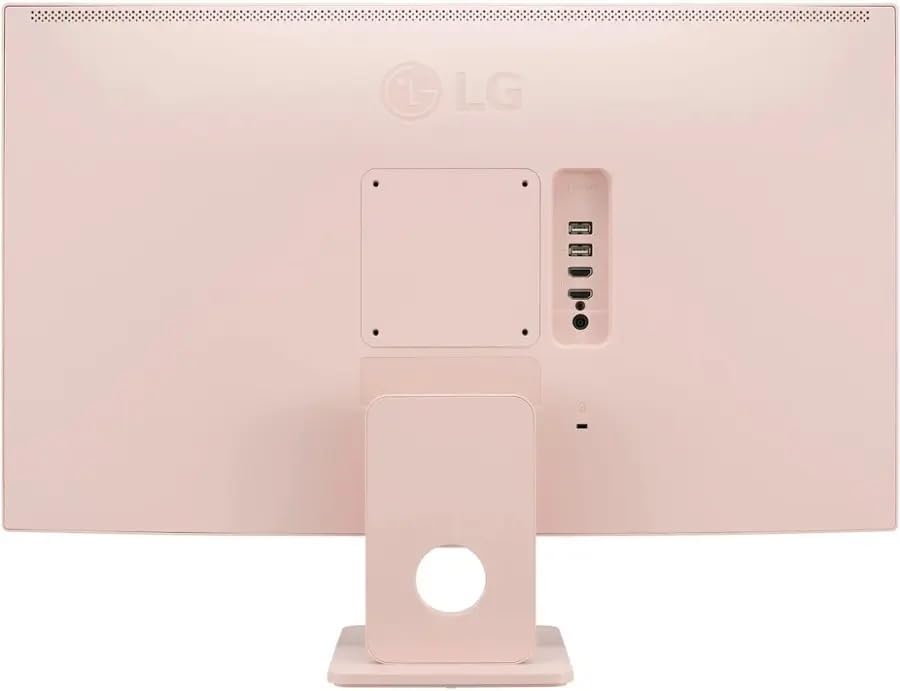
Rear view of the LG MyView Smart Monitor, highlighting the power input, HDMI ports, and USB-A ports.
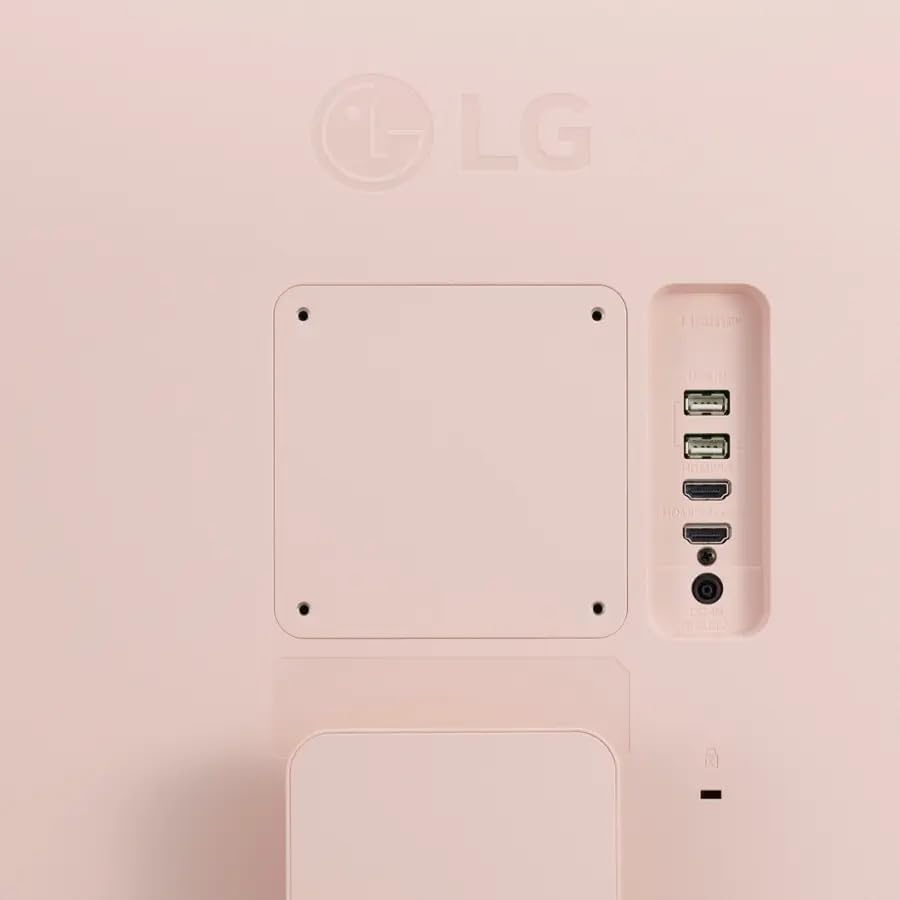
A close-up image of the connectivity ports on the back of the LG MyView Smart Monitor, including HDMI and USB-A.
4. Initial Power On
- Press the power button located on the monitor or use the remote control to turn on the monitor.
- Follow the on-screen instructions for initial setup, including language selection and network configuration.
Operating the Monitor
1. Basic Functions
- Power On/Off: Use the power button on the monitor or the remote control.
- Input Source: Press the 'Input' button on the remote to switch between HDMI inputs or the WebOS smart interface.
- Volume Control: Use the volume buttons on the remote to adjust the built-in speakers' output.
2. Navigating WebOS
The LG MyView Smart Monitor runs on WebOS, providing access to various smart features and applications. Use the remote control or the connected wireless keyboard and mouse to navigate the interface.
- The home screen displays a launcher bar with quick access to apps, inputs, and settings.
- Customize the launcher bar by adding or removing applications.

The LG MyView Smart Monitor displaying its WebOS interface with various streaming apps and content options.

A view of the LG MyView Smart Monitor in a home office setting, showcasing the WebOS interface and the included wireless keyboard and mouse.
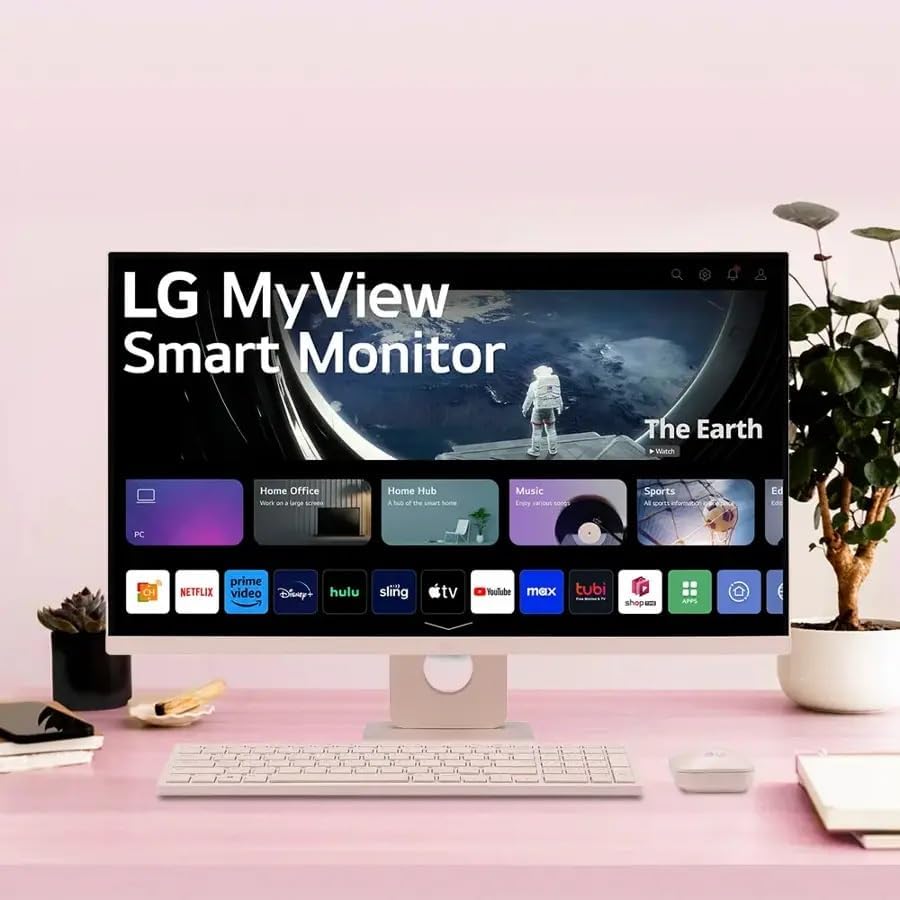
The LG MyView Smart Monitor displaying content titled 'The Earth' on its screen, with the WebOS launcher bar visible at the bottom.
3. Network Connectivity
- Wi-Fi: Go to Settings > Network > Wi-Fi Connection to connect to your wireless network.
- Bluetooth: Pair Bluetooth devices like headphones or external speakers via Settings > Sound > Sound Out > Bluetooth Device.
4. Screen Sharing and AirPlay 2
- AirPlay 2: For Apple devices, use AirPlay 2 to mirror your screen or stream content directly to the monitor. Ensure both devices are on the same Wi-Fi network.
- Screen Share: For other compatible devices, use the Screen Share feature within WebOS to mirror your device's display.
5. Display Settings
Access display settings via the WebOS menu to adjust:
- Picture Mode: Select from various presets (e.g., Vivid, Standard, Cinema, Game, HDR Effect).
- Brightness/Contrast: Fine-tune display levels.
- HDR10: The monitor supports HDR10 for enhanced contrast and color when viewing compatible content.
- Eye Comfort: Utilize Flicker-Free and Low Blue Light features to reduce eye strain during prolonged use.
Maintenance
1. Cleaning the Monitor
- Always unplug the monitor before cleaning.
- Use a soft, lint-free cloth slightly dampened with water or a specialized screen cleaner.
- Do not spray cleaner directly onto the screen.
- Avoid using abrasive cleaners, waxes, or solvents.
2. General Care
- Keep the monitor away from direct sunlight, heat sources, and excessive dust.
- Ensure adequate airflow around the monitor to prevent overheating.
- When moving the monitor, handle it carefully and avoid applying pressure to the screen.
Troubleshooting
If you encounter issues with your monitor, refer to the following common solutions:
| Problem | Possible Solution |
|---|---|
| No power | Check if the power cable is securely connected to both the monitor and the power outlet. Ensure the outlet is functional. |
| No signal / Blank screen | Verify the HDMI cable is correctly connected to both the monitor and the source device. Select the correct input source using the remote control. |
| No sound | Check the monitor's volume settings and ensure it's not muted. If using external speakers, verify their connection and power. |
| Picture is distorted or blurry | Adjust the resolution settings on your connected device to match the monitor's native resolution (1920x1080). Check display settings for picture mode. |
| Wireless keyboard/mouse not working | Ensure the USB dongle is plugged into a USB-A port on the monitor. Check batteries in the keyboard and mouse. |
Specifications
| Feature | Specification |
|---|---|
| Brand | LG |
| Model Number | 27SR5BF-P (LG 27 MyView Smart Monitor) |
| Screen Size | 27 inches |
| Panel Type | IPS |
| Resolution | 1920 x 1080 (Full HD) |
| Aspect Ratio | 16:9 |
| Refresh Rate | 60 Hz |
| Response Time | 5 Milliseconds |
| Brightness | 250 nits (cd/m²) |
| Contrast Ratio | 1000:1 |
| Viewing Angle | 178° (Horizontal/Vertical) |
| HDR Support | HDR10 |
| Operating System | WebOS |
| Connectivity | 2 x HDMI, 2 x USB-A |
| Wireless Connectivity | Wi-Fi, Bluetooth, AirPlay 2, Screen Share |
| Built-in Speakers | Yes (2x) |
| Eye Comfort Features | Flicker-Free, Low Blue Light |
| Dimensions (with stand) | 24.1" W x 17.8" H x 8.3" D |
| Weight (with stand) | 12.3 pounds |
| Color | Pink |
Warranty Information
Your LG MyView Smart Monitor is covered by a limited warranty. Please refer to the warranty card included in your product packaging for specific terms, conditions, and duration of coverage. Keep your proof of purchase for warranty claims.
Support
For further assistance, technical support, or service inquiries, please visit the official LG support website or contact LG customer service:
- LG Support Website: www.lg.com/us/support
- Customer Service: Refer to your warranty card or the LG website for regional contact numbers.