
Lenovo ThinkVision T24-40
Lenovo ThinkVision T24-40 Monitor User Manual
Model: ThinkVision T24-40 (64A4MARXUS)
1. Introduction
This user manual provides detailed instructions for the setup, operation, and maintenance of your Lenovo ThinkVision T24-40 24-inch FHD IPS Monitor. Please read this manual thoroughly before using the product to ensure proper functionality and safety.
The Lenovo ThinkVision T24-40 is designed for optimal visual performance and user comfort, featuring a 24-inch FHD IPS display, anti-glare screen, flicker-free technology, and versatile connectivity options including DisplayPort, HDMI, and USB ports.

Figure 1.1: Lenovo ThinkVision T24-40 Monitor with included Dockztorm USB Hub.
2. Safety Information
Always observe the following safety precautions to prevent damage to the monitor and ensure personal safety:
- Do not expose the monitor to rain or moisture.
- Do not open the monitor casing. There are no user-serviceable parts inside. Refer all servicing to qualified service personnel.
- Place the monitor on a stable, flat surface to prevent it from falling.
- Ensure proper ventilation around the monitor. Do not block ventilation openings.
- Use only the power adapter supplied with the monitor or a compatible replacement.
- Disconnect the power cord from the outlet during lightning storms or when unused for long periods.
- Avoid placing heavy objects on the power cord.
- Clean the monitor with a soft, dry cloth. Do not use liquid cleaners or aerosol cleaners.
3. Package Contents
Verify that all items are present in your package:
- Lenovo ThinkVision T24-40 Monitor
- Monitor Stand (Base and Neck)
- Power Cable
- HDMI Cable
- USB-B to USB-A Cable (for USB hub functionality)
- Docztorm USB HUB (Special Edition Portable Docztorm Data Hub)
- Quick Setup Guide
- Warranty Information
4. Setup
4.1. Monitor Assembly
Follow these steps to assemble the monitor stand or prepare for VESA mounting:
- Carefully remove the monitor and all components from the packaging.
- Place the monitor face down on a soft, clean surface to prevent scratches.
- Attach the stand neck to the monitor panel by aligning the tabs and pushing until it clicks into place.
- Attach the stand base to the stand neck, securing it with the captive screw on the underside of the base.
- For VESA mounting (100mm x 100mm), remove the stand if already attached. Secure the VESA mount bracket to the monitor using appropriate screws (not included).

Figure 4.1: Rear view of the monitor, illustrating the VESA mount pattern and stand attachment area.
4.2. Connecting the Monitor
Connect the monitor to your computer and power source:
- Power Connection: Connect the power cable to the monitor's power input and then to a wall outlet.
- Video Connection:
- HDMI: Connect one end of the HDMI cable to the monitor's HDMI port and the other end to your computer's HDMI port.
- DisplayPort: Connect a DisplayPort cable to the monitor's DisplayPort and your computer's DisplayPort.
- VGA: Connect a VGA cable to the monitor's VGA port and your computer's VGA port.
- USB Hub Connection: To enable the monitor's built-in USB hub, connect the USB-B to USB-A cable from the monitor's USB-B upstream port to an available USB-A port on your computer.
- Docztorm USB HUB: Connect the provided Docztorm USB HUB to one of the monitor's USB-A ports or directly to your computer for additional USB connectivity.

Figure 4.2: Rear view of the monitor displaying the available input and USB ports.
5. Operating the Monitor
5.1. Power On/Off
To power on the monitor, press the power button located on the back or bottom of the monitor. The power indicator light will illuminate. To power off, press the power button again.
5.3. Ergonomic Adjustments
The ThinkVision T24-40 monitor offers a full-function ergonomic stand for optimal viewing comfort:
- Tilt: Adjust the screen angle from -5 to +23.5 degrees. Gently push or pull the top or bottom edge of the screen.
- Pivot: Rotate the screen 90 degrees from landscape to portrait mode (-90 to +90 degrees). Ensure the screen is tilted back slightly before pivoting to avoid hitting the desk.
- Swivel: Rotate the monitor left or right on its base (-45 to +45 degrees).
- Height Adjustment: Adjust the monitor's vertical position by gently pushing or pulling the monitor up or down along the stand.
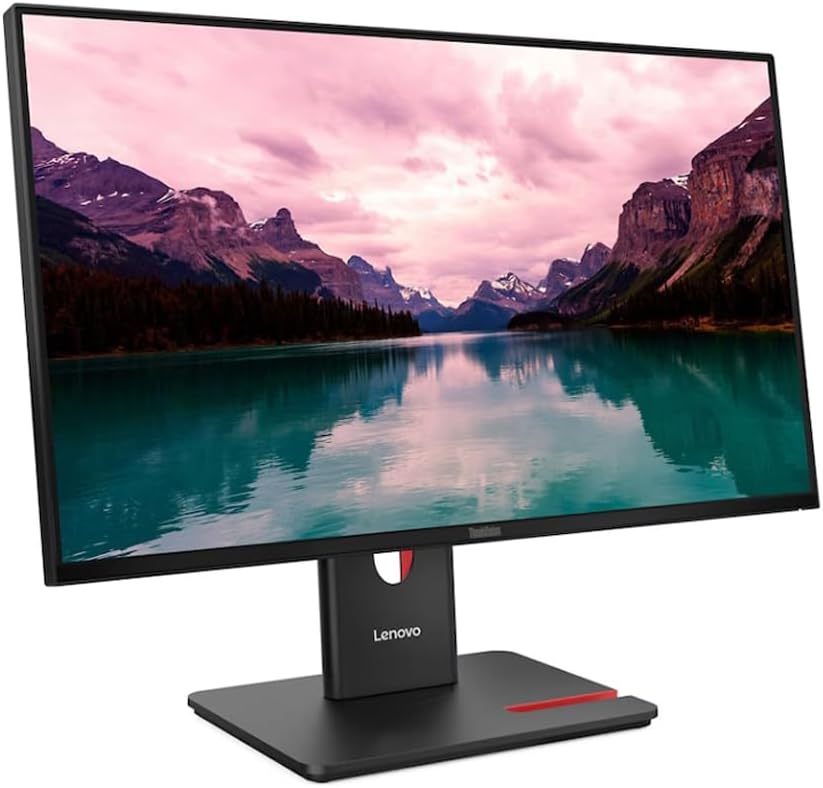

Figure 5.3: The monitor's ergonomic stand allows for tilt, pivot, swivel, and height adjustments.
6. Maintenance
Proper maintenance ensures the longevity and optimal performance of your monitor:
- Cleaning the Screen: Gently wipe the screen with a soft, lint-free cloth. For stubborn marks, dampen the cloth slightly with water or a non-ammonia, non-alcohol based screen cleaner. Do not spray cleaner directly onto the screen.
- Cleaning the Casing: Use a soft, dry cloth to wipe the monitor casing. Avoid abrasive cleaners or solvents.
- Ventilation: Ensure the ventilation openings on the monitor are not blocked by dust or objects. Periodically clean dust from the vents using compressed air.
- Power Off When Not in Use: Turn off the monitor when not in use for extended periods to save energy and prolong its lifespan.
7. Troubleshooting
Refer to the table below for common issues and their solutions:
| Problem | Possible Cause | Solution |
|---|---|---|
| No image on screen | Power cable not connected; Video cable not connected; Incorrect input source selected. | Ensure power cable is securely connected and power outlet is active. Check video cable connection (HDMI/DP/VGA) to both monitor and computer. Use OSD menu to select correct input source. |
| Image is blurry or distorted | Incorrect resolution; Loose video cable; Graphics driver issue. | Set display resolution to native 1920x1080. Reconnect video cable. Update graphics drivers on your computer. |
| Monitor flickers | Refresh rate mismatch; Interference; Faulty cable. | Ensure refresh rate is set to 120Hz (or compatible). Check for nearby electronic devices causing interference. Try a different video cable. |
| USB ports not working | USB upstream cable not connected; Computer USB port issue. | Connect the USB-B to USB-A upstream cable from the monitor to your computer. Try a different USB port on your computer. Ensure computer drivers are up to date. |
| Monitor not turning on | No power; Faulty power button. | Verify power cable connection and power outlet. Test outlet with another device. If issue persists, contact support. |
8. Specifications
Detailed technical specifications for the Lenovo ThinkVision T24-40 monitor:
| Feature | Description |
|---|---|
| Display Size | 24 inches |
| Panel Type | IPS |
| Resolution | 1920 x 1080 (FHD) |
| Aspect Ratio | 16:9 |
| Response Time | 4ms (GTG) |
| Refresh Rate | 120Hz |
| Brightness | 250 nits |
| Contrast Ratio | 1500:1 |
| Color Support | 16.7 million colors, 99% sRGB |
| Viewing Angle | 178° (H) / 178° (V) |
| Screen Surface | Anti-glare |
| Flicker Free | Yes |
| VESA Mount | 100mm x 100mm |
| Ports | 1 x HDMI, 1 x VGA, 1 x DisplayPort, 1 x USB-B (upstream), 3 x USB-A (downstream), 1 x USB-C (15W PD data only) |
| Ergonomics | Tilt (-5° to +23.5°), Pivot (-90° to +90°), Swivel (-45° to +45°), Height Adjustment |
| Dimensions (W x D x H) | 21.3 x 7.5 x 19.9 inches (with stand) |
| Weight | 11.2 lbs (with stand) |
| Environmental Compliance | Made with 85% recycled plastics, packed with sustainable paper pulp. |
9. Warranty and Support
For warranty information and technical support, please refer to the warranty card included in your product package or visit the official Lenovo support website. You can typically find drivers, FAQs, and contact information for customer service there.
Lenovo Official Support: https://support.lenovo.com/