
1. Introduction
This user manual provides essential information and instructions for the safe and efficient operation of your realme C71 4G Smartphone. Please read this manual thoroughly before using your device to ensure proper functionality and to prevent damage.
2. What's in the Box
Upon unboxing your realme C71 4G Smartphone, verify that all the following items are included:
- Handset
- Charger
- USB data cable
- SIM Tray Ejector
- Phone Case
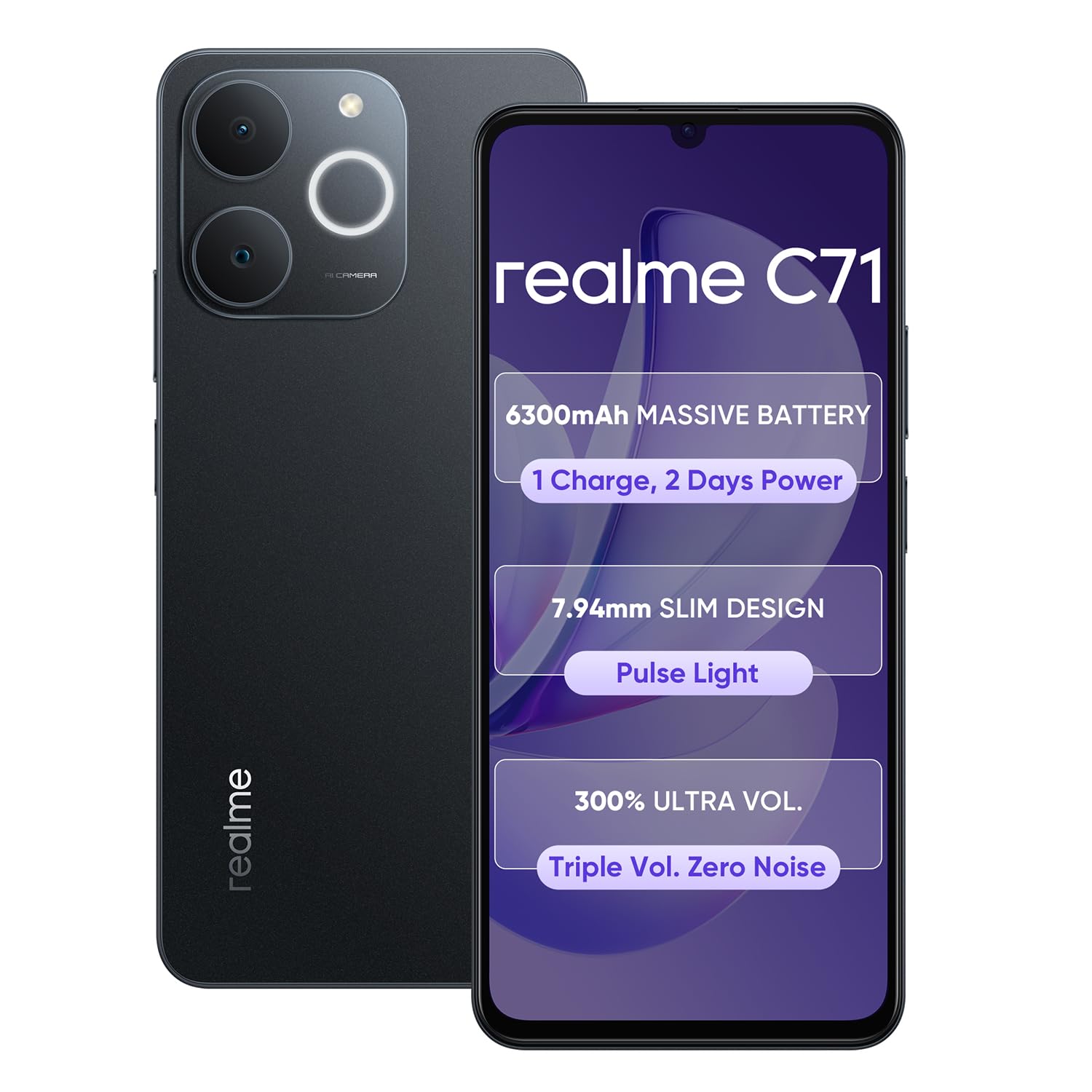
Image: realme C71 4G Smartphone with its standard accessories, including the phone, charger, USB cable, SIM ejector tool, and a protective case.
3. Setup Guide
3.1. Inserting SIM Card and SD Card
- Locate the SIM card tray on the side of your device.
- Insert the SIM tray ejector tool into the small hole next to the tray and press gently until the tray pops out.
- Place your Nano-SIM card(s) and/or microSD card into the designated slots on the tray, ensuring correct orientation.
- Carefully reinsert the tray into the phone until it clicks into place.
3.2. Initial Power On and Basic Setup
- Press and hold the Power button (usually on the right side) until the realme logo appears.
- Follow the on-screen prompts to select your language, region, and connect to a Wi-Fi network.
- Sign in with your Google account or create a new one to access Google services and the Play Store.
- Set up a screen lock (PIN, pattern, password, or fingerprint) for security.
- Complete the remaining setup steps as guided by the system.
4. Operating Instructions
4.1. Display Features
The realme C71 features a 6.75-inch 90Hz Eye Comfort Display. This display provides smooth visuals and is designed to minimize eye strain during extended use. You can adjust display settings such as brightness, dark mode, and refresh rate in the phone's settings menu.
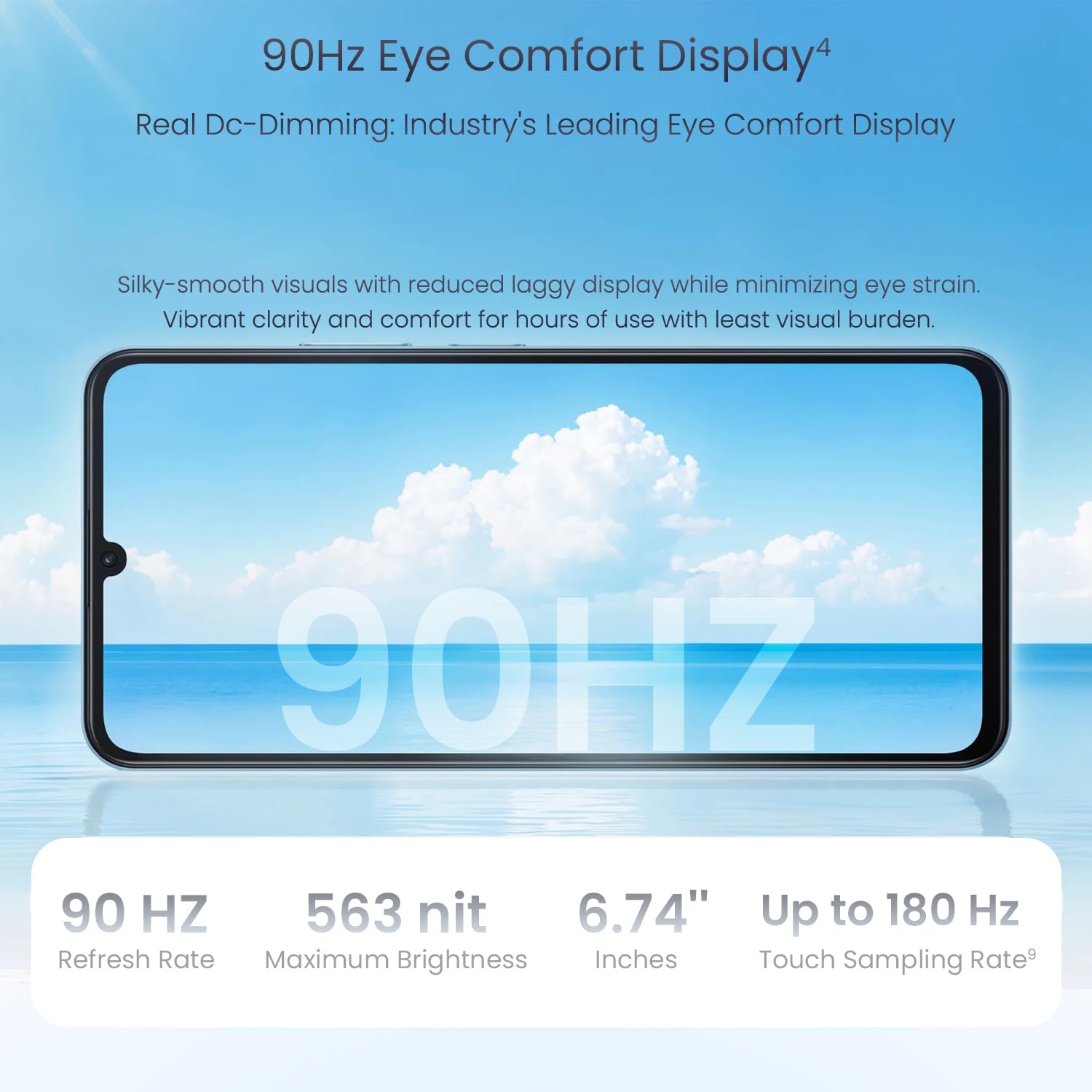
Image: The realme C71 display showcasing its 90Hz refresh rate and eye comfort features, with specifications like 563 nits maximum brightness and 6.74 inches screen size.
4.2. Battery Management
Your device is equipped with a 6300mAh large battery, designed for extended usage. It supports 15W fast charging for quick power replenishment. To optimize battery life:
- Adjust screen brightness.
- Close unused applications running in the background.
- Enable power-saving modes when battery is low.
- Use the provided charger and USB cable for optimal charging speed.
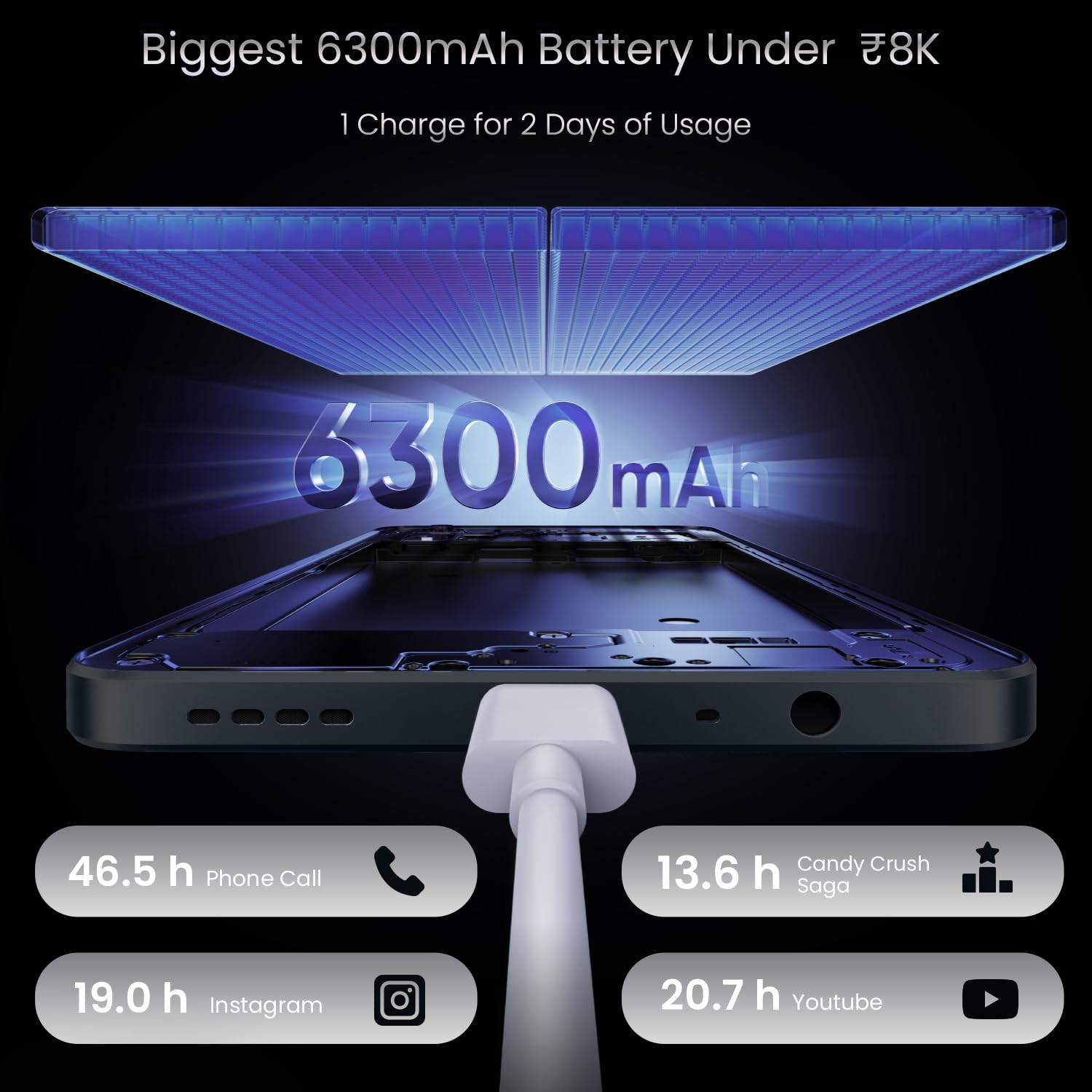
Image: Illustration of the realme C71's 6300mAh battery capacity, demonstrating usage times for phone calls, Instagram, YouTube, and Candy Crush Saga on a single charge.
4.3. Camera Usage
The realme C71 features 37MP cameras for capturing photos and videos. Open the Camera application to access various modes such as Photo, Video, Portrait, and more. Tap on the screen to focus and use the shutter button to capture images.
4.4. Performance
Powered by an Octa-core Chipset, the realme C71 is designed for smooth handling of daily tasks, application usage, and light multitasking. The device comes with 6GB of RAM and 128GB of internal storage (ROM) for efficient operation and data storage.

Image: Visual representation of the realme C71's internal memory, highlighting 6GB of dynamic RAM and 128GB of ROM for seamless performance.
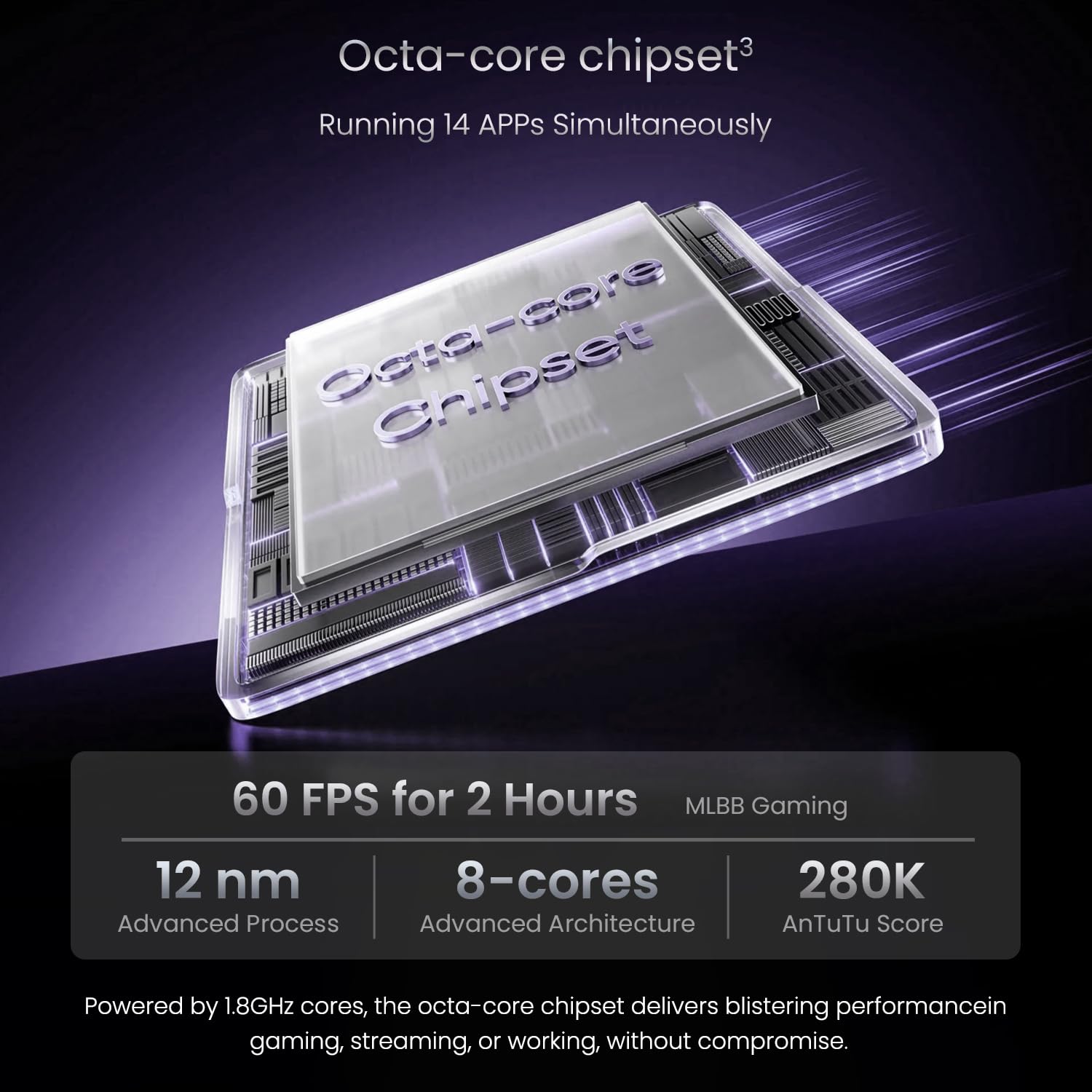
Image: Diagram illustrating the octa-core chipset of the realme C71, detailing its 12nm advanced process, 8-core architecture, and AnTuTu score, indicating its capability for gaming and multitasking.
4.5. Audio Features
The device offers 300% Ultra Volume for enhanced audio output. It also incorporates AI Noise Reduction technology to improve call clarity by minimizing background noise during conversations.

Image: A visual demonstrating the realme C71's 3x volume and AI noise reduction feature, showing a phone call interface with sound waves and icons representing reduced external noise.
4.6. Pulse Light Feature
The realme C71 includes a Pulse Light feature, located around the camera module. This light can provide visual notifications or indications. Refer to your phone's settings for customization options related to the Pulse Light.
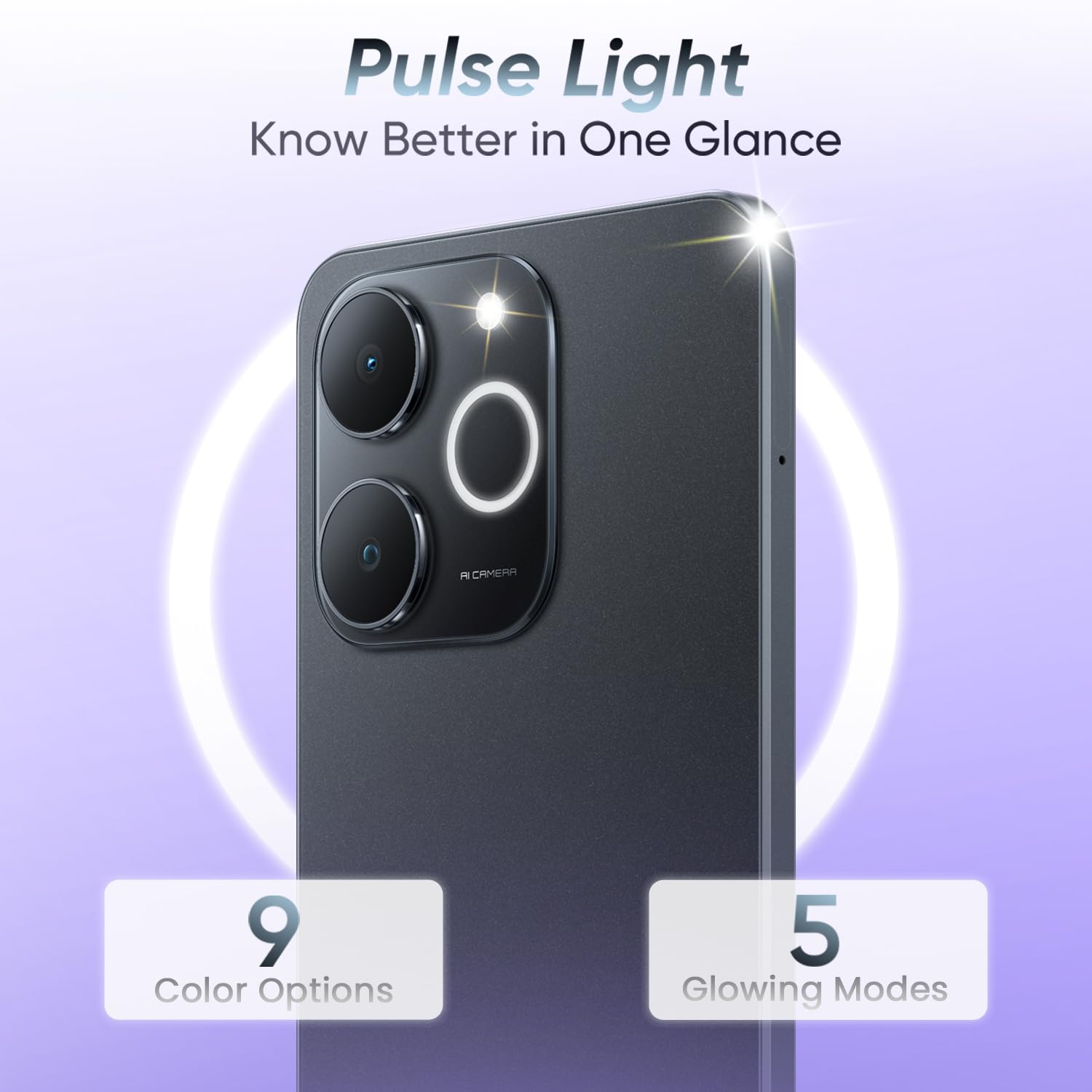
Image: Close-up of the realme C71's rear camera module, highlighting the "Pulse Light" feature which offers various color and glowing modes for notifications.
5. Maintenance and Care
5.1. IP54 Protection
The realme C71 has an IP54 rating, indicating resistance to dust and light splashes of water. This protection is not permanent and may decrease over time with normal wear. Do not intentionally submerge the device in water or expose it to high-pressure water jets.

Image: The realme C71 smartphone being splashed with water, illustrating its IP54 rating for dust and water resistance.
5.2. General Care
- Keep the device away from extreme temperatures, direct sunlight, and corrosive materials.
- Clean the screen and body with a soft, lint-free cloth. Avoid using harsh chemicals.
- Protect the screen with a screen protector and the body with a case (one is included).
- Avoid dropping the device. It features military-grade shock resistance for 1.8M falls, but excessive impact can still cause damage.
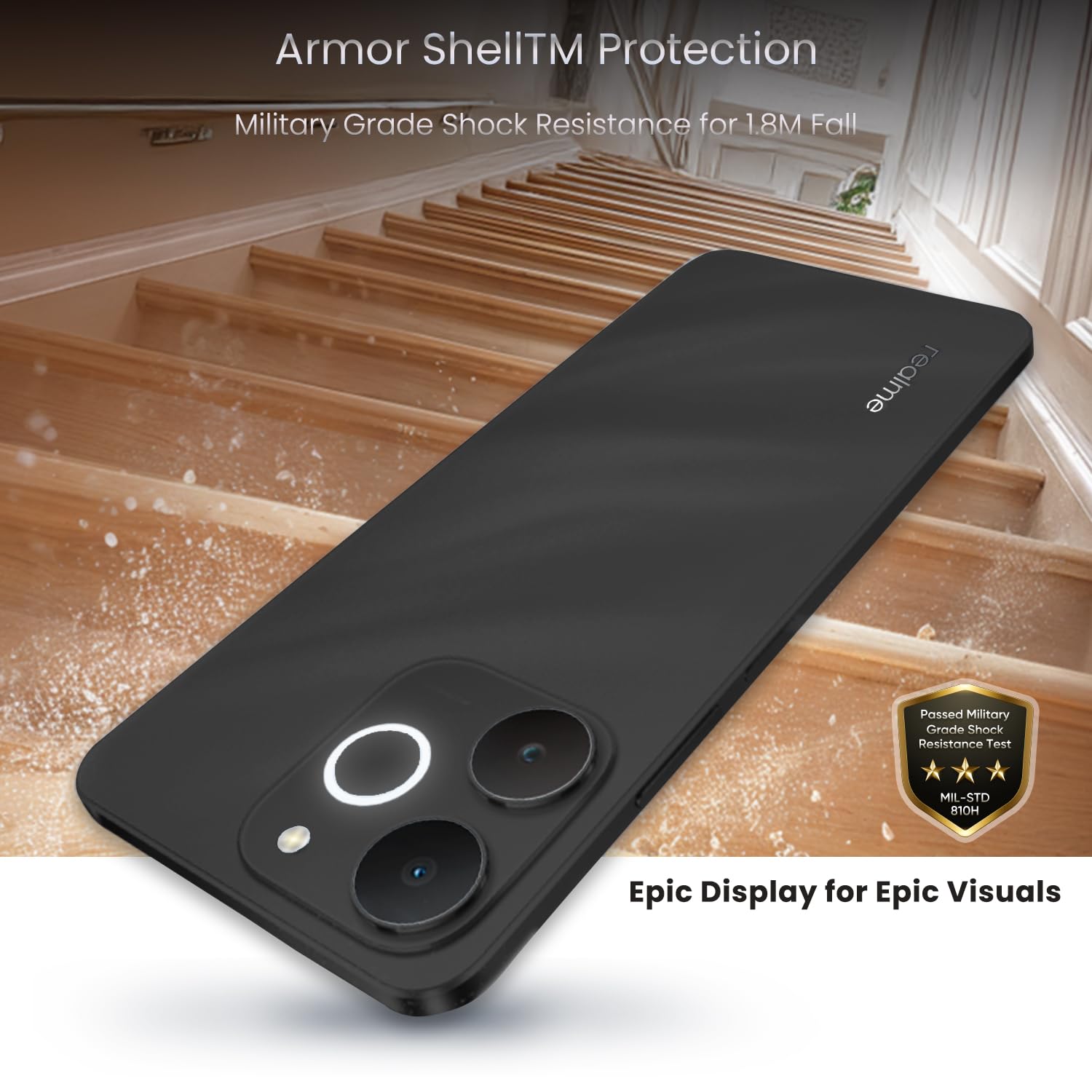
Image: The realme C71 phone lying on a wooden staircase, demonstrating its Armor Shell Protection and military-grade shock resistance against falls.
6. Troubleshooting
If you encounter issues with your realme C71, refer to the following common solutions:
| Problem | Possible Solution |
|---|---|
| Device not turning on | Ensure the battery is charged. Press and hold the Power button for at least 10-15 seconds to force restart. |
| Apps crashing or freezing | Clear the app's cache and data (Settings > Apps > [App Name] > Storage). Update the app or reinstall it. Ensure sufficient free storage. |
| Poor battery life | Check background app usage. Reduce screen brightness. Disable unnecessary features like GPS, Bluetooth, Wi-Fi when not in use. |
| Network connectivity issues | Restart the phone. Check SIM card insertion. Reset network settings (Settings > System > Reset options > Reset Wi-Fi, mobile & Bluetooth). |
| Touchscreen unresponsive | Restart the device. If the issue persists, consider a factory reset (backup data first). |
For more complex issues, contact realme customer support or visit an authorized service center.
7. Specifications
| Feature | Detail |
|---|---|
| Model Number | RMX5313 |
| Operating System | Android 14 |
| RAM | 6 GB |
| Internal Storage | 128 GB (Specific variant, other variants available) |
| Display | 6.75-inch, 90Hz Eye Comfort Display, 720 x 1604 Resolution |
| Processor | Octa-core Chipset, 1.8 GHz CPU Speed |
| Cameras | 37MP Cameras |
| Battery Capacity | 6300mAh |
| Connectivity | Bluetooth, USB, Wi-Fi |
| GPS | True |
| Special Features | 6300mAh large battery, IP54 Dust and Splash Resistance, Pulse Light, 300% Ultra Volume, AI Noise Reduction |
| Dimensions | 16.72 x 7.66 x 0.79 cm |
| Weight | 200 g |
| Manufacturer | realme |
| Country of Origin | India |
8. Warranty and Support
Your realme C71 4G Smartphone comes with a standard manufacturer's warranty. For specific warranty terms and conditions, please refer to the warranty card included in your product packaging or visit the official realme support website.
For technical assistance, troubleshooting beyond this manual, or service requests, please contact realme customer support. You can typically find contact information on the realme official website or through the support section within your device's settings.
- Online Support: Visit the official realme support website for FAQs, software updates, and service center locations.
- Customer Service: Refer to your product documentation for regional customer service contact numbers.