1. Introduction
The Hosyond 8.8-inch touchscreen secondary screen is a versatile display designed for various applications, including PC case monitoring, extended desktop use, and integration with single-board computers like the Raspberry Pi. It features an IPS panel for wide viewing angles and vibrant colors, a high resolution of 1920x480, and responsive capacitive touch functionality. This manual provides essential information for proper setup, operation, and maintenance of your device.
2. Package Contents
Please verify that all items listed below are included in your package:
- 1 x 8.8-inch Touchscreen Display
- 1 x HDMI Cable
- 1 x USB Cable (Type-C to Type-A)
- 1 x HDMI to Mini-HDMI Adapter

Image: Package contents of the Hosyond 8.8-inch touchscreen display.
3. Specifications
Detailed technical specifications for the Hosyond 8.8-inch touchscreen display:
| Feature | Specification |
|---|---|
| Panel Type | IPS |
| Panel Size | 8.8 inch |
| Resolution | 480 x 1920 |
| Luminance (TYP) | 520 cd/m² |
| Backlight Type | White LED |
| Touch Screen Type | Capacitive Touch Screen |
| Power Input | Type-C USB (5V) |
| Total Power Consumption | 3.8W (100%) |
| Video Input Interface | HDMI |
| Active Area | 54.72 mm x 218.8 mm |
| Outline Size | 64.3 mm (W) x 231.3 mm (H) x 14.6 mm (T) |
| Weight | 425 g |

Image: Physical parameters and port locations.
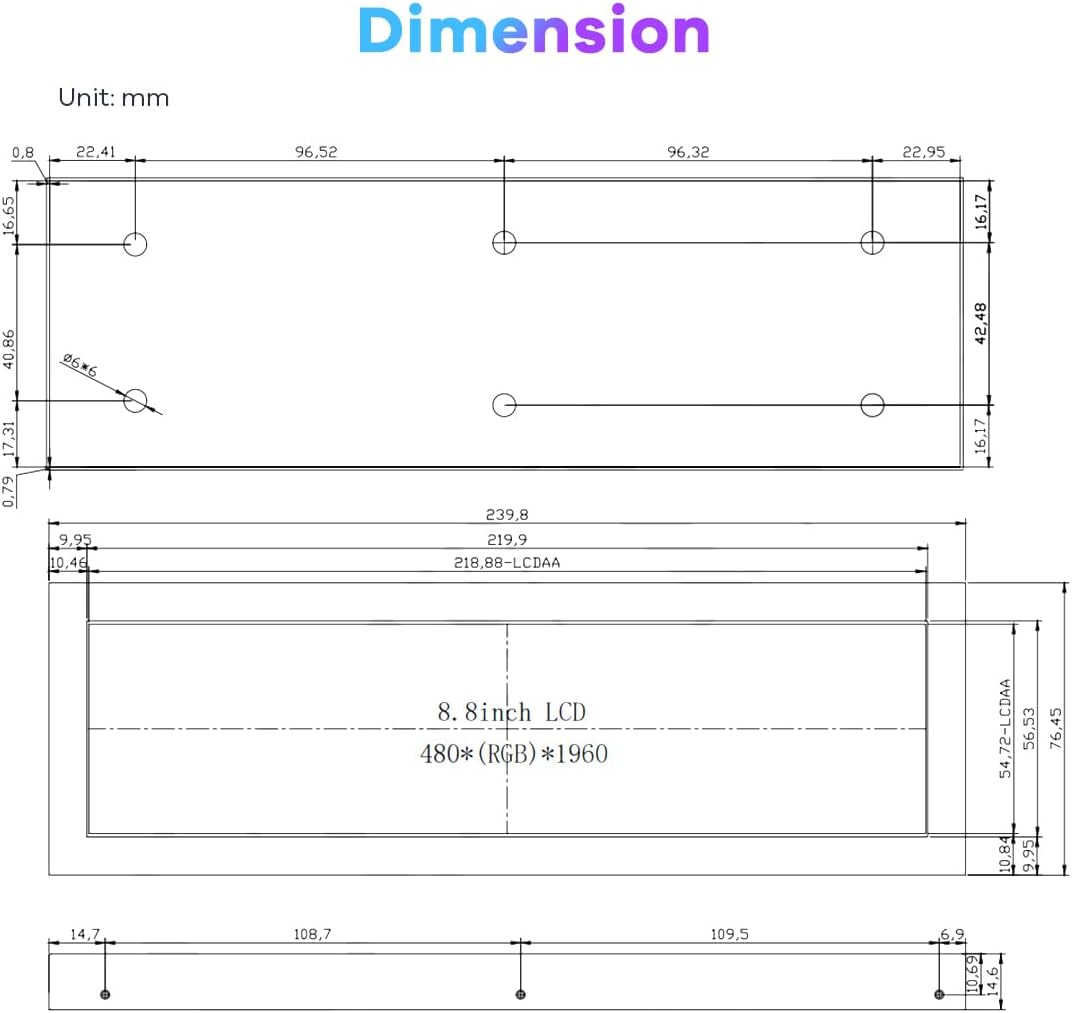
Image: Detailed dimension diagram of the display.
4. Setup
Follow these steps to connect your Hosyond 8.8-inch touchscreen display:
- Connect Video Input: Use the provided HDMI cable to connect the display to your computer, Raspberry Pi, or other compatible device. If your device uses a Mini-HDMI port, use the included HDMI to Mini-HDMI adapter.
- Connect Power: Connect the provided USB Type-C cable to the display's Type-C port and the other end to a 5V USB power source (e.g., a computer USB port, USB wall adapter). The display requires 5V power for operation.
- Driver-Free Operation: The display is designed for plug-and-play functionality and typically does not require additional drivers for video output or touch input on supported operating systems (Windows 7/8/10/11, Raspbian, Ubuntu, Kali Linux, Kodi, Win10 IoT).

Image: Connection examples for Raspberry Pi and various application scenarios.
5. Operating Instructions
5.1 Basic Display Functionality
Once connected, the 8.8-inch screen will function as an additional display. You can configure its orientation (landscape or portrait) and position relative to your main monitor through your operating system's display settings.

Image: Display features including IPS panel and wide viewing angle.
5.2 Touchscreen Operation
The display features a responsive capacitive touchscreen. It supports various gestures for interaction:
- Tap: Single touch for selection or activation.
- Press: Hold touch for context menus or drag operations.
- Zoom In/Out: Pinch gestures to enlarge or reduce content.
- Mouse Click: Functions similarly to a mouse click for precise interaction.

Image: Touchscreen gestures and functionality.
5.3 AIDA64 PC Case Monitoring
To use the screen for monitoring CPU and GPU temperatures and other hardware statistics within your PC case, you will need to:
- Download AIDA64: Obtain the AIDA64 software from its official website.
- Configure Theme: Within AIDA64, navigate to the sensor panel settings and configure a suitable theme. Many custom themes are available online that are optimized for this display's resolution.
The display is compatible with various operating systems, including Windows 7/8/10/11, Raspbian, Ubuntu, Kali Linux, Kodi, and Win10 IoT, offering broad compatibility for different projects.
Video: Demonstration of the 8.8-inch touchscreen's interactive capabilities and various AIDA64 monitoring themes.
6. Maintenance
To ensure the longevity and optimal performance of your Hosyond 8.8-inch touchscreen display, follow these maintenance guidelines:
- Cleaning: Use a soft, lint-free cloth to gently wipe the screen. For stubborn smudges, slightly dampen the cloth with water or a screen-safe cleaning solution. Avoid harsh chemicals or abrasive materials.
- Handling: Handle the display with care to prevent drops or impacts. Avoid applying excessive pressure to the screen.
- Environment: Operate the display in a clean, dry environment. Avoid extreme temperatures, direct sunlight, and high humidity.
- Power: Always use a stable 5V power source. Disconnect power when the device is not in use for extended periods.
7. Troubleshooting
If you encounter issues with your display, refer to the following common troubleshooting steps:
- No Display/Black Screen:
- Ensure both the HDMI cable and USB power cable are securely connected.
- Verify the power source is providing adequate 5V power.
- Check your computer's display settings to ensure the secondary screen is detected and enabled.
- Try a different HDMI port or cable if available.
- Touchscreen Not Responding:
- Ensure the USB cable is connected, as it provides power and touch data.
- For Windows, check 'Tablet PC Settings' in Control Panel to calibrate or configure touch input.
- Restart the connected device.
- AIDA64 Monitoring Issues:
- Confirm AIDA64 software is installed and running.
- Ensure the sensor panel is enabled and configured correctly within AIDA64 settings.
- Verify that the display is recognized as a secondary monitor by your operating system.
- No Mounting Hardware:
- The product does not include mounting hardware. Users may need to acquire suitable screws or brackets separately for custom installations (e.g., within a PC case).
8. Warranty and Support
Hosyond is committed to providing quality products. For any questions or technical assistance, please contact our customer support. Refer to your purchase documentation for specific warranty details and contact information.