1. Introduction
This manual provides detailed instructions for setting up, operating, and maintaining your X88 Pro 14 Android TV Box. Please read this manual thoroughly before using the device to ensure optimal performance and longevity.
2. What's in the Box
Verify that all items are present in the package:
- TV box
- HDMI cable
- BT Remote control
- AC adapter
- User guide (this manual)
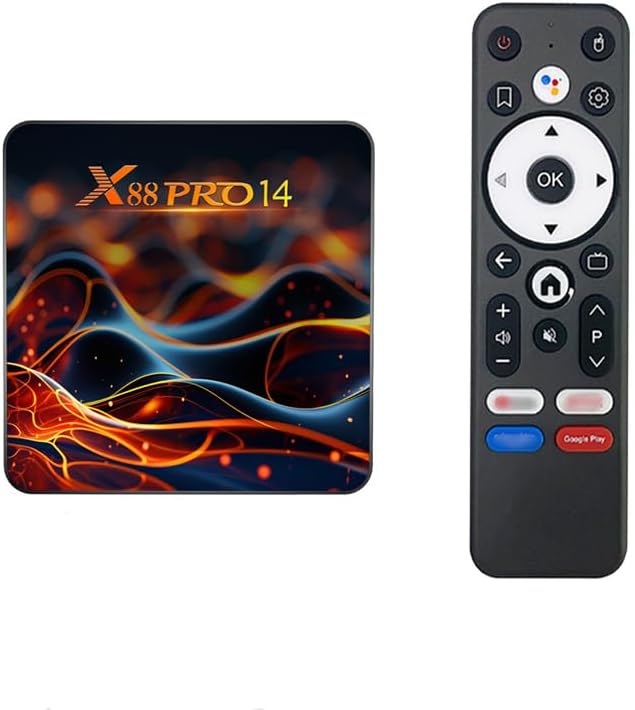
Image: The X88 Pro 14 Android TV Box and its accompanying Bluetooth remote control.
3. Product Overview
The X88 Pro 14 is an Android 14.0 ATV Box designed for streaming media, gaming, and various applications. It features a powerful RK3518 Quad-Core processor, WiFi 6 connectivity, and supports 4K/8K AV1 Ultra HD video output.

Image: Overview of the X88 Pro 14 TV Box, emphasizing its core features such as Android 14, 4K video support, WiFi 6, Ethernet, and Bluetooth 5.0.
3.1 Ports and Connections
Familiarize yourself with the available ports on your X88 Pro 14 device:
- DC Power Input: Connect the provided AC adapter.
- SPDIF: Digital audio output.
- HD (HDMI): Connect to your TV or display for video and audio output.
- LAN (Ethernet): For wired network connection.
- USB Ports (Type-A USB2.0): For connecting external devices like USB drives, keyboards, or mice.
- TF Card Slot (Micro SD): For expanding storage with a Micro SD card (up to 64GB).
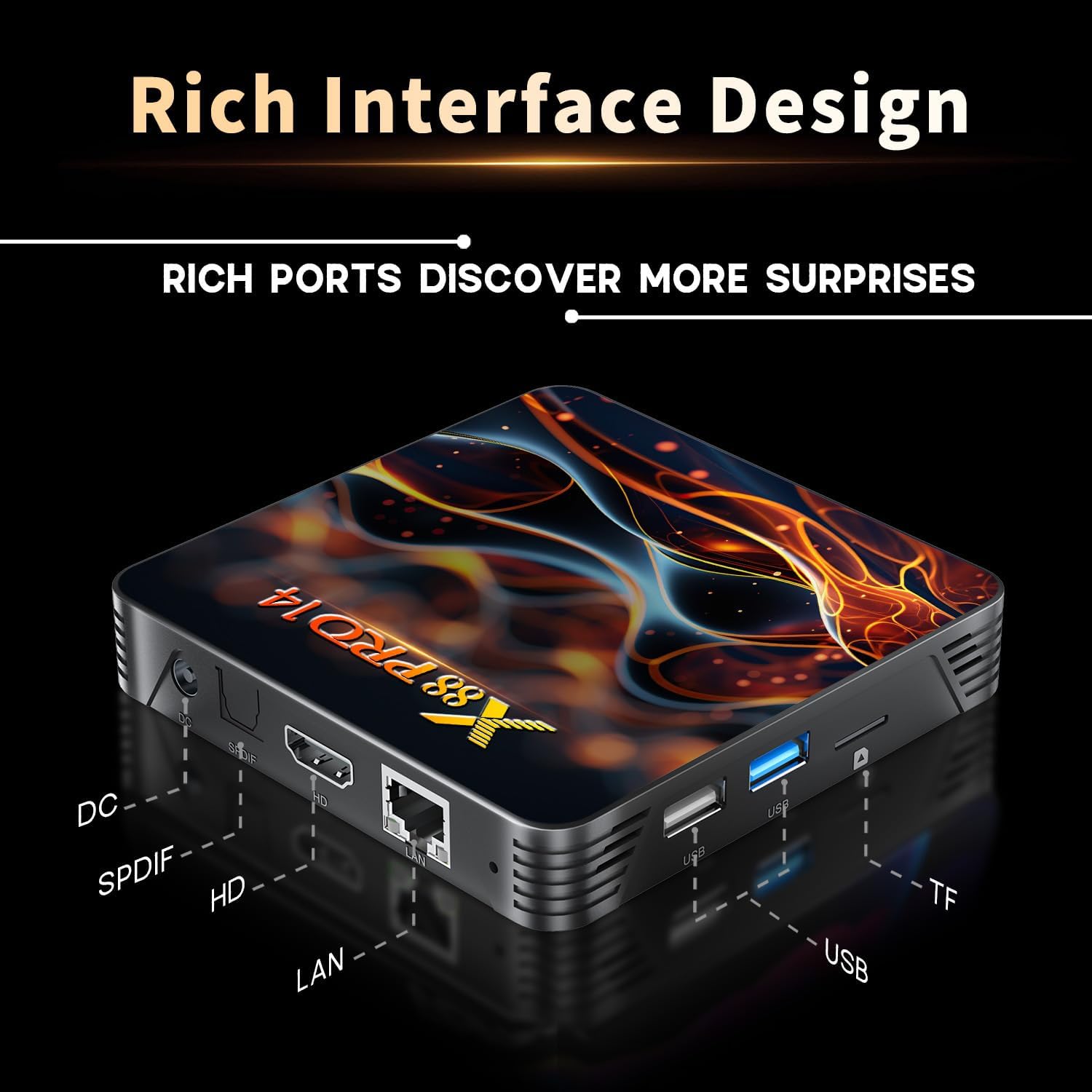
Image: Detailed view of the X88 Pro 14 TV Box's interface, showing the DC power input, SPDIF, HDMI, LAN, USB ports, and TF card slot.
3.2 Key Features
- Operating System: Android 14.0 ATV OS
- Processor: RK3518 Quad-Core 64bit Cortex-A53
- GPU: Mali 450 MP2
- Memory: 2GB DDR3 RAM, 16GB eMMC Flash Storage
- Wireless Connectivity: 2.4G/5.8Ghz Dual-band WiFi 6 (802.11 a/b/g/n/ac/ax), Bluetooth 5.0
- Wired Connectivity: 10/100M Ethernet
- Video Output: HDMI 2.0b for 4K@60Hz, supports H.264/H.265/VP9 up to 8K@30fps, AV1
- Special Features: Chromecast, DLNA, Miracast, Voice Control Remote
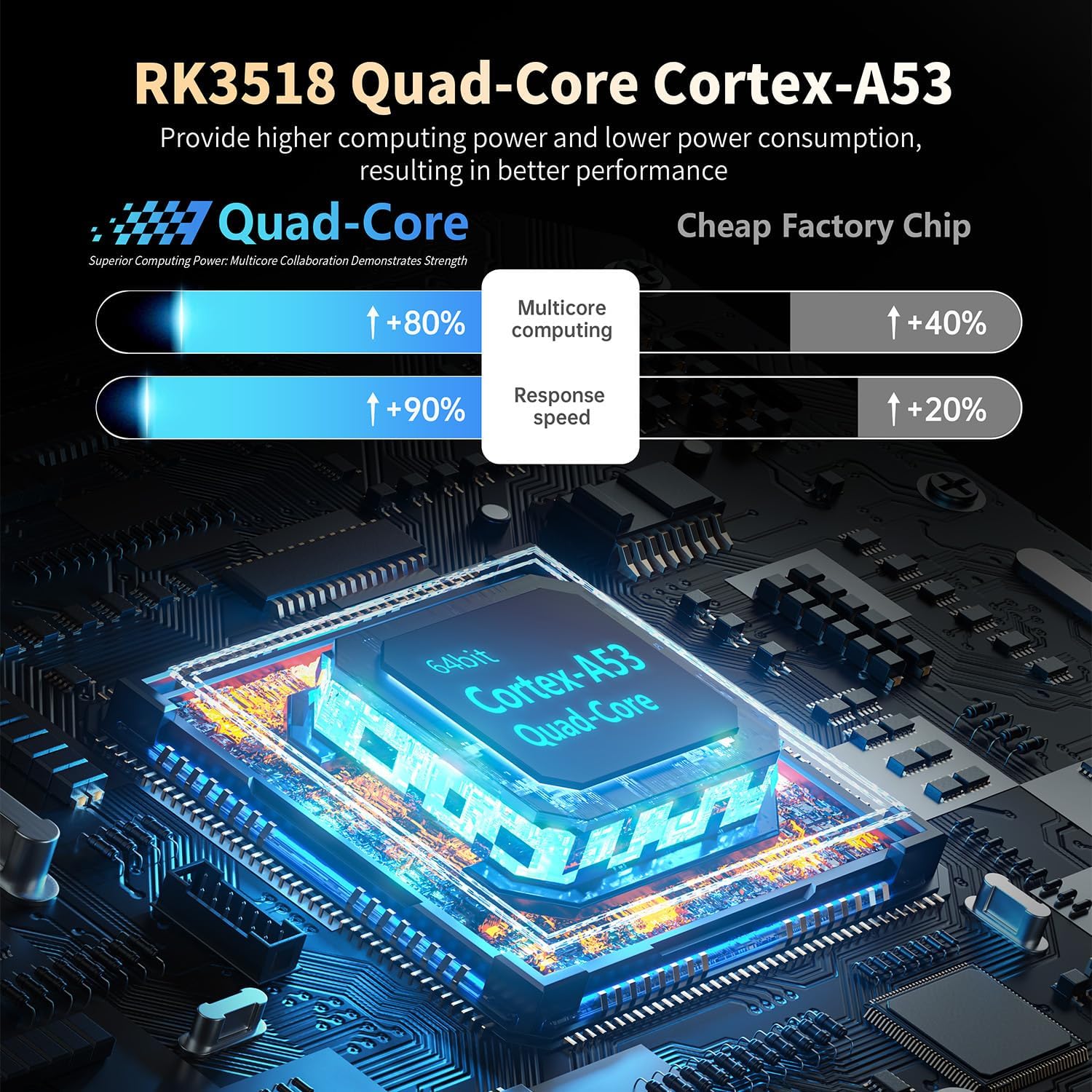
Image: Visual representation of the RK3518 Quad-Core Cortex-A53 processor, emphasizing its role in providing powerful and efficient performance.

Image: Explanation of WiFi 6 technology, illustrating its advantages in transmission rate and average network speed over previous generations.
4. Setup Guide
- Connect to TV: Connect one end of the HDMI cable to the HD port on the X88 Pro 14 TV Box and the other end to an HDMI input port on your television.
- Connect Power: Plug the AC adapter into the DC power input port on the TV Box, then plug the adapter into a wall outlet. The power indicator LED should turn blue.
- Network Connection:
- Wired: Connect an Ethernet cable from your router to the LAN port on the TV Box.
- Wireless: After powering on, navigate to the network settings and connect to your desired Wi-Fi network.
- Remote Control: Insert batteries into the Bluetooth remote control. The remote should automatically pair with the device. If not, follow the on-screen instructions for Bluetooth pairing in the settings menu.
- Initial Setup: Follow the on-screen prompts to complete the initial Android TV setup, including language selection, Google account login, and app permissions.
5. Operating Instructions
5.1 Navigation
Use the directional pad and OK button on the remote control to navigate through the Android TV interface. The Home button will return you to the main screen, and the Back button will go to the previous screen.
5.2 Voice Control
The included remote control supports voice commands. Press the dedicated voice control button (often a microphone icon) and speak your command clearly into the remote. This can be used for searching content, opening apps, or controlling playback.
5.3 App Management
Access the Google Play Store to download and install additional applications. You can manage installed apps through the device settings, including uninstalling or clearing data.
5.4 Media Playback
The X88 Pro 14 supports various media formats. You can play local media files from connected USB drives or Micro SD cards, or stream content from online services through installed apps.
- Supported Video Formats: Avi/Ts/Vob/Mkv/Mov/ISO/wmv/asf/flv/dat/mpg/mpeg
- Supported Audio Formats: MP3/WMA/AAC/WAV/OGG/DDP/HD/FLAC/APE
- Supported Photo Formats: HD JPEG/BMP/GIF/PNG/TIFF
5.5 Screen Mirroring (Chromecast, DLNA, Miracast)
The device supports screen mirroring technologies. Refer to the specific app or device instructions for casting content from your smartphone or tablet to the TV Box.
6. Maintenance
- Cleaning: Use a soft, dry cloth to clean the device. Do not use liquid cleaners or aerosols.
- Ventilation: Ensure the device is placed in a well-ventilated area to prevent overheating. Do not block the ventilation holes.
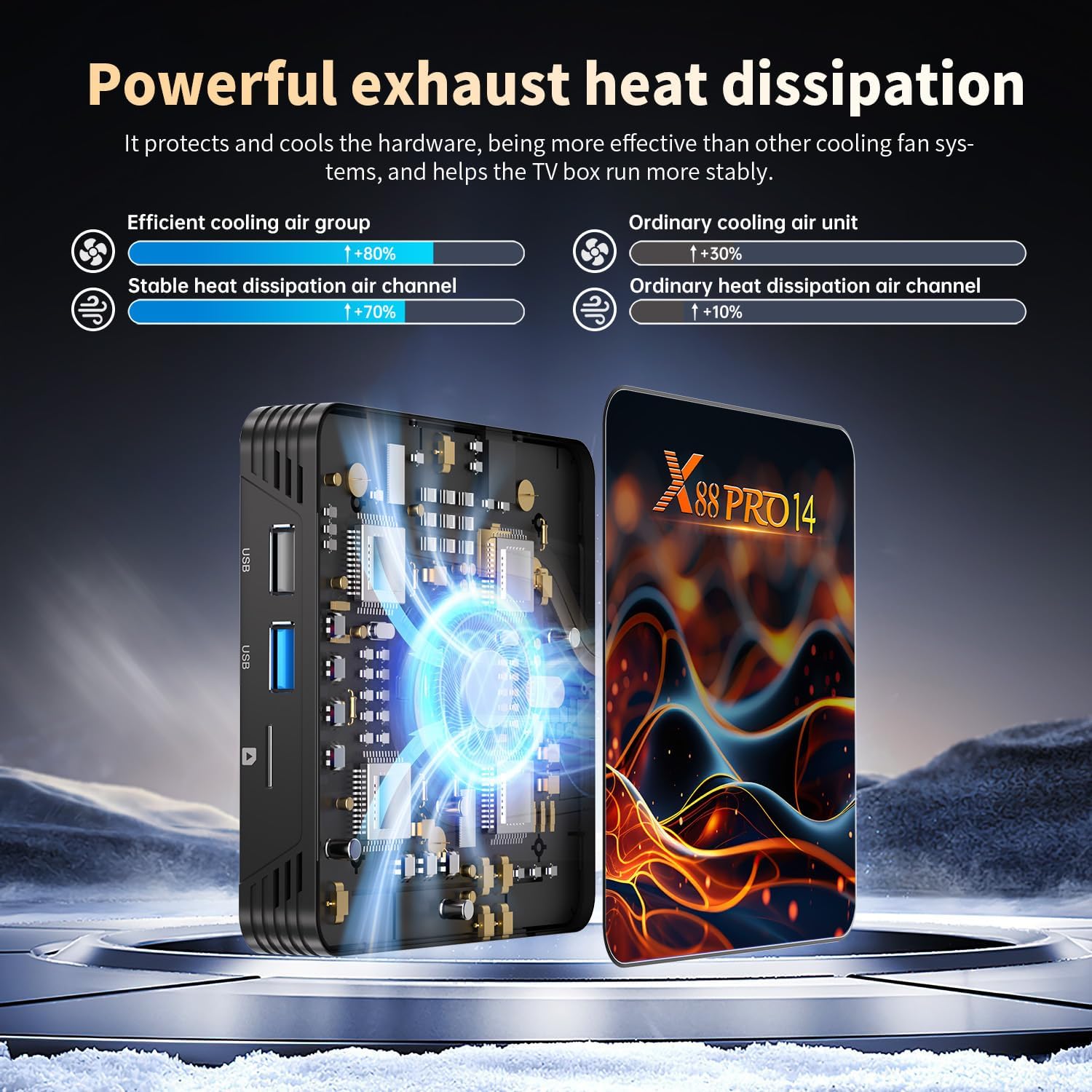
Image: Illustration demonstrating the powerful and efficient heat dissipation design of the X88 Pro 14 TV Box, crucial for stable operation.
- Software Updates: Periodically check for system updates in the settings menu to ensure you have the latest features and security patches.
- Storage Management: Regularly clear cache and unnecessary files from apps to maintain optimal performance.
- Power Cycle: If the device becomes unresponsive, disconnect the power adapter, wait 10 seconds, and then reconnect it.
7. Troubleshooting
7.1 No Power
- Ensure the AC adapter is securely connected to both the device and a working power outlet.
- Check if the power indicator LED on the device is lit.
7.2 No Picture/Signal on TV
- Verify the HDMI cable is securely connected to both the TV Box and the TV.
- Ensure your TV is set to the correct HDMI input source.
- Try a different HDMI cable or TV port.
7.3 Remote Control Not Working
- Check and replace the batteries in the remote control.
- Ensure there are no obstructions between the remote and the TV Box.
- If it's a Bluetooth remote, try re-pairing it in the device's Bluetooth settings.
7.4 Network Connection Issues
- Wi-Fi: Check if your router is working correctly. Re-enter the Wi-Fi password if necessary. Try restarting the TV Box and your router.
- Ethernet: Ensure the Ethernet cable is securely connected to both the TV Box and the router. Check the router's status lights for the connected port.
7.5 Apps Crashing or Slow Performance
- Close background applications.
- Clear the cache of the problematic app in the device settings.
- Restart the TV Box.
- Ensure sufficient storage space is available.
8. Specifications
| Feature | Detail |
|---|---|
| Chipset | RK3518 Quad-Core 64bit Cortex-A53 |
| GPU | Mali 450 MP2 |
| Flash Storage | 16GB EMMC |
| RAM | 2GB DDR3 |
| Operating System | Android 14.0 ATV OS |
| USB Ports | 2 x Type-A USB2.0 |
| LAN | Ethernet: 10/100M standard RJ-45 |
| Wireless | 2.4G / 5G dual-band Wifi 802.11 a/b/g/n/ac/ax (WiFi 6) |
| Bluetooth | V5.0 |
| Card Reader | Micro SD cards, Maximum support 64G |
| HDMI | HDMI 2.0b for 4K@60Hz |
| Power Supply | INPUT: 100-240V 50/60HZ, OUTPUT: DC 5V/2A |
| Decoder Format Support | H.264/H.265/VP9 up to 8K@30fps, AV1, MPEG-1/2/4 |
| Video Output | 4K (3840x2160 pixel) |
| Dimensions | 4.3 x 4.3 x 0.89 inches (10.7 x 10.7 x 2 cm) |
| Weight | 10.6 ounces (0.3 Kilograms) |

Image: The compact design of the X88 Pro 14 TV Box, displaying its dimensions for reference.
9. Warranty and Support
For warranty information and technical support, please refer to the documentation provided with your purchase or contact the retailer. Keep your proof of purchase for warranty claims.
Online resources and FAQs may be available on the manufacturer's website.


