
Introduction
Thank you for choosing the eLinkSmart Palm Vein Smart Door Lock, Model YL-MD3. This advanced keyless entry system offers multiple unlocking methods, including touchless palm vein recognition, a built-in Wi-Fi module for remote control, and a durable design. This manual provides essential information for the safe and efficient installation, operation, and maintenance of your new smart door lock.

Image: eLinkSmart Smart Deadbolt Lock with Palm Vein Recognition, showcasing its sleek design and smart features.
Safety Information
Please read all instructions carefully before installation and use. Keep this manual for future reference. Do not attempt to disassemble or repair the lock yourself. Contact customer support for assistance. Ensure the lock is installed on a door that meets the specified dimensions to prevent damage or malfunction. Use only the provided or recommended accessories.
Package Contents
- Palm Vein Smart Door Lock (Front and Rear Panels)
- Deadbolt Lock
- Door Magnetic Sensor
- Mechanical Keys (x2)
- RFID Cards (x4 - 2 large, 2 small)
- User Manual
- Hole Template
- Installation Hardware (screws, cables, etc.)

Image: A visual representation of all items included in the eLinkSmart Palm Vein Smart Door Lock package.
Setup
1. Door Preparation and Installation
Ensure your door meets the installation conditions: suitable for American standard left and right-handed doors, with appropriate door backset, hole diameter, and door thickness. Use the provided hole template for accurate drilling if necessary. The lock is designed for easy DIY installation with a screwdriver.

Image: Visual guide demonstrating the ease of DIY installation for the eLinkSmart Smart Door Lock.

Image: Diagram illustrating the required door dimensions and types for proper installation of the eLinkSmart Smart Door Lock.
Video: A step-by-step guide on how to correctly install the lock latch component of the eLinkSmart Smart Door Lock.
2. Battery Installation and Charging
The lock features a built-in 37Wh large rechargeable lithium battery. To install, open the battery compartment on the interior panel and insert the battery. The battery can be charged via a USB-C port. A single charge provides up to 365 days of standby time in non-Wi-Fi mode.

Image: Illustration of the rechargeable lithium battery and its charging method, highlighting its eco-friendly nature compared to disposable batteries.
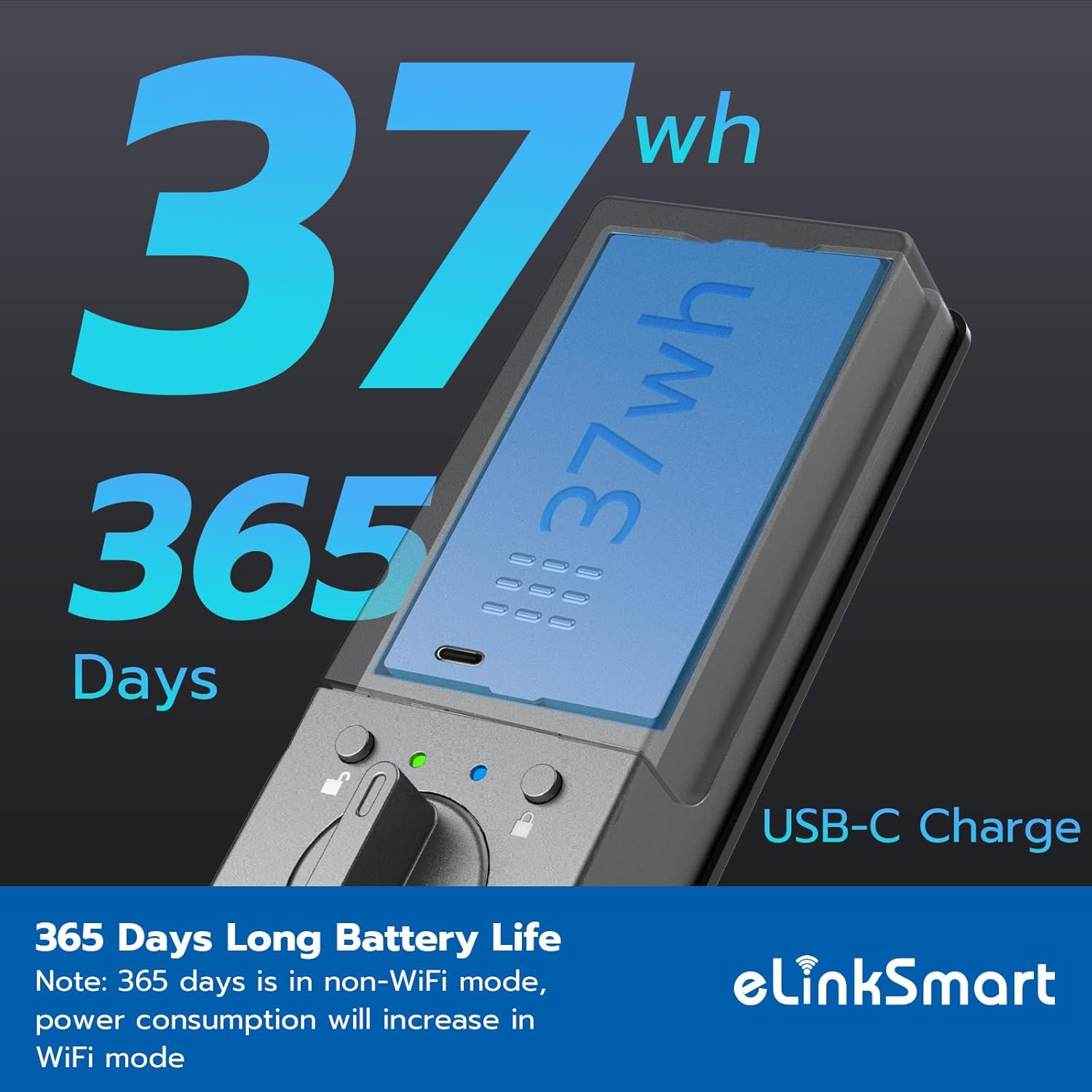
Image: Visual representation of the eLinkSmart Smart Lock's impressive 365-day battery life and convenient USB-C charging port.
3. App and Wi-Fi Connection
Download the eSmartLock APP from your device's app store. Follow the in-app instructions to connect your smart lock to your home's 2.4GHz Wi-Fi network. No additional gateway is required. This enables remote unlocking and real-time notifications.

Image: The eLinkSmart Smart Door Lock featuring built-in Wi-Fi for seamless remote control without the need for an external hub or gateway.

Image: Screenshot of the eSmartLock App interface, highlighting features like remote unlocking, message alerts, and user management.
Operating Instructions
1. Unlocking Methods
The eLinkSmart YL-MD3 offers 6-in-1 keyless entry:
- Palm Vein Recognition: A touchless technology with 99% accuracy in 0.2 seconds, immune to dry, cut, or moist skin. Simply wave your palm over the sensor.
- RFID Card/NFC: Use the provided RFID cards or NFC-enabled devices to unlock.
- Password: Enter your personalized passcode on the keypad.
- Mechanical Key: For traditional backup, use the physical keys.
- Bluetooth App: Unlock directly from the eSmartLock app when within Bluetooth range.
- Remote (Wi-Fi): Unlock from anywhere using the eSmartLock app via Wi-Fi.

Image: Visual overview of the various unlocking methods available for the eLinkSmart Smart Door Lock, including palm vein, keypad, and app.
Video: Demonstrates the various unlocking methods of the eLinkSmart Palm Vein Smart Door Lock, including palm vein, keypad, RFID card, and mechanical key.
Video: A short demonstration highlighting how the palm vein recognition feature works, especially beneficial for seniors and children.

Image: A user unlocking the eLinkSmart Smart Lock with a palm scan, emphasizing its speed and ease of use for all ages.

Image: Demonstrates the versatility of the touchless palm vein technology, working effectively even with peeling, wet, elderly, or children's skin.
2. Auto Lock & Do Not Disturb Mode
The built-in magnetic sensor enables an auto-lock feature that secures the door after it closes. This can be disabled if you prefer the door to remain unlocked. The Do Not Disturb mode mutes lock sounds during specified periods, ensuring quiet for your family.
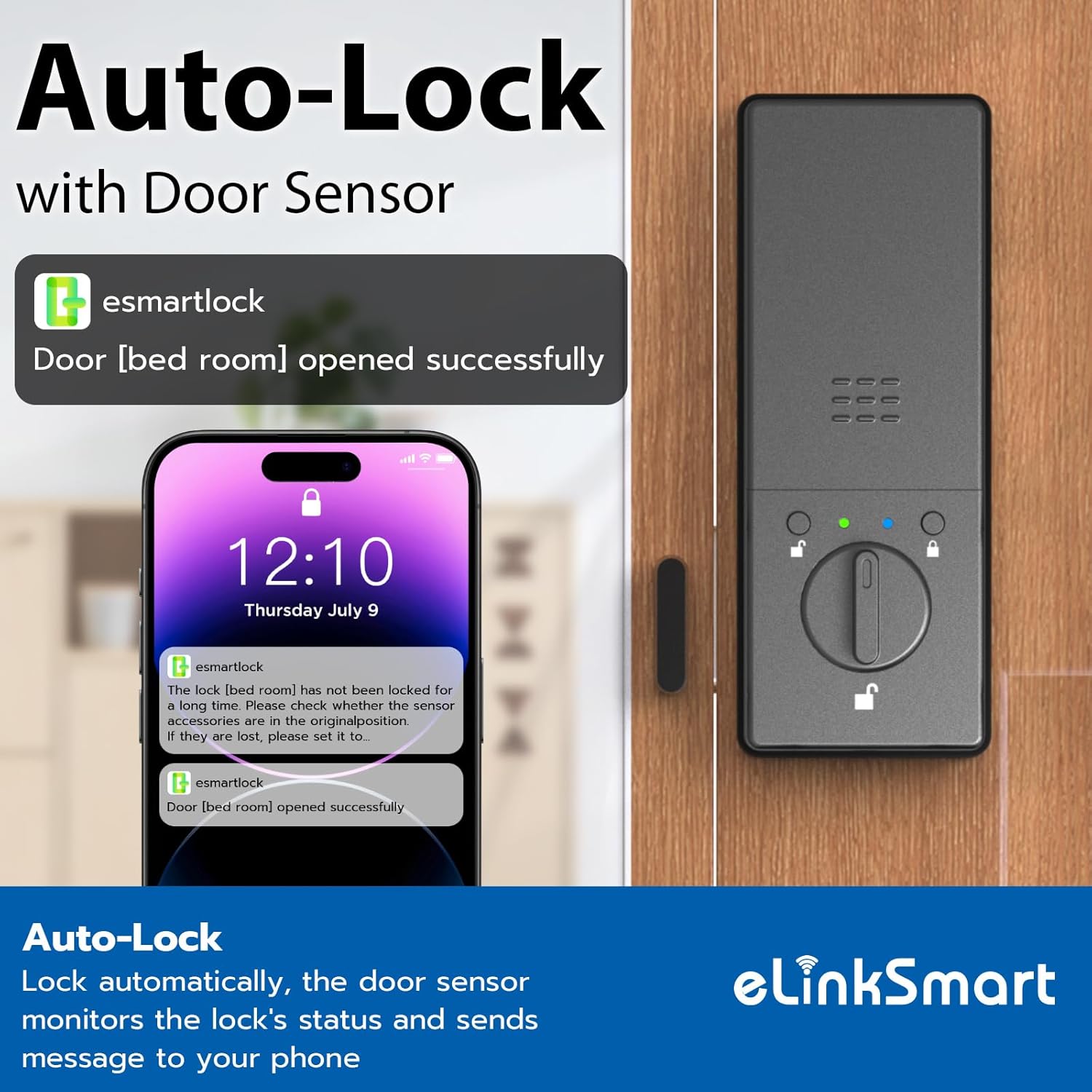
Image: The eLinkSmart Smart Lock's auto-lock feature, which uses a door sensor to automatically secure the door and send notifications to your phone.

Image: Visual explanation of the door sensor-enabled auto-lock, which detects door status and triggers alerts if the door is not properly closed.

Image: Overview of the three flexible modes: Passage Mode (always open), Silence Mode (mutes sounds), and Privacy Mode (enhanced security).
3. Temporary Passwords
Generate temporary passwords via the eSmartLock app to grant access to guests, cleaners, or delivery personnel for a limited time, enhancing security and privacy.

Image: Demonstrates the temporary passcode feature, allowing users to share time-limited access codes for enhanced security and convenience.
4. Real-time Notifications & History Record
Receive instant alerts on your phone when the door is unlocked or opened. The app also maintains a history record of all unlock events, providing a comprehensive security log.

Image: Example of real-time notifications received on a smartphone when the eLinkSmart Smart Lock is unlocked, ensuring users are always informed.
5. Anti-Peeking Password
Enter random digits before or after your actual password to prevent others from guessing your code, even if they are watching.

Image: Demonstrates the anti-peeking password function, allowing users to input random digits before and after their actual code for enhanced security.
Maintenance
1. Battery Management
Monitor the battery level via the eSmartLock app. When the battery is low, a low battery alarm will activate. Recharge the battery using the USB-C port. Regular charging ensures continuous operation.

Image: The eLinkSmart Smart Lock's low battery alarm, indicating when the rechargeable lithium battery needs to be charged via its Type-C port.
2. Cleaning
Wipe the lock's exterior with a soft, dry cloth. Avoid using abrasive cleaners or solvents that could damage the finish or electronic components.
3. Firmware Updates
Periodically check the eSmartLock app for available firmware updates to ensure optimal performance and security features.
Troubleshooting
- Lock not responding: Check battery level and ensure it is properly installed. Try using a mechanical key as a backup.
- Palm vein not recognized: Ensure your palm is clean and dry. Position your palm correctly over the sensor.
- App connectivity issues: Verify your Wi-Fi connection (2.4GHz). Restart the app and the lock.
- Auto-lock not working: Check the door magnetic sensor's alignment and ensure the feature is enabled in the app.
For further assistance, refer to the comprehensive troubleshooting section in the full user manual or contact eLinkSmart customer support.
Specifications
| Brand | eLinkSmart |
| Model Number | YL-MD3 |
| Lock Type | Biometric (Palm Vein) |
| Unlocking Methods | Palm Vein, Bluetooth App, RFID Card, NFC, Password, Mechanical Key |
| Connectivity | Built-in Wi-Fi (2.4GHz) |
| Battery | 10000mAh Rechargeable Lithium Battery (37Wh) |
| Battery Life | Up to 365 days (non-Wi-Fi mode) |
| Charging Port | USB-C |
| Material | Zinc |
| Item Dimensions (L x W x H) | 5.31 x 2.95 x 2.36 inches |
| Item Weight | 2.2 Pounds |
| Smart Home Compatibility | Alexa Control, Smart Home Compatible |

Image: Detailed view of the eLinkSmart Smart Lock's Ergo-Tilt 45° design, highlighting the LED display screen, palm vein recognition sensor, and doorbell button.

Image: Technical diagram showing the precise dimensions of the eLinkSmart Smart Lock and its compatibility with various door configurations (left-handed and right-handed doors).
Warranty and Support
eLinkSmart products are designed for reliability and performance. For any questions, technical support, or warranty claims, please contact eLinkSmart customer service. Refer to the product packaging or the eLinkSmart official website for specific warranty details and contact information.