
1. Introduction and Overview
This manual provides detailed instructions for the setup, operation, maintenance, and troubleshooting of your SABLUTE MA31 Pro Ergonomic Wireless Keyboard and Mouse Combo. This combo is designed for comfort and efficiency, featuring a wave-key layout, soft palm rest, and versatile backlighting.
Key Features:
- Ergonomic Design: Wave keys and a faux lambskin palm rest support natural typing posture, reducing wrist strain.
- Long-lasting Battery: Keyboard features a 4000mAh rechargeable battery, and the mouse has a 700mAh battery, both with auto-sleep mode.
- Durable Construction: Keyboard keys are rated for 10 million keystrokes.
- Customizable Backlighting: Keyboard offers 7 single-color modes (blue, cyan, white, red, green, purple, yellow) with 3 brightness levels. The mouse offers 6 fixed colors or 5 cycle modes.
- Shortcut Keys: 9 dedicated shortcut keys on the keyboard for enhanced productivity.
- Universal Compatibility: Connects via a single 2.4GHz USB receiver (33ft range) with USB-A & C compatibility, supporting PC, laptops, tablets, desktops, and Macs.
2. Setup
2.1 Unboxing and Initial Inspection
Carefully remove all components from the packaging. Ensure the keyboard, mouse, USB receiver, USB-C charging cable, and USB-C adapter are present.
Video Description: This video demonstrates the unboxing process of the SABLUTE Ergonomic Wireless Keyboard and Mouse Combo. It shows the contents of the box, including the keyboard, mouse, USB receiver, charging cable, and adapter, highlighting their initial appearance and placement.
2.2 Charging the Devices
Before first use, fully charge both the keyboard and mouse. Use the provided USB-C charging cable. The keyboard has a 4000mAh battery and the mouse has a 700mAh battery. Both devices can be used while charging.

Image Description: An image showcasing the SABLUTE MA31 Pro keyboard and mouse on a desk setup, with a prominent '4000mAh' graphic indicating the keyboard's battery capacity. Icons for 2 minutes auto-sleep, 400 hours usage (backlight off), and 8 hours charge time are also visible.
2.3 Connecting the USB Receiver
The 2.4GHz USB receiver is stored in the mouse's battery compartment. Remove it and plug it into an available USB-A port on your computer. If your computer only has USB-C ports, use the included USB-C adapter.

Image Description: A close-up image of the SABLUTE mouse, showing the USB receiver stored neatly within its underside compartment, next to the power switch.
Turn on both the keyboard and mouse using their respective power switches. The devices are plug-and-play and should connect automatically.
3. Operating Instructions
3.1 Keyboard Functions
- Backlight Control:
- Press Fn + Del to turn the backlight on/off.
- Press Fn + Home to switch between 7 single-color modes (blue, cyan, white, red, green, purple, yellow).
- Press Fn + ↑ / ↓ to adjust backlight brightness (3 levels).
- Shortcut Keys: The keyboard features 9 independent shortcut keys for functions like Emoji, Calculator, Print Screen, media playback (Previous, Play/Pause, Next), Volume Up, Volume Down, Mute, and Lock.
- Adjustable Tilt Legs: Use the front and back adjustable stands on the underside of the keyboard to achieve your preferred typing angle for sitting or standing.

Image Description: A visual representation of the SABLUTE MA31 Pro keyboard displaying its 7 different backlight color options (blue, red, green, yellow, purple, cyan, white) and instructions for adjusting brightness and switching colors.

Image Description: An image highlighting the 10 independent shortcut keys on the SABLUTE MA31 Pro keyboard, including functions for emoji, calculator, print screen, media control, volume, and lock.
3.2 Mouse Functions
- DPI Levels: The mouse offers 3 adjustable DPI levels (800/1200/1600) for precise control.
- Backlight Control: The mouse features 6 fixed colors or 5 cycle modes for its RGB backlighting.
- Buttons: The mouse has 6 buttons for various functions.
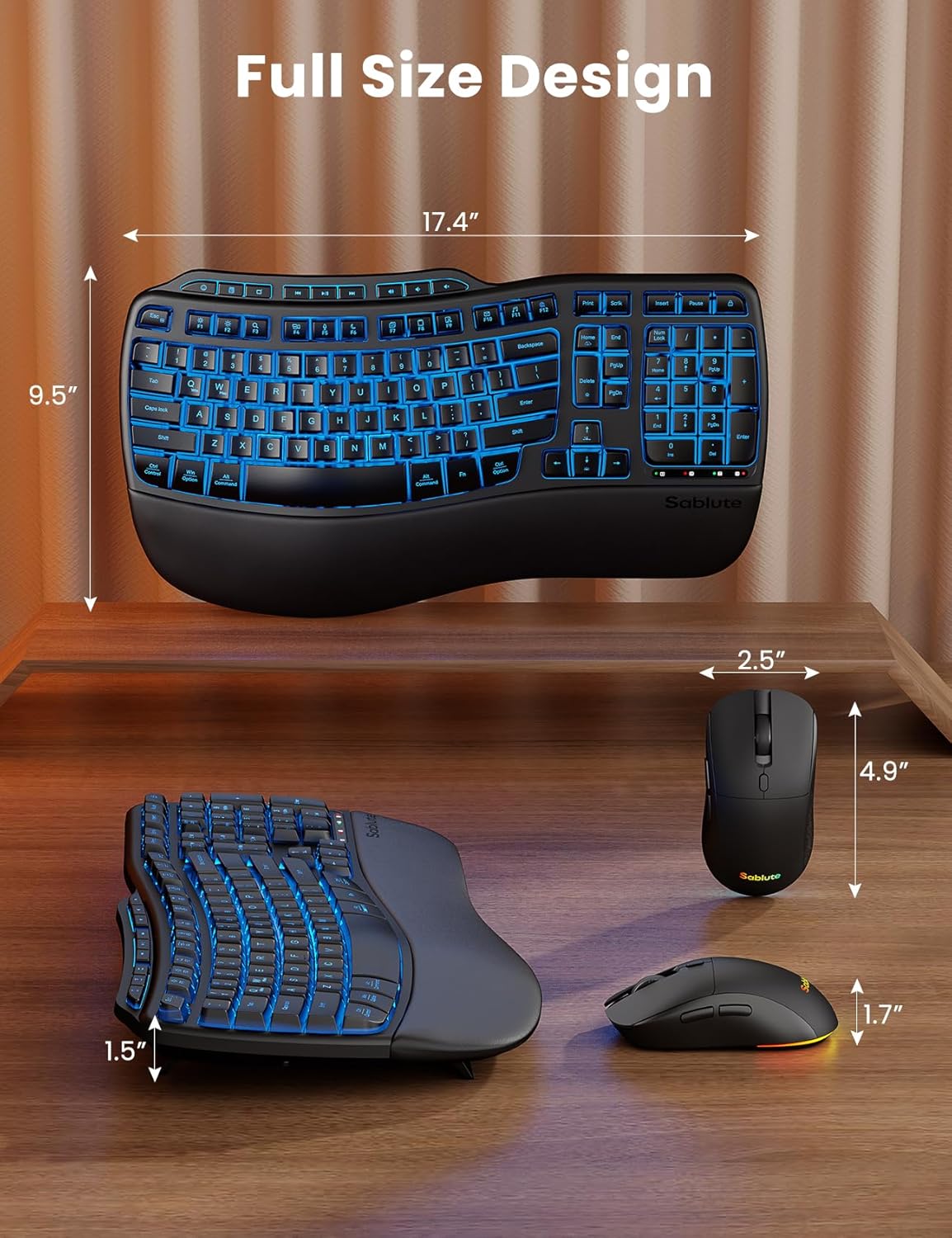
Image Description: A close-up image of the SABLUTE MA31 Pro mouse, showcasing its RGB backlighting with various color options and indicating it's designed for medium-large hands with quiet click and ergonomic comfort features.
3.3 System Compatibility
The combo is compatible with Windows, Mac, and ChromeOS. Use the Fn + Q/W keys to switch between Mac and Windows layouts.

Image Description: An image illustrating the SABLUTE MA31 Pro keyboard and mouse setup with a laptop and monitor, showing compatibility with Mac, Windows, and ChromeOS. It highlights the Fn + Q/W keys for switching layouts and includes a Type-C adapter.
4. Maintenance
- Cleaning: The faux lambskin leather palm rest is sweat-proof and easy to maintain. Wipe surfaces with a soft, damp cloth. Avoid harsh chemicals.
- Battery Care: Recharge devices when battery is low. The keyboard features intelligent auto-sleep to conserve power.
- Storage: When not in use, turn off the keyboard and mouse to preserve battery life. Store the USB receiver inside the mouse to prevent loss.
5. Troubleshooting
5.1 Connection Issues
- Devices Not Responding: Ensure both the keyboard and mouse are turned on and fully charged.
- USB Receiver: Verify the USB receiver is securely plugged into a working USB port on your computer. Try a different USB port if necessary.
- Re-pairing: If connection is lost, refer to the quick guide for instructions on re-pairing the keyboard and mouse with the USB receiver.
5.2 Backlight Issues
- Backlight Not Working: Ensure the keyboard is charged. The backlight may not illuminate if the battery is low.
- Adjusting Brightness/Color: Use the Fn + ↑/↓ keys for brightness and Fn + Home for color changes as described in Section 3.1.
Video Description: This video provides a detailed review of the Sablute Ergonomic Wireless Keyboard and Mouse, demonstrating its features, including backlighting, ergonomic design, and overall user experience. It shows the keyboard and mouse in action, highlighting their functionality and comfort.
6. Specifications
| Feature | Specification |
|---|---|
| Product Dimensions | 11 x 1.88 x 17 inches |
| Item Weight | 3.32 pounds |
| Keyboard Battery | 4000mAh (rechargeable) |
| Mouse Battery | 700mAh (rechargeable) |
| Connectivity Technology | 2.4G USB Wireless |
| Wireless Range | 33 feet |
| Compatible Devices | Gaming Console, Laptop, Personal Computer, Tablet, Television |
| Special Features | 9 one-touch shortcut keys, Backlit, Ergonomic, USB-A & USB-C, Wrist Rest |
7. Warranty and Support
Your SABLUTE MA31 Pro Ergonomic Wireless Keyboard and Mouse Combo comes with a 1-year replacement warranty for peace of mind. Additionally, a 30-day return policy is available.
For further assistance or inquiries, please refer to the contact information provided in your product packaging or visit the official SABLUTE website.

