Introduction
The Signia Connexx TV Sound device is designed to enhance your television-watching experience by transmitting high-quality audio directly to your Bluetooth-enabled Signia hearing aids. This device delivers clear, immersive sound, allowing you to enjoy your favorite programs with exceptional clarity. It features an attractive minimalist design, intuitive LED indicators, and supports connection to multiple pairs of hearing aids.
What's in the Box
Upon unboxing your Signia Connexx TV Sound device, please verify that all the following components are included:
- TV Sound device
- Analog audio cable
- Micro USB cable
- Optical TOSLINK audio cable
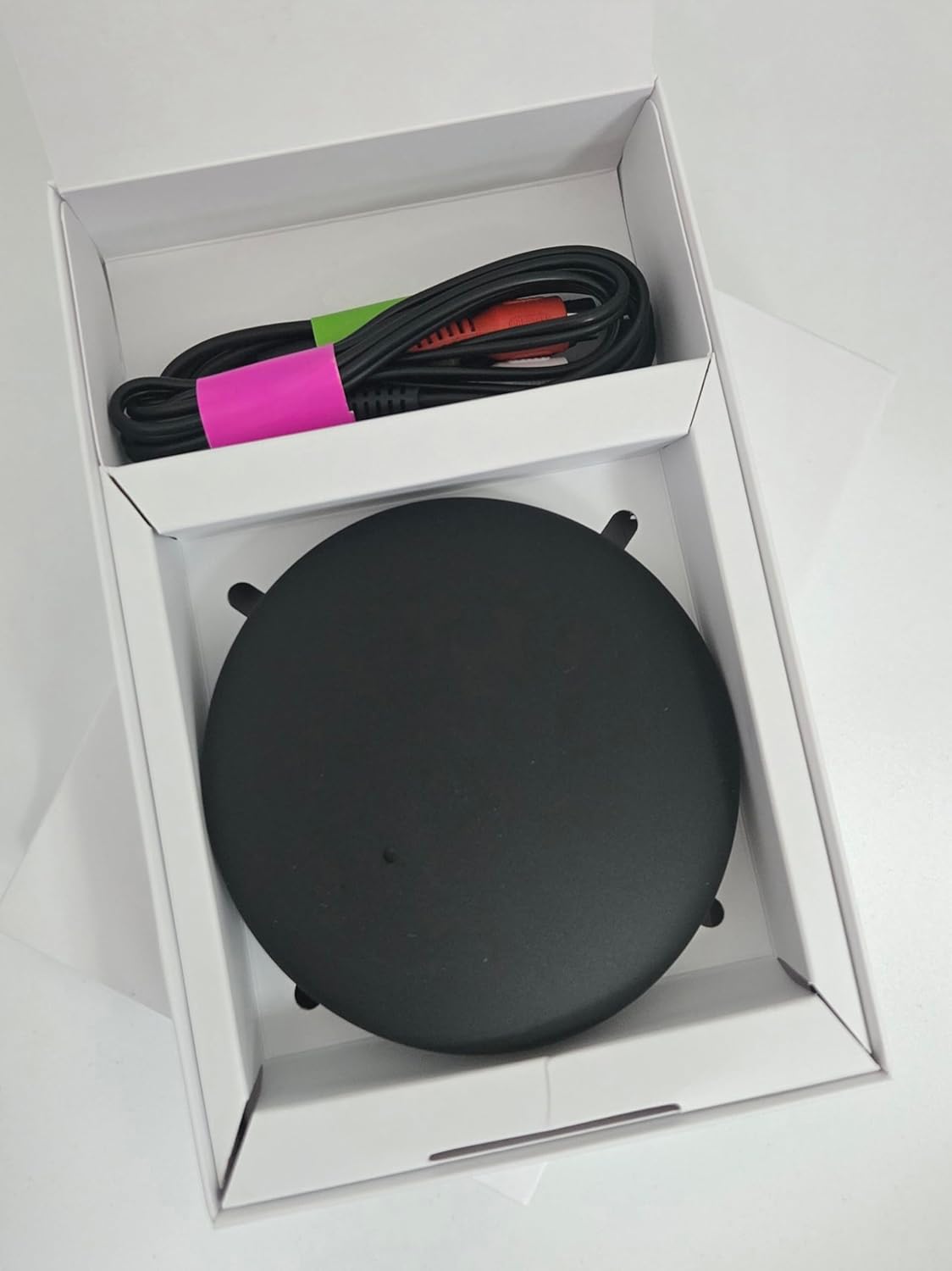
Image: The retail box for the Signia Connexx TV Sound device.

Image: A close-up of the various cables included with the TV Sound device: Micro USB, Optical TOSLINK, and Analog audio cables.
Setup
Follow these steps to set up your Signia Connexx TV Sound device and connect it to your television.
1. Powering the TV Sound Device
- Connect the Micro USB cable to the green micro-USB socket on the back of the TV Sound device.
- Connect the other end of the Micro USB cable to a USB port on your TV or a standard USB wall plug/charger (5V, 0.5A minimum).
- Turn on your TV.
2. Connecting the Audio Input
The TV Sound device supports both analog and optical audio inputs.
Via Analog Cable:
- Connect the analog audio cable to the purple analog audio input socket on the back of the TV Sound device.
- Connect the other end of the analog cable into the corresponding sockets on your TV.
- Turn on the TV to start the audio.
Via Optical (TOSLINK) Cable:
- Connect the optical cable to the blue optical input socket on the back of the TV Sound device.
- Connect the other end of the optical cable to the DIGITAL AUDIO OUT (OPTICAL) socket on your TV.
- Turn on the TV to start the audio. If the TV Sound does not indicate audio is being received, change the sound output settings on the TV to one of the optical options (refer to your TV's user guide for specific steps).

Image: The rear view of the TV Sound device, highlighting the Micro USB power input (green), Optical audio input (blue), and Analog audio input (purple) ports.
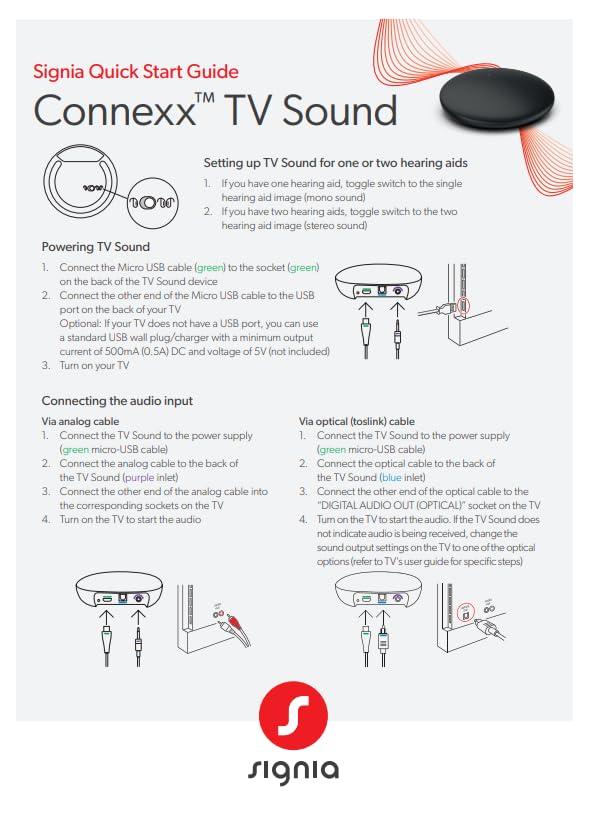
Image: A page from the Signia Quick Start Guide illustrating how to connect power and audio cables (analog and optical) to the TV Sound device and a television.
Setup Video Guide
For a visual guide on setting up your device, please watch the official video below:
Video: Official Signia guide on how to set up the Connexx TV Sound device, covering power and audio connections.
Pairing with Hearing Aids
The TV Sound device can be paired with all Bluetooth-enabled Signia hearing aids. It can also connect to multiple pairs of hearing aids simultaneously.
- Ensure your hearing aids are not paired with another Bluetooth device (e.g., smartphone). If they are, turn off Bluetooth on that device before pairing to the TV Sound.
- Turn on the TV Sound device by plugging it into a power source.
- Restart your hearing aids (place in charger for 3 seconds and take back out, or manually turn off/on, or open/close battery door).
- Place your hearing aids on top of the TV Sound device (must be within 8 inches or 20 cm).
- The TV Sound LED will pulse blue, indicating it is attempting to pair with hearing aids.
- Once paired, the TV Sound LED will turn solid blue.

Image: The Signia Connexx TV Sound device shown with two Signia hearing aids, illustrating their proximity for pairing.
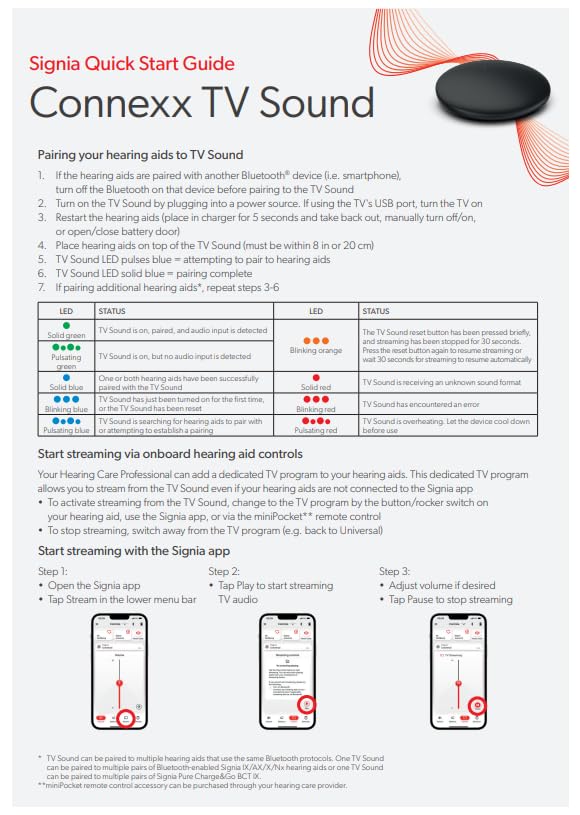
Image: A page from the Signia Quick Start Guide detailing the pairing process for hearing aids and providing a table of LED status indicators.
Pairing and Streaming Video Guide
For a visual guide on pairing and streaming, please watch the official video below:
Video: Official Signia guide on how to pair your hearing aids with the Connexx TV Sound device and begin streaming audio.
Operating the Device
Once paired, the TV Sound device will automatically connect to your hearing aids when they are within range and turned on. High-quality stereo sound from your television will be transmitted directly to your hearing aids.
Starting Streaming via Hearing Aid Controls
Your Hearing Care Professional can add a dedicated TV program to your hearing aids. This dedicated TV program allows you to stream from the TV Sound even if your hearing aids are not connected to the Signia app.
- To activate streaming from the TV Sound, change to the TV program by the button/rocker switch on your hearing aid, or using the Signia app, or via the miniPocket™ remote control.
- To stop streaming, switch away from the TV program (e.g., back to Universal).
Starting Streaming with the Signia App
If you use the Signia app, you can control streaming directly from your smartphone:
- Open the Signia app.
- Tap 'Stream' in the lower menu bar.
- Tap 'Play' to start streaming TV audio.
- Adjust volume if desired.
- Tap 'Pause' to stop streaming.
Image: A section from the Signia Quick Start Guide illustrating the steps to start and control streaming via the Signia mobile application.
Connecting to a Soundbar
If an optical port is being used on the TV Sound, the 3.5 mm (purple) port can be used as an optical OUT.
- Use a mini-TOSLINK to TOSLINK cable (not included).
- Plug the mini-TOSLINK end into the 3.5mm (purple) port.
- Plug the other end into the sound bar's optical IN port.
Switching Between Multiple TV Sound Devices
If you have multiple TV Sound devices, you can switch between them:
- Reboot your hearing aids and place them on top of the target/desired TV Sound device.
- The TV Sound device will pair to the hearing aids.
Maintenance
To ensure the longevity and optimal performance of your Signia Connexx TV Sound device, follow these general maintenance guidelines:
- Cleaning: Wipe the device with a soft, dry cloth. Do not use liquid cleaners or abrasive materials.
- Storage: Store the device in a cool, dry place away from direct sunlight and extreme temperatures.
- Handling: Handle the device with care to avoid dropping or physical damage.
Troubleshooting
If you encounter issues with your TV Sound device, refer to the following common problems and solutions:
LED Status Indicators
The LED on the TV Sound device provides important status information:
| LED | Status |
|---|---|
| Solid green | TV Sound is on, paired, and audio input is detected. |
| Pulsating green | TV Sound is on, but no audio input is detected. |
| Solid blue | One or both hearing aids have been successfully paired. |
| Pulsating blue | TV Sound is attempting to pair hearing aids. |
| Blinking orange | The TV Sound reset button has been pressed briefly, and streaming has been stopped for 30 seconds. Press the button again to resume streaming or wait 30 seconds for streaming to resume automatically. |
| Solid red | TV Sound is receiving an unknown sound format. |
| Blinking red | TV Sound has encountered an error. |
| Pulsating red | TV Sound is overheating. Let the device cool down before use. |
Image: A section from the Signia Quick Start Guide displaying the LED status indicator table for troubleshooting.
Removing a Pairing
Pairing with hearing aids can be removed from the TV Sound device in two ways:
1. Remove all pairings from the TV Sound device:
- Make sure TV Sound is powered.
- Press and hold the reset button on the bottom of the device for 5 seconds.
- The LED on the TV Sound device turns off.
- Release the button.
- The device resets and removes all pairings.
2. Remove a pairing using the Signia app:
- In the app, tap on the three lines icon in the upper left corner to open the menu.
- Select 'Settings' > 'Hearing aid settings' > 'Unpair TV Sound'.
- Tap 'Unpair' when prompted to confirm.
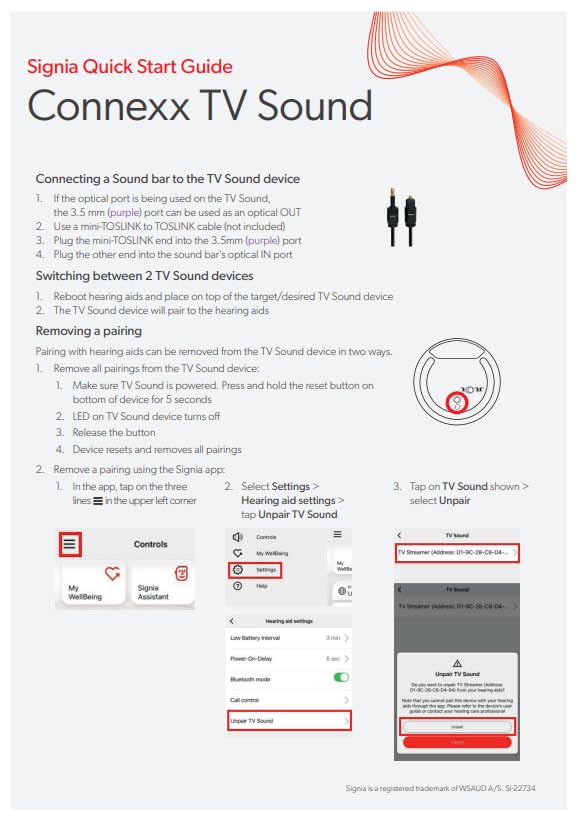
Image: A page from the Signia Quick Start Guide illustrating how to reset the TV Sound device and unpair it via the Signia app.
Specifications
| Feature | Detail |
|---|---|
| Model Name | TV Sound |
| Item Model Number | Signia Connexx TV Sound V1.2 |
| Product Dimensions | 3.5 x 0.5 x 0.1 inches |
| Weight | 6 ounces |
| Color | Black |
| Material | Plastic |
| Audio Input | Optical (TOSLINK), Analog |
| Compatibility | All Bluetooth-enabled Signia hearing aids |
| Manufacturer | Signia |
| Country of Origin | Denmark |
Warranty and Support
The Signia Connexx TV Sound device comes with a 1-Year Manufacturer Warranty. This warranty covers defects in materials and workmanship under normal use.
For technical support, warranty claims, or further assistance, please contact your authorized Signia hearing care professional or visit the official Signia website for contact information.