1. Introduction
The Carlinkit FireDrive Link Pro is a versatile device designed to enhance your in-car entertainment and connectivity. It functions as a car TV converter, enabling HDMI input for various multimedia content, and transforms your wired CarPlay system into a wireless CarPlay and Android Auto experience.
This device is compatible with Fire TV Stick through its HDMI connection, allowing you to project videos or game images onto your car's screen. Enjoy content from platforms like Netflix and YouTube directly on your vehicle's display. It supports 2K HD high-quality display at a 30FPS refresh rate with no noticeable lag.
2. Product Overview
The Carlinkit FireDrive Link Pro seamlessly combines car TV functionality with wireless CarPlay and Android Auto capabilities. This section provides a visual overview of the product and its core features.

Figure 1: Carlinkit FireDrive Link Pro highlighting its multi-functionality.
The device supports high-definition resolution up to 1440P, specifically for Fire TV Stick HDMI sources. This ensures a clear and vibrant viewing experience on your car's display.
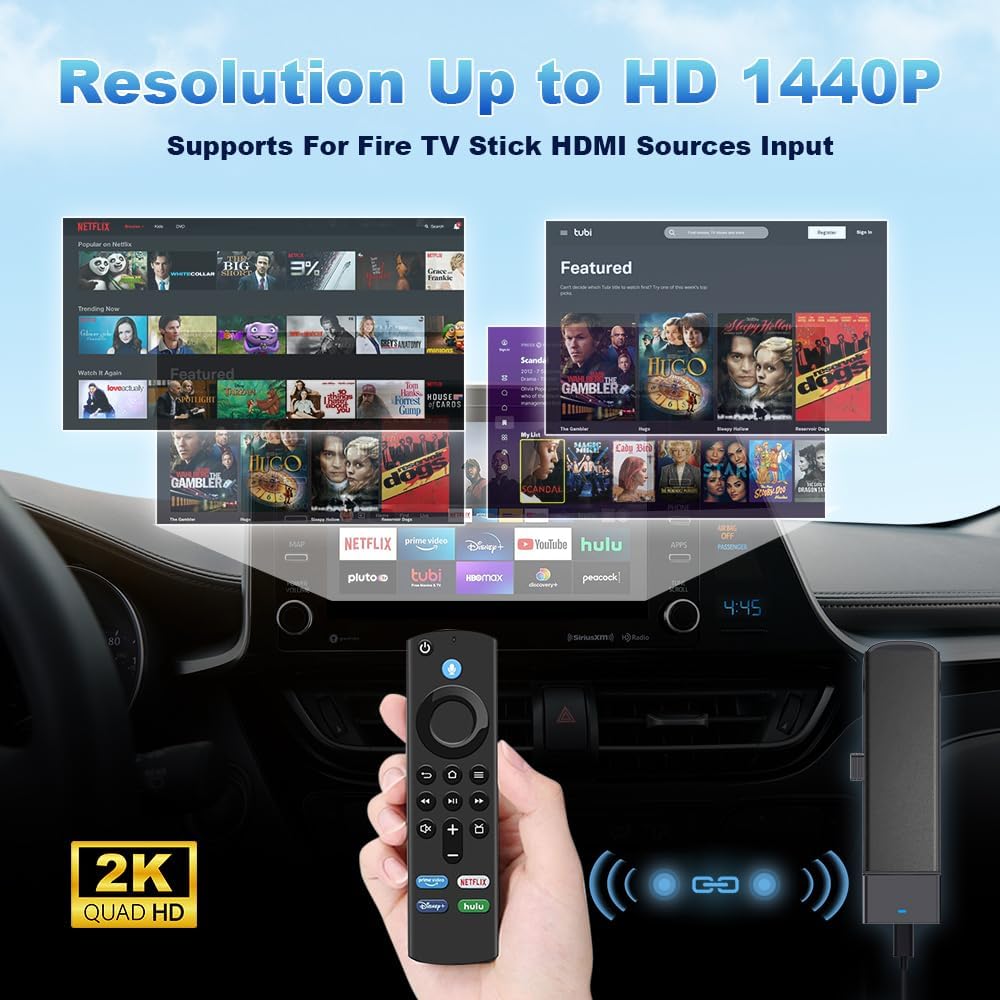
Figure 2: Displaying 2K Quad HD resolution support for Fire TV Stick.
3. Setup and Installation
Follow these steps to correctly install and set up your Carlinkit FireDrive Link Pro.
3.1 Installing the Fire TV Stick
- Carefully plug your Fire TV Stick into the HDMI port of the Carlinkit FireDrive Link Pro. Ensure a secure connection.

Figure 3: Inserting the Fire TV Stick into the adapter's HDMI port.
3.2 Connecting to Your Vehicle
- Connect the shorter end of the supplied Y-type data cable to your car's USB CarPlay port.
- Connect the longer end of the Y-type data cable to your car's power supply (e.g., a USB charger in the cigarette lighter socket).
- Plug the USB-C end of the Y-cable into the Carlinkit FireDrive Link Pro's communication port.

Figure 4: Step-by-step connection guide for the device.

Figure 5: Device powered on and connected in a car's console.
Once connected, the car display will show the interface, enabling you to switch freely between the Fire TV entertainment system and wireless CarPlay/Android Auto.
Video 1: Official Carlinkit FireDrive Link Pro demonstration showing installation and switching between modes.
4. Operating Instructions
4.1 Wireless CarPlay Setup (for iPhone)
- On your iPhone, go to Settings.
- Enable Wi-Fi and Bluetooth.
- In the Bluetooth settings, connect to the Bluetooth signal displayed on your car screen (e.g., "AutoKit-XXXX").
- Confirm the pairing request when prompted on your iPhone.
- Once successfully paired, you can start using wireless CarPlay.
4.2 Wireless Android Auto Setup (for Android Phones)
- On your Android phone, go to Settings.
- Enable Wi-Fi and Bluetooth.
- In the Bluetooth settings, connect to the Bluetooth signal displayed on your car screen (e.g., "AutoKit-XXXX").
- Confirm the pairing request when prompted on your Android phone.
- Once successfully paired, you can start using wireless Android Auto.
4.3 Using Fire TV Stick via HDMI
After connecting the Fire TV Stick as described in Section 3.1, select the HDMI input option on your car's display. You can then navigate the Fire TV interface using its remote control to access streaming services and other media.
4.4 Adjusting Screen Resolution
The device allows for adjustable screen resolution to optimize the display on your car's screen. Options typically include:
- Slightly Zoomed: Minimally enlarges the image to reduce borders.
- Screen Fit: Stretches to fill the display (slight distortion may occur).
- Original Aspect Ratio: Preserves the source's exact proportions (may show black borders).
To switch between these modes, tap the upper-right corner of the screen on your car's display.
4.5 Online Updates
The device supports online updates to ensure optimal performance and access to the latest features. To update:
- Insert the product into the USB interface of the original car and enter the main interface.
- Use your phone to connect to the product's Wi-Fi (SSID: "AutoKit_****", Password: "88888888").
- Visit the URL 192.168.50.100 in your browser only after a successful Wi-Fi connection.
- Follow the on-screen prompts to check for and install updates.
Note: When upgrading on an Android phone, you must disable Bluetooth and Wi-Fi in your phone settings before connecting to the device's Wi-Fi signal.

Figure 6: Online update process for the device.
5. Compatibility
The Carlinkit FireDrive Link Pro is designed to work with OEM factory-installed wired CarPlay systems across various vehicle brands. It supports:
- iPhones: iPhone 6 and above, running iOS 10+ system.
- Android Phones: Running Android 11+ system.
Note: This device is incompatible with native wireless systems (e.g., BMW, Tesla, etc.) and wired Android Auto cars.

Figure 7: Vehicle and phone compatibility overview.
6. Specifications
| Feature | Detail |
|---|---|
| Product Model | FireDrive Link Pro |
| Product Dimensions | 4.72 x 0.79 x 3.54 inches (122.5 x 34 x 23.1 mm) |
| Item Weight | 1.62 ounces (46 Grams) |
| Material | ABS+PC |
| Color | Black |
| Connectivity Technology | Bluetooth, HDMI, USB |
| Power Input | 5V + 0.2V === 2.0A |
| Supported HD Resolution | Up to 2K @30fps |
| Wi-Fi Band | 5G |
| Compatible Car | Car with factory wired CarPlay |
| Compatible Cell Phones | Wireless CarPlay: iPhone 6 and above, for iOS 10 or above Wireless Android Auto: Android 11.0 and above |

Figure 8: Product dimensions and technical specifications.
7. Maintenance
To ensure the longevity and optimal performance of your Carlinkit FireDrive Link Pro, follow these general maintenance guidelines:
- Cleaning: Use a soft, dry cloth to clean the device. Avoid using liquid cleaners or aerosols, as they may damage the product.
- Storage: When not in use for extended periods, store the device in a cool, dry place away from direct sunlight and extreme temperatures.
- Handling: Handle the device with care. Avoid dropping it or subjecting it to strong impacts.
- Cables: Ensure all cables are connected securely and are not bent or pinched, which could lead to damage.
8. Troubleshooting
If you encounter issues with your Carlinkit FireDrive Link Pro, consider the following basic troubleshooting steps:
- No Power: Ensure the Y-type data cable is correctly connected to both the car's power supply and the USB CarPlay port. Check if the car's power outlet is functioning.
- No Display on Car Screen: Verify that the device is properly connected to the car's USB CarPlay port. Ensure your car's infotainment system is set to the correct input source (e.g., CarPlay or HDMI).
- Wireless CarPlay/Android Auto Not Connecting: Confirm that Wi-Fi and Bluetooth are enabled on your phone. Ensure you have selected the correct Bluetooth device (e.g., "AutoKit-XXXX") and confirmed the pairing. Try restarting both your phone and the car's infotainment system.
- Fire TV Stick Issues: Ensure the Fire TV Stick is securely plugged into the HDMI port of the Carlinkit device. Check if the Fire TV Stick itself is powered on and functioning correctly.
- Lag or Disconnections: Ensure a stable power supply to the device. Check for any obstructions that might interfere with wireless signals. Consider performing an online update as described in Section 4.5.
If problems persist after attempting these steps, please refer to the official Carlinkit support channels for further assistance.
9. Warranty and Support
For information regarding product warranty, returns, or technical support, please refer to the warranty card included with your product or visit the official Carlinkit website. Keep your purchase receipt as proof of purchase for any warranty claims.


