
CRUA CR340AU
CRUA 34-inch Ultrawide Gaming Monitor User Manual
Model: CR340AU
1. Safety Information
Please read all instructions carefully before using this monitor. Keep this manual for future reference.
- Do not expose the monitor to rain or moisture to prevent fire or electric shock.
- Do not open the monitor casing. There are no user-serviceable parts inside. Refer all servicing to qualified personnel.
- Place the monitor on a stable, flat surface to prevent it from falling.
- Ensure proper ventilation around the monitor. Do not block ventilation openings.
- Use only the power adapter supplied with the monitor.
- Disconnect the power plug from the outlet if the monitor will not be used for an extended period.
2. Package Contents
Verify that all items are present in your package:
- CRUA 34-inch Ultrawide Gaming Monitor
- Monitor Stand (Base and Neck)
- Power Adapter and Cable
- HDMI Cable
- DisplayPort (DP) Cable
- User Manual
- Screws for Stand Assembly
3. Setup
3.1 Assembling the Stand
- Carefully remove the monitor from its packaging, keeping it protected on a soft surface.
- Attach the stand neck to the monitor's rear panel using the provided screws.
- Connect the stand base to the stand neck and secure it with the designated screw.
- Place the assembled monitor on a stable desk.
The monitor stand allows for tilt adjustment to find your optimal viewing angle.
3.2 Wall Mounting (Optional)
This monitor supports VESA wall mounting (75x75mm). To wall mount:
- Remove the stand from the monitor if it is already attached.
- Attach a compatible VESA 75x75mm wall mount bracket (not included) to the monitor's rear panel using appropriate screws.
- Follow the instructions provided with your wall mount for secure installation.

Image: Rear view of the monitor highlighting the 75x75mm wall mount area and various input ports.
3.3 Connecting to a Device
Connect your computer or gaming console to the monitor using one of the available ports:
- DisplayPort (DP 1.4): For optimal performance, especially for high refresh rates and FreeSync.
- HDMI (HDMI 1.4 x2): Compatible with most devices.
Connect the power adapter to the monitor's DC input and then plug it into a power outlet.
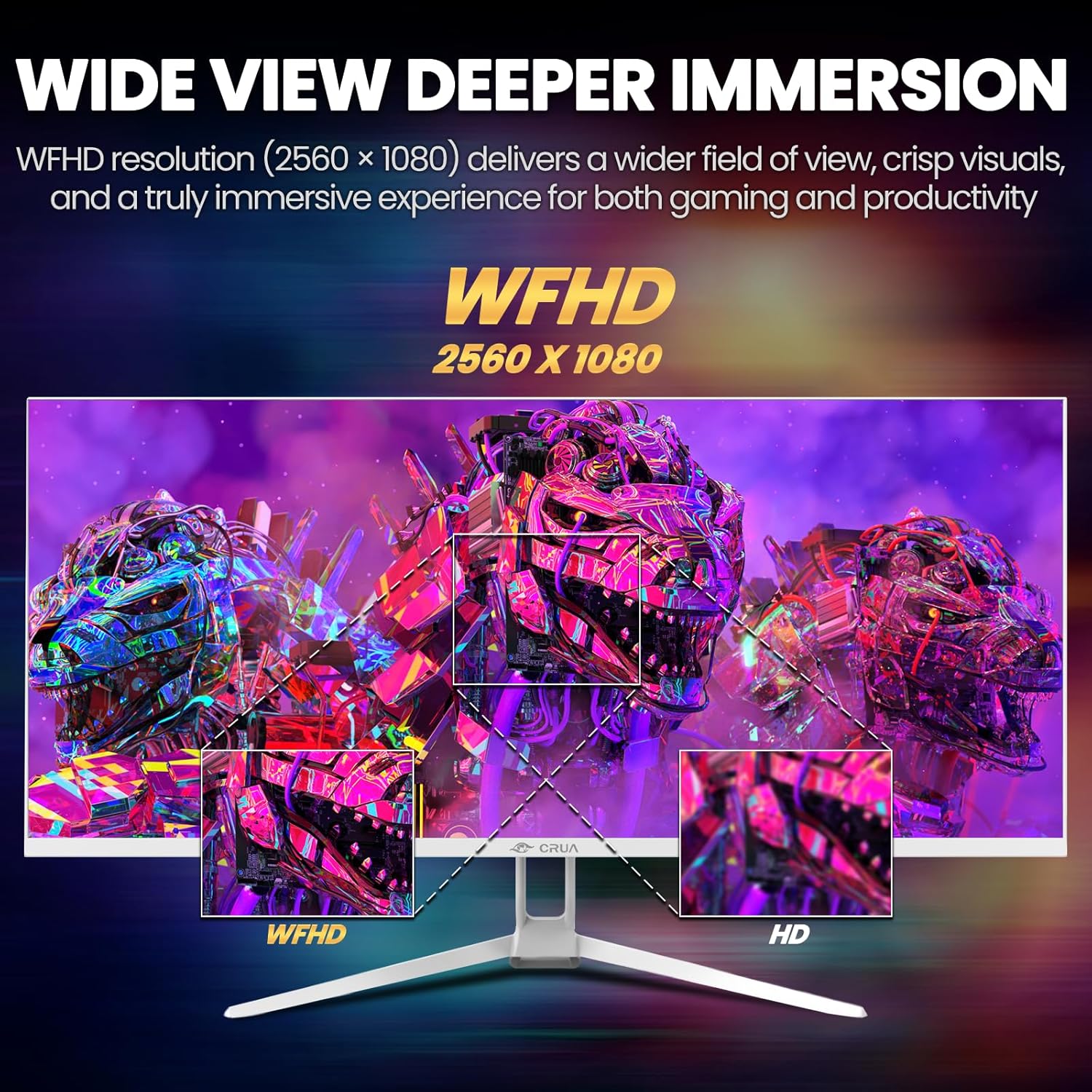
Image: A detailed diagram illustrating the monitor's connectivity options, including two HDMI 1.4 ports, one DisplayPort 1.4, an audio output, a USB charging port, and the DC power input.
4. Operating Instructions
4.1 Power On/Off
Press the power button, typically located on the bottom or rear of the monitor, to turn it on or off. The power indicator light will illuminate when the monitor is on.
4.2 On-Screen Display (OSD) Menu
The OSD menu allows you to adjust various monitor settings. Access it by pressing the OSD menu button (often a joystick-like button or a set of dedicated buttons) on the monitor.
- Navigation: Use the OSD buttons or joystick to navigate through the menu options.
- Selection: Press the select button to enter a sub-menu or confirm a setting.
- Exit: Use the exit button to go back or close the OSD menu.
4.3 Picture Settings
Adjust visual parameters for optimal viewing:
- Brightness: Controls the overall luminance of the screen.
- Contrast: Adjusts the difference between light and dark areas.
- Color Temperature: Selects preset color modes (e.g., Warm, Cool, User).
- Blue Light Filter: Reduces blue light emission to minimize eye strain during prolonged use.
- Aspect Ratio: Set to 21:9 for ultrawide content or other options as needed.

Image: The CRUA ultrawide monitor showcasing its 21:9 aspect ratio, demonstrating how it provides more horizontal screen space compared to a standard 16:9 display.
4.4 Audio Settings
The monitor includes built-in speakers. Adjust volume through the OSD menu or your connected device. An external audio output port is also available for headphones or external speakers.
4.5 AMD FreeSync
To enable AMD FreeSync for tear-free gaming, ensure your graphics card supports FreeSync and that it is enabled in your graphics card's control panel. Then, activate FreeSync within the monitor's OSD menu.

Image: A visual comparison demonstrating the effect of AMD FreeSync, showing a torn image when FreeSync is off and a smooth image when FreeSync is on, highlighting the 120Hz refresh rate.
5. Maintenance
5.1 Cleaning the Screen
- Turn off the monitor and unplug the power cord.
- Use a soft, lint-free cloth lightly dampened with water or a specialized screen cleaner.
- Wipe the screen gently. Do not press hard or use abrasive cleaners.
5.2 General Care
- Keep the monitor away from direct sunlight, heat sources, and excessive dust.
- Avoid placing heavy objects on the monitor or its cables.
- Do not spray cleaning liquids directly onto the monitor.
6. Troubleshooting
If you encounter issues with your monitor, refer to the following common problems and solutions:
| Problem | Possible Solution |
|---|---|
| No image on screen | Ensure power cable is securely connected and the monitor is turned on. Check video cable (HDMI/DP) connections to both monitor and computer. Select the correct input source via the OSD menu. |
| Image is flickering or unstable | Check video cable connections. Ensure your graphics card drivers are up to date. If using FreeSync, try disabling it temporarily to see if the issue persists. Adjust refresh rate in your computer's display settings. |
| No sound from built-in speakers | Increase volume via the OSD menu and your computer's sound settings. Ensure the correct audio output device is selected on your computer. Check if the audio cable (if used) is properly connected. |
| Colors appear incorrect | Reset picture settings to factory defaults via the OSD menu. Adjust color temperature and individual RGB values if available. |
If the problem persists after trying these solutions, please contact CRUA customer support.
7. Specifications
Key technical specifications for the CRUA 34-inch Ultrawide Gaming Monitor (Model CR340AU):
| Feature | Specification |
|---|---|
| Screen Size | 34 Inches |
| Panel Type | IPS |
| Resolution | 2560 x 1080 (WFHD) |
| Aspect Ratio | 21:9 |
| Refresh Rate | 120Hz |
| Response Time | (Not specified in provided data, typical for IPS is 1-5ms GTG) |
| Brightness | 350 cd/m² |
| Color Gamut | 120% sRGB |
| Color Depth | 8-bit (16.7 Million Colors) |
| Viewing Angles | 178° (Horizontal/Vertical) |
| Adaptive Sync | AMD FreeSync |
| Connectivity | 2x HDMI 1.4, 1x DisplayPort 1.4, Audio Out, USB Charging, DC Power Input |
| Built-in Speakers | Yes |
| Wall Mount | VESA 75x75mm |
| Product Dimensions | 9.4 x 24.13 x 17.47 inches |
| Item Weight | 14.92 pounds |
8. Warranty and Support
CRUA provides high-quality computer monitors and customer service. For any questions or support needs regarding your CRUA 34-inch Ultrawide Gaming Monitor, please contact CRUA customer support.
Refer to your purchase documentation or the official CRUA website for specific warranty terms and contact information.
Related documentsCR340AU


Ask a question about this manual
Ask about setup, troubleshooting, compatibility, parts, safety, or missing instructions. Manuals+ will review the question and use this page’s manual context to help answer it.