
1. Introduction
Thank you for choosing the Jinvocloud Smart Wifi Alarm Clock MS230. This device combines a digital alarm clock with smart home functionalities, including fast charging ports, smart AC outlets, and weather display, all controllable via a mobile application. This manual provides detailed instructions for setup, operation, and maintenance to ensure optimal performance and user experience.
2. Safety Information
- Ensure the power supply voltage matches the device's requirements (110-240V AC).
- Do not expose the device to water, moisture, or extreme temperatures.
- Avoid placing the device near heat sources or in direct sunlight.
- Do not disassemble or attempt to repair the device yourself. Contact customer support for assistance.
- Keep out of reach of children.
- Only use the provided power cord.
- For indoor use only.
3. Package Contents
- Jinvocloud Smart Wifi Alarm Clock MS230
- Power Cord (1 meter)
- User Manual
4. Product Overview
The Jinvocloud Smart Wifi Alarm Clock MS230 features a clear LED display, multiple charging ports, and smart AC outlets for versatile use.

Image 4.1: Front view of the Jinvocloud Smart Wifi Alarm Clock MS230, showing the digital time display, weather icons, and temperature. The device is white with a black display panel.

Image 4.2: Detailed diagram illustrating the components of the alarm clock. It highlights the On/Off Button, Brightness Adjustment Button, USB Charging Ports (Type-C and Type-A), Wi-Fi Network Connection indicator, Time display, Alarm indicator, Weather Display, and Temperature display. The diagram also shows the two AC outlets on the side.
Key Components:
- LED Digital Display: Shows time, alarm status, weather, and temperature. Features adjustable brightness.
- On/Off Button: Controls device power and initiates network pairing.
- Brightness Adjustment Button: Cycles through four brightness levels (high, medium, low, off).
- USB Charging Ports: One Type-C (Max 20W PD) and two Type-A (Max 18W QC) for fast charging.
- Smart AC Outlets: Two US-standard two-prong outlets for connecting small appliances, controllable via app.
- Wi-Fi Indicator: Shows network connection status.
- Speaker: For alarm sounds and notifications.
5. Setup
5.1 Power Connection
- Connect the provided 1-meter power cord to the back of the alarm clock.
- Plug the power cord into a standard 110-240V AC wall outlet.
- The display will light up, and the device will power on.
5.2 App Installation
- Download the Tuya Smart or Smart Life app from your mobile device's app store (iOS App Store or Google Play Store).
- Register or log in to your account within the app.
5.3 Wi-Fi Network Pairing
The device requires a 2.4GHz Wi-Fi network for connection. It does not support 5GHz Wi-Fi.
- Ensure your mobile phone is connected to a 2.4GHz Wi-Fi network.
- Press and hold the On/Off button on the alarm clock until the Wi-Fi indicator starts blinking, indicating pairing mode.
- Open the Tuya Smart or Smart Life app, tap the '+' icon to add a device.
- Follow the in-app instructions to discover and connect your alarm clock to your Wi-Fi network.
- Once connected, the Wi-Fi indicator will become solid, and the clock will automatically synchronize the time.

Image 5.1: The alarm clock display showing '22:08' with a circular graphic indicating online time calibration and automatic time adjustment after Wi-Fi connection.
6. Operating Instructions
6.1 Time Display and Format
- The time is automatically synchronized via the network after Wi-Fi connection.
- You can switch between 12-hour and 24-hour formats via the mobile app settings.
6.2 Setting Alarms
The device supports up to 10 sets of timed alarms, configurable via the mobile app.
- Open the Tuya Smart or Smart Life app and select your alarm clock device.
- Navigate to the alarm settings section.
- Tap to add a new alarm. Set the desired time, repeat days (daily/weekly), and choose from 8 natural ringtones.
- Adjust the alarm volume (3 levels available).
- Save the alarm settings.
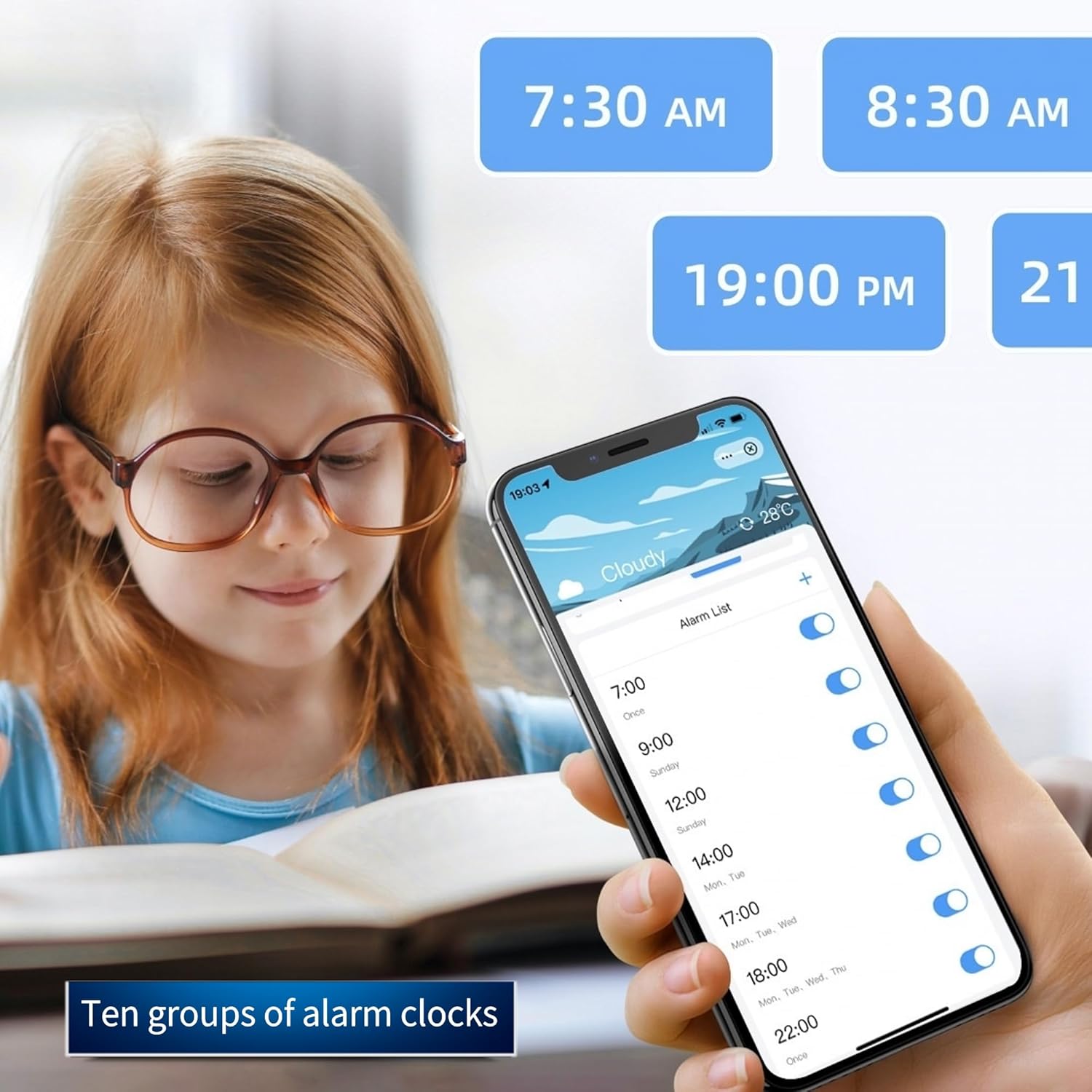
Image 6.1: A smartphone screen displaying the alarm list within the control app, showing multiple set alarms with their respective times and active/inactive toggles.
6.3 Snooze Mode
When an alarm sounds, you can activate snooze mode. The snooze duration can be customized via the mobile app.

Image 6.2: A split image showing the weather display on the left with a sun icon and temperature, and on the right, a smartphone screen with the app's snooze mode settings, allowing customization of snooze duration.
6.4 Display Brightness Adjustment
- Press the Brightness Adjustment Button on the device to cycle through four brightness levels: high, medium, low, and off.
- Brightness can also be adjusted via the mobile app for intelligent control.
6.5 Weather and Temperature Display
- The device displays current weather conditions (sunny, cloudy, rainy, snowy) and ambient temperature.
- Weather information is updated via the Wi-Fi connection.
- Temperature can be displayed in Fahrenheit (°F) or Celsius (°C), configurable in the app.
6.6 Using USB Charging Ports
The alarm clock features multiple charging ports:
- One Type-C port with 20W Power Delivery (PD) for fast charging compatible devices.
- Two USB-A ports with 18W Quick Charge (QC) for fast charging compatible devices.

Image 6.3: The alarm clock on a desk, with a smartphone connected via a USB-C cable to the clock's Type-C port, illustrating the 20W fast charging capability.
6.7 Using Smart AC Outlets
The two AC outlets can be controlled remotely via the mobile app.
- Plug small household appliances into the AC outlets on the side of the alarm clock.
- Open the Tuya Smart or Smart Life app and select your alarm clock device.
- You can individually turn each outlet on or off with a single tap.
- Timer Switch: Set schedules for the outlets to turn on/off automatically at specific times.
- Countdown Switch: Set a countdown timer for an outlet to turn off after a specified duration.

Image 6.4: A smartphone displaying the control app interface, showing options to control two smart AC jacks (labeled '插座1' and '插座2') with on/off toggles, along with timer and countdown settings. The physical alarm clock is visible in the background with devices plugged into its AC outlets.
6.8 Voice Control (Alexa Compatibility)
The device is compatible with Alexa for voice control of its smart features. Refer to the Tuya Smart or Smart Life app's integration guide for connecting with Alexa.
7. Maintenance
- Clean the device with a soft, dry cloth. Do not use abrasive cleaners or solvents.
- Ensure all ports are free of dust and debris.
- Avoid blocking the ventilation holes on the device.
8. Troubleshooting
8.1 Device Not Powering On
- Check if the power cord is securely connected to both the device and the wall outlet.
- Verify that the wall outlet is functioning correctly by plugging in another device.
8.2 Unable to Connect to Wi-Fi
- Ensure your router is broadcasting a 2.4GHz Wi-Fi network. The device does not support 5GHz Wi-Fi.
- Confirm your mobile phone is connected to the 2.4GHz Wi-Fi network during pairing.
- Make sure the device is in pairing mode (Wi-Fi indicator blinking). If not, press and hold the On/Off button.
- Check your Wi-Fi password for accuracy.
- Move the device closer to your Wi-Fi router to improve signal strength.
- Restart your router and the alarm clock, then attempt pairing again.
8.3 Alarm Not Sounding
- Verify that the alarm is enabled in the mobile app.
- Check the alarm volume settings in the app.
- Ensure the device is connected to Wi-Fi for accurate time synchronization.
8.4 Display Not Working or Dim
- Press the Brightness Adjustment Button to cycle through brightness levels.
- Check the brightness settings in the mobile app.
- Ensure the device has stable power.
9. Specifications
| Feature | Specification |
|---|---|
| Product Name | Wi-Fi Smart Clock |
| Model | MS230 |
| Communication Protocol | Wi-Fi 2.4G & BLE |
| USB Port Output | USB Type-A: Max 18W, USB Type-C: Max 20W |
| Multiple Outlets Output | Max 15W (for AC outlets) |
| Power Supply | 110~240V AC |
| Power Cable Length | 1m |
| Dimensions (L x W x H) | 120 x 50 x 43.2 mm (approx. 4.72"W x 1.97"H) |
| Material | Acrylonitrile Butadiene Styrene (ABS) |
| Item Weight | 12.3 ounces |
| Display Type | Digital LED |
| Special Features | Adjustable Brightness, Adjustable Volume, Alarm, Auto Dimmable, Large Display, Weather Display, Temperature Display, Smart AC Outlets, Fast Charging |
10. Warranty and Support
Jinvocloud products are designed for reliability and performance. For warranty information or technical support, please refer to the product packaging or contact Jinvocloud customer service through the retailer's platform where the product was purchased. Please have your model number (MS230) and purchase details ready when contacting support.