
Introduction
This manual provides detailed instructions for the installation, operation, and maintenance of your Roinvou Android 15 Car Radio. Designed for Chevy Colorado and GMC Canyon models from 2015 to 2018, this 9-inch touchscreen unit offers advanced features including Wireless CarPlay, Android Auto, 5GHz WiFi, Bluetooth 5.0, EQ sound customization, GPS navigation, and a backup camera. Please read this manual thoroughly before use to ensure proper functionality and safety.
Package Contents
Before beginning installation, please verify that all components listed below are present in your package:
- Roinvou Car Stereo Unit
- 2 x Power Cables
- 1 x Original USB Cable
- 2 x Radio Antennas
- 1 x Small Horn
- 1 x Canbus Decoder
- 1 x Envison Astern Adapter Cable
- 1 x Dubond Thread
- 1 x Regal Silverado Direction Control Adapter Cable
- 1 x Envision Direction Control Adapter Cable
- 1 x RCA Harness
- 1 x GPS Antenna
- 1 x AHD Backup Camera
- 1 x External Microphone
- 1 x Rear Camera Input Cable
- 2 x USB Cables
- 1 x Installation Tool
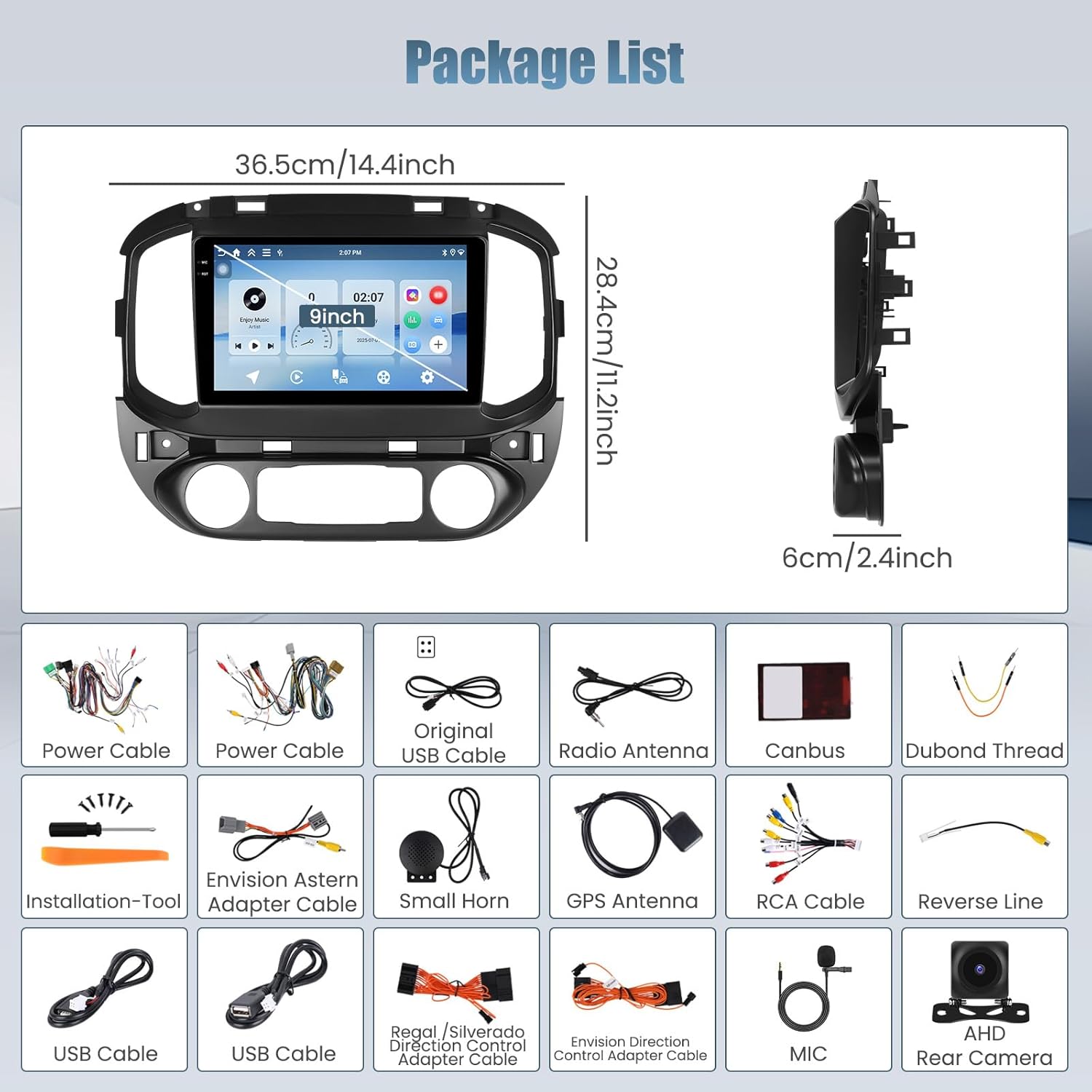
Figure 1: Complete list of included accessories and cables.
Setup and Installation
This section guides you through the physical installation and initial setup of your Roinvou car radio. Professional installation is recommended.
Vehicle Compatibility
This car radio is designed to fit Chevy Colorado and GMC Canyon models from 2015 to 2018. Ensure your vehicle's dashboard matches the installation images provided.

Figure 2: Comparison of the dashboard before and after installing the Roinvou car radio, showing perfect fitment.
Wiring Connections
Carefully connect all power, audio, and accessory cables according to the provided wiring diagrams. Ensure all connections are secure to prevent malfunctions.

Figure 3: Comprehensive wiring diagram for the car stereo unit.
Important Wiring Notes:
- If your vehicle uses a 20-pin radio display connector, two Dubond thread wires (pins 5 & 7, and 6 & 8) may need to be connected. Refer to the specific diagram.
- Check your car's power cord interface for compatibility. If there are any discrepancies, contact support.
- Ensure proper connection for vehicles with or without fiber optic output.
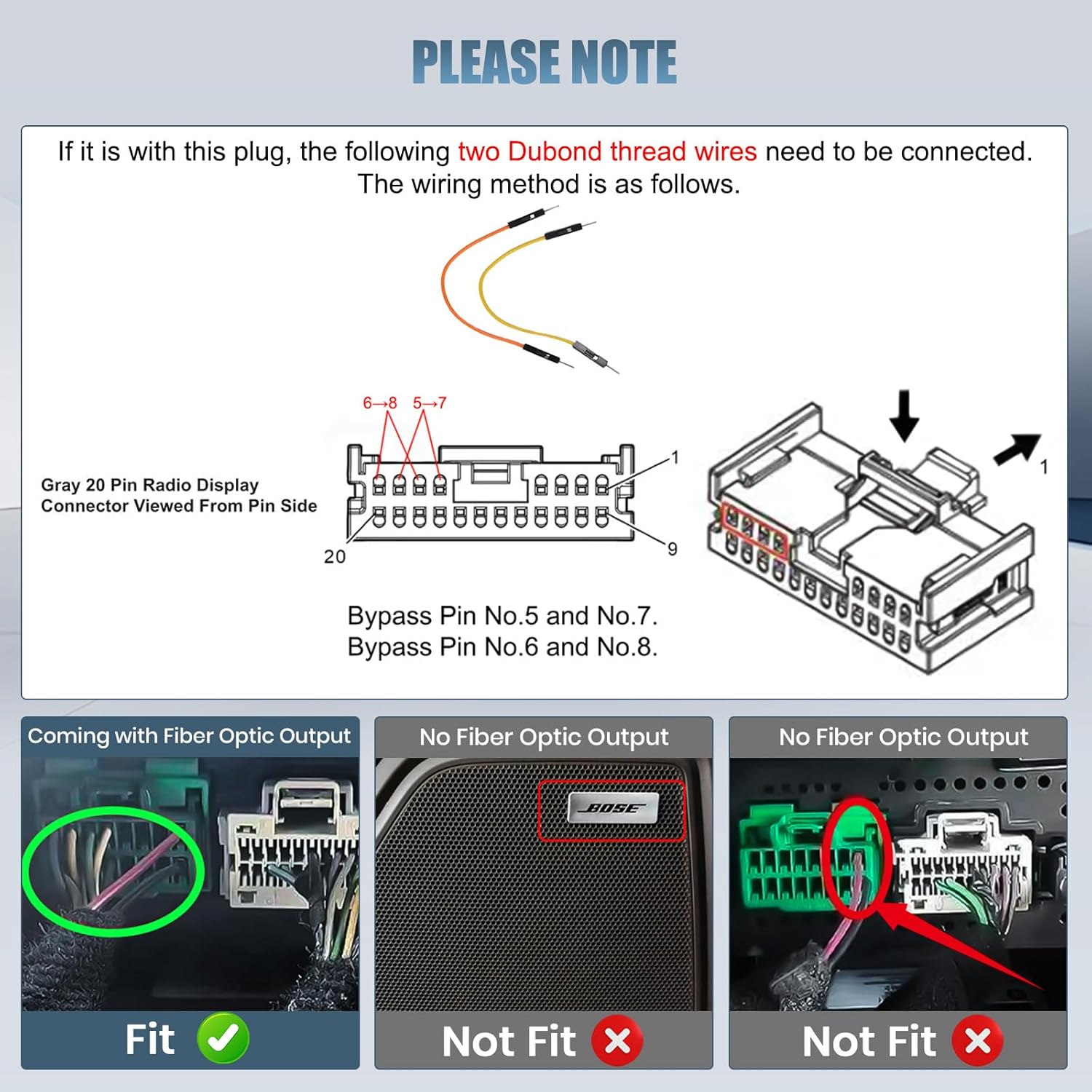
Figure 4: Specific wiring instructions and fiber optic compatibility check.
Operating Instructions
This section details the various functions and features of your Roinvou Android 15 Car Radio.
High-Resolution Touchscreen
The unit features a 1280x720 In-Cell touchscreen, providing clear and responsive interaction. Navigate menus, adjust settings, and control multimedia with ease.

Figure 5: Advantages of the In-Cell touchscreen technology.
Wireless CarPlay and Android Auto
Enjoy seamless integration with your smartphone using Wireless CarPlay for iPhones or Wireless Android Auto for Android devices. This allows you to access navigation, make calls, send messages, and play music directly from the car radio display.
Video 1: Demonstrates the connection process and functionality of Wireless CarPlay and Android Auto.
To connect Wireless CarPlay/Android Auto:
- Open the 'S-Play' application on the car radio.
- Enable Bluetooth on your smartphone and pair it with the car radio (Bluetooth name: BLINK_UNW2652, PIN: 1234).
- Confirm pairing on both devices.
- Once connected, CarPlay or Android Auto will launch automatically.

Figure 6: Key features accessible via Wireless CarPlay and Android Auto.
5GHz WiFi Connectivity
The unit supports 5GHz WiFi for fast internet access, allowing you to download apps, stream content, and browse online. Connect to your mobile hotspot or a local WiFi network.

Figure 7: High-speed 5GHz WiFi support for various applications.
GPS Navigation
Utilize the built-in GPS for accurate navigation. The system supports multiple global navigation satellite systems including GPS, BeiDou, Glonass, and Galileo, offering both online and offline map capabilities.

Figure 8: Multi-system GPS navigation capabilities.
EQ Settings and FM/RDS Radio
Customize your audio experience with the integrated EQ settings. The FM/RDS radio provides access to your favorite stations, real-time traffic updates, and weather forecasts.

Figure 9: FM/RDS radio interface with EQ customization options.
Bluetooth 5.0
Connect your phone via Bluetooth 5.0 for hands-free calling and high-quality audio streaming. The system supports contact synchronization and auto-answer features.

Figure 10: Bluetooth connectivity for calls and music.
Split-Screen Functionality
Multitask efficiently with the split-screen feature, allowing you to view navigation and control music or other applications simultaneously.

Figure 11: Split-screen mode and customizable user interface options.
Steering Wheel Control (SWC)
Control essential functions directly from your steering wheel for safer driving. The setup varies depending on whether your vehicle has a CANBUS decoder.
- Without CANBUS Decoder: Connect the steering wheel control wires (Key1/Key2) in the power cable to the corresponding port of your original car. Then, go to 'SteeringWheel Key' in the radio's settings to manually match and activate the button functions.
- With CANBUS Decoder: Connect the CANBUS before powering on the unit. Navigate to Apps > Settings > Factory Settings (password: 1234) > CAN Settings. Select the brand and model year of your CANBUS decoder to enable SWC.

Figure 12: Steering Wheel Control setup for different vehicle configurations.
Backup Camera
The included AHD backup camera provides a clear, wide-angle view for enhanced safety during parking and reversing. The display automatically switches to the camera feed when reverse gear is engaged.

Figure 13: Backup camera view (Day and Night) and Steering Wheel Control overview.
Backup Camera Wiring:
- Connect the white plug to the car radio for Bluetooth and WiFi signals.
- Connect the black wire to GND (ground).
- Connect the red wire to Power+ and the Reversing Lamp.
- The third wire from the block in the power cord is the reverse trigger wire.
- Link the camera to the rear-view camera input.
- Connect the camera power cable to the red port of the camera.

Figure 14: Backup camera wiring diagram.
Wireless Jlink (Mirror Link)
The Jlink feature allows you to mirror your smartphone screen onto the car radio display. This is useful for displaying apps or content not natively supported by CarPlay or Android Auto.
Video 2: Demonstrates the connection process and functionality of Wireless Jlink (Mirror Link).
To connect Wireless Jlink:
- Open the 'Jlink' application on the car radio.
- Connect the car radio to your mobile phone's hotspot via WiFi.
- For first-time connection, click the provided link in the Jlink app to download the mobile client and scan the QR code to install Jlink on your phone.
- Open Jlink on your mobile phone and initiate screen casting.
Specifications
| Item Weight | 5.65 pounds |
| Package Dimensions | 15.35 x 11.81 x 4.33 inches |
| Display Size | 9 Inches |
| Model Name | 4+64G Android 15 Radio |
| Operating System | Android 15 |
| Processor | 4-core |
| RAM + Storage | 4GB RAM + 64GB Storage |
| Resolution | 1280 x 720 |
| Connectivity Technology | Bluetooth 5.0, USB, Wi-Fi (5GHz) |
| Special Features | Wireless CarPlay, Android Auto, Mirror Link, EQ Settings, FM/RDS, GPS Navigation, Split Screen, Steering Wheel Control |
| Audio Output Mode | Stereo |
| Map Type | North America |
Maintenance
To ensure the longevity and optimal performance of your Roinvou car radio, follow these general maintenance guidelines:
- Cleaning: Use a soft, dry cloth to clean the touchscreen and exterior surfaces. Avoid abrasive cleaners or solvents that could damage the finish.
- Temperature: Avoid exposing the unit to extreme temperatures, both hot and cold, for extended periods.
- Software Updates: Periodically check for and install any available software updates to ensure the system runs efficiently and securely.
- Cable Connections: Ensure all cables remain securely connected. Loose connections can lead to intermittent functionality.
Troubleshooting
If you encounter issues with your Roinvou car radio, refer to the following common troubleshooting steps:
- No Power: Check all power cable connections. Ensure the vehicle's ignition is on. Verify fuses are intact.
- No Sound: Check speaker wire connections. Ensure volume is not muted or set to zero. Verify audio output settings.
- Bluetooth/CarPlay/Android Auto Connection Issues: Ensure Bluetooth is enabled on both devices. Forget and re-pair the device. Check for any conflicting connections. Refer to the connection videos in the Operating Instructions section.
- Steering Wheel Controls Not Working: Re-check CANBUS decoder connection or manual key mapping in settings, as described in the Operating Instructions.
- Backup Camera Not Displaying: Verify the camera's power and video signal connections. Ensure the reverse trigger wire is correctly connected.
- Touchscreen Unresponsive: Try restarting the unit. If the issue persists, a factory reset may be necessary (note: this will erase all user data).
For persistent issues or if the cable is not fit, missing, or you have any other questions, please contact Roinvou customer support.
Warranty
The Roinvou Android 15 Car Radio comes with a 1-Year Warranty from the date of purchase. This warranty covers manufacturing defects and malfunctions under normal use. Please retain your proof of purchase for warranty claims. The warranty does not cover damage caused by improper installation, misuse, accidents, or unauthorized modifications.
Support
For technical assistance, troubleshooting, or any inquiries regarding your Roinvou product, please contact our customer service team. We are committed to providing support and resolving any issues you may encounter.
- Email Support: roinvouservices@163.com
- Amazon Chat: You can reach us via Amazon chat by visiting the Roinvou store page and clicking 'Ask a question'.

Figure 15: How to contact Roinvou customer support.

