
RayNeo XRGF37

RayNeo Air 3s Pro AR/XR Glasses User Manual
Model: XRGF37
Introduction
The RayNeo Air 3s Pro AR/XR Glasses are designed to provide an immersive visual and audio experience, featuring a high-brightness display and advanced sound technology. This manual provides essential information for setting up, operating, maintaining, and troubleshooting your device.

Image: RayNeo Air 3s Pro AR/XR Glasses, showcasing the sleek design and integrated components.
Package Contents
Before proceeding, ensure all items are present in the package:
- RayNeo Air 3s Pro AR/XR Glasses
- Carrying Case
- Cleaning Cloth
- User Manual (this document)
- Nose Pads (various sizes)
- USB-C Cable
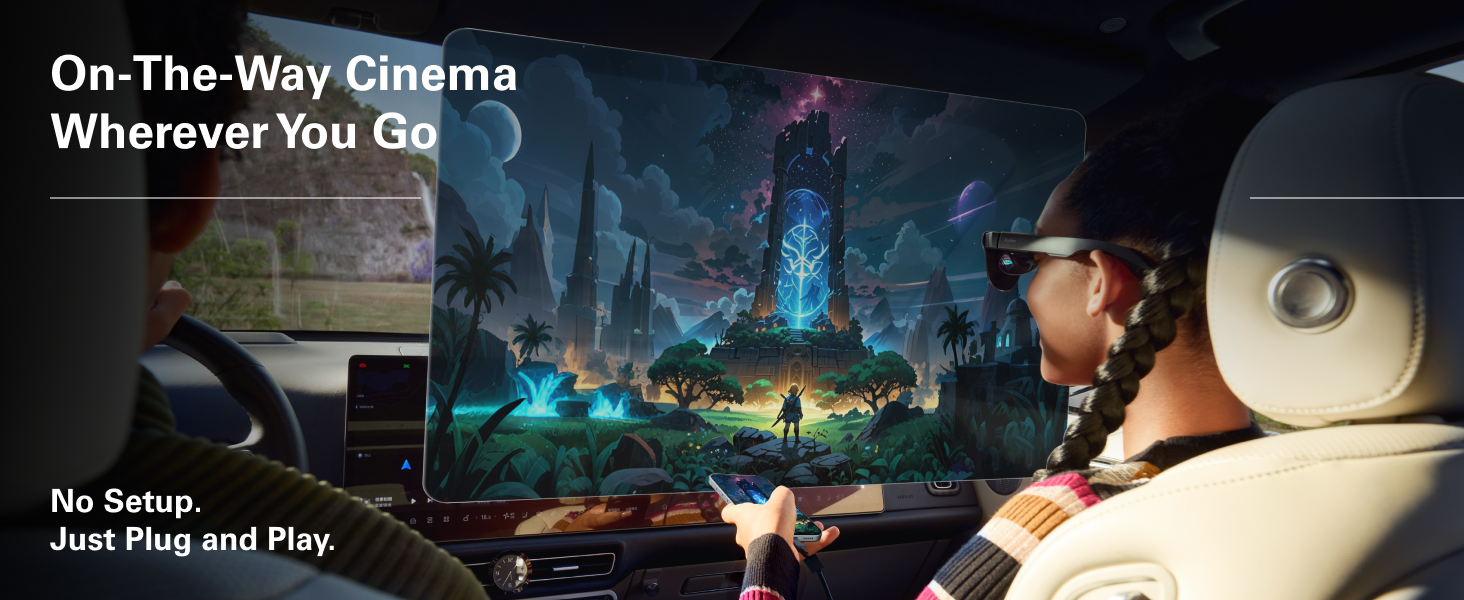
Image: Contents of the RayNeo Air 3s Pro package, including the glasses, case, and accessories.
Optional accessories such as JoyDock, Pocket TV, USB-C Adapter, and HDMI Adapter are sold separately and are not included in the standard package.
Setup
Follow these steps for initial setup and connection:
- Adjusting for Comfort:
- Select the appropriate nose pads for a comfortable fit. The glasses feature 3-level nose pad adjustments.
- Adjust the temples (arms) for a secure fit. There are 9 levels of adjustment for temples, allowing for over 30 degrees of loose-tight adjustments.
- Ensure the glasses sit comfortably on your face without excessive pressure. The balanced weight distribution (46.7%:53.3%) helps minimize pressure points.
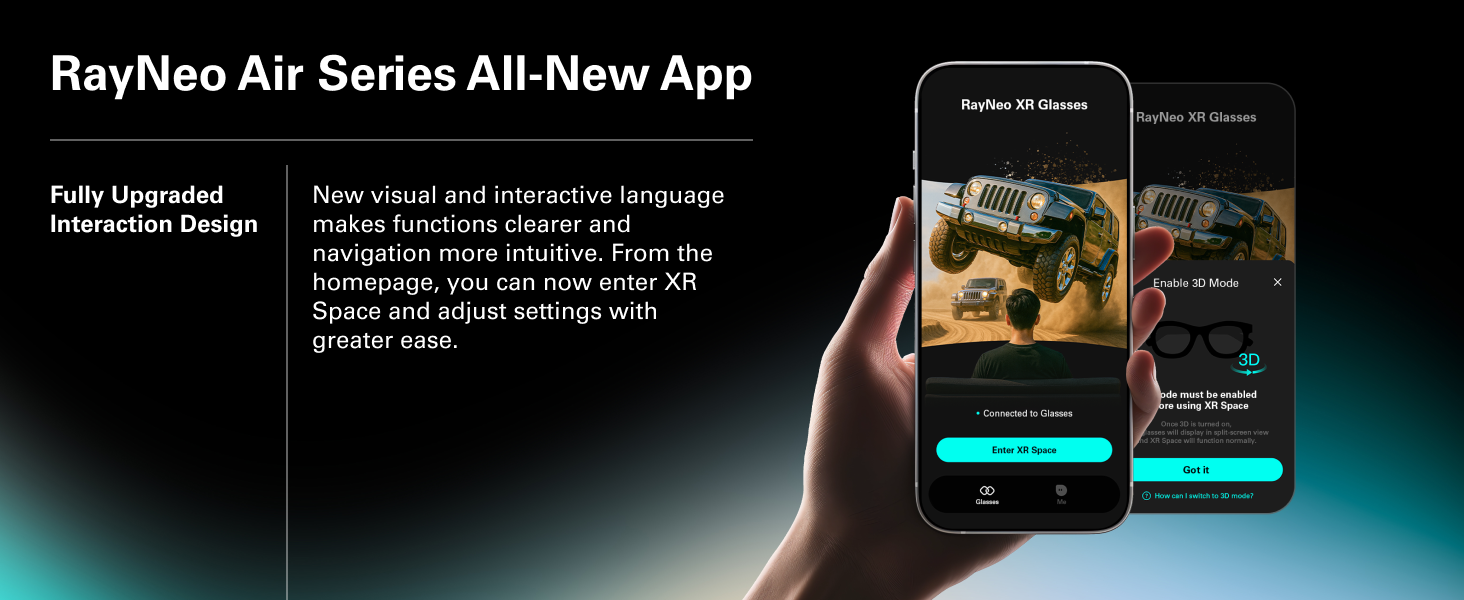
Image: Diagram illustrating the adjustable temples and nose pads for a tailored fit.
- Connecting to Devices:
- Direct Connection: Connect the glasses directly to iOS/Android devices (DisplayPort supported), Nintendo Switch/Switch 2 (via JoyDock), PCs/PS5/Xbox via HDMI to glasses and charging adapter, and other devices with a video output port using the provided USB-C cable.
- Optional Accessories: For extended use or specific device compatibility, consider optional accessories:
- JoyDock: For Nintendo Switch/Switch 2, providing power and video output.
- Pocket TV: For accessing streaming services and apps.
- USB-C Adapter: For PD 100W fast charging and reliable connection.
- HDMI Adapter: For compatibility with PCs, PS5, Xbox, and other gaming consoles.
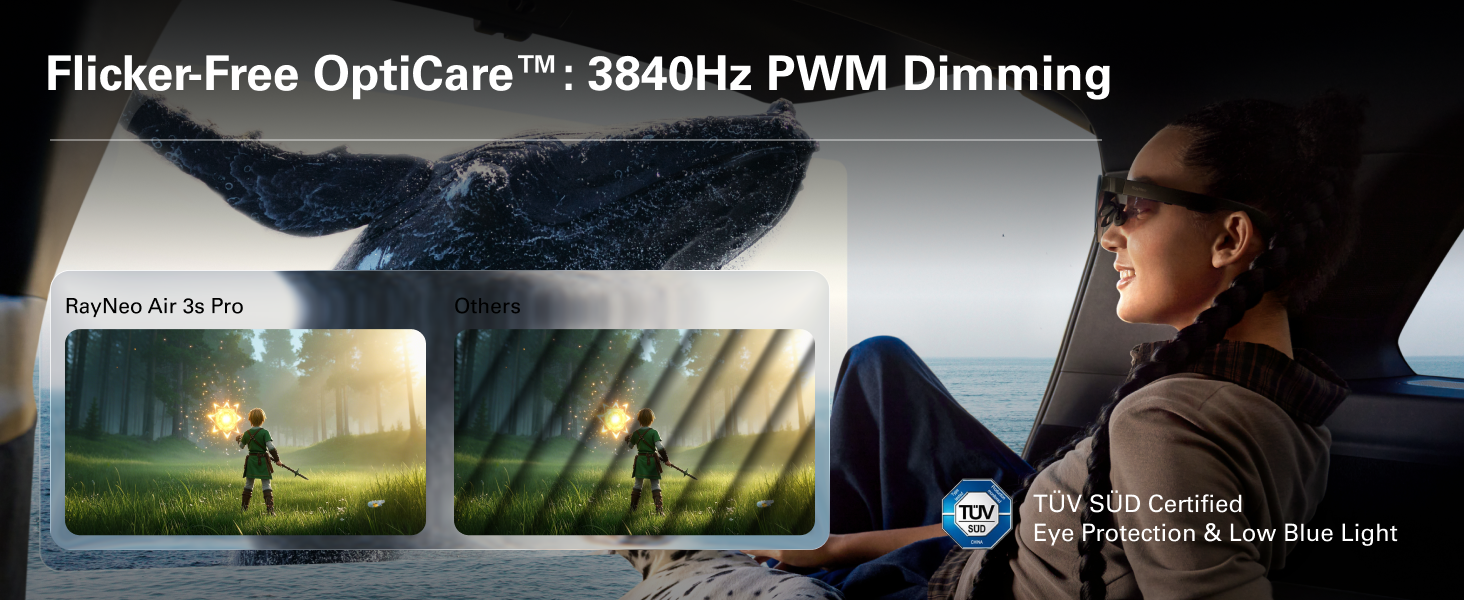
Image: Overview of device compatibility and optional accessories for the RayNeo Air 3s Pro.
Operating Instructions
The RayNeo Air 3s Pro offers various features for an optimized viewing and audio experience.
Display Features
- Brightness: The glasses feature 1,200 nits of to-eye brightness. Adjust the brightness using the on-device controls (20-level brightness control) for optimal viewing in various lighting conditions.
- HueView 2.0 Micro-OLED Display: Experience vivid visuals with 200,000:1 contrast and 98% DCI-P3 color gamut.
- Viewing Modes: Select from 6 optimized viewing modes: Standard, Movie, Game, Eye Protection, Professional, and Vision Boost. These modes adjust color and display characteristics for different content types.
- Eye Comfort: Certified with TÜV SÜD Low Blue Light & Flicker-Free dual certification, and 3,840Hz high-frequency PWM dimming to reduce eye fatigue during extended use.
- Virtual Screen Size: Enjoy a perceived 201-inch virtual display at 6 meters distance for an immersive experience.
Image: Illustration of the 1200 nits brightness capability of the RayNeo Air 3s Pro.
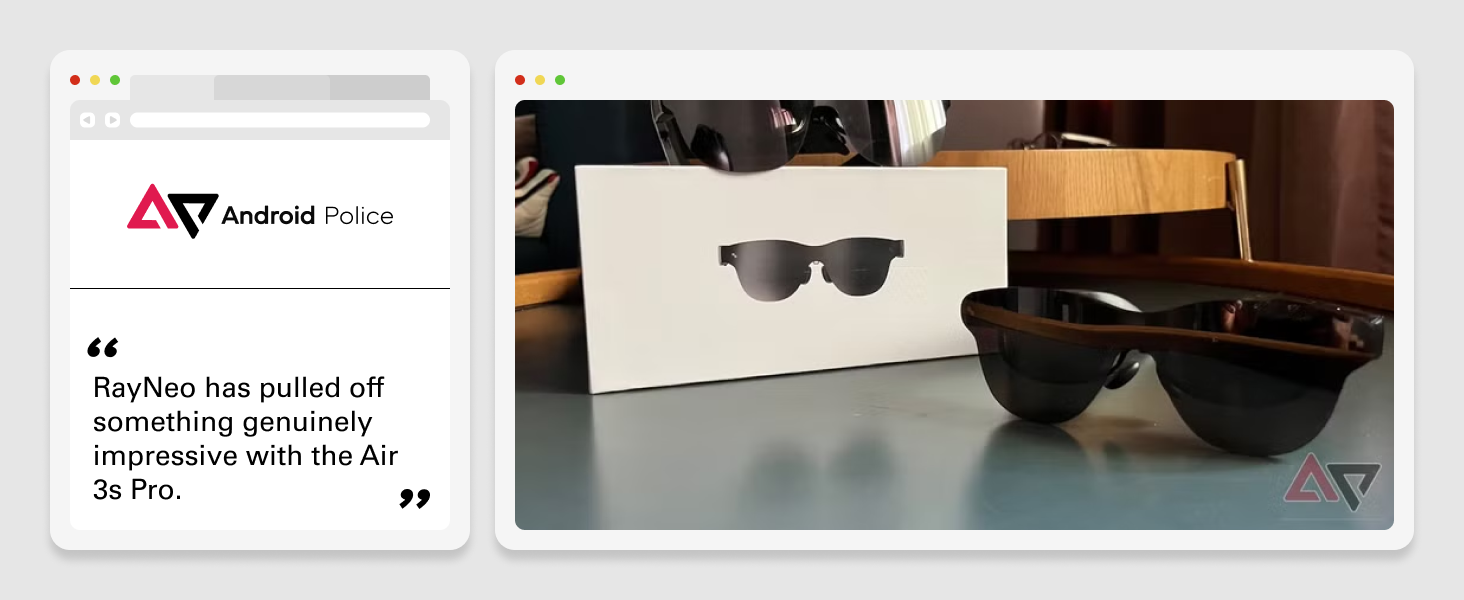
Image: Details on the HueView 2.0 Micro-OLED display technology, highlighting color contrast and accuracy.
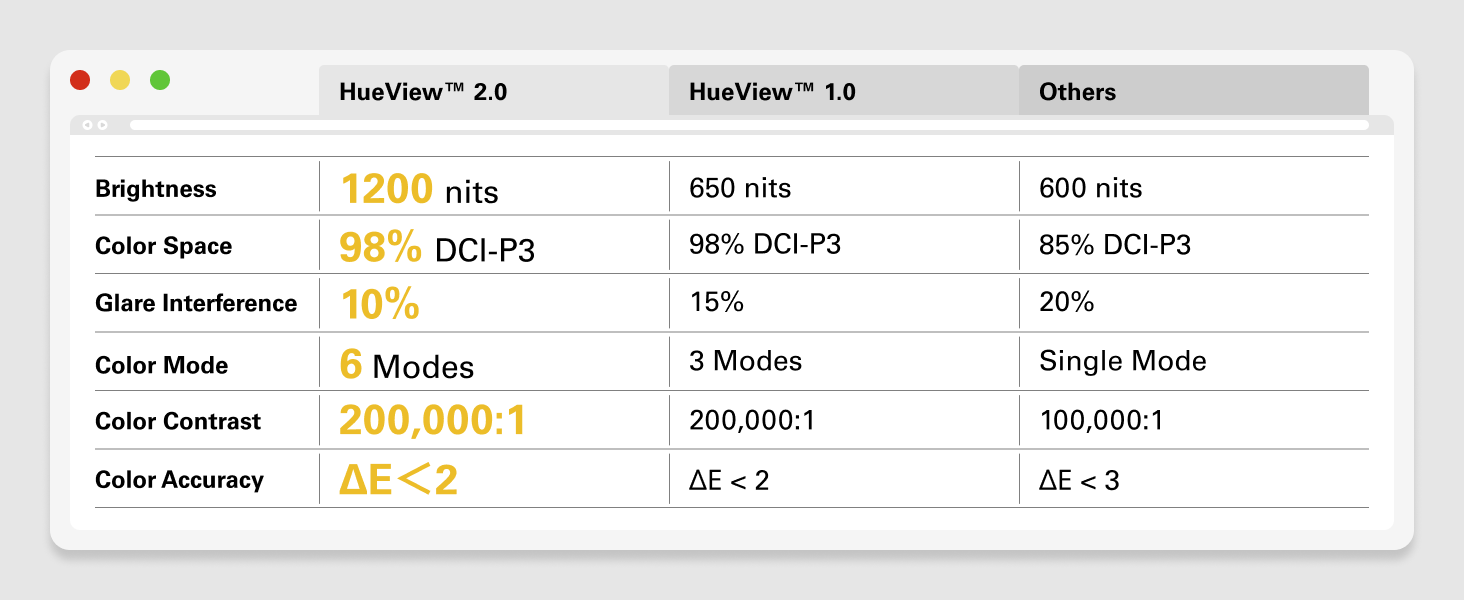
Image: Visual representation of the Flicker-free OptiCare technology and TÜV SÜD certification for eye protection.
Audio Features
- Spatial Audio: The self-developed quad-speaker system with spatial audio algorithms delivers surround sound that follows your head movement.
- Whisper Mode™ 2.0: For private listening, this mode focuses audio directly to your ears, minimizing sound leakage.
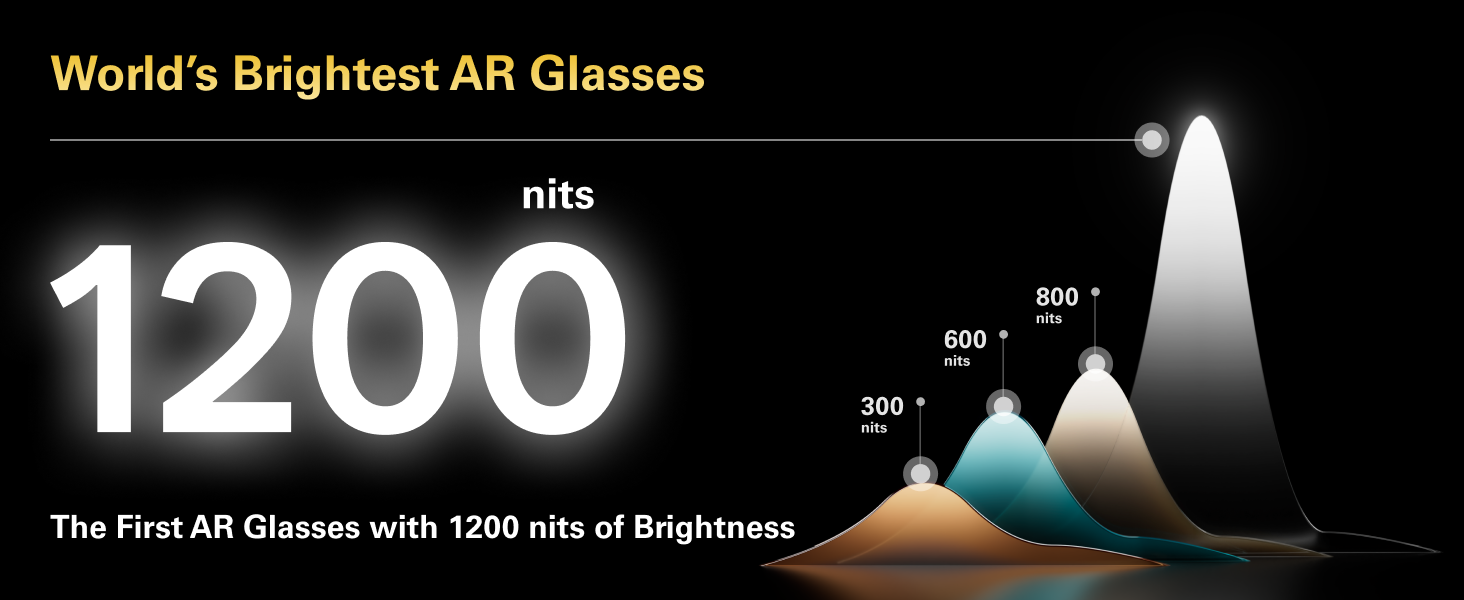
Image: Depiction of the spatial audio effect provided by the RayNeo Air 3s Pro's quad-speaker system.
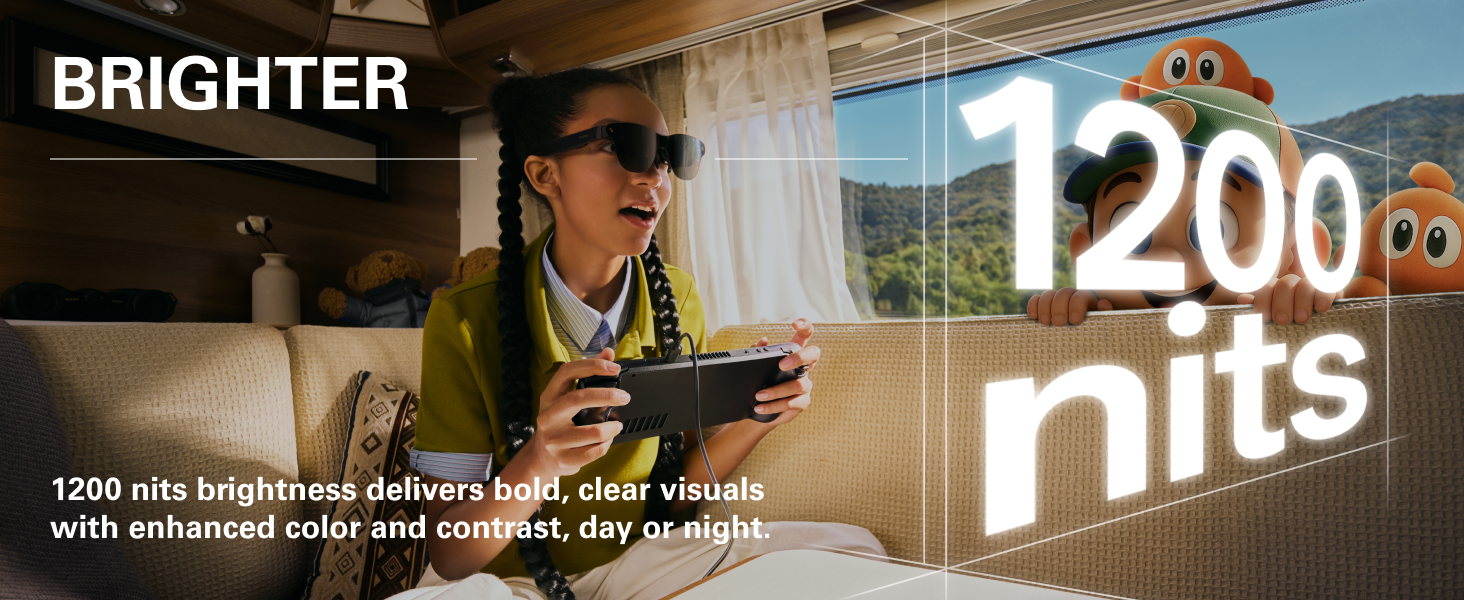
Image: Visual explanation of Whisper Mode 2.0, designed for private audio listening.
On-Device Controls
The glasses feature intuitive controls for easy adjustment:
- Volume Control: Adjust audio volume with dedicated buttons.
- Viewing Mode Switch: Toggle between different display modes.
- Brightness Control: Fine-tune display brightness with 20 levels of control.
- USB-C Port: For seamless connection and charging.
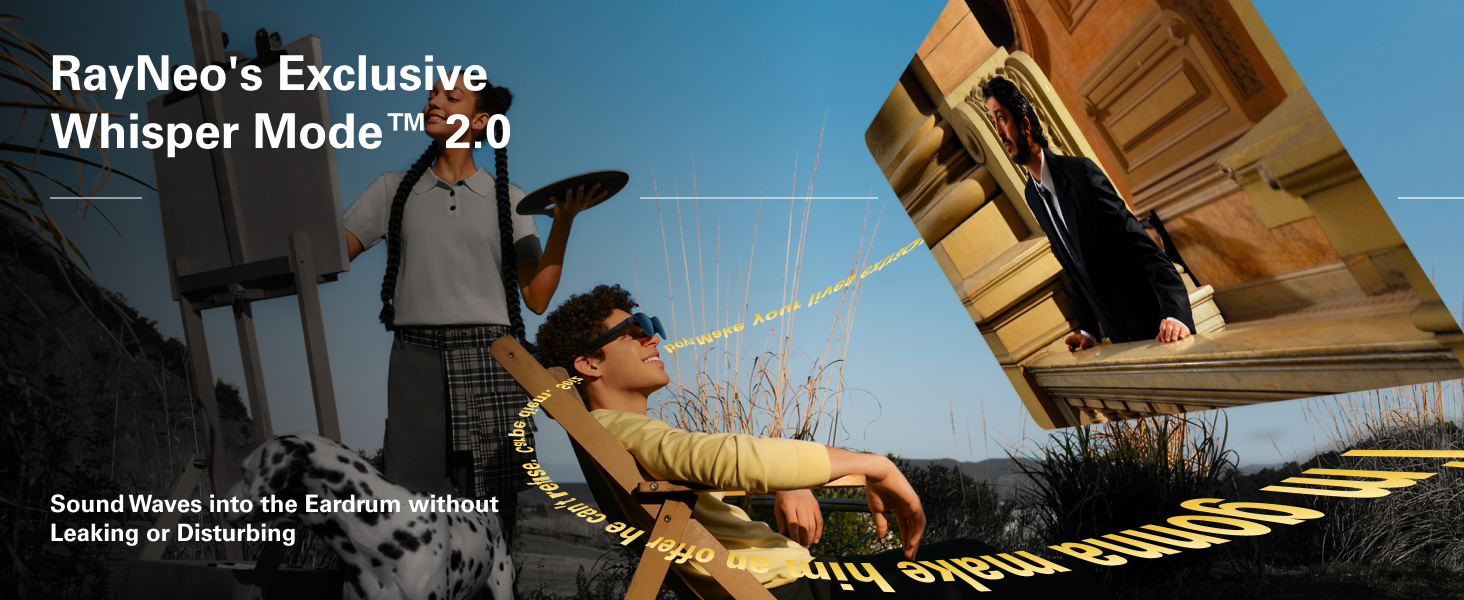
Image: Diagram showing the location and function of on-device controls for volume, viewing modes, and brightness.
Maintenance
Proper care and maintenance will extend the lifespan of your RayNeo Air 3s Pro glasses:
- Cleaning: Use the provided cleaning cloth to gently wipe the lenses and frame. Avoid abrasive materials or harsh chemicals.
- Storage: When not in use, store the glasses in their protective carrying case to prevent scratches and damage.
- Temperature: Avoid exposing the glasses to extreme temperatures or direct sunlight for prolonged periods.
- Water Exposure: The glasses are not waterproof. Avoid contact with liquids.
Troubleshooting
If you encounter issues with your RayNeo Air 3s Pro glasses, refer to the following common solutions:
| Problem | Possible Cause | Solution |
|---|---|---|
| No display or dim display | Low brightness setting, incorrect connection, insufficient power. | Increase brightness using on-device controls. Ensure the USB-C cable is securely connected to both the glasses and the source device. Verify the source device is powered on and outputting video. |
| No sound or low sound | Volume too low, Whisper Mode enabled, source device audio settings. | Increase volume using on-device controls. Check if Whisper Mode is active and adjust if necessary. Verify audio output settings on the connected device. |
| Uncomfortable fit | Incorrect nose pad size or temple adjustment. | Experiment with different nose pad sizes and adjust the temples (arms) to find the most comfortable and secure fit. Refer to the "Adjusting for Comfort" section. |
| Image not clear/blurry | Lenses are dirty, glasses not positioned correctly, prescription lens needed. | Clean the lenses with the provided cloth. Adjust the glasses on your face to ensure they are centered. If you have significant vision correction needs, consider custom prescription lenses (compatible with the glasses). |
| Device not recognized by source | Source device does not support DisplayPort over USB-C, cable issue. | Ensure your source device supports video output over USB-C (DisplayPort Alt Mode). Try a different USB-C cable. If using an adapter (HDMI, etc.), ensure it is functioning correctly. |
Specifications
| Feature | Detail |
|---|---|
| Model Number | XRGF37 |
| Display Technology | HueView™ 2.0 Micro-OLED |
| Brightness | 1200 nits (to-eye) |
| Virtual Screen Size | 201 Inches (at 6m distance) |
| Resolution | 1920 x 1080 Pixels (FHD 1080p) |
| Aspect Ratio | 16:9 |
| Color Contrast | 200,000:1 |
| Color Gamut | 98% DCI-P3 |
| Eye Comfort Certification | TÜV SÜD Low Blue Light & Flicker-Free |
| PWM Dimming Frequency | 3,840Hz |
| Weight | 76g (2.88 ounces) |
| Dimensions | 8.78 x 4.09 x 4.06 inches (Package) |
| Manufacturer | RayNeo Co., Ltd. |
Warranty and Support
For warranty information and technical support, please contact RayNeo Co., Ltd. or refer to the official RayNeo website. Keep your proof of purchase for warranty claims.
Manufacturer: RayNeo Co., Ltd.
For further assistance, visit the RayNeo Store on Amazon.
Related documentsXRGF37


Ask a question about this manual
Ask about setup, troubleshooting, compatibility, parts, safety, or missing instructions. Manuals+ will review the question and use this page’s manual context to help answer it.