
1. Introduction
Thank you for purchasing the Z-Edge 27-inch 4K UHD IPS Monitor, Model S274K. This monitor is designed to provide a high-quality visual experience for both professional and gaming applications, featuring a 3840x2160 resolution, 120Hz refresh rate, and 1ms response time. This manual provides essential information for setting up, operating, and maintaining your monitor to ensure optimal performance and longevity.

Image: Visual comparison demonstrating the clarity of 4K UHD (3840x2160) resolution compared to QHD (2560x1440) and FHD (1920x1080) on the Z-Edge monitor.
2. Safety Information
Please read all instructions carefully before using this product. Keep this manual for future reference.
- Do not expose the monitor to rain, moisture, or extreme temperatures.
- Ensure proper ventilation around the monitor. Do not block ventilation openings.
- Use only the power adapter supplied with the monitor.
- Avoid placing heavy objects on the power cord.
- Disconnect the power plug from the outlet if the monitor will not be used for an extended period.
- Do not attempt to service the monitor yourself. Refer all servicing to qualified personnel.
3. Package Contents
Verify that all items are present in your package:
- Z-Edge 27-inch 4K UHD Monitor
- Monitor Stand (Base and Neck)
- Power Adapter
- HDMI Cable
- User Manual (this document)
- Screws for Stand Assembly
4. Monitor Overview
4.1 Front View
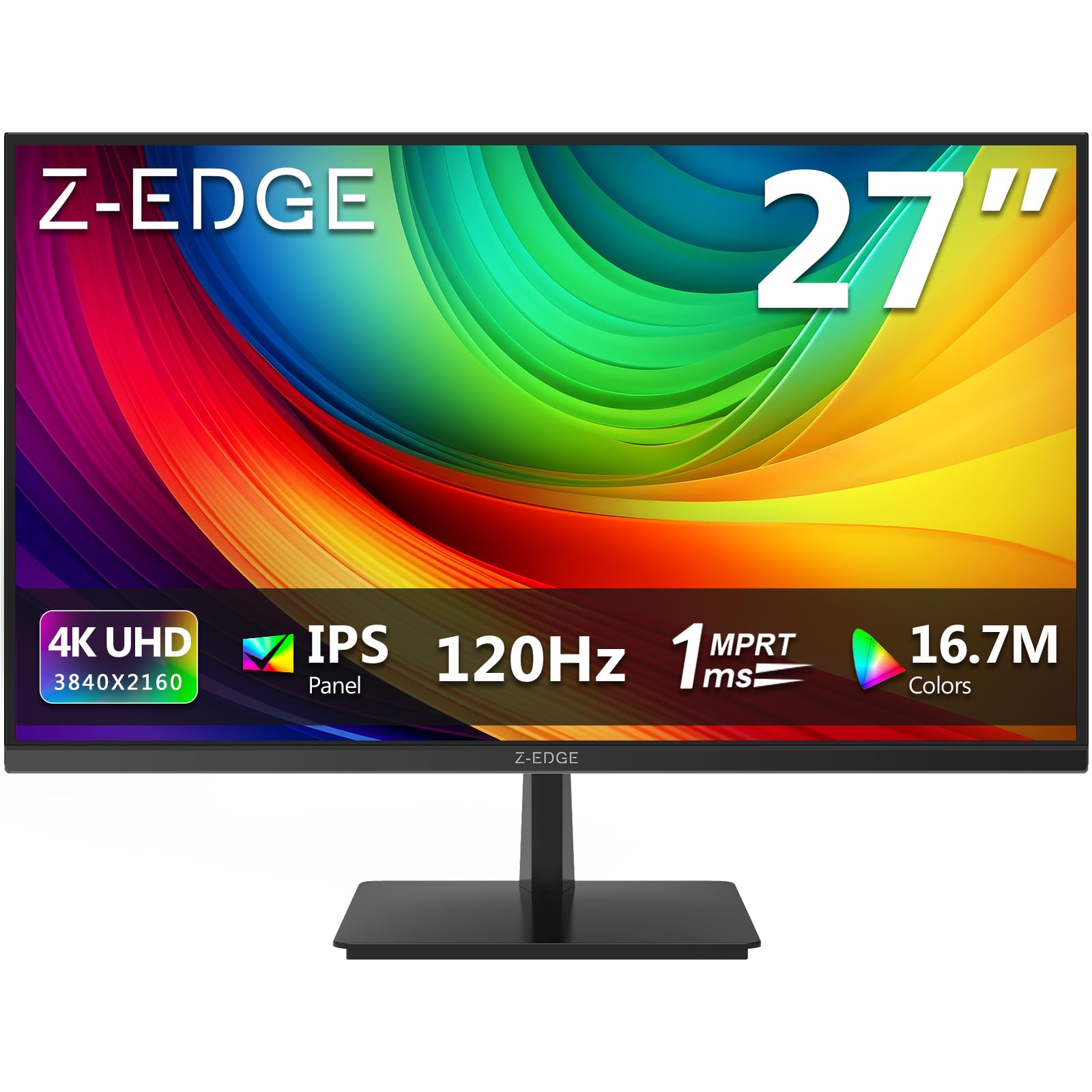
Image: Front view of the Z-Edge 27-inch 4K UHD monitor. This image shows the monitor displaying a vibrant scene, highlighting its slim bezels and overall design.
4.2 Rear View and Ports

Image: Rear view of the Z-Edge 27-inch 4K UHD monitor. This image illustrates the monitor's connectivity options, including HDMI and DisplayPort inputs, and the VESA mounting pattern.
Available Ports:
- DC 12V: Power input port.
- HDMI 1/2 (2.0): Two HDMI input ports for connecting various devices.
- DP 1/2 (1.4): Two DisplayPort input ports for high-resolution connections.
- Audio Out: 3.5mm audio jack for connecting external speakers or headphones.

Image: Detailed view of the monitor's input ports. This diagram clearly labels each port, including DC 12V power, two HDMI 2.0, two DisplayPort 1.4, and an audio output.
5. Setup
5.1 Stand Assembly
- Carefully remove the monitor from its packaging, keeping the screen protected.
- Attach the stand neck to the monitor panel using the provided screws.
- Connect the stand base to the stand neck, securing it with the remaining screws.
- Place the assembled monitor on a stable, flat surface.
Alternatively, the monitor supports VESA 100x100mm mounting for wall mounts or monitor arms. Ensure the VESA mount is rated for the monitor's weight.
5.2 Connecting to a Device
Connect your computer, game console, or other compatible device to the monitor using either an HDMI or DisplayPort cable.
- For 4K resolution at 120Hz, use a DisplayPort 1.4 cable or an HDMI 2.0 cable.
- Insert one end of the cable into the corresponding port on your device and the other end into an available HDMI or DP port on the monitor.
5.3 Power Connection
- Connect the power adapter to the DC 12V port on the monitor.
- Plug the power adapter into a power outlet.
6. Operating Instructions
6.1 Powering On/Off
Press the power button located on the monitor to turn it on or off. The power indicator light will illuminate when the monitor is on.
6.2 OSD Menu Navigation
The On-Screen Display (OSD) menu allows you to adjust various monitor settings. Use the control buttons (usually located on the back or bottom of the monitor) to navigate the menu.
- Press a button to open the OSD menu.
- Use the directional buttons to move between options.
- Press the select button to confirm a selection or enter a sub-menu.
- Press the exit button to close the OSD menu.
6.3 Picture Settings
Adjust display characteristics to your preference:
- Brightness: Adjust the overall luminance of the screen.
- Contrast: Modify the difference between light and dark areas.
- Color Temperature: Select from preset modes (e.g., Warm, Cool, User) or adjust RGB values manually.
- Aspect Ratio: Choose between Full, 4:3, or 16:9.
6.4 Gaming Features

Image: Visual representation of the difference between 120Hz and 60Hz refresh rates, illustrating how 120Hz provides a smoother and more fluid visual experience, especially for fast-paced content.
- FreeSync / Adaptive Sync: Enable this feature in the OSD menu and on your graphics card settings to synchronize the monitor's refresh rate with your GPU's frame rate, reducing screen tearing and stuttering.
- Response Time (MPRT): Adjust for faster pixel response, beneficial for fast-paced gaming.

Image: Visual demonstration of FreeSync technology. The left side shows screen tearing and stuttering when FreeSync is off, while the right side displays smooth, fluid motion with FreeSync enabled.
6.5 Input Selection
If you have multiple devices connected, use the OSD menu or a dedicated input select button to switch between HDMI 1, HDMI 2, DP 1, and DP 2 inputs.
7. Maintenance
7.1 Cleaning the Monitor
- Always unplug the monitor from the power outlet before cleaning.
- Use a soft, lint-free cloth slightly dampened with water or a mild, non-abrasive screen cleaner.
- Do not spray cleaner directly onto the screen.
- Avoid using alcohol-based cleaners, ammonia, or abrasive materials.
7.2 General Care
- Keep the monitor away from direct sunlight and heat sources.
- Do not place heavy objects on the monitor or its cables.
- Avoid touching the screen with sharp objects.
8. Troubleshooting
| Problem | Possible Cause | Solution |
|---|---|---|
| No image on screen |
|
|
| Image is blurry or distorted |
|
|
| Screen tearing or stuttering (gaming) |
|
|
| No audio from headphones/speakers |
|
|
9. Specifications
| Feature | Detail |
|---|---|
| Brand | Z-Edge |
| Model Number | S274K |
| Screen Size | 27 Inches |
| Panel Type | IPS |
| Resolution | 4K UHD (3840 x 2160 Pixels) |
| Refresh Rate | 120 Hz |
| Response Time | 1ms MPRT |
| Aspect Ratio | 16:9 |
| Brightness | 250 cd/m² |
| Contrast Ratio | 1000:1 |
| Color Support | 1.07 Billion Colors (99% sRGB) |
| Viewing Angle | 178° (H/V) |
| Connectivity | 2x HDMI 2.0, 2x DisplayPort 1.4, Audio Out |
| Special Features | Adjustable Tilt (-5°~15°), FreeSync, Flicker-Free, Ultra Slim Bezel |
| VESA Compatibility | 100x100mm |
| Power Consumption | 32 Watt |
| Energy Efficiency Class | F (EPREL Link) |

Image: Key display specifications including IPS Panel technology, 250 nits brightness, support for 16.7 million colors, and a 1000:1 contrast ratio.
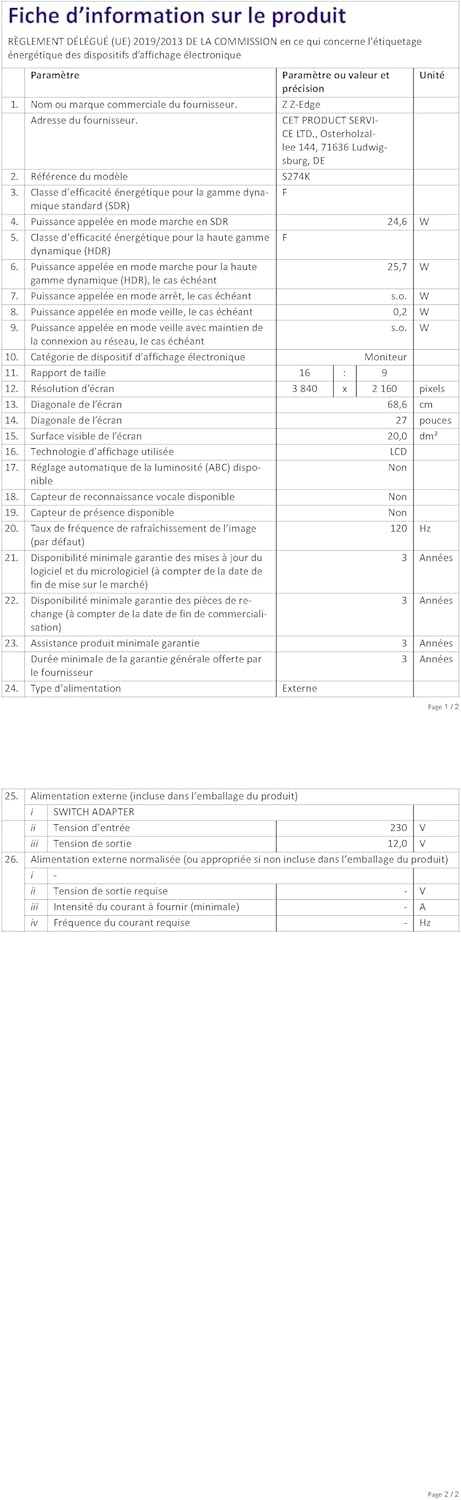
Image: EU Energy Label for the Z-Edge S274K monitor, indicating an energy efficiency class of F and energy consumption of 25 kWh per 1000 hours.
10. Warranty and Support
10.1 Manufacturer's Warranty
This Z-Edge monitor comes with a 1-year manufacturer's warranty from the date of purchase. This warranty covers defects in materials and workmanship under normal use. It does not cover damage caused by misuse, accidents, unauthorized modifications, or external causes.
For warranty claims, please retain your proof of purchase.
10.2 Customer Support
If you encounter any issues not covered in the troubleshooting section or require further assistance, please contact Z-Edge customer support. Refer to the official Z-Edge website for the most up-to-date contact information and support resources.
