1. Introduction
The AXFEE Wireless HDMI Transmitter and Receiver system provides a seamless solution for extending HDMI signals wirelessly. Enjoy high-definition video and audio up to 1080P at 60Hz with minimal latency, across distances of up to 50 meters (165 feet). This plug-and-play device supports both mirror and extend display modes, making it versatile for various applications from business presentations to home entertainment.
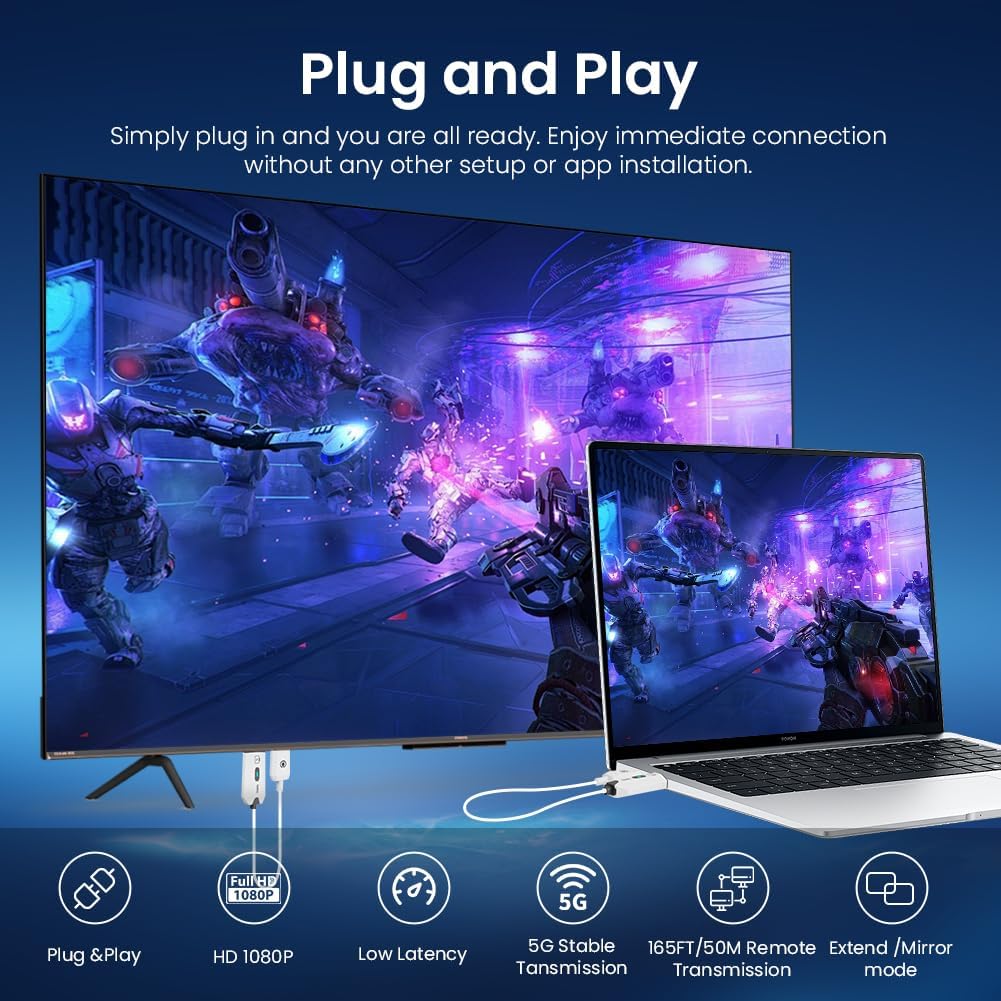
This image shows the AXFEE Wireless HDMI system in action, connecting a laptop to a television. It highlights key features such as simple plug-and-play operation, 1080P HD resolution, minimal latency, stable 5G transmission, a 50-meter remote transmission range, and support for both mirror and extend display modes.
2. What's in the Box
Please verify that all components are present in your package:
- 1 x HDMI Transmitter (TX)
- 1 x HDMI Receiver (RX)
- 1 x Micro HDMI Adapter
- 1 x Mini HDMI Adapter
- 1 x User Manual

The package includes one HDMI Transmitter (TX), one HDMI Receiver (RX), one Micro HDMI Adapter, one Mini HDMI Adapter, and a comprehensive User Manual to guide you through setup and operation.
3. Product Features
3.1 Dual Display Modes (Mirror & Extend)
The system supports two distinct display modes to suit your needs:
- Mirror Mode: Displays the same content on both your source device and the external display, ideal for presentations or sharing content.
- Extend Mode: Allows you to display different content on the external screen, expanding your desktop workspace. This mode requires a compatible computer; press 'System + P' to switch.

This image demonstrates the two operational modes: Mirror mode, where the same content is duplicated on both your source device and the external display, and Extend mode, which allows for different content on each screen, expanding your workspace. Extend mode requires computer compatibility.
3.2 Long Range & Low Latency Transmission
Experience reliable wireless transmission up to 50 meters (165 feet) in open environments and up to 30 meters indoors. The 5G transmission protocol ensures a strong, stable signal with a minimal latency of just 0.1 seconds, providing a smooth visual experience.

This diagram illustrates the 50-meter (165 feet) long-range transmission capability of the AXFEE Wireless HDMI system, showing a transmitter and receiver connected across a large meeting room with minimal delay.
3.3 Plug and Play Design
The device is designed for ease of use. Simply connect the transmitter to your source and the receiver to your display, and it's ready to go. No drivers or complex software installation are required.
3.4 Ultra HD 1080P Quality
Supports resolutions up to 1080P at 60Hz, delivering clear, sharp, and fluid images for an immersive viewing experience, whether for movies, presentations, or gaming.
3.5 Wide Compatibility
Compatible with most HDMI-enabled devices. The Transmitter (TX) connects to sources like laptops, PCs, cameras, and set-top boxes, while the Receiver (RX) connects to displays such as projectors, monitors, and televisions.

The system offers broad compatibility. Transmitters (TX) can connect to devices like tablets, smartphones (with an extra adapter), set-top boxes, game consoles (Switch/PS4/PS5), desktop PCs, laptops, DVs, and cameras. Receivers (RX) connect to monitors, projectors, and HD TVs.
4. Setup Instructions
Follow these steps to set up your AXFEE Wireless HDMI system:
- Connect the Transmitter (TX): Plug the HDMI Transmitter into the HDMI output port of your source device (e.g., laptop, PC, camera, set-top box). If your source device has a Micro HDMI or Mini HDMI port, use the appropriate adapter provided.
- Power the Transmitter (TX): Connect the USB power cable to the Transmitter and plug the other end into a USB power source (e.g., your device's USB port, a USB wall adapter). Ensure the TX unit receives sufficient power.
- Connect the Receiver (RX): Plug the HDMI Receiver into an available HDMI input port on your display device (e.g., TV, projector, monitor).
- Power the Receiver (RX): Connect the USB power cable to the Receiver and plug the other end into a USB power source. Ensure the RX unit receives sufficient power.
- Select Input: On your display device, select the correct HDMI input source to which the Receiver is connected.
- Pairing (if necessary): The devices are typically pre-paired. If no signal is detected, press the 'PAIR' button on both the Transmitter and Receiver simultaneously for a few seconds until the pairing indicator lights stabilize.

This image shows how to connect a source device, such as a camera, to the Wireless HDMI Transmitter (TX) using the provided Mini HDMI adapter. The transmitter is powered via a USB cable, and the signal is sent wirelessly to a display.
5. Operating Instructions
5.1 Switching Display Modes
Once connected, the system will typically default to Mirror Mode. To switch to Extend Mode (if supported by your computer), press the Windows key + P on your keyboard and select 'Extend'.
5.2 Connecting Multiple Transmitters (1 RX to 8 TXs)
The AXFEE system supports connecting up to 8 Transmitters (TX) to a single Receiver (RX). This is ideal for environments where multiple users need to share content on one display, such as in meeting rooms or classrooms.
- Connect each additional Transmitter to its respective source device.
- To switch between different source devices, simply press the 'PAIR' button on the desired Transmitter. The Receiver will automatically switch to display the content from that Transmitter.

This illustration shows a meeting room where one receiver (RX) is connected to a large display, and multiple laptops (up to 8) are connected via individual transmitters (TXs). This allows for easy switching between presenters by clicking the PAIR button on the transmitter.
6. Maintenance
To ensure the longevity and optimal performance of your Wireless HDMI system, follow these maintenance guidelines:
- Cleaning: Use a soft, dry cloth to clean the devices. Avoid using liquid cleaners or aerosols, which may damage the components.
- Storage: When not in use, store the devices in a cool, dry place away from direct sunlight and extreme temperatures.
- Handling: Handle the devices with care. Avoid dropping them or subjecting them to strong impacts.
- Power: Always use the provided USB power cables or compatible 5V DC power sources.
7. Troubleshooting
If you encounter issues with your AXFEE Wireless HDMI system, please refer to the following troubleshooting tips:
- No Signal on Display:
- Ensure both the Transmitter (TX) and Receiver (RX) are properly powered and their indicator lights are on.
- Verify that the HDMI cables and adapters are securely connected to both the source and display devices.
- Check that the display device is set to the correct HDMI input source.
- Try re-pairing the Transmitter and Receiver by pressing their 'PAIR' buttons.
- Test with different HDMI ports or cables if available.
- Poor Video Quality or Intermittent Signal:
- Reduce the distance between the Transmitter and Receiver.
- Remove any obstacles (walls, large furniture, electronic devices) that may be interfering with the wireless signal.
- Ensure there are no other strong 5G wireless signals nearby that could cause interference.
- Check that your source device is outputting a stable 1080P@60Hz signal.
- Extend Mode Not Working:
- Ensure your computer's operating system supports extend display mode.
- On Windows, press Windows key + P and select 'Extend'.
- Check your computer's display settings to configure the extended desktop.
- Audio Issues:
- Verify that the audio output settings on your source device are correctly configured.
- Ensure the display device's volume is not muted or set too low.
- Check all HDMI connections for secure fit.
8. Specifications
| Feature | Specification |
|---|---|
| Brand | AXFEE |
| Model Number | AXFEE |
| Color | White |
| Connector Type | HDMI |
| Compatible Devices | Game Console, Computer, Laptop, Projector, Television |
| Specific Uses for Product | Multipurpose |
| Item Dimensions (L x W x H) | 10 x 10 x 10 millimeters |
| Number of Ports | 2 |
| Input Voltage | 5 Volts (DC) |
| Max Resolution | 1080P@60Hz |
| Transmission Range | Up to 50 meters (outdoor), 30 meters (indoor) |
| Latency | 0.1 seconds |
9. Warranty and Support
For warranty information and technical support, please refer to the contact details provided with your purchase or visit the official AXFEE website. Keep your purchase receipt for warranty claims.
If you have any questions or require assistance, please do not hesitate to contact our customer support team.