1. Introduction
This manual provides detailed instructions for the E-YOOSO K-787 RGB Wireless Keyboard. This keyboard features versatile 3-mode connectivity (2.4G wireless, Bluetooth, and USB wired), dynamic RGB backlighting, and an ergonomic design for comfortable use across various operating systems and devices.

Image 1.1: E-YOOSO K-787 RGB Wireless Keyboard with illuminated keys.
2. Setup
2.1 Package Contents
- 1x E-YOOSO K-787 Wireless Keyboard
- 1x Type-C Charging Cable
- 1x USB Receiver (stored in the keyboard's underside)
- 1x User Manual

Image 2.1: Contents included with the E-YOOSO K-787 keyboard.
2.2 Connection Modes
The E-YOOSO K-787 keyboard supports three connection methods:
- USB Wired Mode: Connect the keyboard directly to your computer using the provided Type-C cable. The keyboard will function as a wired device and charge simultaneously.
- 2.4G Wireless Mode: Insert the USB receiver into an available USB port on your computer. Switch the keyboard to 2.4G mode using the switch on the back.
- Bluetooth Mode (BT1/BT2/BT3): The keyboard can connect to up to three Bluetooth devices. Switch the keyboard to Bluetooth mode using the switch on the back.
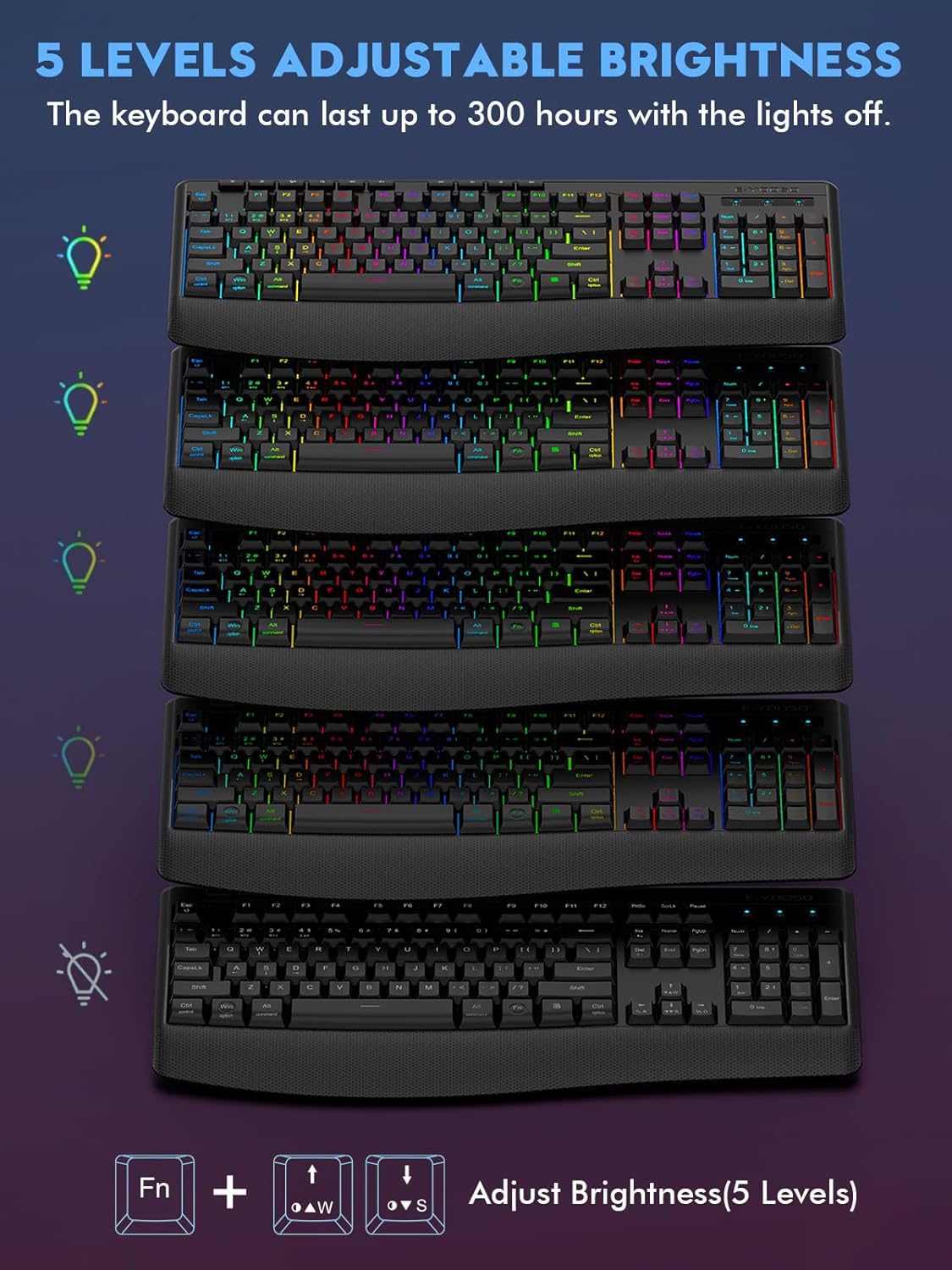
Image 2.2: Side view of the keyboard showing the USB-C port and mode switches.
2.3 Pairing Instructions
2.3.1 2.4G Wireless Pairing
- Locate the USB receiver stored in the compartment on the underside of the keyboard.
- Plug the USB receiver into an available USB port on your computer.
- Slide the switch on the back of the keyboard to the "2.4G" position. The M indicator light will flash yellow, then become solid yellow after successful connection.
2.3.2 Bluetooth Pairing
- Slide the switch on the back of the keyboard to the "BT" position.
- Press and hold Fn + 1/2/3 for 3 seconds to enter the corresponding channel's pairing mode. The M indicator light will flash blue/cyan/pink.
- On your device (computer, laptop, tablet), search for Bluetooth devices and select "E-YOOSO K-787".
- Once paired, the M indicator light will remain solid, indicating a successful connection.
2.4 Charging the Keyboard
The keyboard is equipped with a 1900mAh rechargeable battery. Use the provided Type-C cable to charge the keyboard. A full charge takes approximately 2-3 hours. The M indicator light will show charging status (color may vary).

Image 2.3: The keyboard's Type-C charging port and battery specifications.
3. Operating Instructions
3.1 Multimedia Keys
The keyboard features 10 independent multimedia keys and 12 combination multimedia keys for quick access to various functions. These include volume control, media playback, and more.
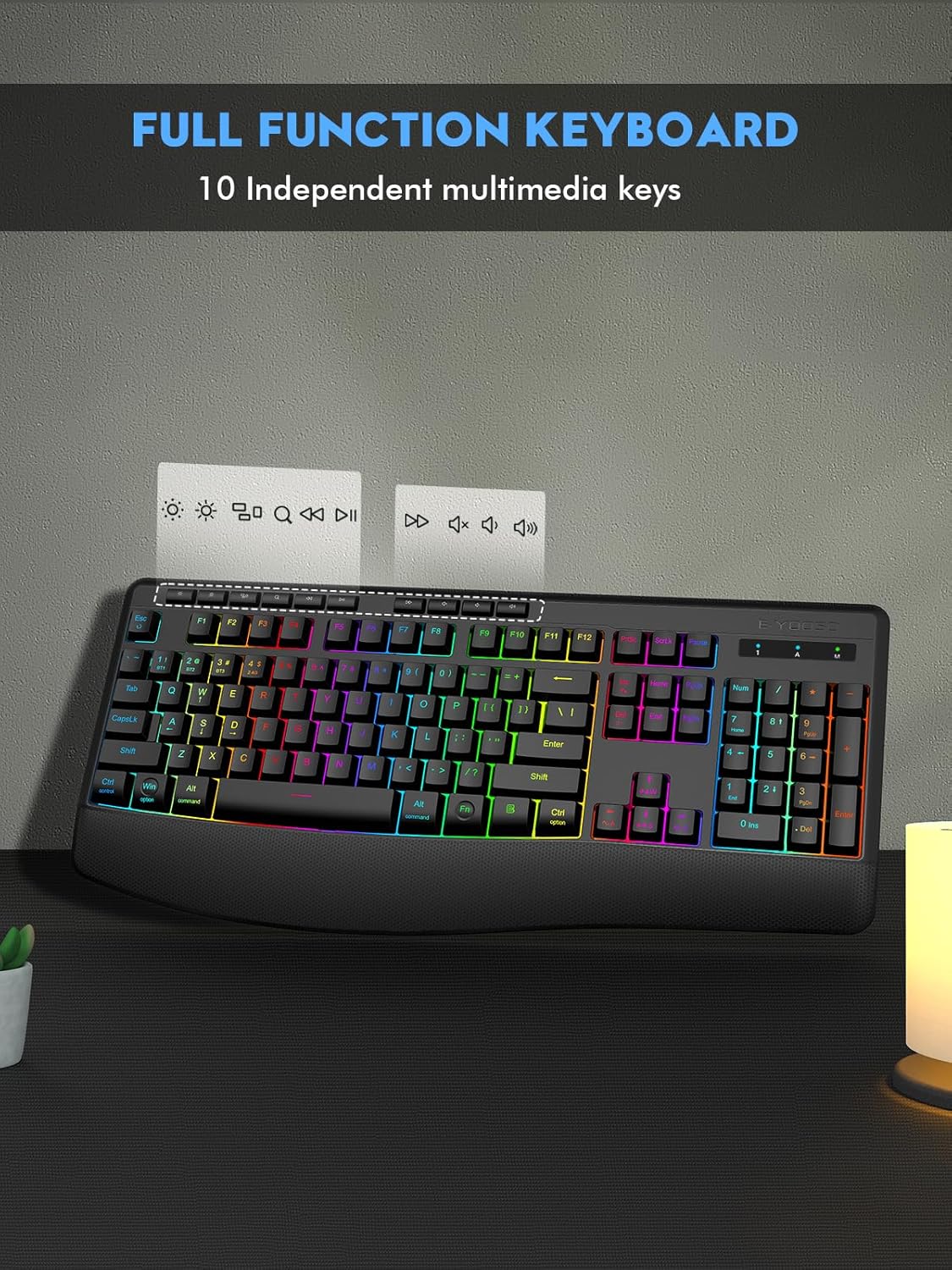
Image 3.1: Overview of the keyboard's full function layout, including multimedia keys.
3.2 RGB Backlight Control
The keyboard offers 9 RGB lighting modes. You can customize the lighting effects, speed, and brightness.
- Switching Modes: Press Fn + Ins to cycle through the 9 different backlight modes.
- Adjusting Brightness: Press Fn + Up Arrow (W) to increase brightness, and Fn + Down Arrow (S) to decrease brightness (5 levels).
- Adjusting Speed: Press Fn + Left Arrow (A) to decrease speed, and Fn + Right Arrow (D) to increase speed.

Image 3.2: Visual representation of various backlight modes and brightness adjustments.
3.3 Windows/Mac Compatibility
A dedicated switch on the back of the keyboard allows you to toggle between Windows and Mac compatibility modes, ensuring optimal key mapping for your operating system.
3.4 Ergonomic Design
The keyboard features a built-in wrist rest and adjustable tilt legs (8° and 12°) to provide a comfortable typing experience and reduce wrist fatigue during extended use.
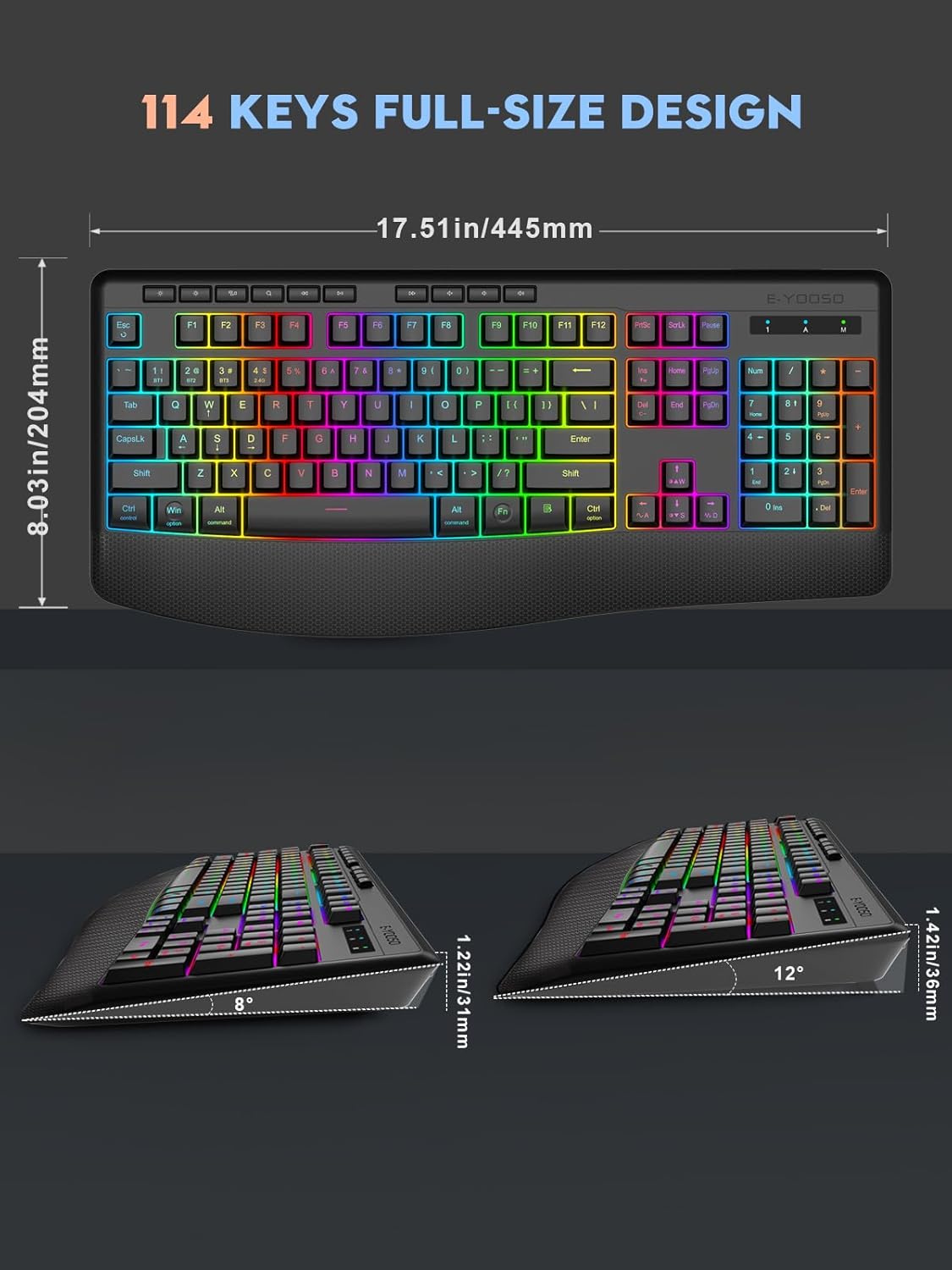
Image 3.3: Ergonomic features including the wrist rest and adjustable tilt angles.
4. Maintenance
- Clean the keyboard regularly with a soft, dry cloth.
- Avoid exposing the keyboard to excessive moisture or liquids. The keyboard has splash resistance, but it is not waterproof.
- Do not use harsh chemicals or abrasive cleaners.
- Store the keyboard in a cool, dry place when not in use.
5. Troubleshooting
5.1 Keyboard Not Responding
- Check Connection: Ensure the USB receiver is properly plugged in for 2.4G mode, or the Type-C cable is securely connected for wired mode. For Bluetooth, verify the device is paired and selected.
- Battery Level: If the keyboard is in wireless mode, check the battery level. Recharge if necessary.
- Mode Switch: Confirm the switch on the back of the keyboard is set to the correct connection mode (2.4G or BT).
5.2 Low Voltage Indicator
When the battery voltage is below 3.3V, the red light of the M indicator will flash slowly. When the battery voltage is equal to or lower than 3.0V, the keyboard function will be turned off. Recharge the keyboard promptly.
5.3 Smart Sleep Mode
The keyboard features a smart sleep mode to conserve power. If inactive for 90 seconds, the backlight will turn off, and the keyboard will enter sleep mode. Press any key to reactivate it.
5.4 Backlight Issues
- If backlights are not working, ensure the keyboard is not in sleep mode.
- Adjust brightness using Fn + Up/Down Arrow keys.
- Cycle through modes using Fn + Ins.
6. Product Videos
6.1 Beautiful Backlights, Comfortable Type
Video 6.1: A short demonstration showcasing the vibrant backlighting effects and comfortable typing experience of the E-YOOSO K-787 keyboard.
6.2 Ergonomically Designed, Smooth Keystrokes, Cool Lighting Effects
Video 6.2: An in-depth review highlighting the ergonomic design, smooth keystrokes, and various lighting effects of the E-YOOSO K-787 keyboard.
6.3 Excellent Silent Keyboard with Great Feel
Video 6.3: A brief overview emphasizing the quiet operation and tactile feel of the E-YOOSO K-787 keyboard's keys.
6.4 Colorful Keyboard that Works with Bluetooth or WiFi
Video 6.4: A quick demonstration of the keyboard's colorful backlighting and its versatile Bluetooth and 2.4G wireless connectivity options.
7. Specifications
| Feature | Detail |
|---|---|
| Model Number | K-787 |
| Connectivity Technology | USB/BT/2.4G (Tri-mode) |
| Keyboard Description | Multimedia |
| Special Feature | Ergonomic, RGB Backlit, Rechargeable |
| Battery Capacity | 1900mAh |
| Charging Time | 2-3 Hours |
| Standby Time (RGB OFF) | Up to 300 Hours |
| Sleep Mode | Smart sleep after 90 seconds inactivity |
| Key Type | Soft Crater Membrane |
| Noise Reduction | 95% |
| Dimensions | 17.51 x 8.03 x 1.22 inches (445 x 204 x 31 mm) |
| Item Weight | 1.98 pounds |
| Compatible Devices | PC, Mac, Laptop (Windows/Mac switch) |
8. Warranty Information
The E-YOOSO K-787 RGB Wireless Keyboard comes with a standard 1-year limited warranty from the date of purchase. This warranty covers manufacturing defects and malfunctions under normal use. It does not cover damage caused by misuse, accidents, unauthorized modifications, or normal wear and tear. Please retain your proof of purchase for warranty claims.
9. Customer Support
For any questions, technical assistance, or warranty inquiries regarding your E-YOOSO K-787 RGB Wireless Keyboard, please contact our customer support team. Refer to the contact information provided on the product packaging or the official E-YOOSO website.
We are committed to providing excellent service and support for your E-YOOSO product.


