
1. Product Overview
The ZAQE X20 is a portable clip-on MP3 player designed for music playback, sports tracking, and recording. It features 128GB of internal storage, expandable memory, Bluetooth 5.3 connectivity, an FM radio, voice recorder, and pedometer function. Its compact and lightweight design makes it suitable for various activities.

Image: The ZAQE X20 MP3 player displaying its main interface, surrounded by icons indicating its various functions including music, video, voice recording, Bluetooth, settings, FM radio, and pedometer. This illustrates its multi-functional sports player capabilities.
2. Package Contents
Please check the package for the following items:
- 1 x ZAQE X20 128GB MP3 Player
- 1 x Type-C Charging Cable
- 1 x Wired Earphones
- 1 x User Manual (this document)
3. Device Layout
Familiarize yourself with the buttons and ports on your ZAQE X20 MP3 player.
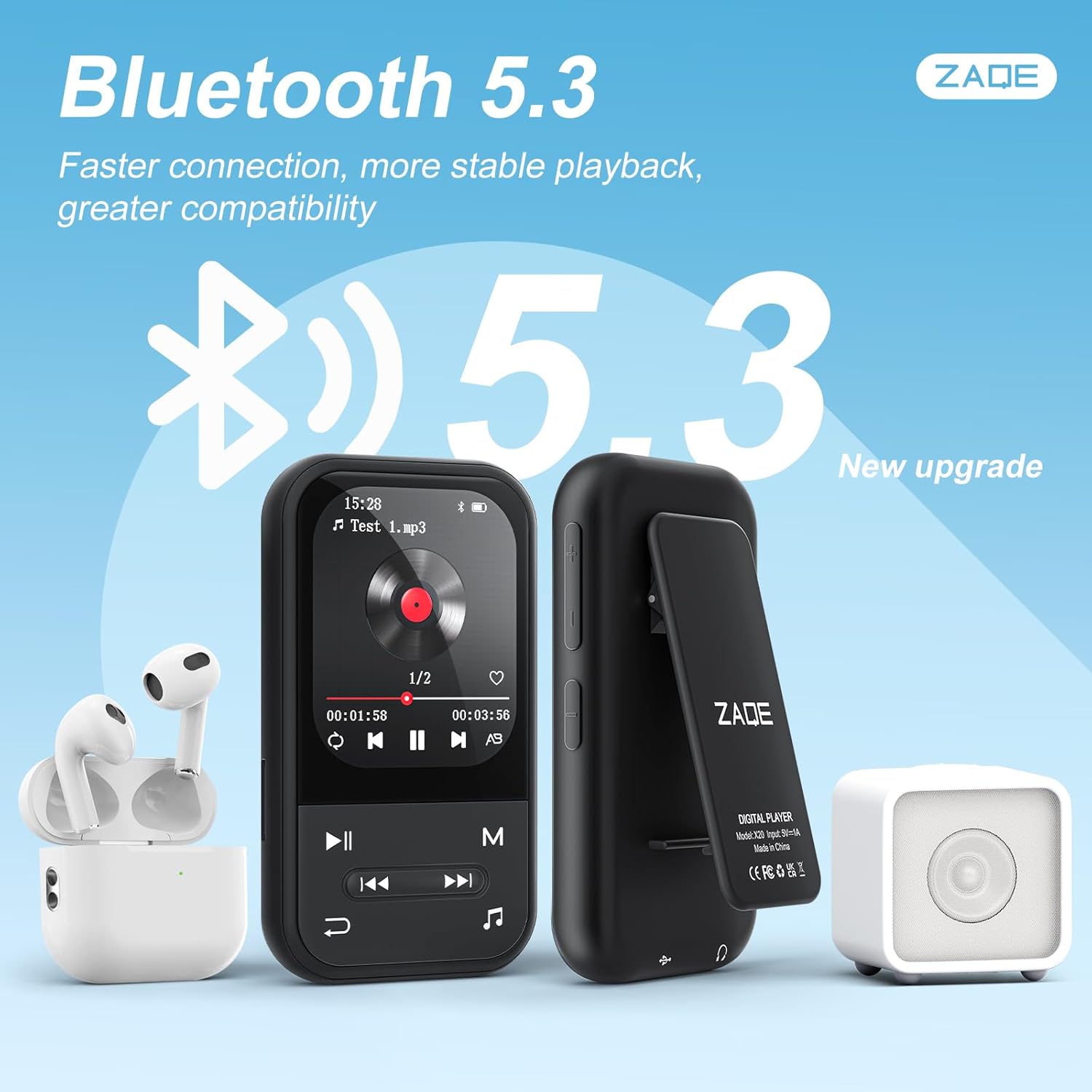
Image: The ZAQE X20 MP3 player, showcasing its front display with music playback information and physical control buttons. A side view highlights the integrated clip for attachment. The image also features wireless earbuds and a portable speaker, emphasizing the device's Bluetooth 5.3 capabilities for external audio connections.
Key Controls:
- Power Button: Press and hold to turn on/off. Short press to lock/unlock screen.
- Volume Buttons: Adjust audio volume.
- Navigation Buttons: Up, Down, Left, Right for menu navigation.
- OK/Play/Pause Button: Confirm selection, play/pause music.
- Back/Return Button: Go back to the previous menu.
- Music Button: Quickly access the music playback interface.
4. Setup
4.1 Charging the Device
- Connect the Type-C charging cable to the player's charging port.
- Connect the other end of the cable to a USB power adapter (not included) or a computer's USB port.
- The battery indicator on the screen will show charging status. A full charge typically takes a few hours.
4.2 Inserting a Micro SD Card
The ZAQE X20 comes with 128GB of internal storage and supports up to 128GB external Micro SD card for additional storage.
- Locate the Micro SD card slot on the side of the player.
- Gently insert the Micro SD card into the slot until it clicks into place. Ensure the card is oriented correctly.
- To remove, gently push the card inward until it springs out.

Image: The ZAQE X20 MP3 player's screen shows music playback. Below, a graphic indicates a 128GB TF card is included, and another graphic illustrates that the memory can be expanded by 64GB-128GB, highlighting the device's extensive storage capabilities.
4.3 Transferring Files to the Player
- Connect the player to your computer using the Type-C charging cable.
- The player will appear as a removable disk on your computer.
- Drag and drop your music, video, or other compatible files into the appropriate folders on the player or Micro SD card.
- Safely eject the player from your computer before disconnecting the cable.
5. Operating Instructions
5.1 Power On/Off
- To Power On: Press and hold the Power button until the screen lights up.
- To Power Off: Press and hold the Power button until a power-off prompt appears, then confirm.
- Screen Lock/Unlock: Short press the Power button to lock or unlock the screen during operation.
5.2 Basic Navigation
- Use the Up/Down/Left/Right buttons to navigate through menus and options.
- Press the OK/Play/Pause button to select an item or confirm an action.
- Press the Back/Return button to go back to the previous screen or menu.
5.3 Music Playback
- From the main menu, select 'Music'.
- Browse your music by Artist, Album, Songs, or Playlists.
- Select a song and press the OK/Play/Pause button to start playback.
- During playback, use the navigation buttons for previous/next track, and the volume buttons to adjust volume.
- Press the dedicated Music Button to quickly return to the music interface from any other function.

Image: A user is shown wearing headphones and the ZAQE X20 MP3 player, which is clipped to their clothing. A hand points to the music icon on the player's screen, illustrating the function to quickly access the music interface from other applications.
Playback Modes:
The player supports multiple playback modes:
- Sequential Play: Plays tracks in order.
- Repeat All: Repeats the entire playlist or album.
- Shuffle: Plays tracks in a random order.
- Single Repetition: Repeats the current track.
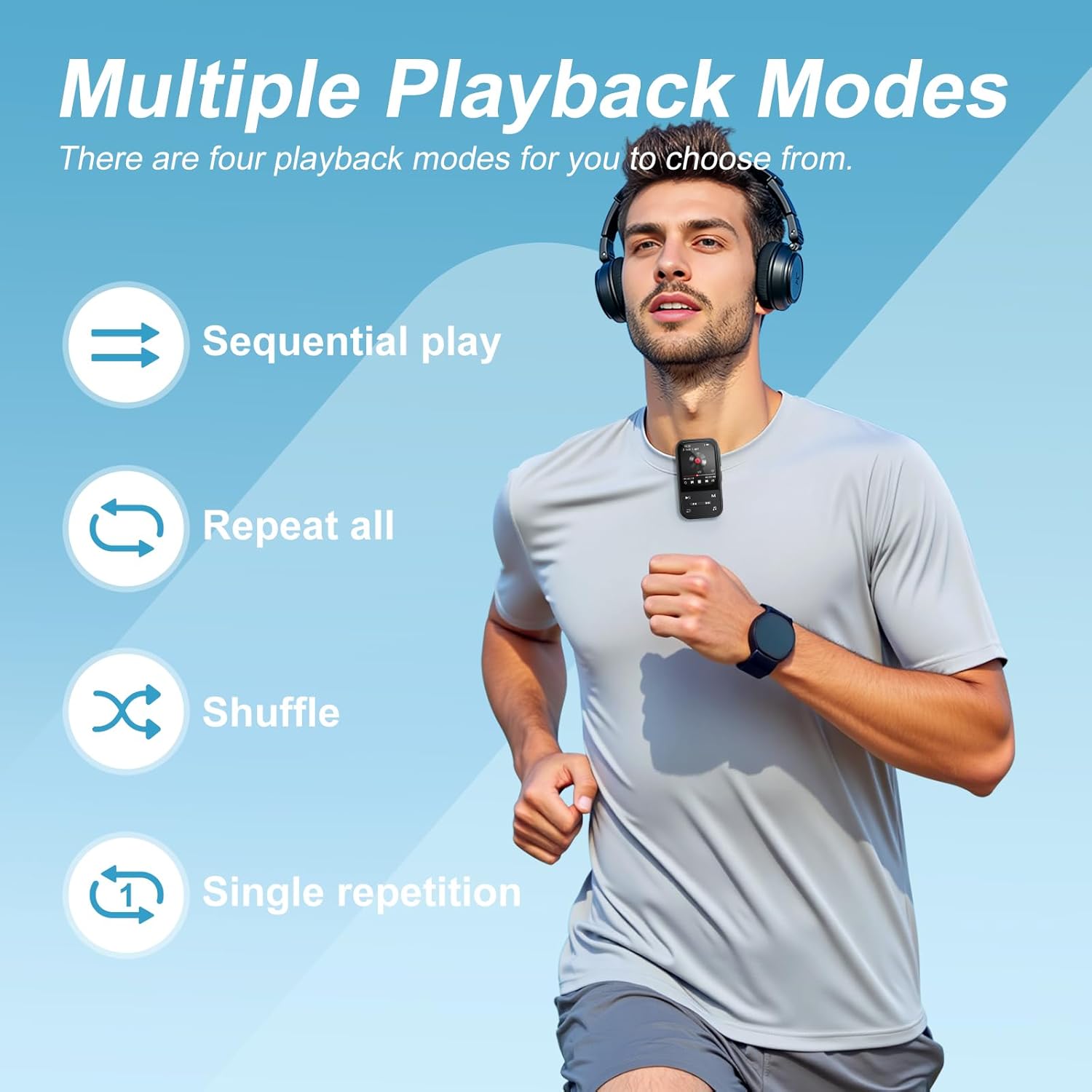
Image: A person running outdoors, wearing the ZAQE X20 MP3 player clipped to their shirt. The image highlights the four available music playback modes: Sequential play, Repeat all, Shuffle, and Single repetition, indicating the player's versatility for different listening preferences.
5.4 Bluetooth Connectivity
The ZAQE X20 features Bluetooth 5.3 for wireless audio streaming to headphones or speakers. Note: The player cannot pair with smartphones or tablets.
- Ensure your Bluetooth headphones or speaker are in pairing mode.
- On the MP3 player, navigate to 'Bluetooth' from the main menu.
- Turn Bluetooth 'On' and select 'Search for Devices'.
- Select your device from the list to pair. Once paired, audio will stream wirelessly.
5.5 FM Radio
To use the FM radio, you must connect the wired earphones as they act as the antenna for signal reception.
- Plug the wired earphones into the player's headphone jack.
- Navigate to 'FM Radio' from the main menu.
- Use the options to auto-scan for stations or manually tune to a frequency.
5.6 Voice Recorder
- From the main menu, select 'Voice Recorder'.
- Select 'Start Recording' to begin.
- Press the OK/Play/Pause button to pause/resume recording.
- Press the Back/Return button to stop and save the recording.
5.7 Pedometer
The pedometer function tracks your steps during physical activity.
- Navigate to 'Pedometer' from the main menu.
- Activate the pedometer before starting your activity.
- The screen will display your step count.
6. Maintenance
- Cleaning: Use a soft, dry cloth to clean the device. Avoid liquid cleaners or abrasive materials.
- Battery Care: To prolong battery life, avoid fully discharging the battery frequently. Charge the device regularly, even if not in use for extended periods.
- Storage: Store the player in a cool, dry place away from direct sunlight, extreme temperatures, and humidity.
- Water Resistance: The device is not waterproof. Avoid exposure to water or excessive moisture.
7. Troubleshooting
7.1 No Sound from Player
- Ensure wired headphones are properly connected or Bluetooth headphones/speakers are paired and connected.
- Check the volume level on the player and the connected audio device.
- Verify that the audio file format is supported.
- Note: The ZAQE X20 does not have built-in speakers. Audio requires external headphones or a Bluetooth speaker.
7.2 Cannot Connect via Bluetooth
- Ensure the target Bluetooth device (headphones/speaker) is in pairing mode and within range.
- Confirm Bluetooth is enabled on the ZAQE X20.
- Restart both the player and the Bluetooth device and try pairing again.
- Remember, the player cannot pair with smartphones or tablets.
7.3 Player Not Responding
- Press and hold the Power button for about 10-15 seconds to force a restart.
- Ensure the battery is charged. Connect to a power source and try again.
7.4 Files Not Appearing on Player
- Ensure files were transferred correctly and are in compatible formats.
- Check if the files are stored in the correct folders (e.g., music in the 'Music' folder).
- If using a Micro SD card, ensure it is properly inserted and recognized by the player.
8. Specifications
| Feature | Specification |
|---|---|
| Model | ZAQE X20 |
| Internal Storage | 128 GB |
| Expandable Storage | Up to 128 GB (Micro SD Card) |
| Bluetooth Version | 5.3 |
| Display | 2.0-inch TFT Color Display |
| Special Features | Voice Recorder, FM Radio, HiFi Sound, Pedometer |
| Battery Type | Lithium Polymer (Rechargeable) |
| Compatible Devices | Personal Computer, Headphones, Speakers |
| Weight | Approximately 35g |
| Dimensions (approx.) | 2.99 x 1.67 x 0.63 inches |
9. Warranty and Support
For warranty information and customer support, please refer to the warranty card included in your product packaging or visit the official ZAQE website. Keep your purchase receipt as proof of purchase for warranty claims.


