
GetD GG13
GetD AI Glasses User Manual
Model: GG13
1. Introduction
Welcome to the user manual for your new GetD AI Glasses. These innovative smart glasses combine the functionality of AI assistance, real-time translation, voice recording, open-ear audio, and polarized sunglasses into a single, stylish device. Designed for daily use, travel, and various activities, they offer a seamless blend of technology and convenience.

Figure 1.1: GetD AI Glasses and companion mobile application interface. The glasses feature a classic black frame with green polarized lenses, and the app shows connection status, sound effects, and other settings.

Figure 1.2: Conceptual diagram illustrating the 3-in-1 functionality of GetD AI Audio Glasses, combining AI capabilities, open-ear audio (earbuds), and polarized sunglasses.
2. What's in the Box
Upon opening your GetD AI Glasses package, please ensure all the following items are present:
- GetD AI Glasses (Black Frame + Green Polarized Lenses)
- Charging Cable
- User Manual
- Cleaning Cloth
- Protective Carrying Case

Figure 2.1: All items included in the GetD AI Glasses product packaging.
3. Setup Guide
3.1 Charging the Glasses
Before initial use, fully charge your GetD AI Glasses.
- Connect the provided charging cable to the magnetic charging port on the glasses.
- Connect the other end of the cable to a USB power adapter (not included) or a computer's USB port.
- The indicator light on the glasses will show charging status. A full charge typically takes approximately 1.5 hours.
Note: A 10-minute charge provides approximately 1 hour of use.

Figure 3.1: The GetD AI Glasses offer extended battery life for music playback and calls.
3.2 Downloading the GetD App
To unlock the full potential of your AI Glasses, download the GetD companion application.
- Scan the QR code provided in the packaging or search for "GetD" in your device's app store (Apple App Store for iOS, Google Play Store for Android).
- Install the application on your smartphone.
- Open the app and log in using your Apple or Google account.
Compatibility: Supports Android 8.1 and above, iOS 15.6 and above.

Figure 3.2: Instructions for downloading and logging into the GetD application.
3.3 Bluetooth Pairing
Pair your GetD AI Glasses with your smartphone via Bluetooth.
- Ensure the glasses are charged and powered on.
- Enable Bluetooth on your smartphone.
- Open the GetD app. The app will guide you through the pairing process.
- Select "GetD AI Glasses" from the list of available Bluetooth devices.
- Confirm pairing when prompted.
Troubleshooting Tip: If connection issues occur, try resetting the glasses by holding the temporal area simultaneously for 8 seconds until a beep is heard, then attempt pairing again.
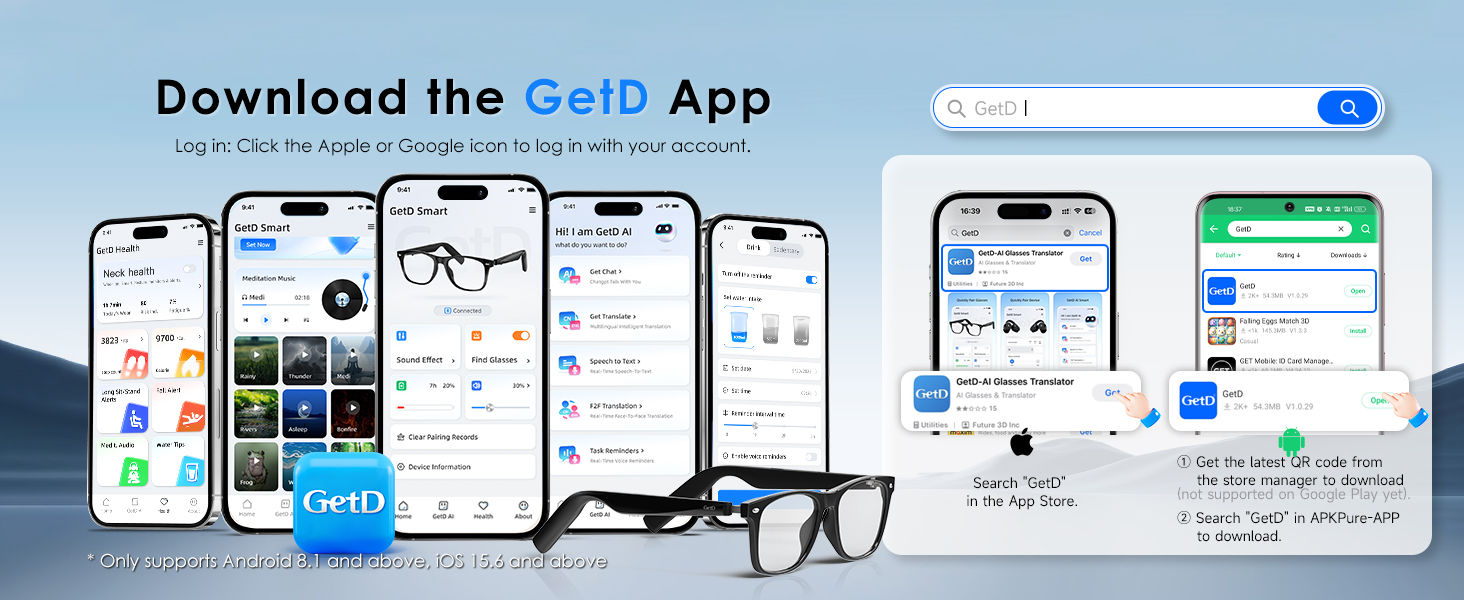
Figure 3.3: The glasses utilize Bluetooth 5.4 for stable connections with both iOS and Android devices.
4. Operating Instructions
4.1 Basic Controls (Music & Calls)
The GetD AI Glasses feature intuitive touch controls on the temples for managing audio and calls.
- Power On/Off: The glasses automatically activate when worn and turn off when removed.
- Play/Pause Music: Tap once on either temple.
- Next Track: Double-tap on the right temple.
- Previous Track: Double-tap on the left temple.
- Answer/End Call: Tap once on either temple during an incoming call.
- Reject Call: Press and hold on either temple during an incoming call.
- Activate Voice Assistant: Triple-tap on either temple (e.g., Siri, Google Assistant).
4.2 AI Assistant (ChatGPT Integration)
Your GetD AI Glasses integrate with an AI assistant powered by ChatGPT, DeepSeek, and other models, providing intelligent and accurate responses.
- Ensure the glasses are connected to the GetD app.
- Activate the AI assistant through the app or by using the designated voice command (refer to app for specific command).
- Speak your query or command clearly. The AI will process your request and provide an audible response through the open-ear speakers.
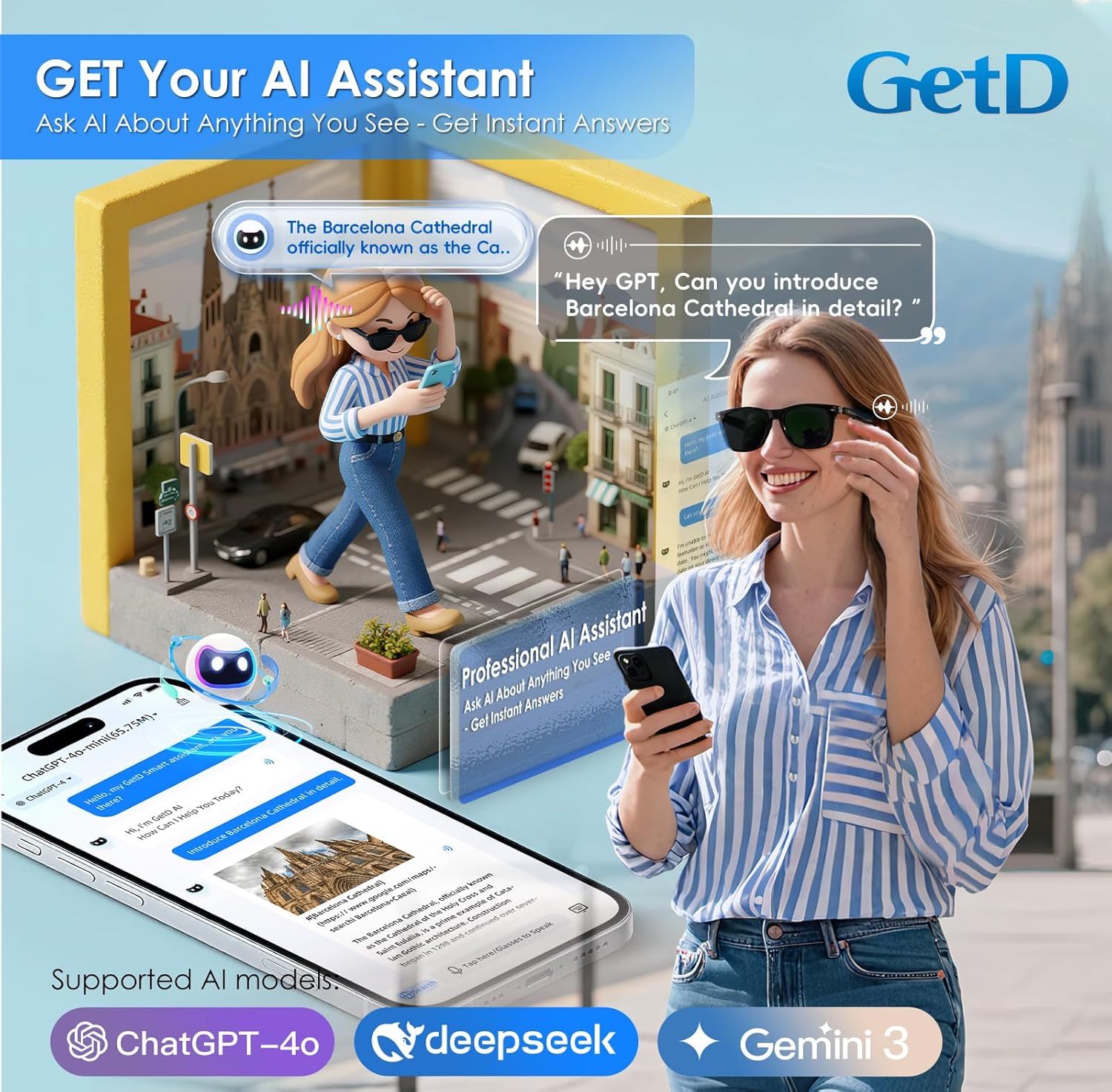
Figure 4.1: Interact with your AI assistant to get instant answers and information.
4.3 Real-time Translation
Experience seamless communication with the bi-directional simultaneous translation feature, supporting 147 languages.
- Open the translation feature within the GetD app.
- Select the source and target languages.
- Speak into the glasses' microphone. The translated speech will be played back through the speakers, and text will appear in the app.
- For bi-directional translation, the other person can speak, and their words will be translated back to you.
Note: Online use is required for translation; offline translation is not supported.

Figure 4.2: The AI-powered translation feature enables communication across 147 languages with high accuracy.
4.4 AI Voice Recorder
The voice recorder feature converts speech to text with high accuracy, ideal for meeting notes and quick memos.
- Access the voice recorder function in the GetD app.
- Start recording. The glasses will capture audio, and the app will transcribe it in real-time.
- Review and save your transcribed notes within the app.

Figure 4.3: The AI Voice Recorder provides advanced transcription with accent correction.
4.5 Photo Capture (iOS Only)
For iOS users, the glasses can trigger your phone's camera to take photos.
- Ensure your iPhone is connected to the glasses and the GetD app is open.
- Triple-click the designated button on the glasses (refer to app for specific button mapping).
- Your iPhone will capture a photo.
Note: The glasses do not have a built-in camera. This feature uses your connected iOS device's camera.
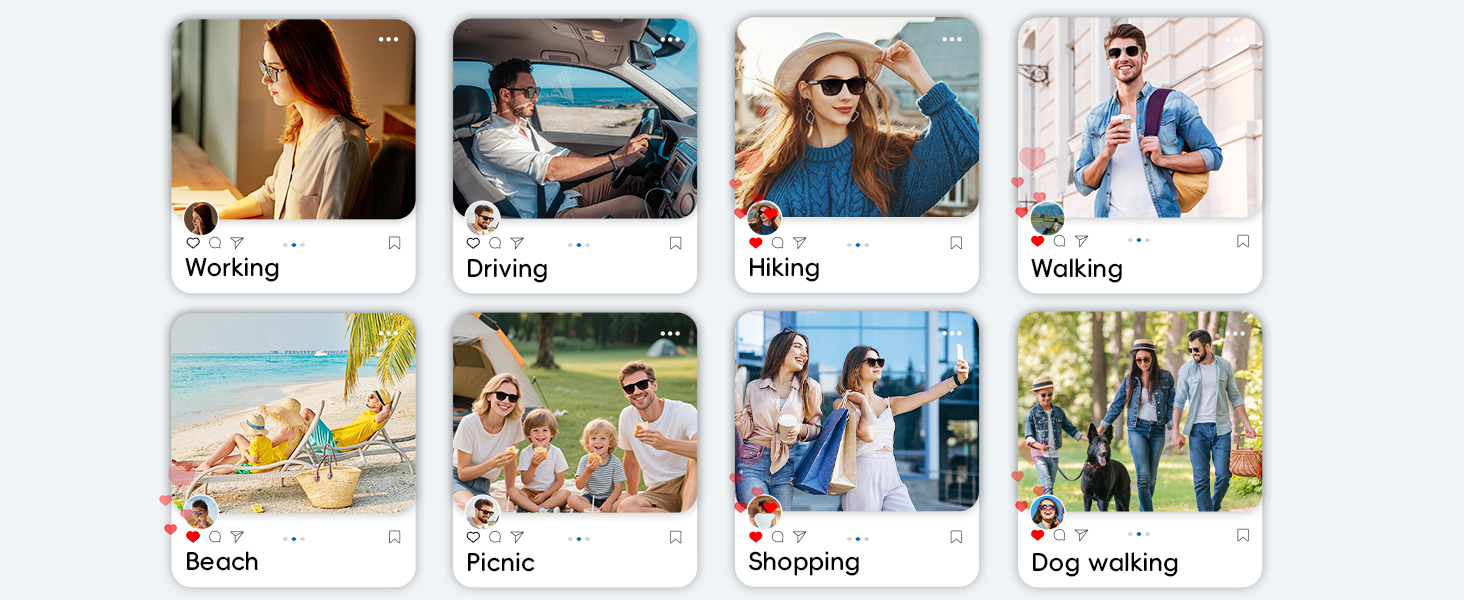
Figure 4.4: Perfect selfies can be captured by triggering your iPhone's camera via the AI Glasses.
5. Features Overview
5.1 Open-Ear Audio System
The GDirect Directional Open-Ear Design delivers superior stereo sound while allowing you to remain aware of your surroundings. This design is more comfortable for daily wear compared to traditional earbuds.
- Crystal Clear Calls: Equipped with 2 Beam-forming Environment Noise Reduction microphones for hands-free calls.
- Bluetooth 5.4: Ensures stable and efficient wireless connections.

Figure 5.1: The OWS Noise Reduction Audio Glasses provide clear sound and calls by minimizing environmental noise.
5.2 Polarized Lenses & Frame Design
The GetD AI Glasses feature high-quality polarized lenses and a durable, lightweight frame.
- 100% UV400 Protection: Shields your eyes from harmful UVA and UVB rays.
- Anti-glare: Reduces glare for clear vision, especially in bright conditions.
- Excellent Light Transmission & Color Accuracy: Provides true color vision.
- Impact Resistance: Designed for durability.
- Lightweight TR90 Frame: Offers comfort for extended wear.
- Rx Lens Compatible: The frame can be fitted with prescription lenses by an optician.

Figure 5.2: The polarized lenses offer comprehensive UV protection and enhanced visual clarity.

Figure 5.3: The unisex design and classic style of the glasses make them suitable for various activities and face shapes.
6. Maintenance and Care
Proper care will extend the lifespan and maintain the performance of your GetD AI Glasses.
- Cleaning Lenses: Use the provided cleaning cloth or a soft, lint-free cloth. For stubborn smudges, use a lens cleaning spray specifically designed for eyewear. Avoid using paper towels or abrasive materials.
- Cleaning Frame: Wipe the frame with a soft, damp cloth. Avoid harsh chemicals or solvents.
- Storage: When not in use, store the glasses in the protective carrying case to prevent scratches and damage.
- Water Resistance: The glasses are IP54 water resistant, meaning they are protected from splashing water from any direction. Do not submerge them in water or expose them to heavy rain.
- Temperature: Avoid exposing the glasses to extreme temperatures (hot or cold) as this can damage the battery and electronic components.
7. Troubleshooting
If you encounter issues with your GetD AI Glasses, refer to the following common problems and solutions:
| Problem | Possible Cause | Solution |
|---|---|---|
| Glasses won't power on. | Low battery. | Charge the glasses fully using the provided cable. |
| Cannot pair with smartphone. | Bluetooth is off on phone; glasses not in pairing mode; interference. | Ensure Bluetooth is enabled. Reset glasses (hold temporal area for 8s). Restart phone. Move closer to glasses. |
| No audio or poor sound quality. | Volume too low; glasses not properly positioned; connection issue. | Adjust volume on phone/app. Ensure glasses are worn correctly. Reconnect Bluetooth. |
| AI features (translation, assistant) not working. | No internet connection; app not open/updated; microphone blocked. | Ensure stable internet connection. Open/update GetD app. Check microphone for obstructions. |
| Short battery life. | High volume usage; frequent AI feature use; aging battery. | Reduce volume. Limit continuous AI feature use. Ensure full charge cycles. |
8. Specifications
| Feature | Detail |
|---|---|
| Model Number | GG13 |
| Brand | GetD |
| Connectivity | Bluetooth 5.4 |
| Battery Capacity | 2 x 115mAh (Total 230mAh) |
| Music Playback Time | Up to 11 hours (at 50% volume) |
| Call Time | Up to 9 hours (at 50% volume) |
| Standby Time | Up to 15 days |
| Charging Time | Approx. 1.5 hours (10 mins charge for 1 hour use) |
| Frame Material | Lightweight TR90 |
| Lens Type | Polarized, 100% UV400 Protection |
| Water Resistance | IP54 |
| Operating System Compatibility | iOS 15.6+ & Android 8.1+ |
| AI Assistant Integration | ChatGPT, DeepSeek, etc. |
| Translation Languages | 147 languages (bi-directional simultaneous) |
| Microphones | 2 Beam-forming Environment Noise Reduction microphones |
| Item Weight | 150 Grams (5.3 ounces) |
| Dimensions (Approx.) | Lens Width: 53mm, Lens Height: 42.7mm, Bridge Width: 21.2mm, Leg Length: 166mm, Horizontal Frame Width: 148mm |

Figure 8.1: Detailed dimensions of the GetD AI Glasses.
9. Warranty and Support
For warranty information and customer support, please refer to the official GetD website or contact their customer service directly. Details can typically be found on the product packaging or within the GetD application.
Online Resources: Visit the GetD Store on Amazon for additional product information and updates.
Ask a question about this manual
Ask about setup, troubleshooting, compatibility, parts, safety, or missing instructions. Manuals+ will review the question and use this page’s manual context to help answer it.