
LEFFOT X96Q-RK3518
LEFFOT Android TV Box 2025 User Manual
Model: X96Q-RK3518
1. Introduction
Thank you for choosing the LEFFOT Android TV Box 2025. This device is designed to transform your television into a smart entertainment hub, offering 4K Ultra HD streaming, a powerful processor, and access to a vast array of applications. With its dual-band Wi-Fi 6, Bluetooth 5.0, and Google Assistant voice remote, you can enjoy a seamless and immersive viewing experience. This manual provides detailed instructions on setting up, operating, and maintaining your new TV box.
2. Package Contents

Image: Contents of the LEFFOT Android TV Box package, showing the main unit, remote control, power adapter, and HDMI cable, along with a small user manual.
Please check the box for the following items:
- LEFFOT Android TV Box (X96Q-RK3518)
- Bluetooth Voice Remote Control
- HDMI Cable
- Power Adapter (5V/2A)
- User Manual (this document)
If any items are missing or damaged, please contact customer support.
3. Product Overview and Features

Image: The LEFFOT Android TV Box, a compact black square device, shown alongside its black voice-enabled remote control.
The LEFFOT Android TV Box is equipped with advanced features for a superior streaming experience:
- 4K Ultra HD Streaming: Supports 4K@60fps decoding with HDR10, H.265/HEVC, H.264, and AVS2 codecs for vibrant and detailed visuals.
- Powerful Performance: Features a Rockchip RK3518 Quad-Core Cortex-A53 CPU and ARM Mali-450 GPU for smooth 4K content playback.
- Android 14 OS: Access to a wide range of apps via Google Play Store.
- Memory & Storage: 2GB RAM and 16GB ROM, expandable via USB 3.0 or microSD card.
- Dual-Band Wi-Fi 6: Supports 2.4GHz/5GHz (802.11 b/g/n/ac/ax) for stable and fast wireless connectivity.
- Bluetooth 5.0: For connecting the voice remote and other Bluetooth accessories.
- Voice-Controlled Convenience: Integrated Google Assistant via the BT 5.0 remote for hands-free navigation.
- Versatile Connectivity: Includes HDMI 2.0, USB 3.0, USB 2.0, AV, IR, microSD, and 100M Ethernet ports.
- Screen Mirroring: Supports DLNA, AirPlay, and Miracast for casting content from mobile devices.
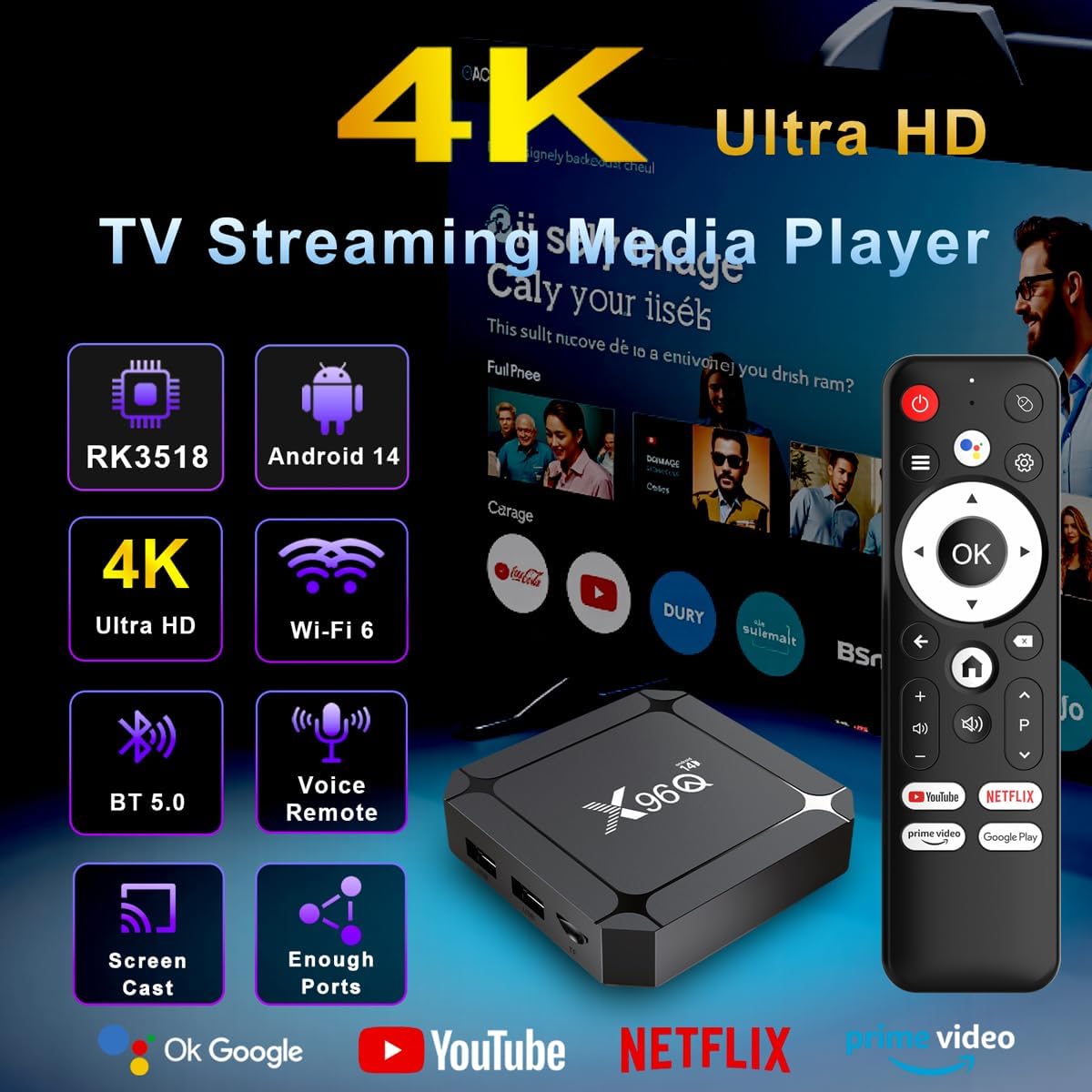
Image: An infographic highlighting the main features of the TV box: RK3518 processor, Android 14, 4K Ultra HD support, Wi-Fi 6, Bluetooth 5.0, voice remote, screen casting capabilities, and multiple ports.

Image: A split screen showing the difference between 1080P and 4K Ultra HD resolution on a TV, emphasizing vibrant colors and sharp details, with icons for 4K UHD, H.265 HEVC, and HDR10.
4. Setup Guide
4.1 Connecting Your TV Box
Follow these steps to connect your LEFFOT Android TV Box to your television and power source:
- Connect to TV: Insert one end of the provided HDMI cable into the HDMI port on the TV Box and the other end into an available HDMI input on your television.
- Connect to Power: Plug the power adapter into the DC IN port on the TV Box, then plug the adapter into a wall outlet.
- Optional: Ethernet Connection: For a more stable internet connection, connect an Ethernet cable from your router to the Ethernet port on the TV Box.
- Optional: USB Devices: Connect USB storage devices, keyboards, or mice to the USB 2.0 or USB 3.0 ports.
- Optional: MicroSD Card: Insert a microSD card into the TF CARD slot for expanded storage.
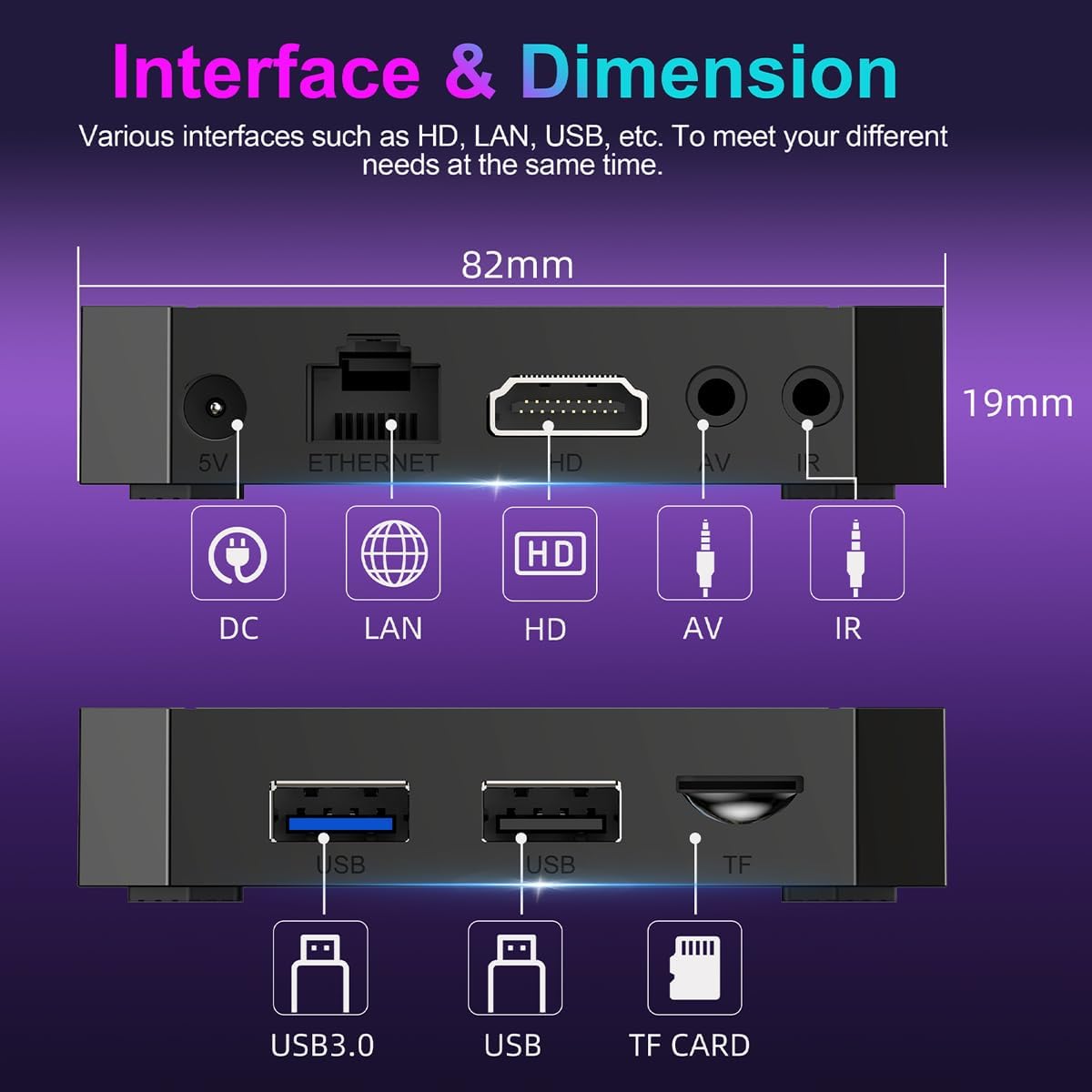
Image: A detailed diagram showing the various ports on the LEFFOT Android TV Box, including DC IN, Ethernet, HDMI, AV, IR, USB 3.0, USB 2.0, and TF CARD (microSD) slots, along with its dimensions (82mm x 82mm x 19mm).
4.2 Initial Power On and Remote Pairing
- Power On: Once connected, the TV Box should automatically power on. If not, press the power button on the remote control.
- Select Input: On your TV, select the correct HDMI input source using your TV's remote control.
- Remote Pairing (Bluetooth Remote): The Bluetooth remote control should automatically pair with the TV Box upon first use. If it doesn't, ensure the remote has batteries and follow any on-screen prompts for pairing. Typically, you might need to press and hold specific buttons (e.g., Home and OK) simultaneously until an indicator light flashes, then release.
- Initial Setup Wizard: Follow the on-screen instructions to complete the initial setup, including language selection, Wi-Fi network connection, and Google account login.
5. Operating Your TV Box
5.1 Navigating the Interface
Use the provided Bluetooth remote control to navigate the Android TV interface. The directional pad (D-pad) is used for moving between items, and the "OK" button confirms selections. The "Back" button returns to the previous screen, and the "Home" button takes you to the main home screen.
5.2 Using the Voice Remote (Google Assistant)

Image: A user interacting with the LEFFOT Android TV Box using the voice remote, demonstrating how to activate Google Assistant by pressing the voice button and speaking commands like "Hey Google, workout music" or "Hey Google, Please play a movie."
The remote features a built-in microphone for Google Assistant. To use voice commands:
- Press the dedicated Google Assistant (microphone) button on the remote.
- Speak clearly into the microphone. You can ask it to search for movies, open apps, check the weather, control smart home devices, and more.
- The TV Box will process your command and display the results or perform the requested action.
5.3 Installing and Managing Apps
The LEFFOT Android TV Box comes with Google Play Store pre-installed, allowing you to download and install a wide variety of applications.
- Install Apps: Navigate to the Google Play Store icon on the home screen, open it, and search for your desired apps (e.g., Netflix, YouTube, Hulu). Select an app and choose "Install."
- Manage Apps: Go to Settings > Apps to view installed applications, clear cache/data, uninstall apps, or force stop them.
6. Connectivity
6.1 Wi-Fi Connection
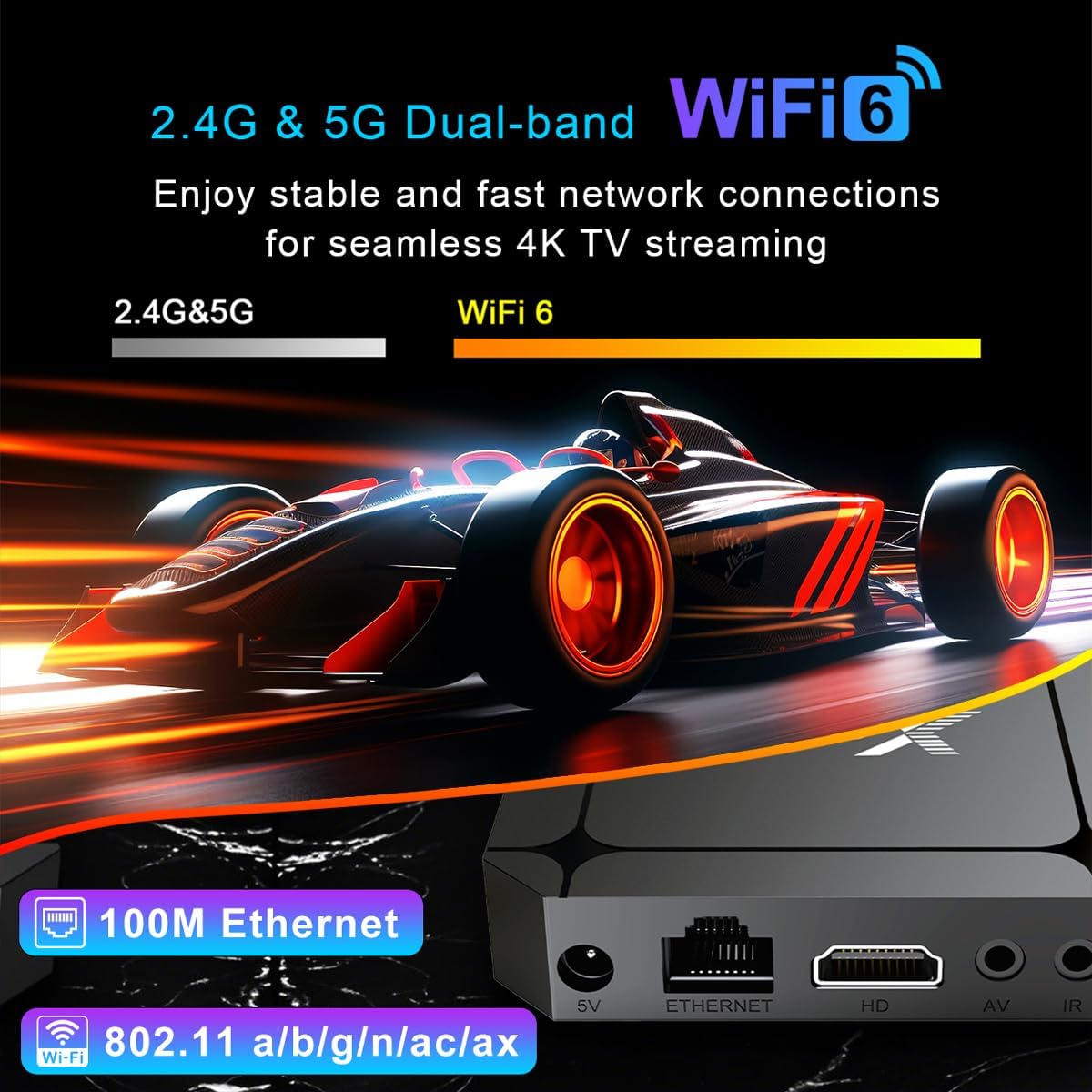
Image: An illustration highlighting the dual-band Wi-Fi 6 (2.4G & 5G) and 100M Ethernet port of the TV box, indicating stable and fast network connections for 4K TV streaming.
To connect to a Wi-Fi network:
- Go to Settings > Network & Internet.
- Ensure Wi-Fi is turned "On".
- Select your desired Wi-Fi network from the list.
- Enter the network password if prompted and select "Connect".
6.2 Bluetooth Connection
The TV Box supports Bluetooth 5.0 for connecting accessories like game controllers, headphones, or external speakers.
- Go to Settings > Connected Devices > Pair new device.
- Put your Bluetooth device into pairing mode.
- Select your device from the list of available devices to pair.
7. Screen Mirroring
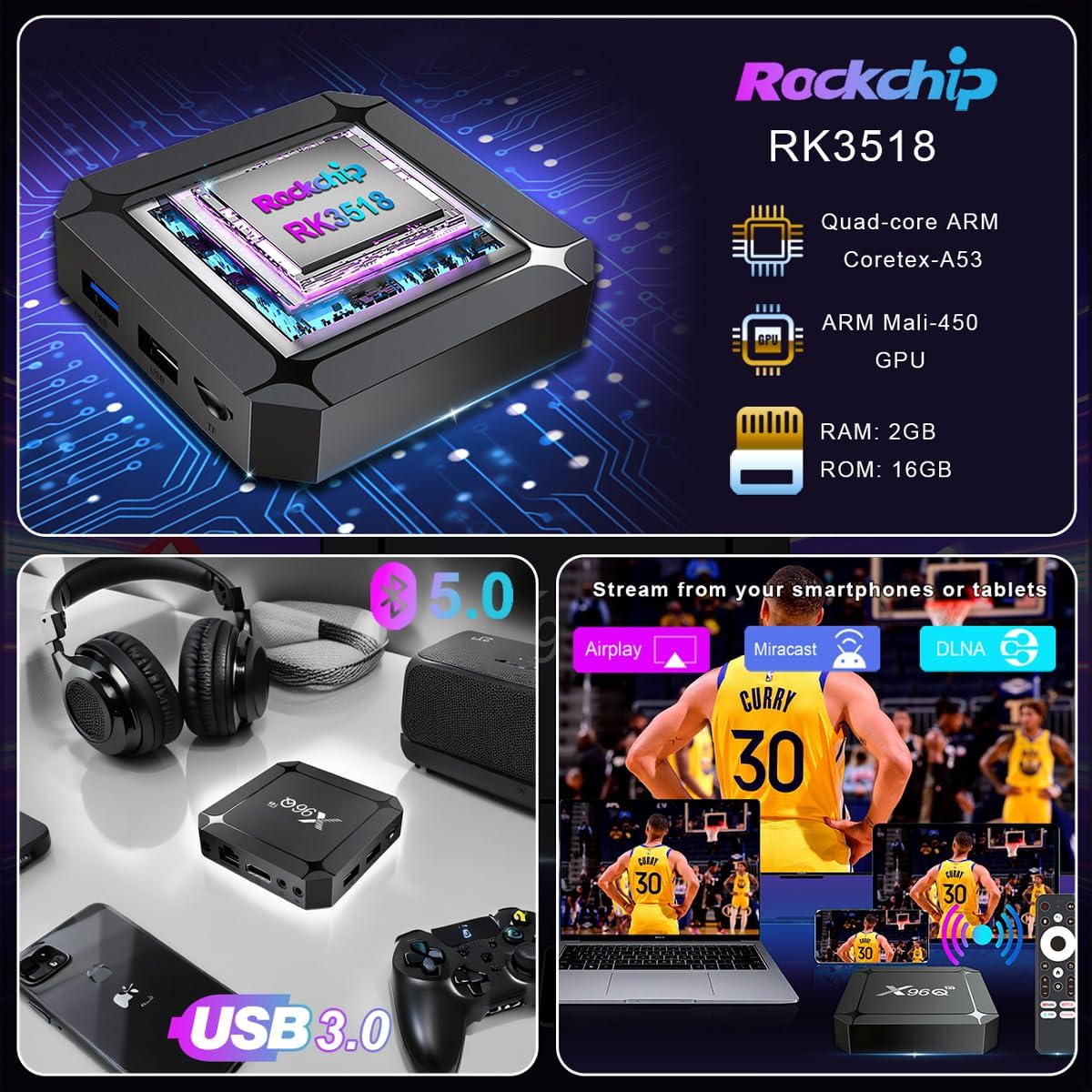
Image: An illustration showing content being streamed from a smartphone and a laptop to a TV, with icons for Airplay, Miracast, and DLNA, indicating the TV box's screen mirroring capabilities.
The LEFFOT Android TV Box supports various screen mirroring protocols, allowing you to cast content from your smartphone or tablet to your TV:
- DLNA: For sharing media content (photos, videos, music) from DLNA-compatible devices.
- AirPlay: For mirroring content from Apple iOS devices.
- Miracast: For mirroring content from Android devices.
To use screen mirroring, ensure your mobile device and the TV Box are connected to the same Wi-Fi network. Then, activate the casting feature on your mobile device and select the TV Box from the available devices.
8. Specifications
| Feature | Description |
|---|---|
| Product Name | X96Q-RK3518 Android TV Box |
| CPU | Rockchip RK3518 Quad-Core Cortex-A53 |
| GPU | ARM Mali-450 GPU (OpenGL ES 1.1/2.0, OpenVG 1.1) |
| System | Android 14 (Multi-Language) |
| RAM | 2GB |
| ROM | 16GB (Expandable via microSD/USB) |
| Wi-Fi | Dual-Band Wi-Fi 6 (2.4GHz/5GHz, 802.11 b/g/n/ac/ax) |
| Bluetooth | BT 5.0 |
| Image Formats | HD JPEG, BMP, GIF, PNG, TIF |
| Audio Output | 3.5mm audio output (supports multiple CODECs) |
| Screen Mirroring | DLNA, AirPlay, Miracast |
| Interfaces | HDMI 2.0 (4K@60fps), USB 3.0 x1, USB 2.0 x1, AV x1, IR x1, microSD, Ethernet (100M), DC IN (5V/2A) |
| Main Video Decoders | H.265/HEVC 4K@60fps, H.264 4K@60fps, AVS2 4K@60fps |
| Video Output | 4K UHD (3840x2160) @60fps, HDR10 supported |
| Dimensions | 3.2 x 3.2 x 0.67 inches (approx. 82 x 82 x 17 mm) |
| Weight | 4.6 ounces (approx. 130g) |
9. Troubleshooting
If you encounter issues with your LEFFOT Android TV Box, please refer to the following common problems and solutions:
- No Power:
- Ensure the power adapter is securely connected to the TV Box and a working power outlet.
- Verify the power outlet is active.
- Try a different power outlet.
- No Picture on TV:
- Check if the HDMI cable is securely connected to both the TV Box and the TV.
- Ensure your TV is set to the correct HDMI input source.
- Try a different HDMI port on your TV or a different HDMI cable.
- Restart the TV Box by unplugging and replugging the power adapter.
- Remote Control Not Responding:
- Check and replace the batteries in the remote control.
- Ensure there are no obstructions between the remote and the TV Box.
- Re-pair the Bluetooth remote if necessary (refer to Section 4.2).
- Wi-Fi Connection Issues:
- Ensure your Wi-Fi router is working correctly.
- Check if the Wi-Fi password entered is correct.
- Restart your Wi-Fi router and the TV Box.
- Move the TV Box closer to the router or use an Ethernet cable for a wired connection.
- Apps Crashing or Freezing:
- Go to Settings > Apps, select the problematic app, and try "Clear Cache" or "Clear Data".
- Ensure the app is updated to its latest version from the Google Play Store.
- If the issue persists, try uninstalling and reinstalling the app.
- Ensure sufficient storage space is available on the device.
10. Maintenance
Proper maintenance can extend the life of your LEFFOT Android TV Box:
- Cleaning: Use a soft, dry cloth to clean the exterior of the TV Box. Do not use liquid cleaners or aerosols.
- Ventilation: Ensure the TV Box is placed in a well-ventilated area to prevent overheating. Do not cover ventilation openings.
- Storage: When not in use for extended periods, unplug the device and store it in a cool, dry place.
- Software Updates: Periodically check for system updates via Settings > Device Preferences > About > System update to ensure optimal performance and security.
11. Warranty and Support
The LEFFOT Android TV Box comes with a standard manufacturer's warranty. Please refer to the warranty card included in your package for specific terms and conditions.
For technical support, troubleshooting assistance, or warranty claims, please contact LEFFOT customer service through the contact information provided on the product packaging or the official LEFFOT website.
Customer Support Email: support@leffot.com (Example, replace with actual if available)
Official Website: www.leffot.com (Example, replace with actual if available)
Related documentsX96Q-RK3518

Ask a question about this manual
Ask about setup, troubleshooting, compatibility, parts, safety, or missing instructions. Manuals+ will review the question and use this page’s manual context to help answer it.