
1. Initial Setup
This section guides you through the initial setup of your OPPO Reno 14 F 5G CPH2743 device, ensuring it is ready for use.
1.1 Package Contents
Before proceeding, verify that your package contains the following items:
- OPPO Reno 14 F 5G CPH2743 Smartphone
- USB Type-C Cable
- Power Adapter
- SIM Ejector Tool
- Quick Start Guide
- Safety Information and Warranty Card
1.2 Inserting SIM Cards and Charging
- Locate the SIM Card Tray: Use the provided SIM ejector tool to open the SIM card tray, typically located on the side of the device.
- Insert SIM Cards: Carefully place your Nano-SIM cards into the designated slots on the tray. This device supports Dual SIM functionality. Ensure the gold contacts face downwards.
- Reinsert Tray: Gently push the SIM card tray back into the device until it is flush.
- Charge the Device: Connect the USB Type-C cable to the phone's charging port and the power adapter. Plug the adapter into a power outlet. Allow the device to charge for at least 30 minutes before initial power-on.
1.3 Powering On and Initial Configuration
- Power On: Press and hold the Power button (usually on the right side) until the OPPO logo appears.
- Follow On-Screen Prompts: The device will guide you through the initial setup process, including language selection, Wi-Fi connection, Google account setup, and security settings.
- Data Transfer (Optional): If you are transferring data from an old device, follow the on-screen instructions or use OPPO's dedicated data migration tools.
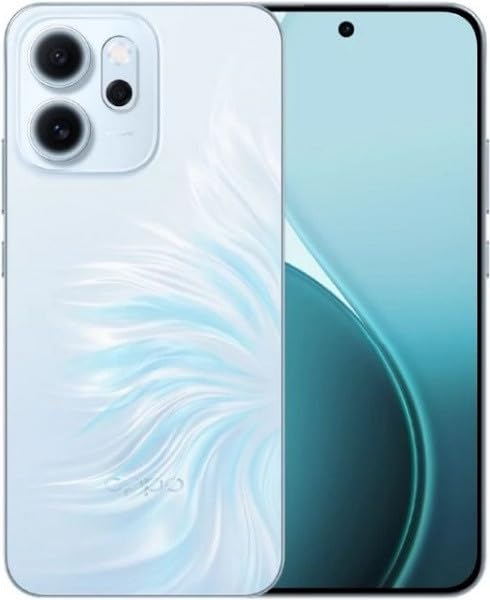
This image displays the OPPO Reno 14 F 5G CPH2743 smartphone. The front view shows the full-screen display with a punch-hole camera at the top center. The back view highlights the triple camera module in the upper left corner and the distinctive light blue, feather-like pattern on the Opal Blue finish, with the OPPO logo near the bottom.
2. Basic Operation
Understand the fundamental operations of your OPPO Reno 14 F 5G CPH2743 to navigate and utilize its features effectively.
2.1 Touchscreen Gestures
- Tap: Touch the screen once to select an item, open an app, or confirm an action.
- Touch and Hold: Press and hold an item to access contextual menus or move icons.
- Swipe: Drag your finger across the screen to scroll through lists, switch between home screens, or navigate tabs.
- Pinch: Use two fingers to zoom in or out on photos, maps, or web pages.
2.2 Navigation
Your device uses on-screen navigation gestures or buttons. You can customize these in Settings > System settings > System navigation.
- Home: Return to the home screen.
- Back: Go back to the previous screen.
- Recent Apps: View and switch between recently used applications.
2.3 Making Calls and Sending Messages
- Making a Call: Open the Phone app, enter the number, and tap the call icon. Alternatively, select a contact from your Contacts app.
- Sending a Message: Open the Messages app, tap the new message icon, enter the recipient's number or select a contact, type your message, and tap send.
2.4 Connecting to Networks
- Wi-Fi: Go to Settings > Wi-Fi, turn on Wi-Fi, select your desired network, and enter the password if required.
- Bluetooth: Go to Settings > Bluetooth, turn on Bluetooth, and pair with compatible devices.
- Mobile Data: Ensure your SIM card is active and mobile data is enabled in Settings > Mobile network.
2.5 Camera Usage
Open the Camera app from your home screen or lock screen. Select your desired mode (Photo, Video, Portrait, Night, etc.), frame your shot, and tap the shutter button to capture.
3. Care and Maintenance
Proper care extends the lifespan of your OPPO Reno 14 F 5G CPH2743 and ensures optimal performance.
3.1 Cleaning Your Device
- Use a soft, lint-free cloth to wipe the screen and back panel.
- Avoid using harsh chemicals, abrasive materials, or aerosol sprays.
- For stubborn smudges, slightly dampen the cloth with water or a screen cleaner specifically designed for electronics.
3.2 Battery Care
- Avoid extreme temperatures, as they can degrade battery performance.
- Use only the original charger and cable provided with your device.
- Do not leave the device charging for extended periods after it reaches 100%.
3.3 Software Updates
Regularly check for and install software updates to ensure your device has the latest features, security patches, and performance improvements. Go to Settings > About device > Up to date to check for updates.
3.4 Storage Management
Your device comes with 512GB of internal storage. To maintain optimal performance:
- Regularly delete unnecessary files, photos, and videos.
- Uninstall unused applications.
- Utilize cloud storage services for backups.
4. Troubleshooting
This section addresses common issues you might encounter with your OPPO Reno 14 F 5G CPH2743 and provides basic solutions.
4.1 Device Not Powering On
- Check Battery: Ensure the device has sufficient charge. Connect it to the charger for at least 15 minutes.
- Force Restart: Press and hold the Power button and Volume Up button simultaneously for about 10-15 seconds until the OPPO logo appears.
4.2 Network Connectivity Issues
- No Signal/Poor Signal: Check if your SIM card is properly inserted. Try restarting the device. Ensure you are in an area with network coverage.
- Wi-Fi Connection Problems: Restart your Wi-Fi router. Forget the network on your phone and reconnect.
4.3 Applications Crashing or Freezing
- Force Close App: Go to Recent Apps, swipe up on the problematic app to close it, then reopen.
- Clear Cache: Go to Settings > Apps > App management, select the app, then Storage usage > Clear cache.
- Update App: Ensure the app is updated to its latest version from the Google Play Store.
4.4 Factory Reset (Last Resort)
If issues persist, a factory reset may resolve them. Warning: This will erase all data on your device. Back up important data before proceeding.
- Go to Settings > System settings > Back up and reset > Reset phone.
- Select Erase all data and follow the on-screen instructions.
5. Technical Specifications
Key technical specifications for the OPPO Reno 14 F 5G CPH2743.
| Feature | Specification |
|---|---|
| Brand | OPPO |
| Model Name | Oppo Reno 14 F 5G CPH2743 |
| Memory Storage Capacity | 512 GB |
| RAM Memory Installed Size | 12 GB |
| Display Type | AMOLED |
| Cellular Technology | 5G |
| SIM Card Slot Count | Dual SIM |
| Color | Blue |
| Form Factor | Bar |
| Country/Region of Origin | China |
6. Warranty and Support
For detailed warranty information, please refer to the warranty card included in your product package or visit the official OPPO website. Keep your proof of purchase for warranty claims.
6.1 Customer Support
If you encounter issues not covered in this manual or require further assistance, please contact OPPO customer support through their official channels. You can often find support contact information on the OPPO website or within the device's settings under 'About phone' or 'Support'.
Visit the OPPO Store for more product information and accessories.


