
1. Safety Information
Read all safety information before using your device to ensure safe and proper use. Keep this manual for future reference.
- Do not use the device in environments with extreme temperatures.
- Avoid exposing the device to water or excessive moisture.
- Use only OPPO-approved chargers, batteries, and accessories.
- Do not attempt to disassemble, repair, or modify the device yourself.
- Maintain a safe distance from medical implants when using the device.
- Dispose of the device and its battery responsibly according to local regulations.
2. Package Contents
Verify that your product package contains the following items:
- OPPO Reno 14 F 5G CPH2743 Smartphone
- USB Type-C Cable
- Power Adapter
- SIM Ejector Tool
- Quick Start Guide
- Safety Guide (this document)
- Protective Case (may vary by region)
3. Device Overview
Familiarize yourself with the physical features of your OPPO Reno 14 F 5G CPH2743.
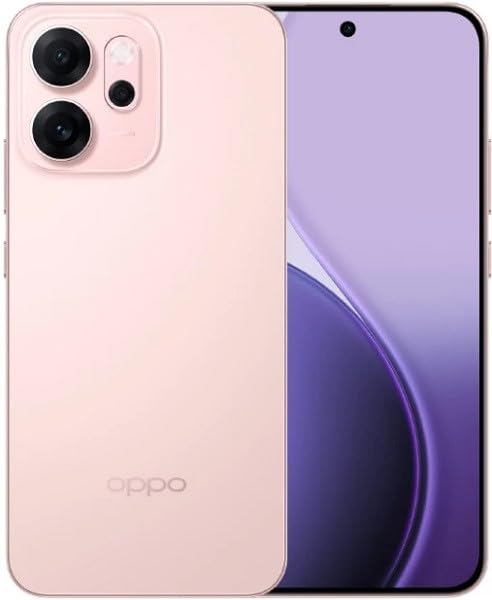
Figure 3.1: Front and back view of the OPPO Reno 14 F 5G CPH2743 smartphone. This image displays the device in its glossy pink finish, highlighting the screen, camera module, and side buttons.
- Front Camera: Located at the top of the display.
- Earpiece: For calls, located above the display.
- Volume Buttons: On the left side, for adjusting media and call volume.
- Power Button: On the right side, for turning the device on/off and locking/unlocking the screen.
- SIM Card Tray: Located on the side, requires the SIM ejector tool to open.
- USB Type-C Port: At the bottom, for charging and data transfer.
- Speaker: At the bottom, for audio output.
- Microphone: At the bottom, for voice input.
- Rear Camera Module: On the back, contains multiple lenses and flash.
4. Setup
4.1. Installing SIM Cards
- Locate the SIM card tray on the side of your device.
- Insert the SIM ejector tool into the small hole next to the tray and press firmly until the tray pops out.
- Place your Nano-SIM cards into the designated slots on the tray, ensuring the gold contacts face down. This device supports Dual SIM functionality.
- Carefully reinsert the tray into the device until it clicks into place.
4.2. Powering On/Off
- To Power On: Press and hold the Power button on the right side until the OPPO logo appears.
- To Power Off: Press and hold the Power button, then tap "Power off" on the screen. Alternatively, swipe down from the top of the screen to open the notification panel, then tap the power icon and select "Power off".
- To Restart: Press and hold the Power button, then tap "Restart" on the screen.
4.3. Initial Configuration
Upon first power-on, follow the on-screen prompts to set up your device:
- Select your language and region.
- Connect to a Wi-Fi network.
- Review and accept the End User License Agreement.
- Sign in with your Google account or create a new one.
- Set up screen lock (PIN, pattern, password, fingerprint, face unlock).
- Restore data from a previous device (optional).
- Configure other settings as prompted.
5. Operating Your Device
5.1. Basic Navigation
- Tap: Touch the screen once to open an app, select an item, or press a button.
- Touch and Hold: Press and hold an item to access additional options or move it.
- Swipe: Drag your finger across the screen to scroll, switch screens, or dismiss notifications.
- Pinch: Use two fingers to zoom in or out on photos, maps, or web pages.
5.2. Making Calls
- Open the Phone app.
- Tap the Dialpad icon.
- Enter the phone number or select a contact from your Contacts list.
- Tap the Call button to initiate the call.
5.3. Sending Messages
- Open the Messages app.
- Tap the Start chat or New message icon.
- Enter the recipient's phone number or select from contacts.
- Type your message in the text field.
- Tap the Send button.
5.4. Internet Connectivity
- Wi-Fi: Go to Settings > Wi-Fi, turn Wi-Fi on, and select a network to connect.
- Mobile Data: Go to Settings > Mobile Network, and ensure "Mobile data" is enabled.
5.5. Camera Functions
Open the Camera app to capture photos and videos.
- Tap the Shutter button to take a photo.
- Swipe left or right to switch between camera modes (e.g., Photo, Video, Portrait, Night).
- Tap the Switch Camera icon to toggle between front and rear cameras.
5.6. Applications
- Install Apps: Use the Google Play Store to download and install new applications.
- Manage Apps: Go to Settings > Apps > App management to view, uninstall, or force stop applications.
6. Maintenance
6.1. Cleaning Your Device
- Use a soft, lint-free cloth to gently wipe the screen and body of the device.
- Avoid using harsh chemicals, abrasive cleaners, or compressed air.
- Ensure no liquid enters ports or openings.
6.2. Software Updates
Regularly check for and install software updates to improve device performance, security, and introduce new features.
- Go to Settings > About device > Up to date (or similar path depending on ColorOS version).
- Follow the on-screen instructions to download and install any available updates. Ensure your device is sufficiently charged and connected to Wi-Fi before updating.
6.3. Battery Care
- Avoid fully discharging the battery frequently. Charge it before it drops too low.
- Do not expose the device to extreme heat or cold, as this can degrade battery life.
- Use the original charger and cable for optimal charging performance and safety.
- If the device will not be used for an extended period, charge it to about 50% before storing.
7. Troubleshooting
This section addresses common issues you might encounter with your device.
| Problem | Solution |
|---|---|
| Device does not turn on. | Ensure the battery is charged. Connect the charger and wait a few minutes before attempting to power on. If unresponsive, perform a force restart by holding the Power button and Volume Up button simultaneously for about 10 seconds. |
| Cannot connect to Wi-Fi. | Check if Wi-Fi is enabled in Settings. Restart your router and the phone. Forget the network and try reconnecting. Ensure you are entering the correct password. |
| Poor network signal or no service. | Check if SIM cards are properly inserted. Try restarting the device. Ensure "Mobile data" is enabled in Settings. If the issue persists, contact your network provider. |
| Apps are crashing or freezing. | Clear the cache and data for the problematic app (Settings > Apps > App management > [App Name] > Storage usage). Update the app to the latest version. If the issue continues, uninstall and reinstall the app. |
| Battery drains quickly. | Check battery usage in Settings to identify power-hungry apps. Reduce screen brightness, disable unnecessary features like GPS or Bluetooth when not in use. Close background apps. |
8. Specifications
Key technical specifications for the OPPO Reno 14 F 5G CPH2743.
| Feature | Detail |
|---|---|
| Model Name | Oppo Reno 14 F 5G CPH2743 |
| Brand | OPPO |
| Memory Storage Capacity | 256 GB |
| RAM Memory Installed Size | 12 GB |
| Cellular Technology | 5G |
| Connectivity Technology | 5G, 4G, 3G, 2G |
| SIM Card Slot Count | Dual SIM |
| Form Factor | Slate |
| Colour | Pink |
9. Warranty and Support
Your OPPO Reno 14 F 5G CPH2743 is covered by a limited warranty. The specific terms and conditions of the warranty may vary by region and retailer.
- Warranty Information: Refer to the warranty card included in your product package or visit the official OPPO website for detailed warranty terms.
- Technical Support: For technical assistance, troubleshooting beyond this manual, or service requests, please contact OPPO customer support. Contact details can typically be found on the official OPPO website or in the "Support" section of your device's settings.
- Online Resources: Visit the official OPPO website (www.oppo.com) for FAQs, software downloads, and additional support resources.


