
1. Setup
This section guides you through the initial setup of your OPPO Reno 14 5G smartphone.
1.1 Unboxing and Package Contents
Carefully unbox your device. The standard package typically includes:
- OPPO Reno 14 5G Smartphone
- USB Type-C Cable
- Power Adapter
- SIM Ejector Tool
- Quick Start Guide
- Safety Guide
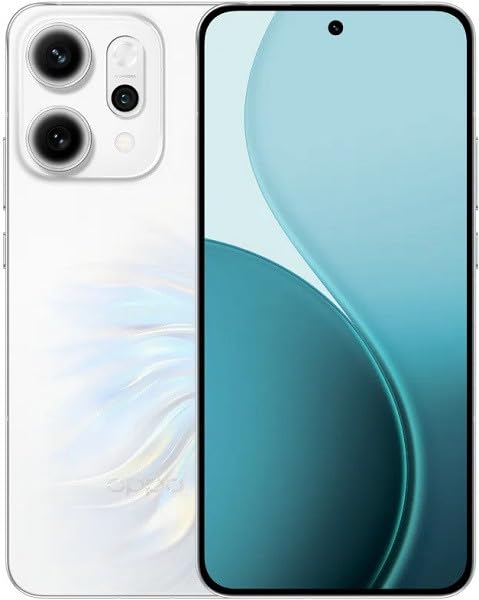
Image: OPPO Reno 14 5G smartphone and typical package contents. This image provides a general overview of the device and what you might find in the box.
1.2 Inserting the SIM Card
- Locate the SIM card tray on the side of your phone.
- Insert the SIM ejector tool into the small hole next to the tray and press firmly until the tray pops out.
- Place your Nano-SIM card(s) into the tray with the gold contacts facing down, ensuring they are correctly aligned. This device supports Dual SIM functionality.
- Carefully push the tray back into the phone until it clicks into place.
Note: Ensure the phone is powered off before inserting or removing SIM cards.
1.3 Initial Power On and Setup
- Press and hold the Power button (usually on the right side) until the OPPO logo appears.
- Follow the on-screen instructions to select your language, region, connect to Wi-Fi, and set up your Google account.
- You will be prompted to set up security features like a PIN, pattern, fingerprint, or face unlock.
1.4 Charging the Device
Before first use, it is recommended to fully charge your device.
- Connect the USB Type-C cable to the charging port at the bottom of the phone.
- Connect the other end of the cable to the power adapter, then plug the adapter into a power outlet.
- The charging indicator will appear on the screen.
2. Operating Your Device
Learn how to navigate and use the core functions of your OPPO Reno 14 5G.
2.1 Basic Navigation
- Power Button: Press to turn the screen on/off. Press and hold to power off or restart.
- Volume Buttons: Adjust media volume, call volume, or ringtone volume.
- Touchscreen Gestures: Swipe up for app drawer, swipe down for notifications/quick settings, pinch to zoom, tap to select.
2.2 Making Calls and Sending Messages
- Calls: Open the Phone app, enter the number or select a contact, then tap the call icon.
- Messages: Open the Messages app, tap the new message icon, enter the recipient and your message, then tap send.
2.3 Camera Usage
Your OPPO Reno 14 5G features a high-quality camera system.
- Open the Camera app from your home screen or app drawer.
- Select your desired mode (Photo, Video, Portrait, Night, etc.).
- Tap the shutter button to capture a photo or start/stop recording a video.
- Tap on the screen to focus on a specific area.
2.4 Connecting to Wi-Fi and Bluetooth
- Wi-Fi: Go to Settings > Wi-Fi, turn Wi-Fi on, select your network, and enter the password if required.
- Bluetooth: Go to Settings > Bluetooth, turn Bluetooth on, select the device you wish to pair with from the available devices list.
3. Maintenance
Proper maintenance ensures the longevity and optimal performance of your device.
3.1 Cleaning Your Device
- Use a soft, lint-free cloth to wipe the screen and body.
- Avoid using harsh chemicals, abrasive materials, or aerosol sprays.
- Do not expose the device to excessive moisture.
3.2 Software Updates
Regularly check for and install software updates to enhance security, stability, and introduce new features.
- Go to Settings > About device > Up to date (or similar path depending on ColorOS version).
- Follow the on-screen instructions to download and install any available updates.
3.3 Battery Care
- Avoid extreme temperatures, which can degrade battery life.
- Use only the original OPPO charger and cable or certified compatible accessories.
- Do not let the battery completely drain frequently.
3.4 Storage Management
To maintain optimal performance, regularly manage your device's storage.
- Go to Settings > Storage to view storage usage.
- Delete unnecessary files, apps, and clear cache data.
- Consider backing up photos and videos to cloud storage or an external device.
4. Troubleshooting
This section addresses common issues you might encounter with your OPPO Reno 14 5G.
4.1 Device Not Turning On
- Ensure the battery is charged. Connect the charger and wait a few minutes before attempting to power on.
- Perform a forced restart: Press and hold the Power button and Volume Up button simultaneously for about 10-15 seconds until the OPPO logo appears.
4.2 Network Issues (No Signal, Cannot Make Calls)
- Check if the SIM card is correctly inserted.
- Ensure Airplane Mode is off (swipe down from the top for Quick Settings).
- Restart the device.
- Go to Settings > Mobile network and check network settings.
4.3 Apps Crashing or Freezing
- Close the app and reopen it.
- Clear the app's cache: Go to Settings > Apps > [App Name] > Storage usage > Clear cache.
- Update the app from the Google Play Store.
- If the issue persists, uninstall and reinstall the app.
4.4 Factory Reset (Last Resort)
Warning: A factory reset will erase all data on your phone. Back up important data before proceeding.
- Go to Settings > System settings > Back up and reset > Reset phone.
- Select Erase all data.
- Confirm your decision and enter your lock screen password if prompted.
5. Specifications
Key technical specifications for the OPPO Reno 14 5G CPH2737.
| Feature | Specification |
|---|---|
| Brand | OPPO |
| Model | Reno 14 5G (CPH2737) |
| Memory Storage Capacity | 256 GB |
| RAM Memory Installed Size | 12 GB |
| Display Type | AMOLED |
| Cellular Technology | 5G |
| Connectivity Technology | 5G |
| SIM Card Slot Count | Dual SIM |
| Form Factor | Bar |
| Wireless Service Provider | Unlocked |
| Color | White |
6. Warranty and Support
Information regarding your product's warranty and how to obtain support.
6.1 Product Warranty
Your OPPO Reno 14 5G is covered by a limited manufacturer's warranty. The specific terms and duration of the warranty may vary by region and local laws. Please refer to the warranty card included in your product packaging or visit the official OPPO website for detailed warranty information.
The warranty typically covers defects in materials and workmanship under normal use. It does not cover damage caused by accidents, misuse, unauthorized modifications, or normal wear and tear.
6.2 Customer Support
If you encounter any issues that cannot be resolved using the troubleshooting steps in this manual, or if you require further assistance, please contact OPPO customer support.
- Online Support: Visit the official OPPO website and navigate to the 'Support' section for FAQs, online chat, and service center locations.
- Telephone Support: Refer to your region-specific OPPO website or the quick start guide for local customer service contact numbers.
- Service Centers: For hardware-related issues, you may need to visit an authorized OPPO service center. Check the official website for the nearest location.
When contacting support, please have your device's model number (CPH2737) and IMEI number ready. The IMEI can usually be found by dialing *#06# on your phone's dialer, on the product packaging, or in Settings > About device > Status.


